
Watch: General Settings
Learn how to configure general system settings
Watch: General Settings
Learn how to configure general system settings
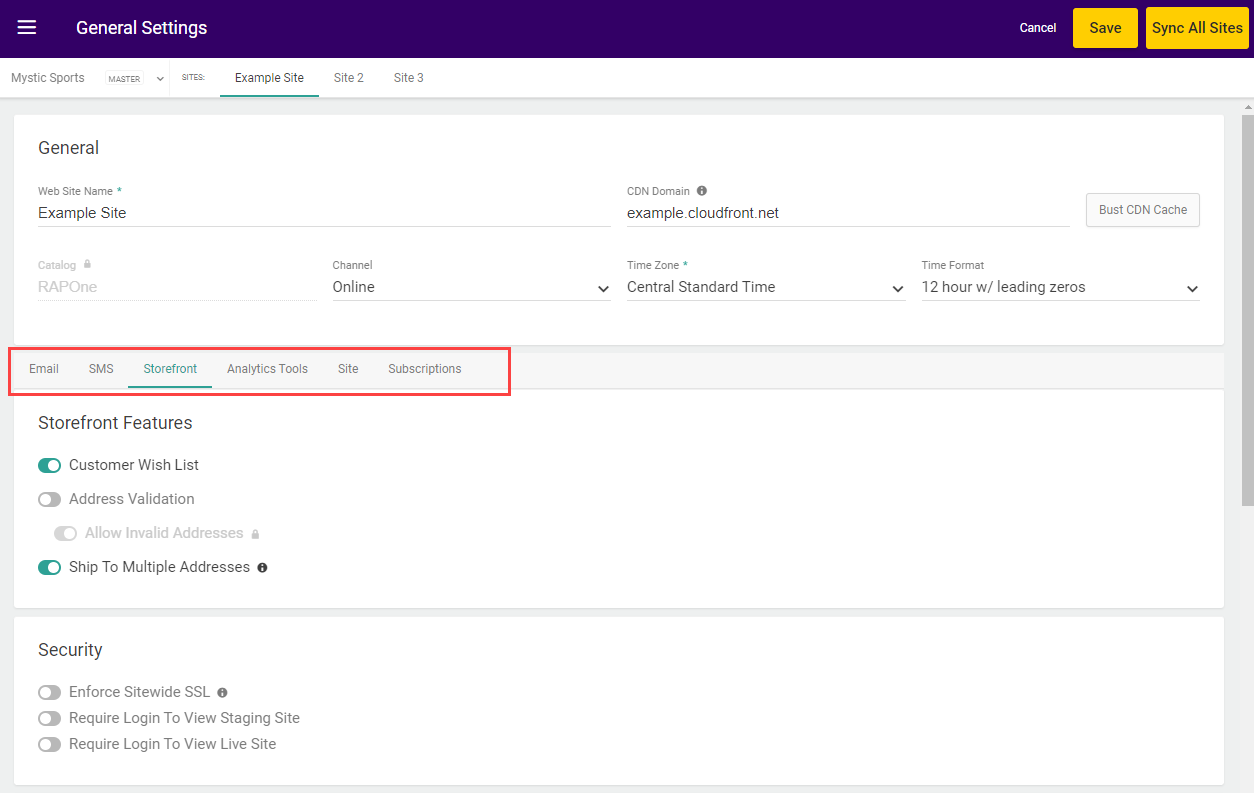
General Site Settings
These settings at the top of the page are your fundamental site settings.
Then, emails are organized into the below topics that allow you to toggle any emails used across the Kibo Composable Commerce Platform. To override the sender and reply-to defaults for an email template, click the pencil icon next to that email’s toggle. Some emails, such as Subscriptions, may not be available if your implementation is not enabled for that feature.
Order Emails
The emails included in the Orders topic are:Returns Emails
The emails included in the Returns topic are:B2B Emails
The emails included in the B2B topic are:Shipment Emails
The emails included in the Shipment topic are:Subscription Emails
The emails included in the Subscription topic are:Miscellaneous Emails
The emails included in the Miscellaneous topic are:Storefront
The Storefront tab is divided into groups of Storefront Features, Security, Google reCAPTCHA, and SEO configurations.Storefront Features
The settings included in the Features topic are:Security
The settings included in the Security topic are:Google reCAPTCHA
Enter a Site Key, Secret, and Validity Score requirement in this section’s provided fields before enabling reCAPTCHA:SEO
In this section, you can provide a default image that will display when any other image is broken or not found, or upload your own robots.txt file:Analytics Tools
In this tab, you can configure your Google Analytics settings and enter Google Account information.Site
This section has a number of fulfillment configurations that will be applied across your entire site and its fulfillment locations.Payment Capture Settings
This section configures auto capture, flexible auto capture, and payment ranking.Backorder Settings
This section configures backorder jobs and defaults. Some fields may not be editable to admins.Future Shipment Release Settings
This section configures the early release of Future shipments when current inventory becomes available at their assigned location before the scheduled future date.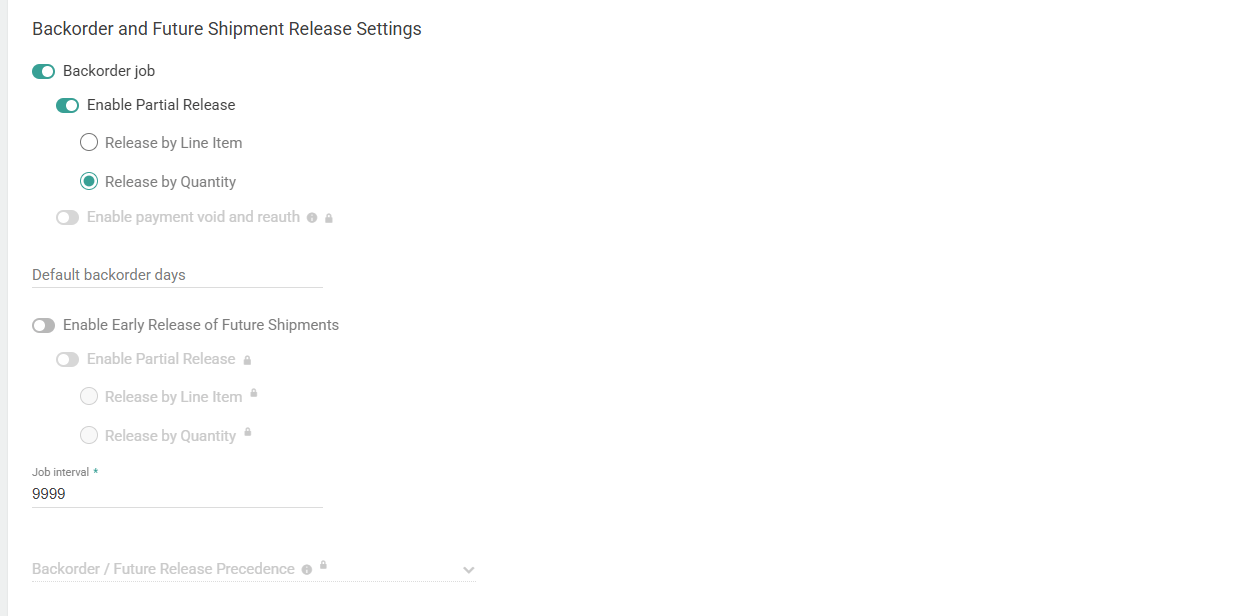
Return Settings
This section configures return defaults and preferences.Fulfillment Settings
This section determines default rejection actions, whether to enable shipment edits, and pickup reminder jobs.Transfer Settings
This section allows you to enable BOPIS transfers and Consolidation.Inventory Settings
This section allows you to enable how inventory is managed.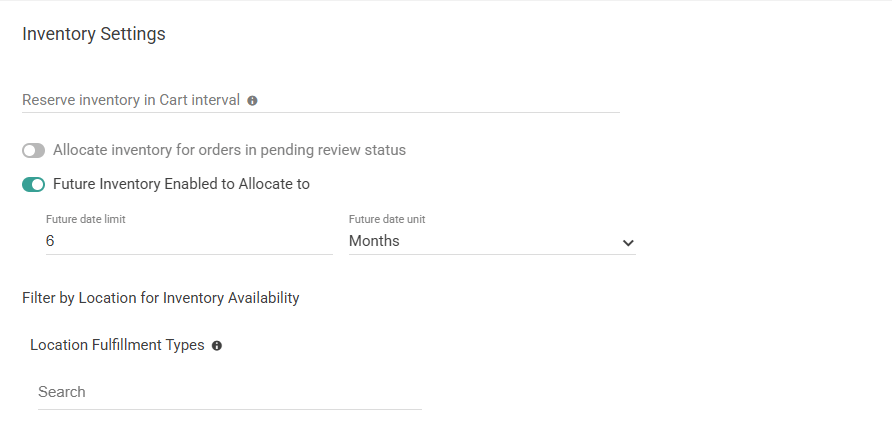
Tax Settings
This section determines what tax adjustments are allowed in the Order Admin.Other Settings
This section includes other miscellaneous settings.Subscriptions
In this tab, you can determine preferences for subscription continuity orders and other actions.B2B
This section contains settings for B2B Wholesale OMS — Kibo’s wholesale distribution order management capabilities. These settings are available only for tenants with the B2B Wholesale OMS feature enabled. Contact Kibo Support to enable this capability.Note: Changes to these settings take effect on the next Orchestrator pass after saving. An in-progress pass is never interrupted by a configuration change.
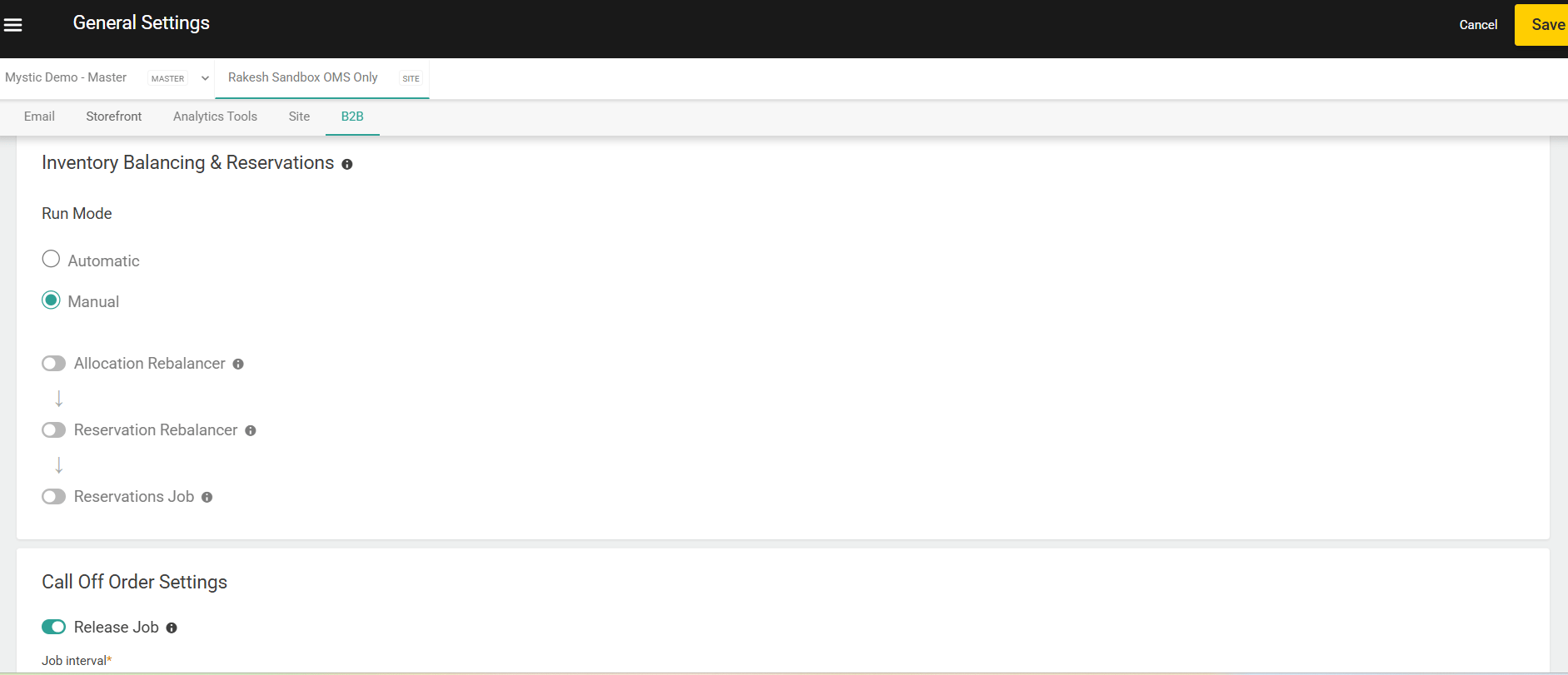
Inventory Balancing & Reservations
The Inventory Balancing & Reservations section configures the Orchestrator — a coordinated scheduler that runs Kibo’s B2B inventory maintenance jobs in a fixed, defined sequence on every pass. Rather than managing each job separately, the Orchestrator gives operators a single configuration surface that runs all enabled jobs in the correct order every time. On every scheduled Orchestrator pass, the enabled jobs run in the following fixed order:
Disabled jobs are skipped without affecting the relative order of the remaining jobs. All three jobs default to Disabled on first setup.
Note: The fixed order applies to the scheduled Orchestrator pass in Automatic run mode — on every pass, the enabled jobs execute in this sequence within a single run. In Manual run mode there is no scheduled pass: each job is triggered individually on demand and runs only its own capability. See Run Mode and Schedule below.
Run Mode and Schedule
The Run Mode setting governs the entire Orchestrator pass. It applies to all three jobs together — you cannot set different run modes for individual jobs. The per-job toggles below control whether a job participates in a pass; Run Mode controls when passes happen.
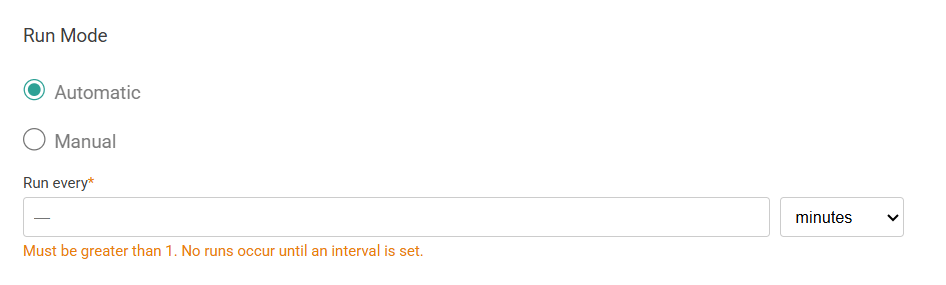
Automatic — runs on a recurring schedule. The Orchestrator starts a pass automatically at every Run Every interval, and each pass executes every enabled job in the fixed order. On-demand triggering is unavailable in this mode: the Run Rebalancer buttons are hidden, and on-demand trigger requests are rejected.
Manual — runs on demand only. No pass runs automatically; the recurring schedule is suspended for all three jobs. Each capability is triggered individually, and each trigger runs only its own capability — it never chains into the other jobs:
- Allocation Rebalancer — click Run Rebalancer on the Allocation Rebalancer UI page.
- Reservation Rebalancer — click Run Rebalancer on the Reservation Rebalancer UI page.
- Reservations Job — click Run Reservation Rules in the Reservation Rules UI
Note: In the Rebalancer Run Audit page, runs started by the Automatic schedule are labeled Scheduled, and operator-triggered runs are labeled Manual (the Run Mode filter offers All / Scheduled / Manual). “Scheduled” and “Automatic” refer to the same recurring schedule configured here.
Allocation Rebalancer
Toggle Allocation Rebalancer on to enable this job and reveal its sub-settings. When enabled, the Allocation Rebalancer detects supply and demand change events and automatically rebalances future shipments and backorder queues in response. See Allocation Rebalancer for a full description of how this job works.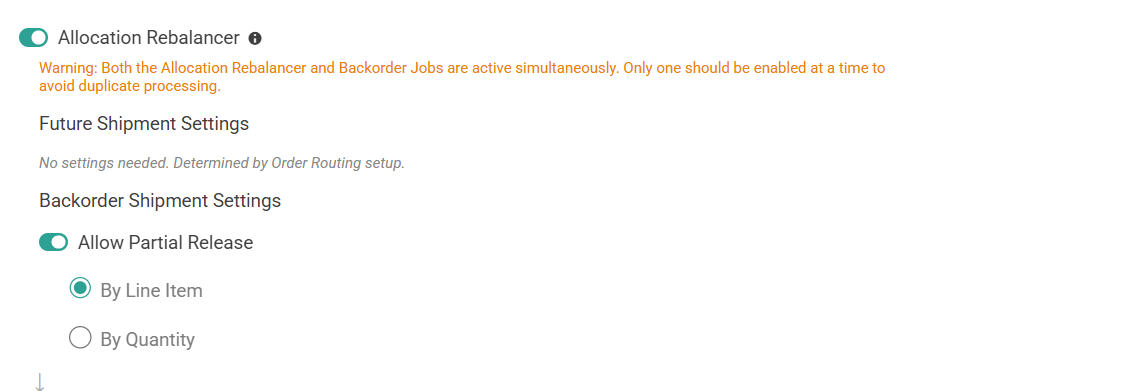
Future Shipments
Future shipment rebalancing behavior is determined by your Order Routing configuration and your configured Future Shipment Rules. There are no additional settings for future shipments within the Orchestrator.
Reservation Rebalancer
Toggle Reservation Rebalancer ON to enable this job and reveal its sub-settings(ship Date Buffer). When enabled, the Reservation Rebalancer detects supply and demand change events and re-secures impacted reservations in response. See Reservation Rebalancer for a full description of how this job works. Ship Date Setting: Ship Date Buffer is a hard, engine-enforced guarantee that supply may only be stolen from a Call-Off Order whose ship date is strictly later than the Seeker’s ship date, by at least the configured Ship-Date Buffer (in days).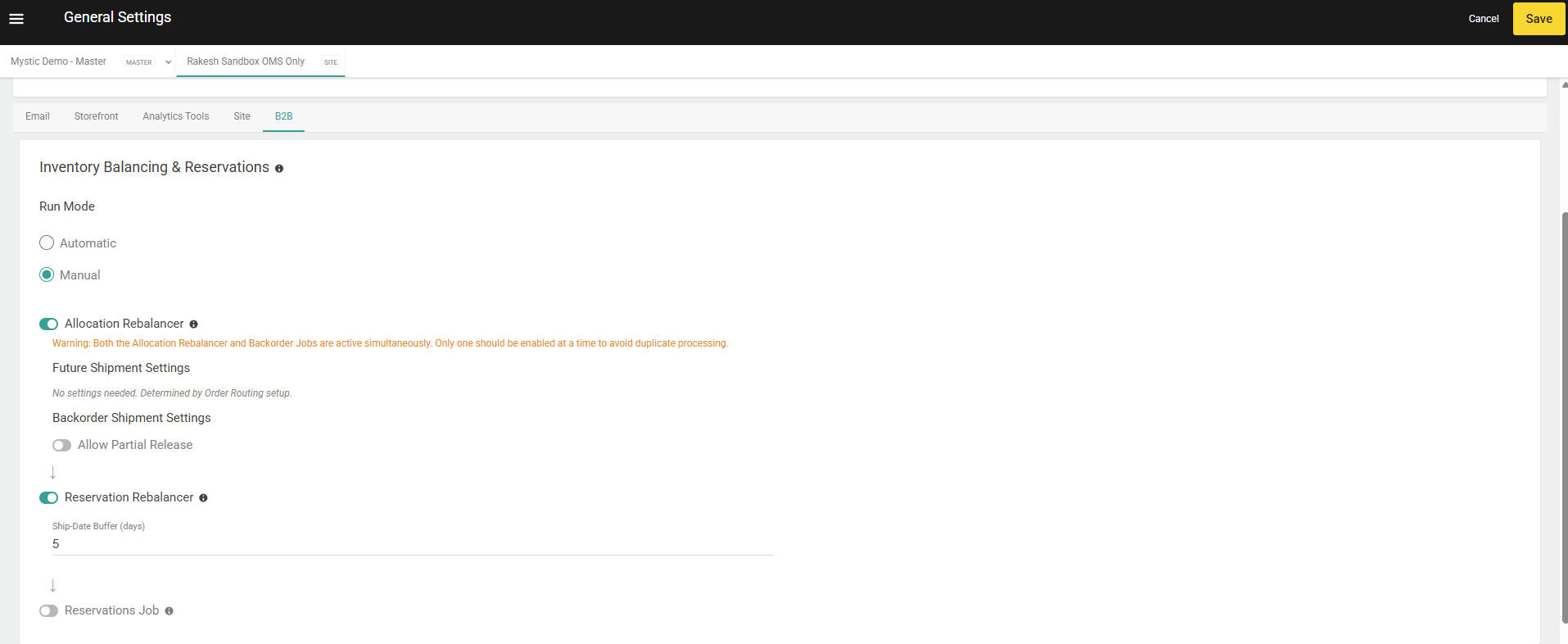
Reservations Job
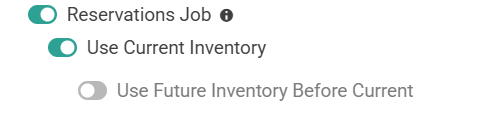
Toggle Reservations Job on to enable this job and reveal its sub-settings. When enabled, the Reservations Job runs as the final step in the Orchestrator sequence, soft-allocating inventory against Call-Off Orders in Hold or Partially Reserved status based on your configured Reservation Rules. See Reservations for a full description of how this job works.