

Prerequisites
Inventory Audit Logs must be enabled for your tenant. Audit logging is not generated automatically — it is an opt-in capability. Contact Kibo Support to enable it.How Audit Logging Works
What the Audit Log Records
When enabled, the audit log records every inventory event for your tenant, for the following operation types:- Refresh — inventory updates submitted by an Admin UI , integration or import job.
- Adjust — manual or API-driven quantity adjustments, including Admin UI edits.
- Delete — inventory record deletions.
- Import — changes applied by an inventory import job.
- Allocate / Deallocate — order/shipment-driven allocation and release of inventory.
- Fulfill — fulfillment events.
- Safety Stock Adjustment — changes to safety stock levels.
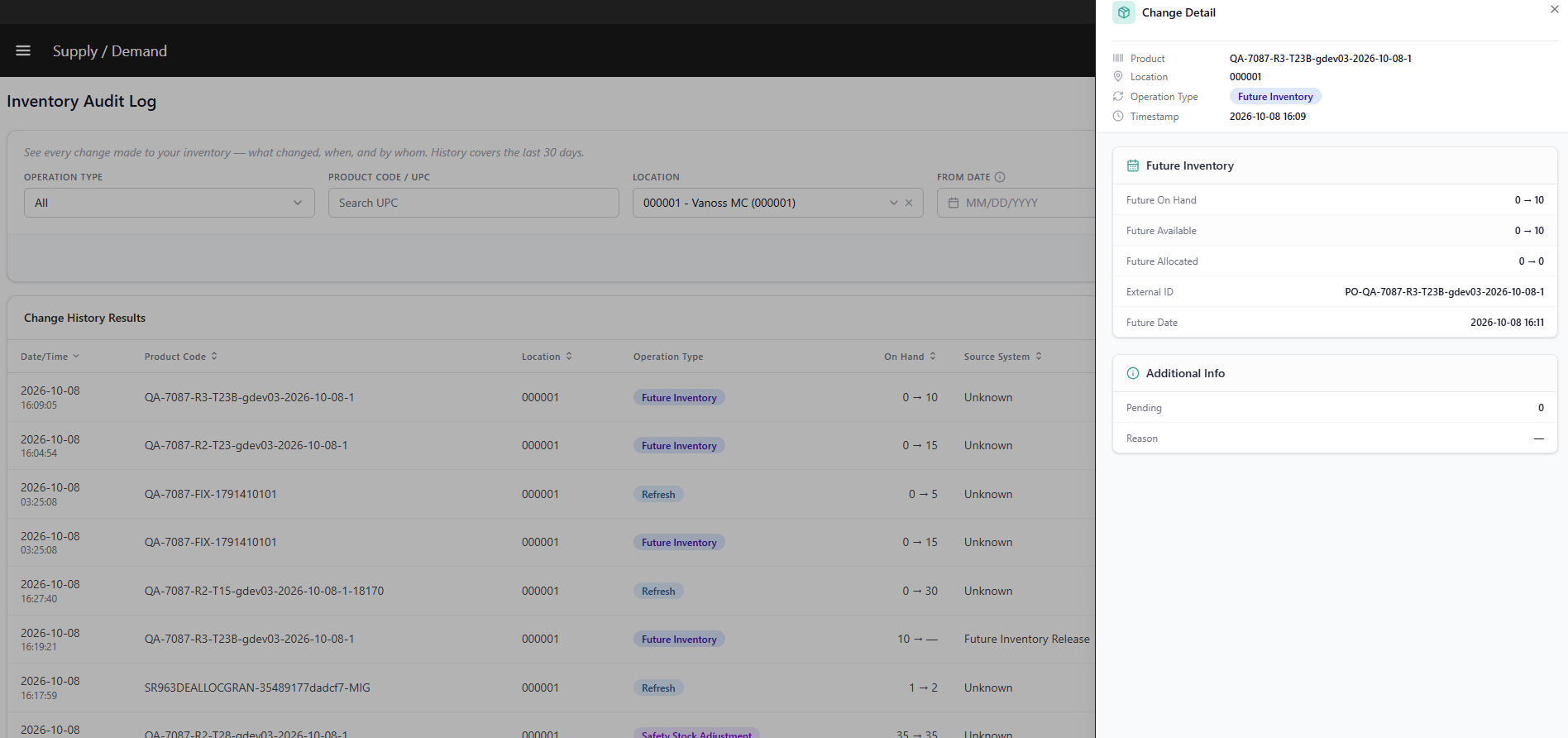
- Future Inventory — future inventory record creation, delivery date changes,
allocation, release, deallocation, and deletion. - Pending Item — pending item release events.
Attribution
Each audit entry records who or what initiated the change:View the Inventory Audit Log
- Go to Main > Supply > Inventory > Audit Logs.
- Enter a Product Code / UPC / Variant Product Code or select a Location. A product or location value is required before a search can run.
- Apply optional filters:
- Date range — maximum selectable range: 30 days.
- Operation Type — Refresh, Adjust, Delete, Import, Allocate, Deallocate, Fulfill, Safety Stock Adjustment, Future Inventory, or Pending Item.
- Source System, Source Action, or User ID — filter by attribution.
- Click Search. Results display sorted by timestamp, most recent first.
Note: Results are paginated. Use the pagination controls to display 25, 50, 100, or 200 rows per page.
Grid Columns
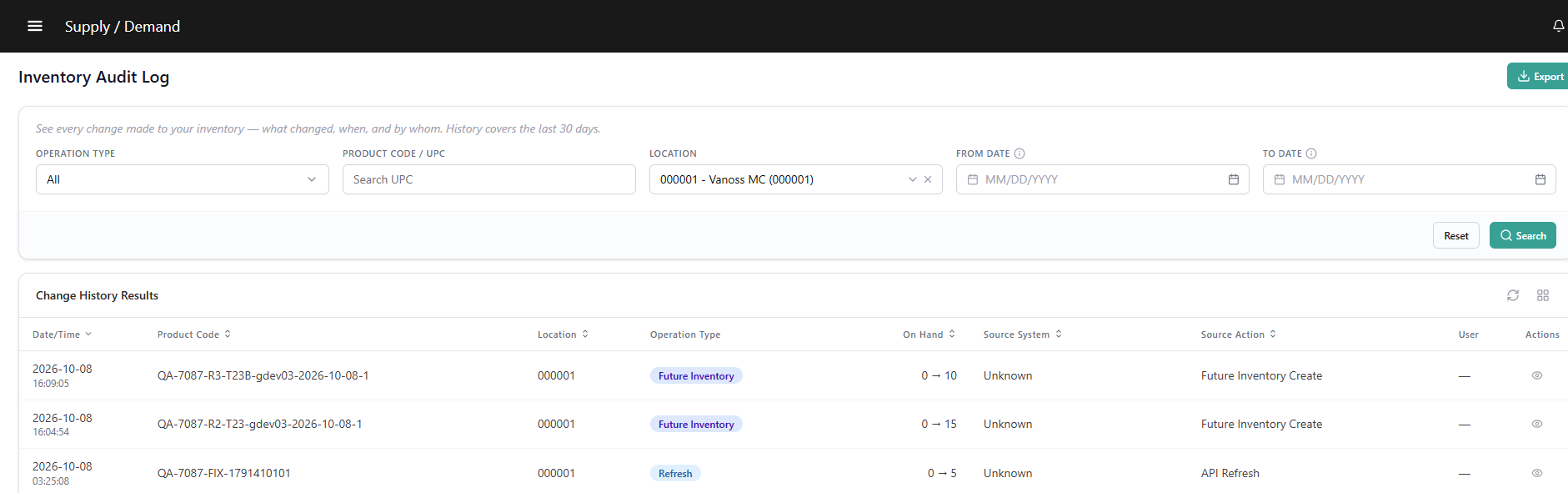
Audit Entry Details
Click any row to open the detail drawer. The drawer contains three sections; the sections shown depend on the type of event: Quantities — for current inventory events: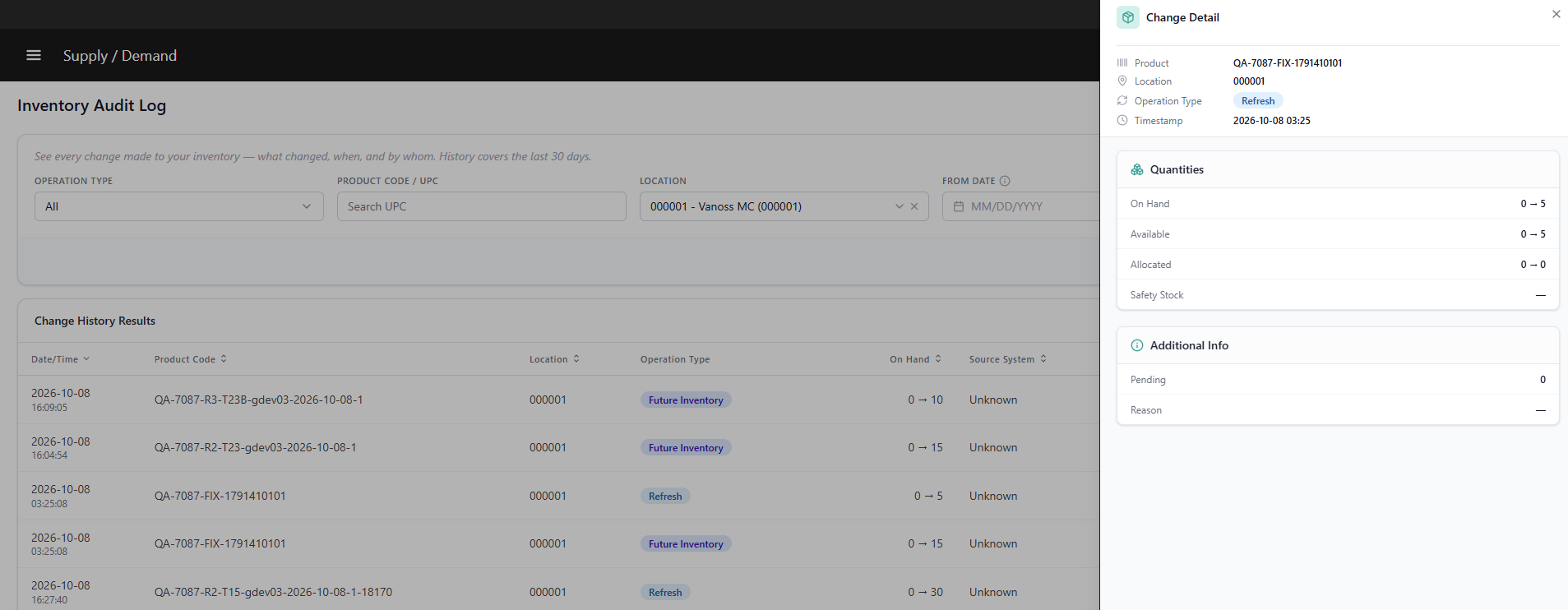
Export the Audit Log
- Apply the filters you want to export (the export respects active filters).
- Click Export to download the filtered result set as CSV/Excel.
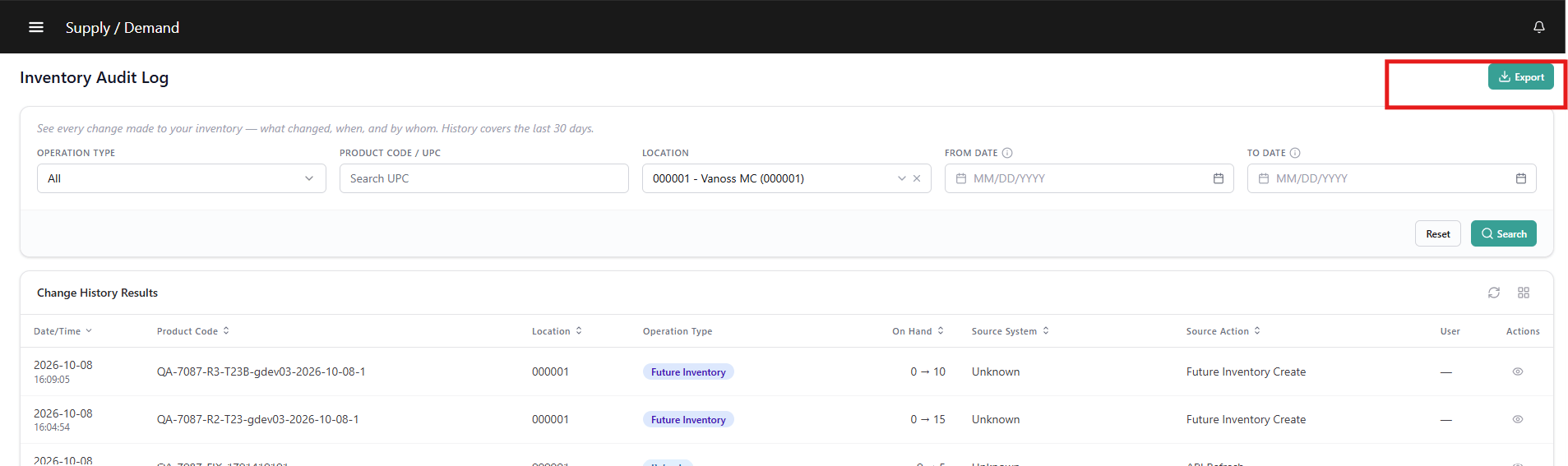
Note: Exports are limited to a maximum 30-day date range, aligned with the retention period. Exports of very large result sets are generated asynchronously; you will receive a download link via notification when the file is ready.