The Quote Process
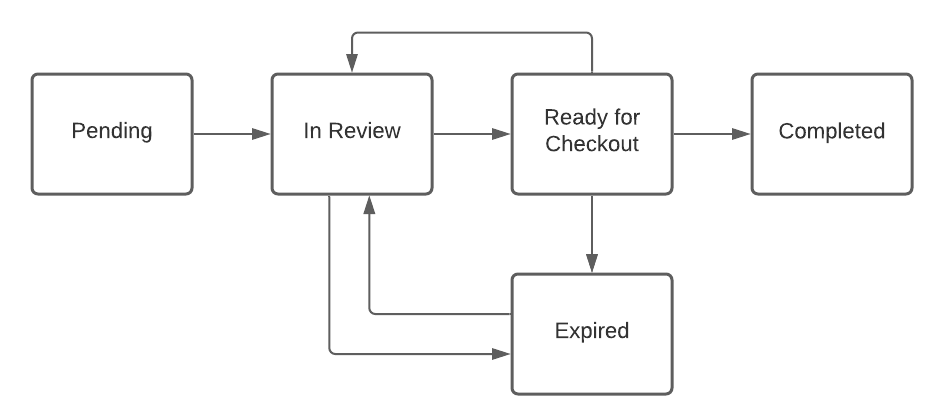
When a quote is submitted by a buyer, it goes through a review process that allows the seller the override the product pricing and negotiate changes. The buyer can select their desired products and shipping options, and the seller may adjust the pricing until the buyer is satisfied, opts to cancel, or lets the quote expire. Inventory is reserved for the buyer based on the items in the quote. Once the quote is expired or canceled, then the inventory is released. During this process, the quote can move through the following statuses. Email notifications are sent to the buyer and seller whenever the quote changes status.- Pending: The buyer has begun creating the quote request but it has not yet been submitted to the seller OR the seller has created a quote for the buyer. Buyers and sellers can edit or delete the quote.
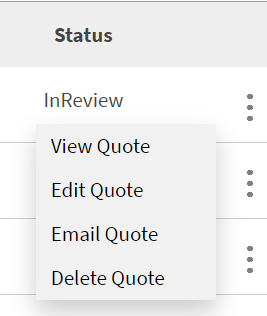
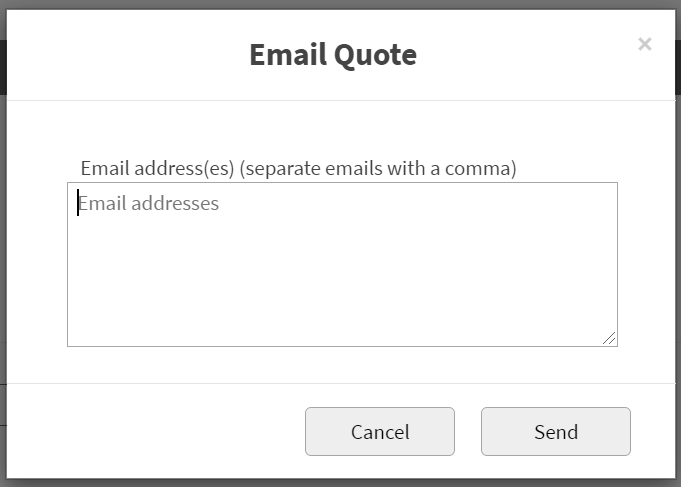
- In Review: The buyer has submitted the quote for the seller to review. This could be either a newly created quote or one that the buyer made changes to from the Ready for Checkout state. Only sellers can edit the quote, though both buyers and sellers can delete or email it.
- Ready for Checkout: The seller has approved the quote (with or without changes) and it is ready to be turned into an order. Buyers can either checkout or send the quote back for review with additional changes. Either party can delete or email the quote.
- Completed: The quote has been turned into an order with one or more items and billing/shipping information and has been submitted for validation. It can no longer be edited or emailed but can still be deleted or copied.
- Expired: The quote has reached its expiration date as set on the committed version of the quote. The quote can still be deleted, emailed, or returned to In Review, but not copied.
View Quotes
Quotes can be viewed by both buyers and sellers on their storefront account. Sellers can view the quotes of all B2B accounts that they are assigned to as a sales representative, while buyers can only view quotes for the B2B account that they are logged into. The Quotes table allows the results to be searched and/or filtered by account, quote number, quote name, date, and current status. Click a column heading in the table to sort the quotes by that column in ascending or descending order.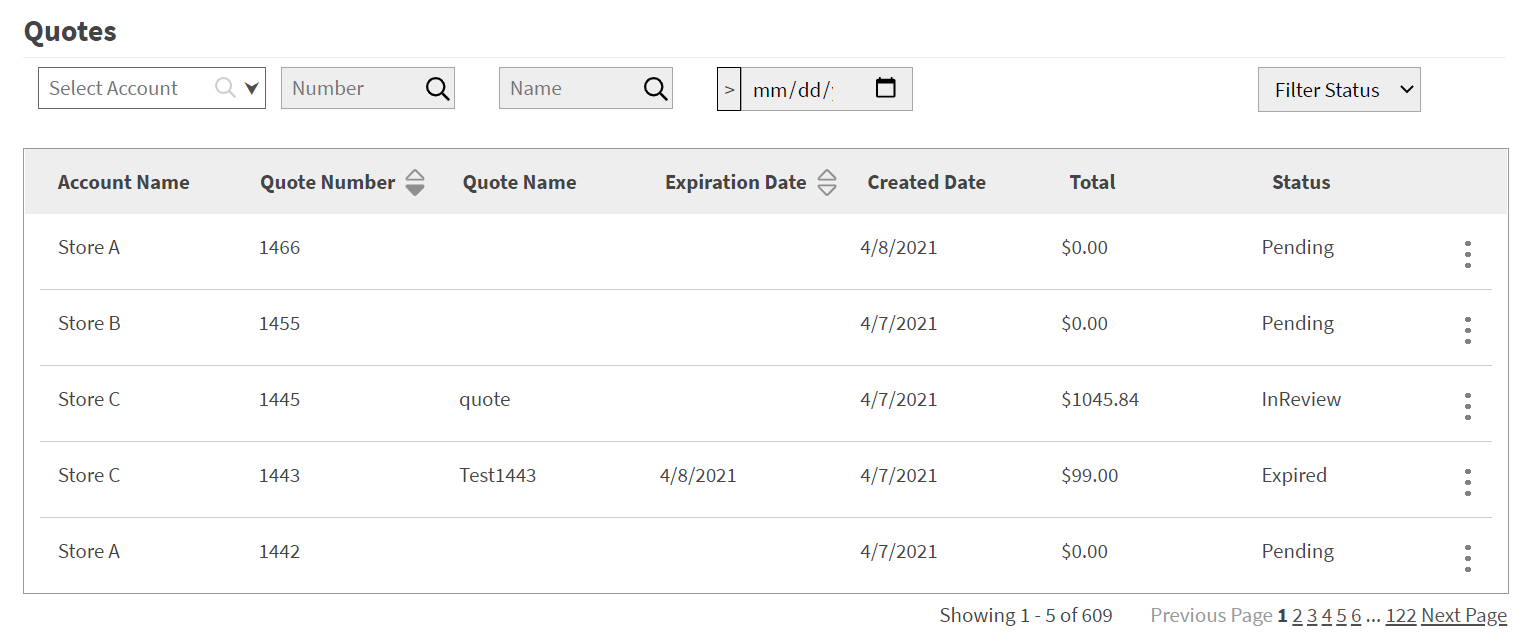
Create a New Quote
Both buyers and sellers can click Create Quote above the quotes table to begin building a new quote. Sellers have the option to search by account, allowing them to create a quote for any of the B2B accounts that they are a sales representative of. The buyer is not able to search accounts, as they can only submit quotes for their own account.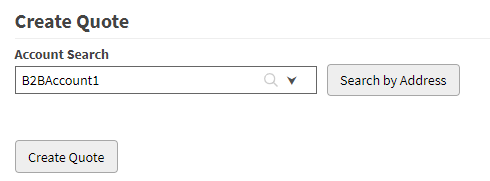

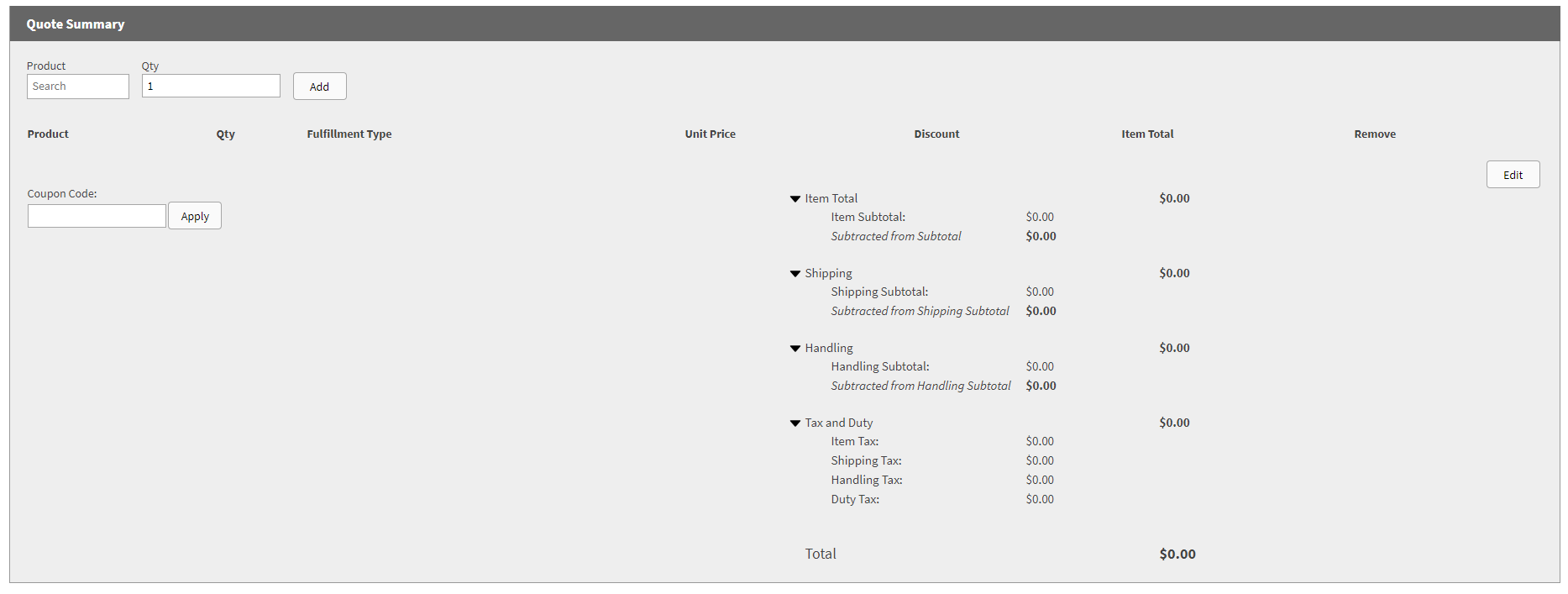
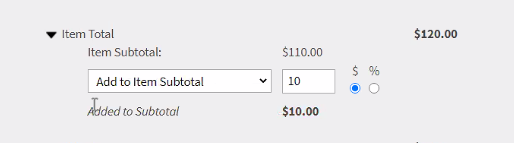
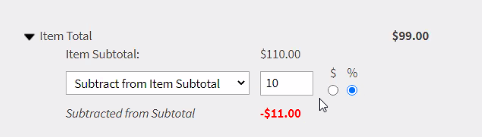
- Item is added/removed
- Item quantity is increased/decreased
- Item fulfillment type changes
- Unit Price changes
- Shipping method changes
- Shipping address changes
- Adjustment changes