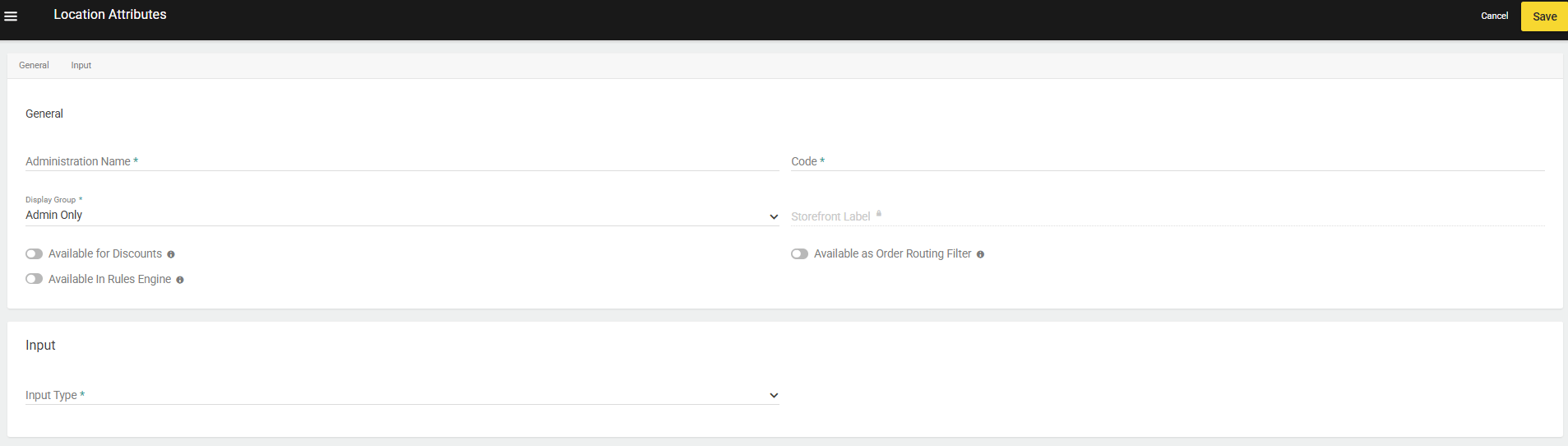
Create a Location Attribute
To create a location attribute:- Go to System > Schema > Location Attributes.
- Click Create New Location Attribute.
- Enter an Administration Name.
- Enter a Code that has meaning to you.
- Select a Display Group.
- Select an Input Type from the drop-down menu.
- If you choose list, select a Data Type and enter a selection option in the Add Value or Label:Value field and then select the position in the list for that option.
- When adding a selection option, you must add a label and a value separated by a colon. For example: “front doors:3.”
- If you select Number for Data Type, you must enter a number for the value in the Add Value or Label:Value field.
- If you choose Text box, select a Data Type. Optionally, you can define input parameters in the Min char/val and Max char/val fields.
- If you choose Text area, you can optionally define a Max char/val value.
- If you choose Date, you can optionally define a start and/or end date for the selectable range.
- If you choose List, you can optionally check Allow Multi select to enable selecting more than one value when configuring a location.
- If you choose list, select a Data Type and enter a selection option in the Add Value or Label:Value field and then select the position in the list for that option.
- Toggle on Available for Discounts if you want this attribute to be available for use in discount conditions.
- Available for Rules: If enabled, this attribute can be used as a condition in rule criteria . The setting is disabled by default and applies across all rule types.
- Select Save.