

Watch: Supply/Demand - Future Inventory
See how to search incoming supply, switch between table and calendar views, create future inventory records, and update expected dates
- Available to Promise = Available + Future
Enable Future Inventory
In order to allocate against future inventory, you must enable it in both your site settings and the item level.Enable for Site
To enable future inventory on your site:- Go to System > Settings > General.
- In the Site section, locate the Future Inventory Settings.
- Toggle Future Inventory Enabled to Allocate to on.
- Set the Future Date Limit you want to consider future inventory for. Only the amount within this date limit will be calculated into the quantity available to promise.
- For example, if you have a view of inventory for 12 weeks from the current time then you can choose to allocate future inventory for just the next 4 weeks.
- Set the Future Date Unit. This can be days, weeks, or months.
- Click Save.

Enable for Products
After enabling future inventory for your site, you can enable it for individual products either in the Admin UI’s product attributes or the Create Order API. To enable it via the Admin UI:- Go to System > Schema > Product Attributes.
- Click Create New Attribute and configure a new property called “future-inventory-enabled” with a Yes/No input type. See the Property Attributes documentation for more details about creating attributes.
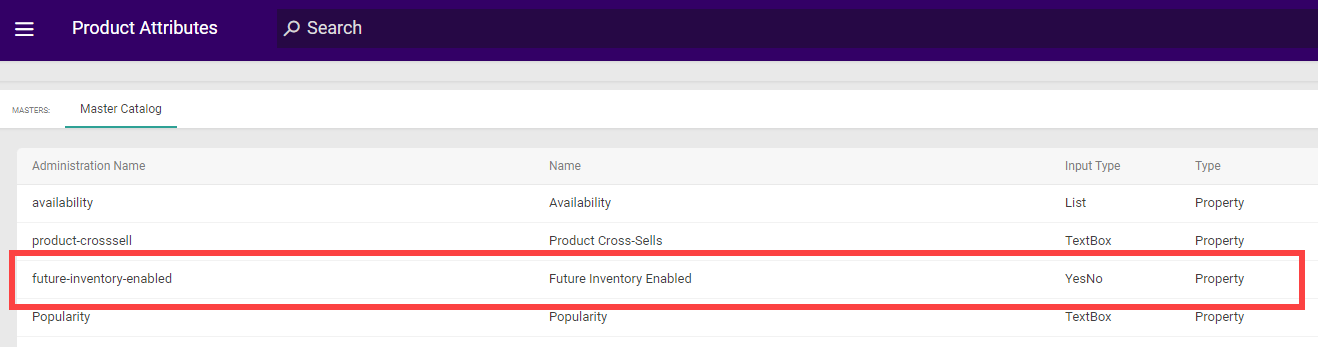
- Go to System > Schema > Product Types.
- Select a product type or create a new product type.
- Note that this functionality is only supported for product types with the Standard Product, Configurable Product with Options, or Bundle Components usage.
- In the Properties section, click Add and then select the future-inventory-enabled attribute.
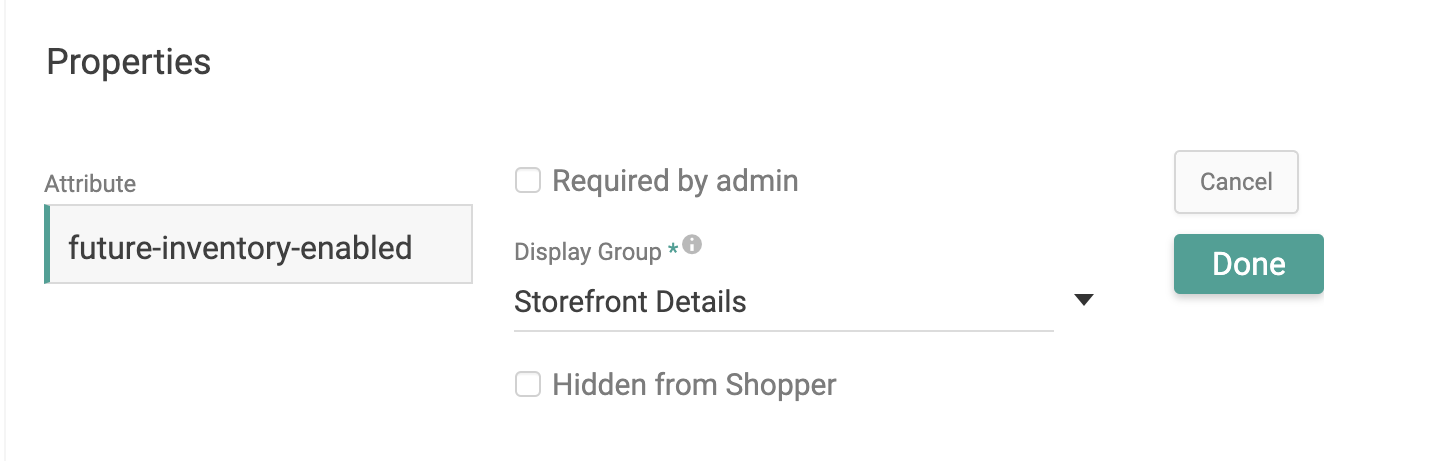
- Set the Display Group to “Storefront Details.”
- Click Done and then save the product type.
- Go to Main > Catalog > Products.
- Select a product of the appropriate product type or create a new one.
- In the Properties section, set future-inventory-enabled to true. It is false by default. If you selected a product type of Configurable Product with Options, this will only be set on the base product and then inherited by all product variants.

- Click Save.
properties in an order item’s items array to define the “future inventory enabled” property as shown below:
Future Inventory Settings
Two tenant-level settings control how future inventory behaves when its expected date arrives. These settings are configured in the new Inventory UI and apply to your entire tenant, because future inventory records exist at the tenant level and cannot be scoped to individual sites. To configure the future inventory settings:- Go to Main > Supply > Inventory > Inventory Settings.
- In the Future Inventory section, configure the following settings:
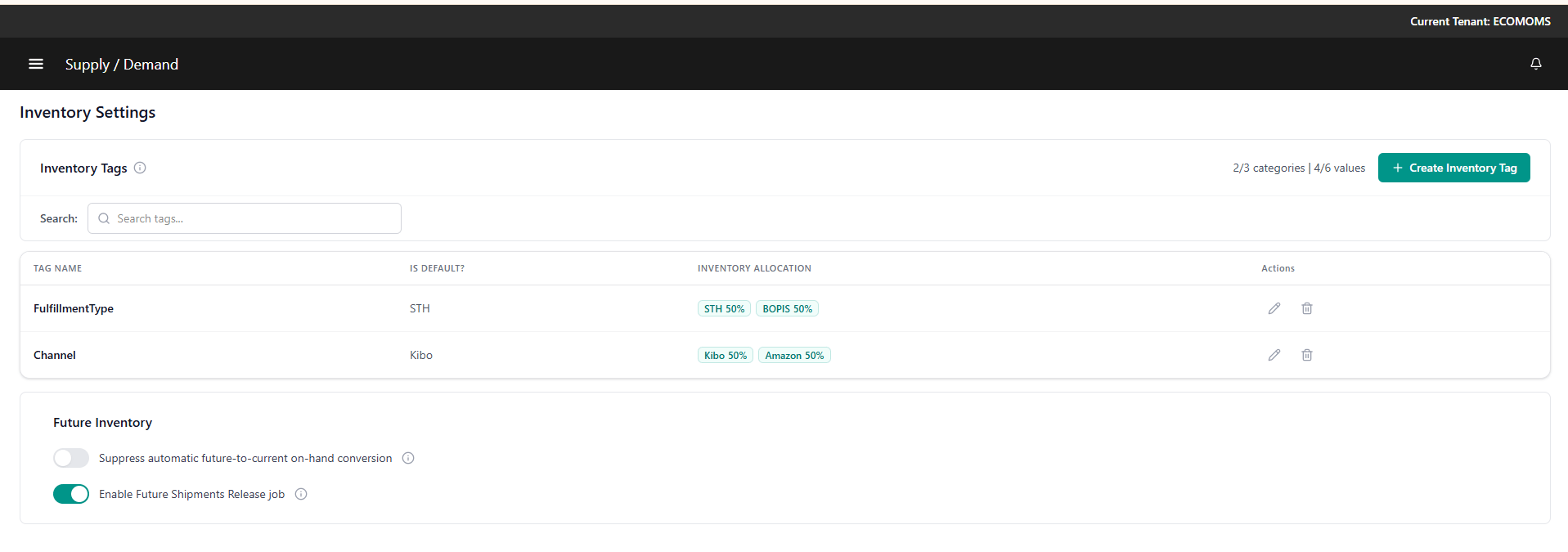
Suppress Automatic Conversion
By default, when a future inventory record’s expected date arrives, Kibo converts its quantity into current on-hand inventory and the associated Future shipments move to Ready. If your ERP or WMS also sends Kibo an inventory update when those same units are physically received, the same units are counted twice — once by Kibo’s automatic conversion and once by your inventory feed. Toggle Suppress automatic future-to-current on hand conversion on to eliminate the double count. When on:- Kibo does not add on-hand inventory from the future record on its expected date. On-hand inventory arrives only through your inventory feed.
- The future inventory record is retired on its expected date so it no longer counts toward future available-to-promise and cannot double-count against feed-supplied current inventory.
- Associated Future shipments still move to Ready on the expected date. If your inventory feed has not yet reported the stock, the shipment is anchored in place: it is not rerouted, and it automatically allocates the stock as soon as your feed adds it. No new order can take that stock in the meantime.
- If your feed never reports the stock, the shipment remains anchored indefinitely.
Important: When suppression is on, client needs to make sure inventory feed accurately reporting physical receipts. Kibo does not convert future inventory to on-hand.
Enable Future Shipments Release
The Enable Future Shipments Release setting controls the background job that moves Future shipments to Ready status when their expected date arrives. The job runs at regular platform-managed intervals.Important: This job was previously always enabled behind the scenes with no client control. If you use future inventory, you must turn this setting on — otherwise your Future shipments will not automatically move to Ready on their scheduled date.
Set Future Inventory Records
You can set up future inventory records to be unique by their UPC-Location-Future Delivery Date or their UPC-Location-External ID. This means that if your delivery dates are not unique, then an external ID is needed to differentiate between records. External IDs may also be especially beneficial if you use purchase order numbers that you want to apply to future inventory. For example, if you have three future inventory updates for the same product on August 7 and do not have unique delivery date-times, then external IDs of PO1, PO2, and PO3 could identify each record. If your future date-times are unique such as 10:00, 2:00, and 5:00, then you will not need an external ID to tell the records apart. You can use REST APIs or flat file import to set future inventory levels. Kibo will perform updates based on what information you provide. If you have set up your records to be unique based on external ID, the following behavior will be performed.- If both an External ID and Delivery Date are provided: If a record for that ID already exists, then the existing delivery date and quantity will be updated to the new values. If one does not exist, a new record will be created.
- If only an External ID is provided: If a record for that ID already exists, the quantity will be updated. If one does not exist, then it will return an error. If you want to create a new record, you must provide both the ID and a delivery date.
- If a Delivery Date is provided: If a record for that delivery date already exists, the quantity will be updated. If one does not exist, then a new record is created.
File Import
Follow the steps outlined in the Inventory Import File guide to build a .CSV or XML file of your inventory data. For future inventory records, provide a delivery date and/or external ID such as in the below example:
Inventory APIs
Use the Refresh and Adjust APIs to set inventory records in place of the file import if desired, such as in the below example that includes both thedeliveryDate and externalId fields. You can then use the Adjust Future Date API to change the incoming date of existing records as needed.
Orders with Future Inventory
When assigning orders to fulfillment locations, current inventory is always prioritized before future incoming inventory. When considering future inventory, the following logic is used:- BOPIS: Earliest available date at the selected BOPIS location.
- STH: Order Routing will look for the earliest available date across locations.
Cart and Checkout Behavior
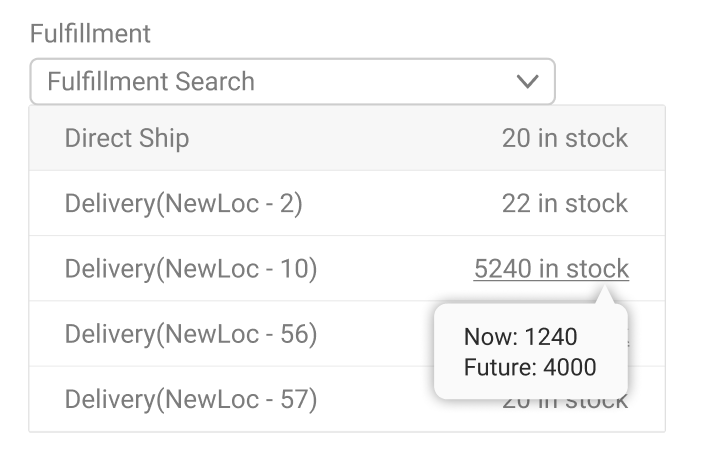
When an inventory check is done from a cart or checkout, the system will validate items against future inventory:- Items will not be considered Out of Stock if the total quantity can be satisfied by current and future inventory. They will only be Out of Stock if the sum of current and future inventory is less than the requested quantity.
- Backorderable items will not be placed into Backorder if the total quantity can be satisfied by current and future inventory. They will only be backordered if the sum of current and future inventory is less than the requested quantity.
- If the order includes reservation items, inventory can be reserved at a location as long as the sum of its available and future inventory meets the requested quantity. When the quantity in the cart is updated, then the reserved inventory will be deallocated or allocated as needed. (For BOPIS, the system will attempt to provide any needed inventory from the current stock at transfer locations first. If transfers are not enabled or there are no locations with current inventory, then the system will reserve from the pickup location’s future inventory.)
Shipment Behavior
Shipments that are created with future inventory begin in the Future status and cannot be fulfilled until inventory arrives at the location and the shipment moves into the Ready state. Shipments are moved from Future to Ready status on their scheduled future date by the Future Shipments Release job, which you enable with the Enable Future Shipments Release tenant setting. See Future Inventory Settings above. Future shipments can also be released early when current inventory becomes available at their assigned location — see Release Future Shipments Early. Future shipments always have a date associated with them to indicate when future inventory is arriving. The system will update shipments whenever their future inventory’s expected date or quantity changes, depending on the scenario:- If a future inventory record changes to a different delivery date, associated shipments will automatically update to match the new date (as long as it is not beyond the Future Date Limit). If only some shipment items change dates or the items change to two different dates, then the shipment is split based on those dates.
- If a future inventory record changes to a delivery date beyond the Future Date Limit setting, then those items on STH shipments are reassigned.
- If a future inventory record changes to a delivery date beyond the Future Date Limit setting, then those items on BOPIS shipments will be backordered. If any items in the shipment are not backorderable, then the shipment is split and those items will either be cancelled or sent to Customer Care (depending on your Action on BOPIS Reject site setting).
- If future inventory records change to a quantity of either 0 or an amount less than the required quantity on a shipment, then the unavailable quantity is turned into pending items on that shipment and will be allocated whenever inventory is available again. If the entire future inventory record (purchase order) is deleted while shipments are already allocated to it, the system automatically triggers the same reassignment process — see Cancelling a Future Inventory Purchase Order below.
- Cancelling a Future Inventory Purchase Order. If a purchase order (PO) that was represented as a future inventory record needs to be cancelled, you can delete that future inventory record via the API. The system handles this differently depending on whether any shipments were already allocated against that PO. If no shipments are allocated to the PO: Deleting the future inventory record removes it silently. No shipments are affected and no further action is taken. If shipments are already allocated to the PO: Deleting the future inventory record triggers automatic reassignment for all affected shipments. The system identifies which shipment lines were allocated against that PO and enters them into the standard reassignment flow — the same process that runs when inventory becomes unavailable for any other reason. You do not need to manually reassign these shipments. The reassignment flow applies to STH (Ship to Home) and Delivery shipments. For BOPIS shipments allocated to a cancelled PO, items will be backordered if backorder is enabled for that product, or split and cancelled/sent to Customer Care if it is not — consistent with the existing Action on BOPIS Reject site setting. What happens during reassignment: The system checks whether sufficient inventory (current or future) exists at any eligible location to fulfill the affected items. If inventory is found, the shipments are reassigned to that location. If no inventory is available, the items enter backorder and will be released when inventory becomes available — see Backorder Release for details.
- When a future inventory change causes a shipment’s date, location, or fulfillment state to change, the shipment’s Estimated Delivery Date is automatically recalculated or cleared to match.
Note that while the system automatically reassigns shipments when a future inventory PO is cancelled via the API (as described above), you cannot manually reassign Future shipments through the Order Admin UI
Release Future Shipments Early
By default, a Future shipment waits for its scheduled date even if current on-hand inventory appears at its location ahead of schedule — for example, from order cancellations, returns, restocks, or inventory refreshes. Previously, the only way to pull a Future shipment forward was to force fulfillment manually from the Order Admin UI. When the Enable Early Release of Future Shipments site setting is on, a background job periodically evaluates shipments in Future status and releases them early whenever current inventory at the shipment’s assigned location can cover them:- Full release: If current inventory at the assigned location covers the entire shipment, the shipment is released to Ready for immediate fulfillment.
- Partial release (Ship to Home and Delivery only): If current inventory covers only part of the shipment, the covered items or quantities move into a Ready shipment while the remainder stays in Future status on the original scheduled date. Partial release is controlled by the Enable Partial Release setting and the Release by Line Item / Release by Quantity options.
- BOPIS: Whole shipment only. A Future BOPIS shipment is released only when current inventory at its assigned pickup location covers the entire shipment —there is no partial release for BOPIS, and current inventory at other locations never triggers a release.
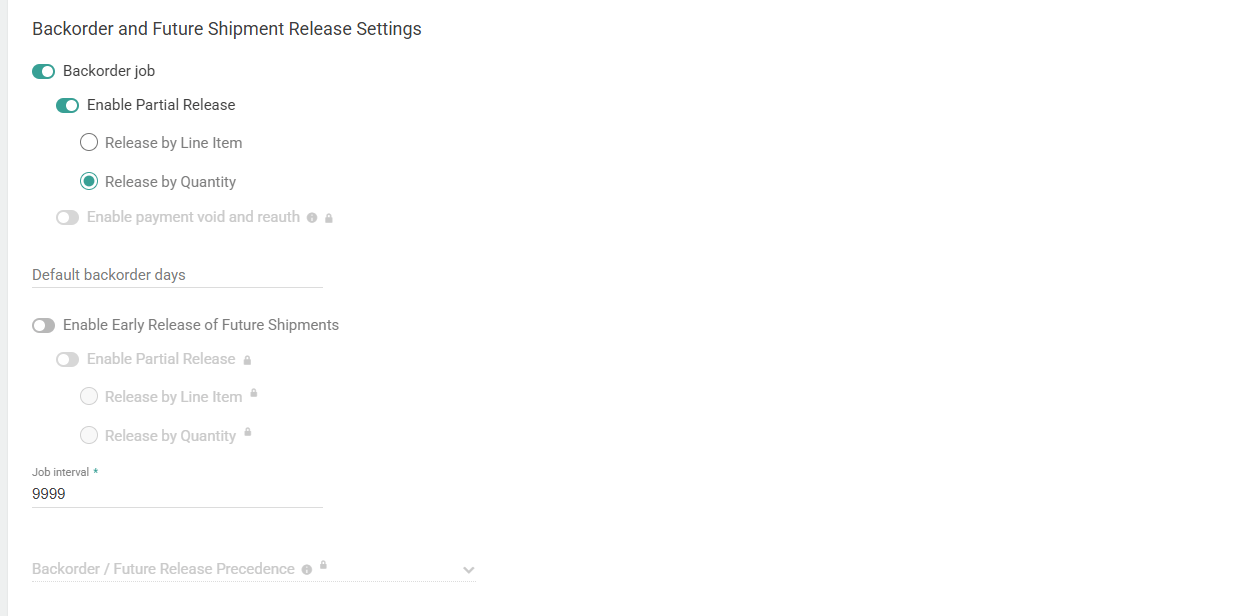
Configure Early Release
- Go to System > Settings > General > Site.
- In the Backorder and Future Shipment Release Settings section, toggle Enable Early Release of Future Shipments on.
- (Optional) Toggle Enable Partial Release on to release the covered portion of partially-covered Ship to Home and Delivery shipments. If left off, only fully-covered shipments are released.
- If you enabled partial release, click either Release by Line Item or
Release by Quantity:
- Release by Line Item — a line item moves into a Ready shipment only if all of its quantity becomes available.
- Release by Quantity — any quantity of an item moves into a Ready shipment as long as at least 1 quantity becomes available.
- Set the Job interval. This is a single shared interval: when both the Backorder job and the Early Release job are enabled, they run together as one combined scheduled process on this interval.
- Select the Backorder / Future Release Precedence to control which job claims available current inventory first when both are enabled. The default is Backorder first, since backordered shipments have not been promised a date yet while Future shipments are already allocated.
- Click Save.
Examples
- Full release: 5 units of a product are in Future for 6/01. On 5/20, 5 units of current inventory appear at the shipment’s assigned location. The job releases the shipment to Ready and it can ship immediately.
- Partial release by quantity: 5 units are in Future and 3 units of current inventory become available at the assigned location. With partial release on and Release by Quantity selected, 3 units move into a Ready shipment now and 2 remain in Future.
- Partial release by line item: A shipment has 5 units of Product A and 5 units of Product B in Future, and only Product B has current availability. Product B is released to Ready and Product A stays in Future.
Manual force fulfillment from the Order Admin UI remains available alongside
the early release job.
Partially Receive a Future Purchase Order
When part of a future purchase order physically arrives at a location before its expected date, you can convert the received quantity into current, available inventory and pull the corresponding Future shipments forward for fulfillment — with a single API call. This is useful when a warehouse receives only part of a PO early and you want to fulfill already-allocated orders sooner instead of waiting for the scheduled date. This workflow is entirely API-driven: there are no site or tenant settings to enable. Your warehouse management system or integration calls the Partial Future PO Receipt API when a partial receipt occurs.Example
A PO for 100 units of a product is expected at Location WH1, with two allocated Future shipments: S1 (5 units, older) and S2 (15 units). WH1 physically receives 10 units early:- Full release (default): On-hand increases by 10 and the PO record retains the remaining 90 units at the original expected date. S1 is fully covered and moves to Ready. S2 is only partially covered, so it stays in Future as the same shipment, linked to the 90-unit remainder.
- Partial release by quantity (
releaseMode: PARTIAL,splitBy: QUANTITY): S1 moves to Ready. S2 splits — 5 units move to Ready and 10 units remain in Future on the remainder of the PO.
Create Future Inventory Records
In addition to setting future inventory levels via the Refresh and Adjust APIs or the inventory import process, you can create future inventory records directly in the Supply/Demand UI. This is useful when you want to track incoming purchase orders or other inbound supply in Kibo instead of a separate spreadsheet.Create a Future Inventory Record
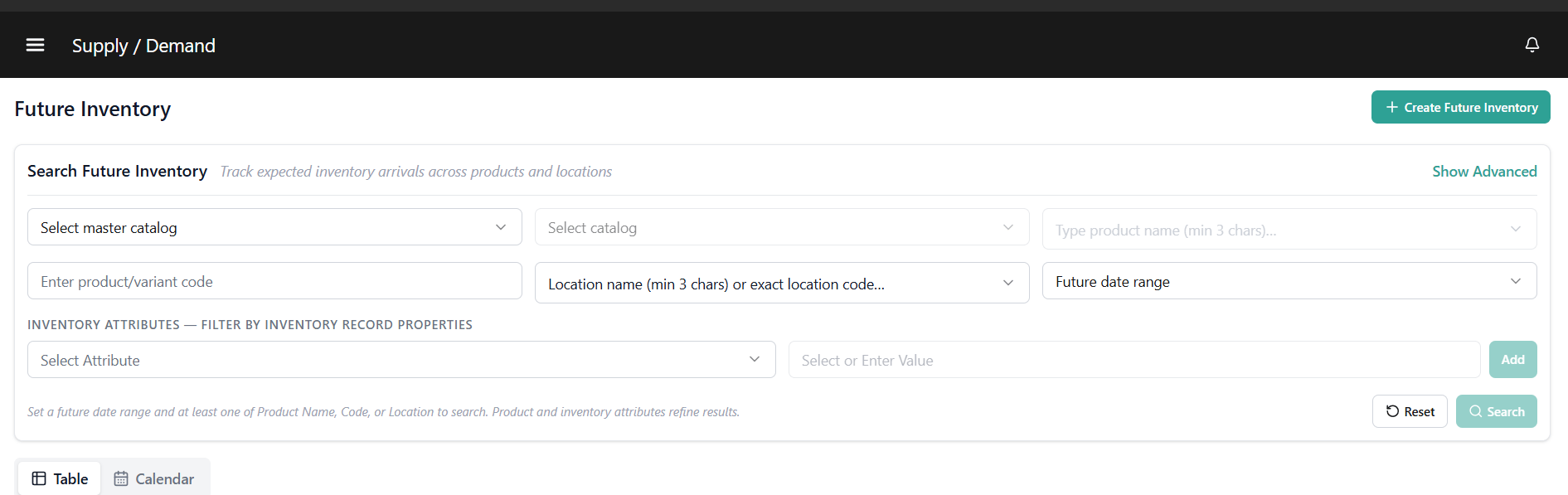
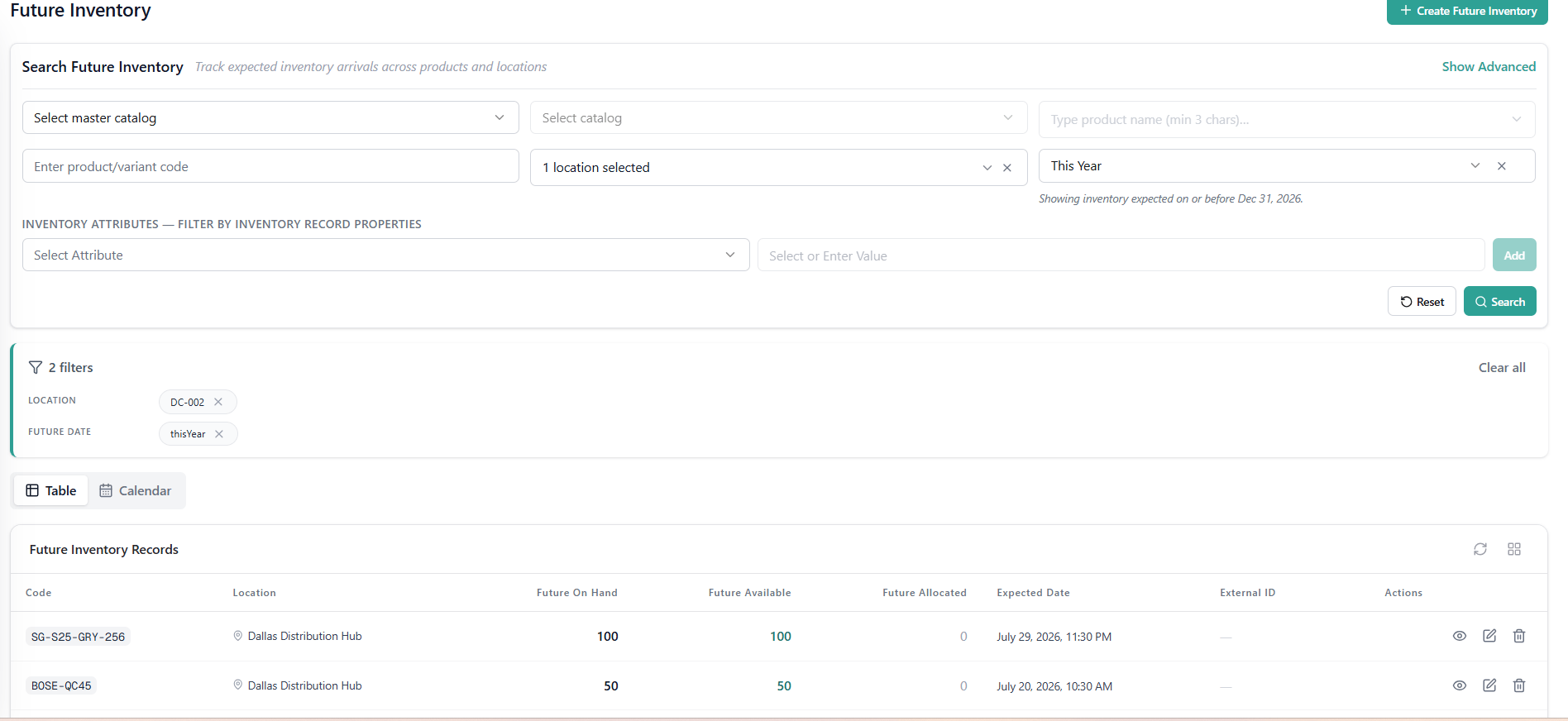
- Go to Main > Supply > Inventory > Future Inventory.
- Click + Create Future Inventory in the top right of the page header. A right-side drawer opens.
- Enter a UPC / Product Code (required) and select a Location (required) — the location that will receive the incoming stock.
- (Optional) Enter a Part Number and SKU.
- In Expected Date (required), select the Delivery Date and Time the inventory is expected to arrive. The date cannot be set in the past.
- In Future On Hand Quantity (required), enter the incoming quantity.
- (Optional) In External ID, enter a reference such as a purchase order number. This is especially useful for tying the record back to a specific purchase order, and for differentiating multiple records that share the same expected date.
- (Tags-enabled tenants only) In Tag Info, select a tag combination to assign the incoming quantity to a specific segment. If no tag is selected, the inventory is added to the default tag.
- (Granular-enabled tenants only) In Granular Info, add one or more entries (up to a maximum of 10). Each entry creates a separate, unique future inventory record with its own SKU, Lot Code, Serial ID, Condition, Date, and Quantity. At least one entry is required when granular inventory is enabled.
Note: A granular entry with a Serial ID is limited to a quantity of 1. Condition appears as a dropdown only when values are defined in Inventory Settings > Condition Availability.
- Click Create. A confirmation message appears when the record is created successfully. Click Cancel to discard the form.
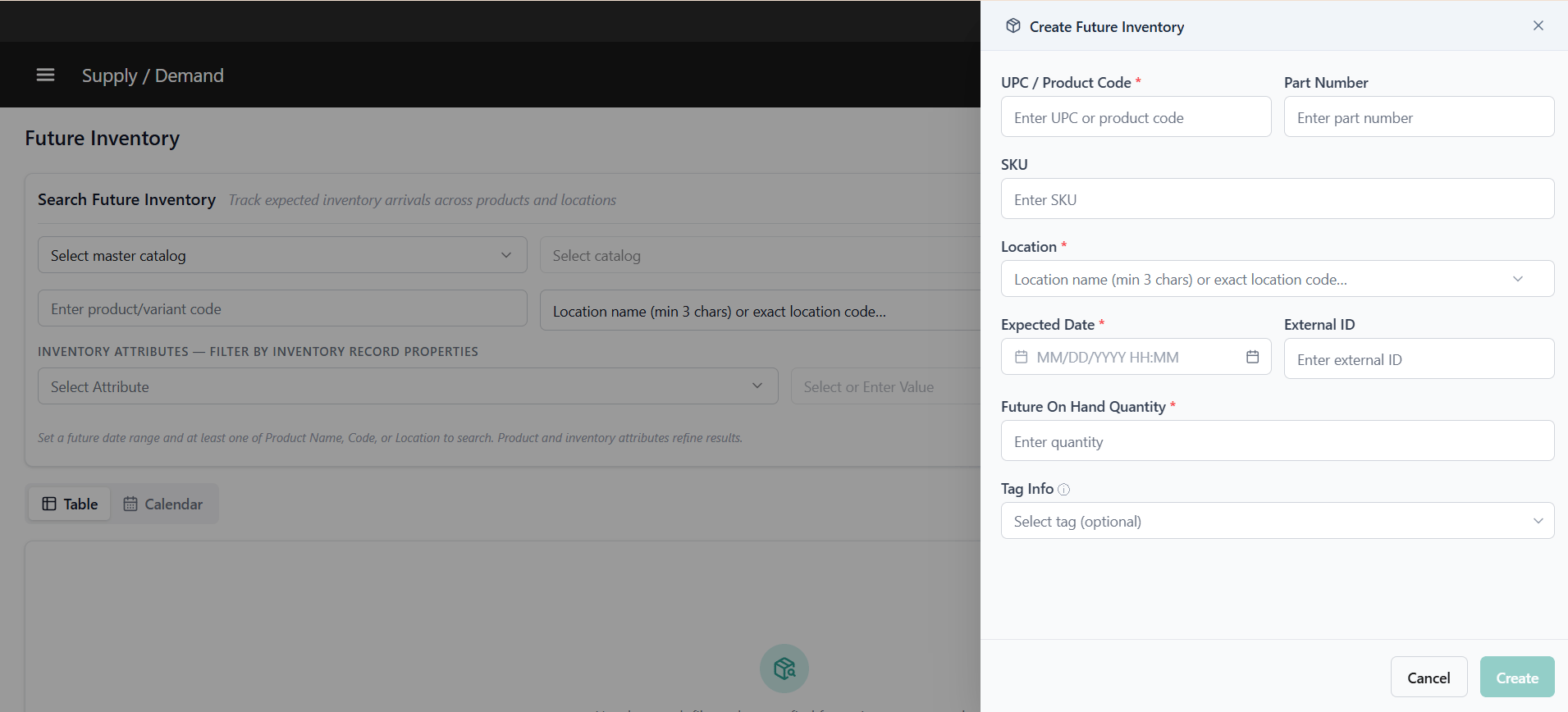
The Create button remains disabled until all required fields are filled in correctly.
Edit a Future Inventory Record
- Search for the record with a Future Date Range that covers its expected date.
- Click the Edit icon on the record’s row (or click View to open the drawer, then Edit).
- Update the Expected Date and/or the Future On Hand Quantity.
- Click Save Changes.
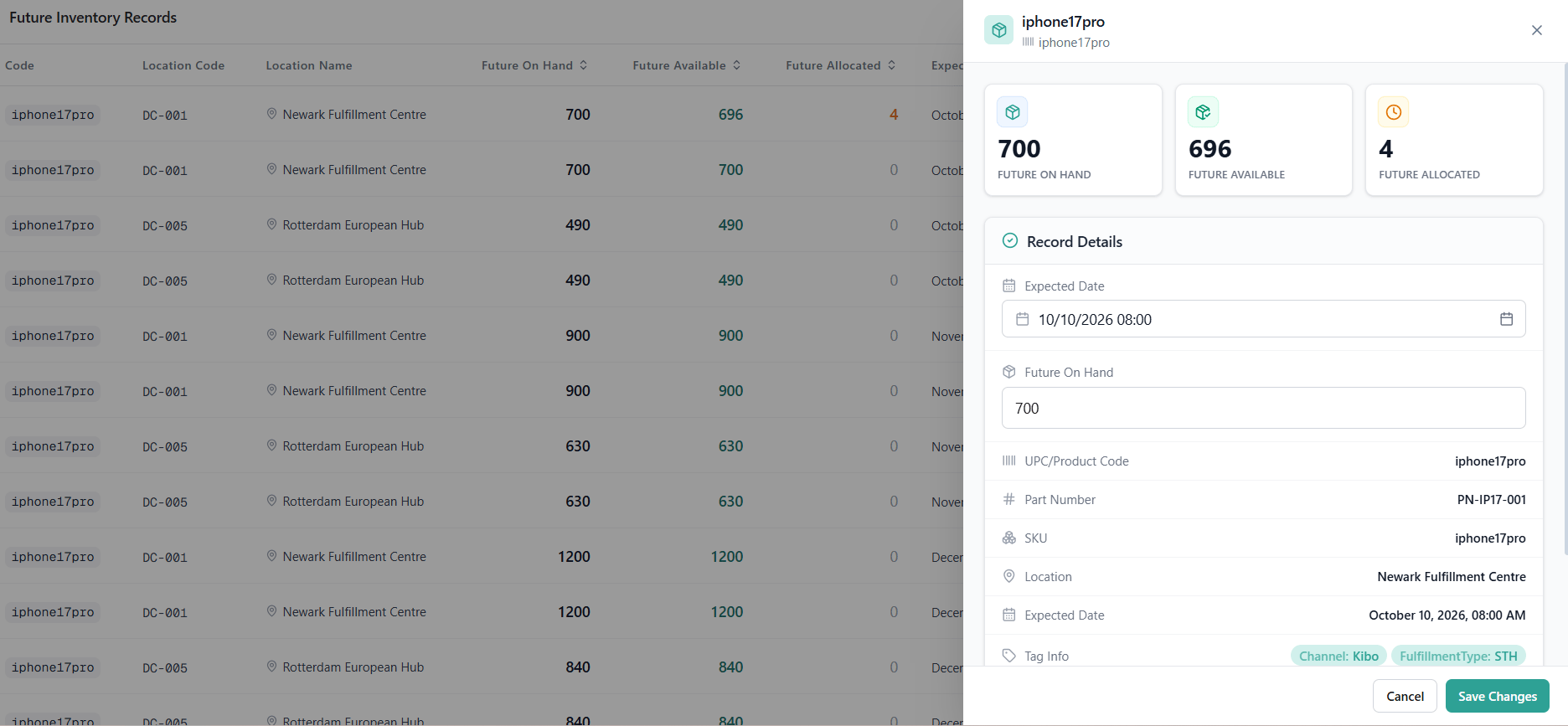
Note: Changing the Expected Date automatically updates the future date of shipments already allocated to that record, as long as the new date is within the Future Date Limit. If the new date is beyond the limit, Ship to Home and Delivery shipments may be reassigned, and Pickup shipments may be backordered, cancelled, or sent to Customer Care. See Orders with Future Inventory.
Delete a Future Inventory Record
Click the Delete icon on a record’s row and confirm when prompted. Deletion cannot be undone. If shipments are already allocated to the record, Kibo automatically reassigns them — see Cancelling a Future Inventory Purchase Order under Orders with Future Inventory.Note: The + Create Future Inventory button, Edit icon, and Delete icon are visible only when your role includes the Create Inventory, Modify Inventory, or Delete Inventory behavior, respectively. Users with only Read Inventory can search, view records, and follow the Allocations link, but write actions are hidden.
View in Inventory UI
Note: The Inventory UI has been updated with a new look and feel and new functional changes, and has been renamed to Supply/Demand UI. Contact Kibo Support to opt in and begin using it. All sandbox tenants will receive the new UI on July 21. Select the tab below based on which UI your tenant is currently using.
- Legacy Inventory UI
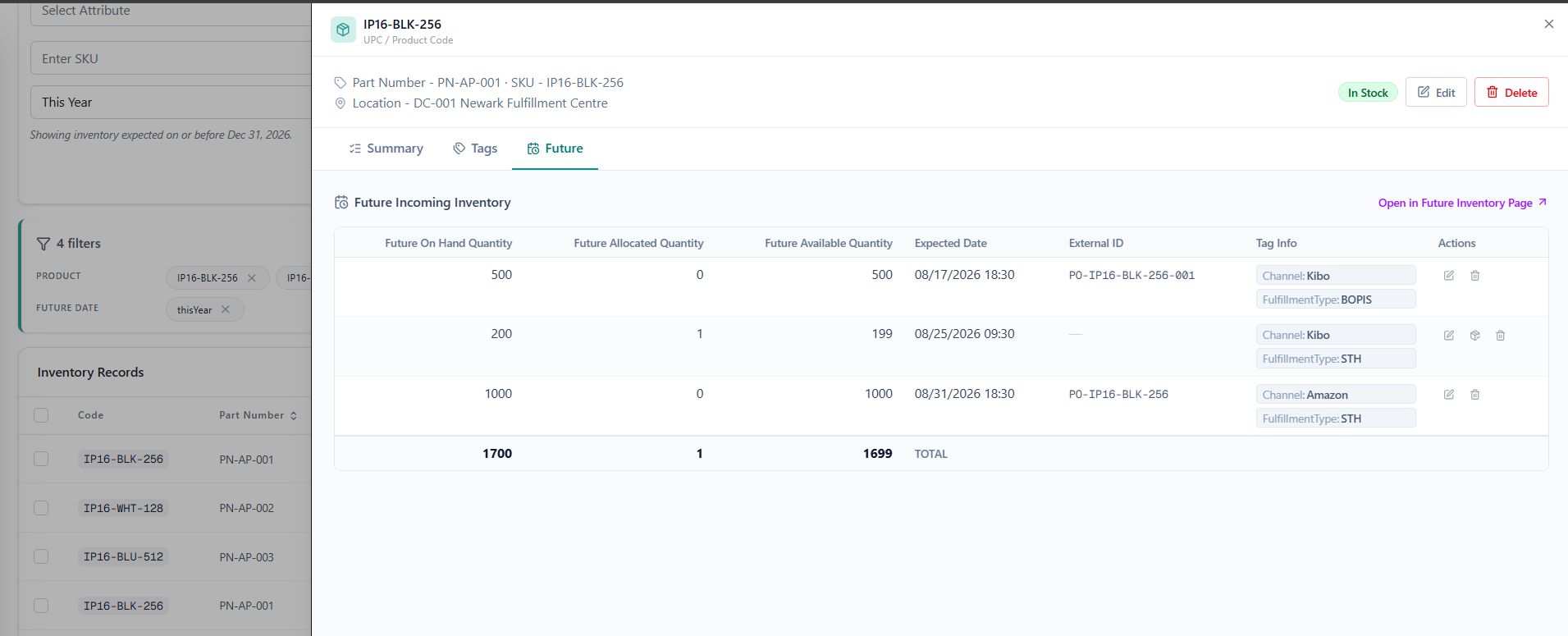
- Supply Demand UI
All incoming On Hand, Available, and Allocated levels are displayed on the Inventory UI by default. Records that include future inventory will be underlined in the table, and hovering over them will display a summary of the current and future amounts. To filter for inventory arriving up to a specific date, enter a date in the View Future Inventory option in the top right.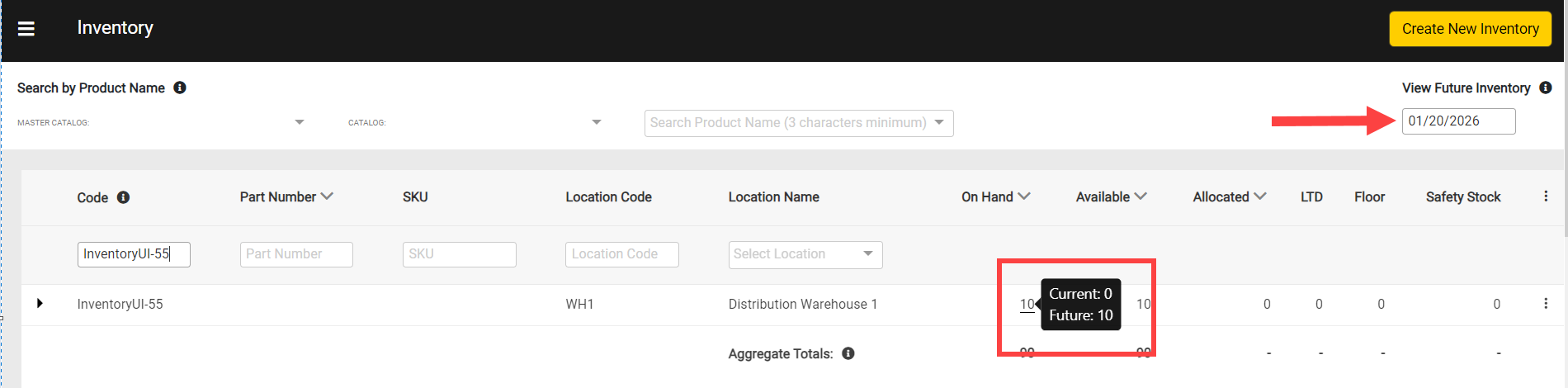
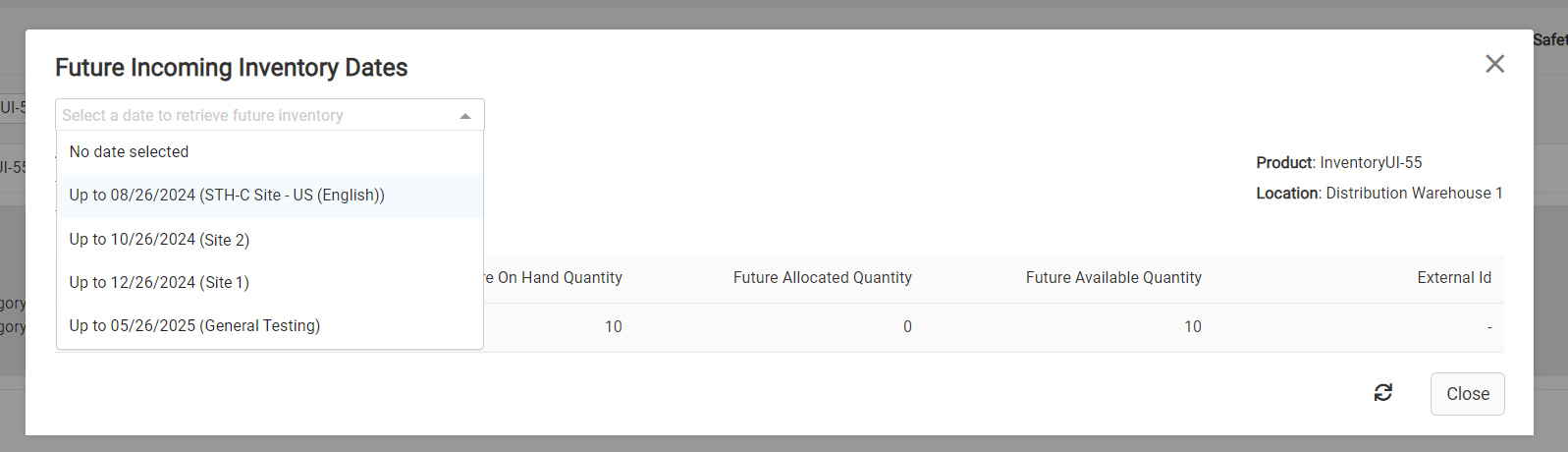
- Expand a table row that contains future inventory to view a breakdown of that product’s Current, Future, and Total (the sum of Current and Future) inventory levels. Then, click the Future Inventory Dates link.

- This will display a pop-up with more details about the inventory updates that are expected until the selected date. Select a site and future date from the drop-down menu shown below to filter results to inventory arriving within that site and time frame. These date options are pre-calculated by the system based on the future date limit configured in the site settings.
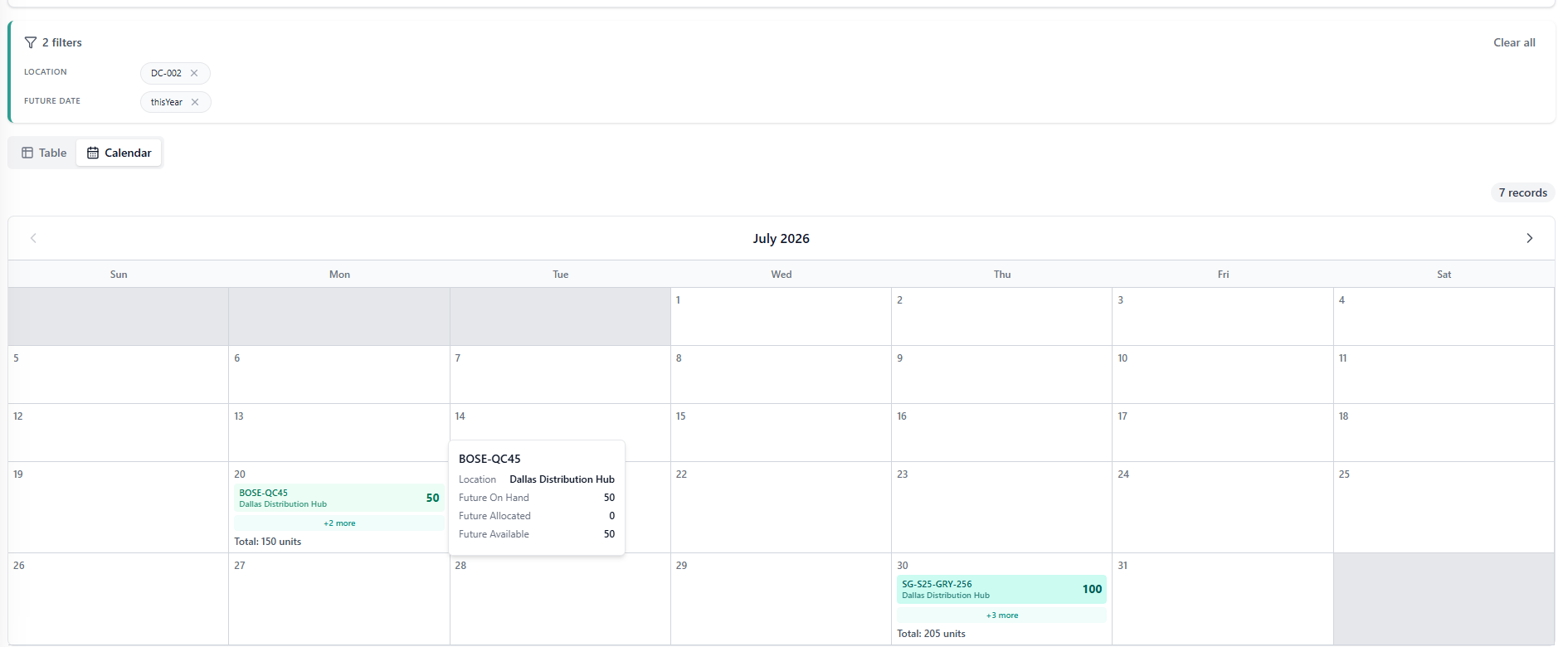
Assume Infinite Inventory on a Future Record:
To enable Infinite Inventory on a segmented record, include"includeItemsWithInfiniteInventoryFlag": true in the request when using the Refresh and Adjust APIs or inventory import process to create or update Future inventory. When active, this Boolean field overrides standard allocation rules, allowing allocation even if inventory is unavailable
To identify which inventory records have this flag enabled, use the Get Inventory API with the parameter includeItemsWithInfiniteInventoryFlag. Records with infinite inventory will return hasInfiniteInventory: true in the response.