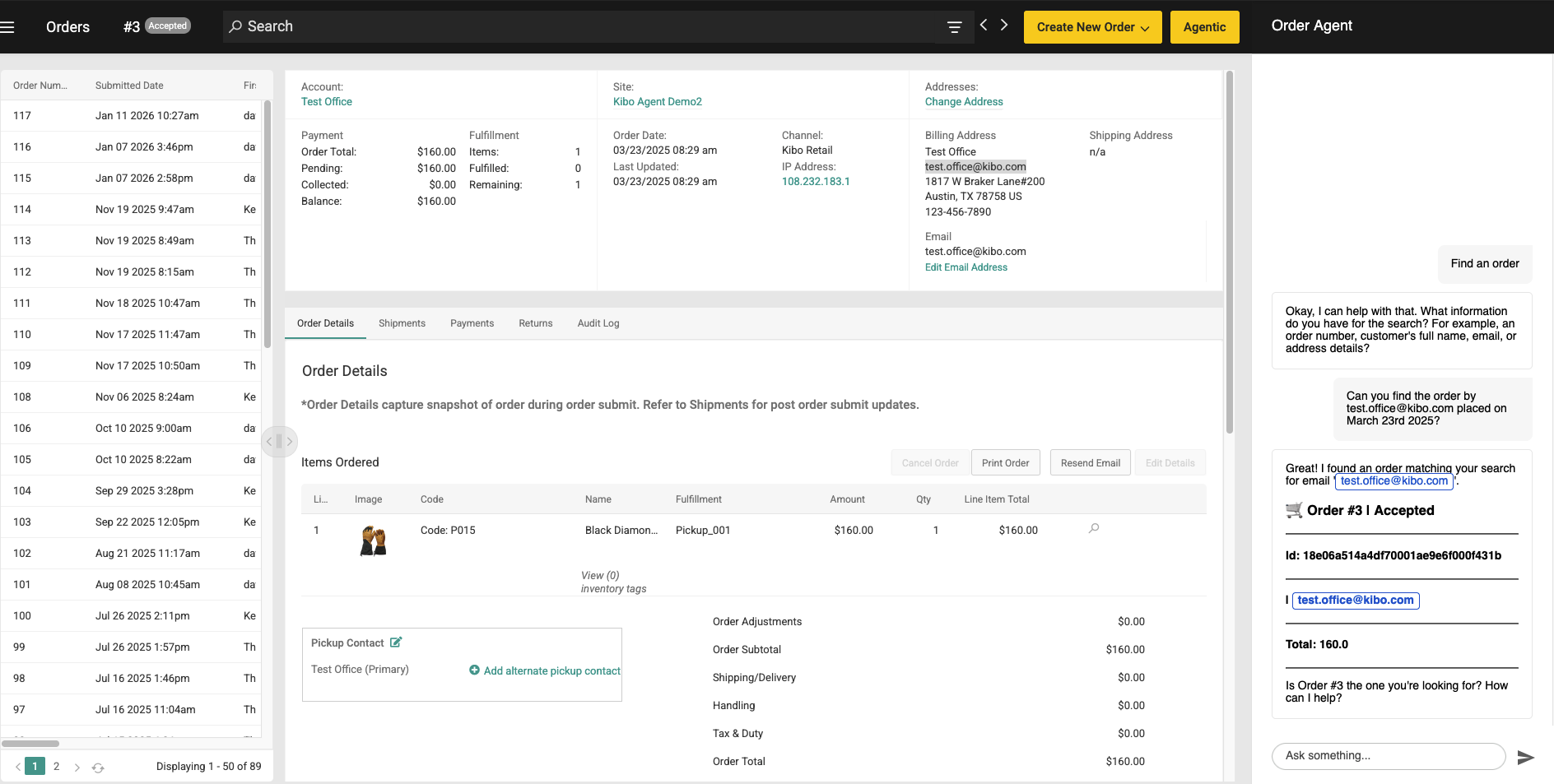
The CSR Agent is an AI-powered assistant that helps Customer Service Representatives efficiently manage orders, customer accounts, and order modifications through natural language conversations directly within the Kibo Admin interface.

Overview

What is the CSR Agent?

The CSR Agent is a conversational AI assistant designed specifically for Customer Service Representatives. Instead of navigating through multiple screens and forms in the admin interface, CSRs can describe what they need to do in plain English, and the agent will:
  • Look up orders using flexible search criteria
  • Attach customers to orders
  • Cancel items or entire orders
  • Apply appeasements and adjustments
  • Update shipping and billing addresses
  • Add products to existing orders
  • Navigate the admin UI automatically
CSR Agent helping look up an order in Kibo Admin

Accessing the CSR Agent

Where to Find It

The CSR Agent is accessed through the Kibo Admin interface:
  1. Log in to Kibo Admin with your CSR credentials
  2. The agent panel appears in the sidebar or as a chat widget
  3. Click on the agent icon to start a conversation

Getting Started

Starting a Conversation

  1. Open the CSR Agent panel in Kibo Admin
  2. Type your request or question in the message box
  3. Press Enter or click Send

Context Awareness

The agent maintains context throughout your conversation:
  • Remembers the current order you’re working with
  • Tracks search parameters as you add details
  • Keeps customer information for the session

Your First Request

Try a simple request to get started:
Find the order for customer [email protected]
The agent will search for orders and navigate you to the result.

Customer and Account Management

Attaching a Customer to an Order

The agent can set or attach a customer to the current order through a guided flow. How it works:
  1. Agent gets the current order ID
  2. Prompts for customer email if not provided
  3. Looks up existing customer by email
  4. If found: Asks you to confirm, then assigns the customer
  5. If not found: Collects name information and creates an anonymous account
  6. Refreshes the admin UI after assignment
Example requests:
  • “Attach a customer to this order”
  • “Set the customer for this order to [email protected]
  • “Add customer account to order”
Example flow:
You: Attach a customer to this order

Agent: I'll help you attach a customer to the current order.
       What is the customer's email address?

You: [email protected]

Agent: I found an existing customer account:
       - Name: John Doe
       - Account ID: CUST-12345

       Would you like me to attach this customer to the order?

You: Yes

Agent: Done! I've attached John Doe to the order and
       refreshed the admin view.

Creating New Customer Accounts

If a customer is not found, the agent will help create an anonymous account:
You: Set customer to [email protected]

Agent: I couldn't find an existing account for [email protected].
       I can create a new customer account.

       What is the customer's first name?

You: Sarah

Agent: And their last name?

You: Johnson

Agent: I've created a new customer account for Sarah Johnson
       and attached it to the order. The admin view has been refreshed.

Order Discovery and Navigation

Flexible Order Lookup

The agent supports searching for orders using multiple criteria that can be combined:
Search CriteriaExamples
Order Number”Find order #12345”
Customer Email”Look up orders for [email protected]
Customer Name”Find orders for John Smith”
Billing Address”Search orders at 123 Main Street”
City”Orders shipping to Chicago”
State”Orders in California”
Zip Code”Orders with zip 90210”
Shipment Number”Find shipment SHP-98765”

How Search Works

The agent maintains a search parameters object and enriches it as you provide more details:
You: Find orders for Smith

Agent: I found 47 orders for customers named Smith.
       Can you provide additional details to narrow the search?
       (email, city, state, or zip code)

You: In California

Agent: Found 8 orders for Smith in California.
       Can you narrow it further?

You: Zip code 90210

Agent: Found 2 orders:
       1. ORD-11111 - Completed - $125.00
       2. ORD-22222 - Processing - $89.50

       Which order would you like to view?

Search Result Handling

ResultAgent Behavior
Exactly one orderPresents details, stores context, navigates to order
Multiple ordersShows a concise list (order number, status, total)
No orders foundAsks to retry with different criteria
ErrorProvides a retry message
Searching by shipment number is handled separately and cannot be combined with other criteria:
You: Find shipment SHP-98765

Agent: Found shipment SHP-98765 associated with order ORD-54321.
       Navigating to the order now.

Order Changes and Financial Actions

Order Cancellation

Cancel specific items or entire orders with confirmation before execution. How it works:
  1. Agent retrieves cancellable items from the order
  2. You specify which items to cancel (by description or “all”)
  3. Agent shows a cancellation summary
  4. You confirm to execute
Example requests:
  • “Cancel item Blue Running Shoes from this order”
  • “Cancel all items on this order”
  • “I need to cancel the jacket from order #12345”
Example flow:
You: Cancel items from this order

Agent: Here are the cancellable items on order ORD-12345:
       1. Blue Running Shoes (Qty: 1) - $79.99
       2. Athletic Socks 3-Pack (Qty: 2) - $24.99
       3. Water Bottle (Qty: 1) - $15.00

       Which items would you like to cancel?
       (Specify item names or say "all")

You: Cancel the water bottle

Agent: I'll cancel the following:
       - Water Bottle (Qty: 1) - $15.00

       This will reduce the order total by $15.00 plus tax.
       Confirm cancellation?

You: Yes

Agent: Done! The Water Bottle has been cancelled.
       The order has been updated and the admin view refreshed.

Order Appeasement

Apply shipment-level financial adjustments for customer service situations. How it works:
  1. Agent pulls current shipment financials
  2. If multiple shipments, you select which one
  3. Specify whether adjusting shipping or line-item totals
  4. Agent fetches and displays available appeasement reasons
  5. You select a reason and amount
  6. Appeasement is applied
Example requests:
  • “Apply an appeasement to this order”
  • “Give a $10 credit for late shipping”
  • “Adjust the shipping cost on shipment 1”
Example flow:
You: Apply an appeasement to this order

Agent: This order has 2 shipments:
       1. Shipment 1 - $95.00 (subtotal) + $8.50 (shipping)
       2. Shipment 2 - $45.00 (subtotal) + $5.00 (shipping)

       Which shipment would you like to adjust?

You: Shipment 1

Agent: What type of adjustment?
       - Shipping adjustment
       - Line item/subtotal adjustment

You: Shipping adjustment

Agent: Available appeasement reasons:
       - Late Delivery
       - Damaged Package
       - Customer Satisfaction
       - Price Match
       - Other

       Which reason applies?

You: Late Delivery

Agent: What amount should I credit for shipping?
       (Current shipping: $8.50)

You: $5

Agent: Applying $5.00 shipping credit to Shipment 1.
       Reason: Late Delivery

       Confirm?

You: Yes

Agent: Appeasement applied successfully.
       New shipping total: $3.50

Coupons and Promotions

Apply coupon codes to orders quickly. Example requests:
  • “Apply coupon code SAVE20 to this order”
  • “Add promo code FREESHIP”
  • “Use discount code HOLIDAY10”
Example flow:
You: Apply coupon SUMMER25

Agent: Applying coupon code SUMMER25 to order ORD-12345...

       Success! Coupon applied.
       - Discount: $25.00
       - New order total: $94.50

       The admin view has been refreshed.

Order Adjustments

Apply or remove fixed-amount adjustments to orders. Supported adjustment types:
  • Order adjustment (overall discount/charge)
  • Shipping adjustment
  • Handling adjustment
Example requests:
  • “Add a $10 order adjustment”
  • “Apply a $5 shipping adjustment”
  • “Remove the handling adjustment from this order”
Example flow:
You: Add a $15 order adjustment

Agent: I'll apply a $15.00 order adjustment to ORD-12345.

       This will reduce the order total by $15.00.
       Confirm?

You: Yes

Agent: Order adjustment applied successfully.
       - Adjustment: -$15.00
       - New order total: $110.00

       The admin view has been refreshed.

Address Maintenance

Update Shipping Address

Modify the shipping address on an order with validation. Required fields:
  • First name
  • Last name
  • Address line 1
  • City
  • State
  • Zip code
Example requests:
  • “Update the shipping address”
  • “Change shipping to 456 Oak Avenue, Chicago, IL 60601”
  • “Fix the shipping zip code to 90210”
Example flow:
You: Update the shipping address to 789 Pine Street,
     Seattle, WA 98101

Agent: I'll update the shipping address to:
       789 Pine Street
       Seattle, WA 98101

       What name should be on the shipping address?

You: John Smith

Agent: Updated shipping address:
       John Smith
       789 Pine Street
       Seattle, WA 98101

       Confirm this change?

You: Yes

Agent: Shipping address updated successfully.
       The admin view has been refreshed.

Update Billing Address

Modify the billing address using the same validation pattern. Example requests:
  • “Update the billing address”
  • “Change billing address to match shipping”
  • “Fix the billing zip code”

Adding Items to Orders

Guided Add-to-Order Flow

Add products to existing orders through a step-by-step process. How it works:
  1. Agent gets the current order ID
  2. You describe what product to add (or agent prompts)
  3. Agent performs a natural language catalog search
  4. You select from search results
  5. Agent retrieves product details
  6. You walk through:
    • Variant/option selection
    • Fulfillment type (ship, pickup, etc.)
    • Store location (if pickup)
    • Quantity
  7. Item is added and admin UI refreshes
Example requests:
  • “Add a product to this order”
  • “I need to add running shoes to order #12345”
  • “Add another item - blue t-shirt size medium”
Example flow:
You: Add a product to this order

Agent: What product would you like to add?

You: Red running shoes

Agent: I found these products:
       1. Sprint Runner - Red ($89.99)
       2. Trail Blazer - Red/Black ($109.99)
       3. Daily Jogger - Crimson ($69.99)

       Which product?

You: Sprint Runner

Agent: Sprint Runner - Red
       Price: $89.99

       Available sizes: 7, 8, 9, 10, 11, 12
       Which size?

You: Size 10

Agent: How should this item be fulfilled?
       - Ship to customer
       - Store pickup

You: Ship to customer

Agent: What quantity?

You: 1

Agent: Adding to order:
       - Sprint Runner - Red, Size 10
       - Quantity: 1
       - Price: $89.99
       - Fulfillment: Ship to customer

       Confirm?

You: Yes

Agent: Item added successfully!
       New order total: $189.99
       The admin view has been refreshed.

Store Pickup Selection

If selecting store pickup, the agent will help find available locations:
You: Store pickup

Agent: Available pickup locations:
       1. Downtown Store - 123 Main St (2.3 miles)
       2. Mall Location - 456 Shopping Blvd (5.1 miles)
       3. Suburban Store - 789 Oak Ave (8.7 miles)

       Which location?

You: Downtown Store

Agent: Item will be available for pickup at Downtown Store.

Quick Reference

Command Cheat Sheet

# Customer management
"Attach customer [EMAIL] to this order"
"Set customer for this order"

# Order lookup
"Find order #[NUMBER]"
"Look up orders for [EMAIL]"
"Find orders for [NAME] in [CITY/STATE/ZIP]"
"Find shipment [SHIPMENT NUMBER]"

# Cancellations
"Cancel [ITEM NAME] from this order"
"Cancel all items"
"What items can be cancelled?"

# Appeasements & adjustments
"Apply appeasement of $[AMOUNT]"
"Add $[AMOUNT] shipping credit"
"Apply order adjustment of $[AMOUNT]"
"Apply coupon [CODE]"

# Address updates
"Update shipping address to [ADDRESS]"
"Change billing address"

# Add items
"Add [PRODUCT] to this order"
"Add another item"