

Shipment Preparation Process
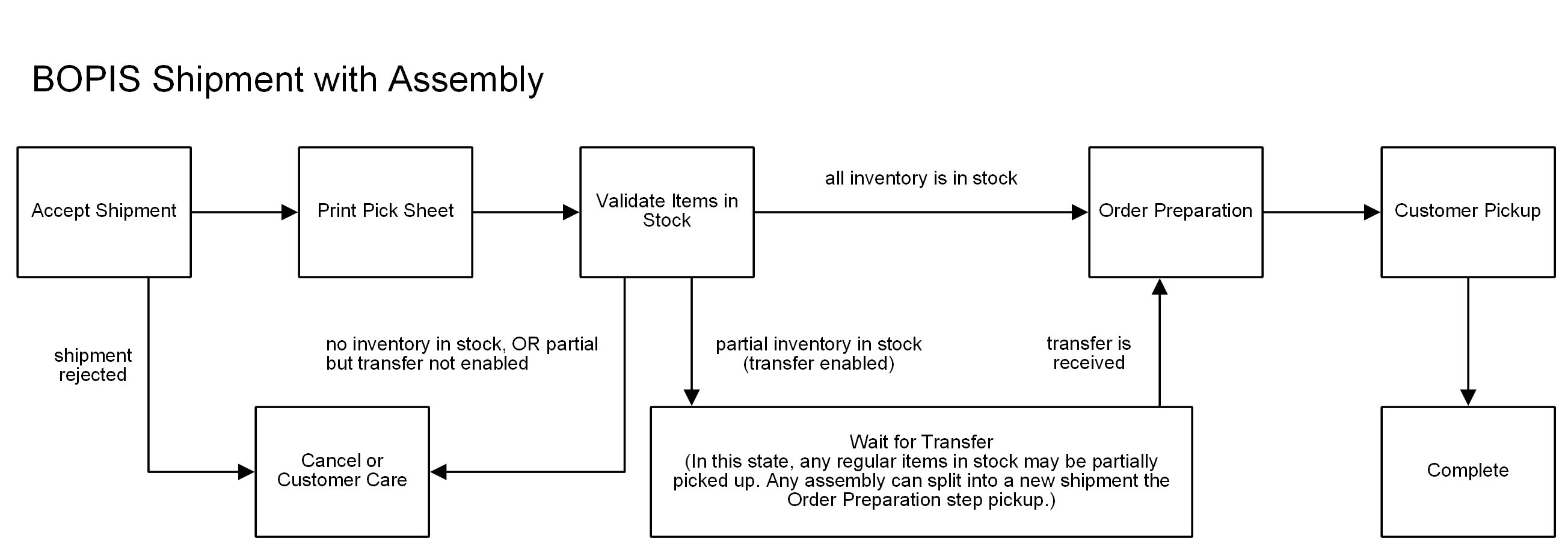
Assembly is supported with the BOPIS and Delivery fulfillment types. In the case of Delivery, the preparation is done as part of the Prepare for Delivery step.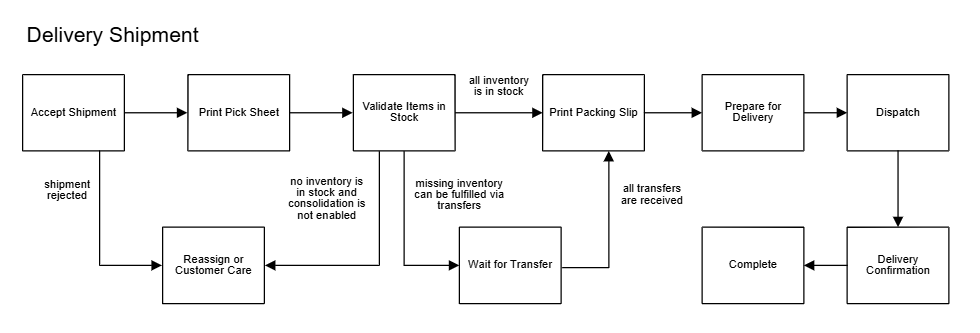
Storefront Options
When the shopper is browsing the storefront, they are able to select Assembly from the product details page for any product that has been configured with the assembly product extra. KCCP cannot run promotions on extras, so it is recommended to set up separate products in the catalog for service items. This allows the preparation fees to be set as the unit price and any promotions or pricelists to be applied. Custom logic will then be required to display these items as part of the physical product, rather than separate items.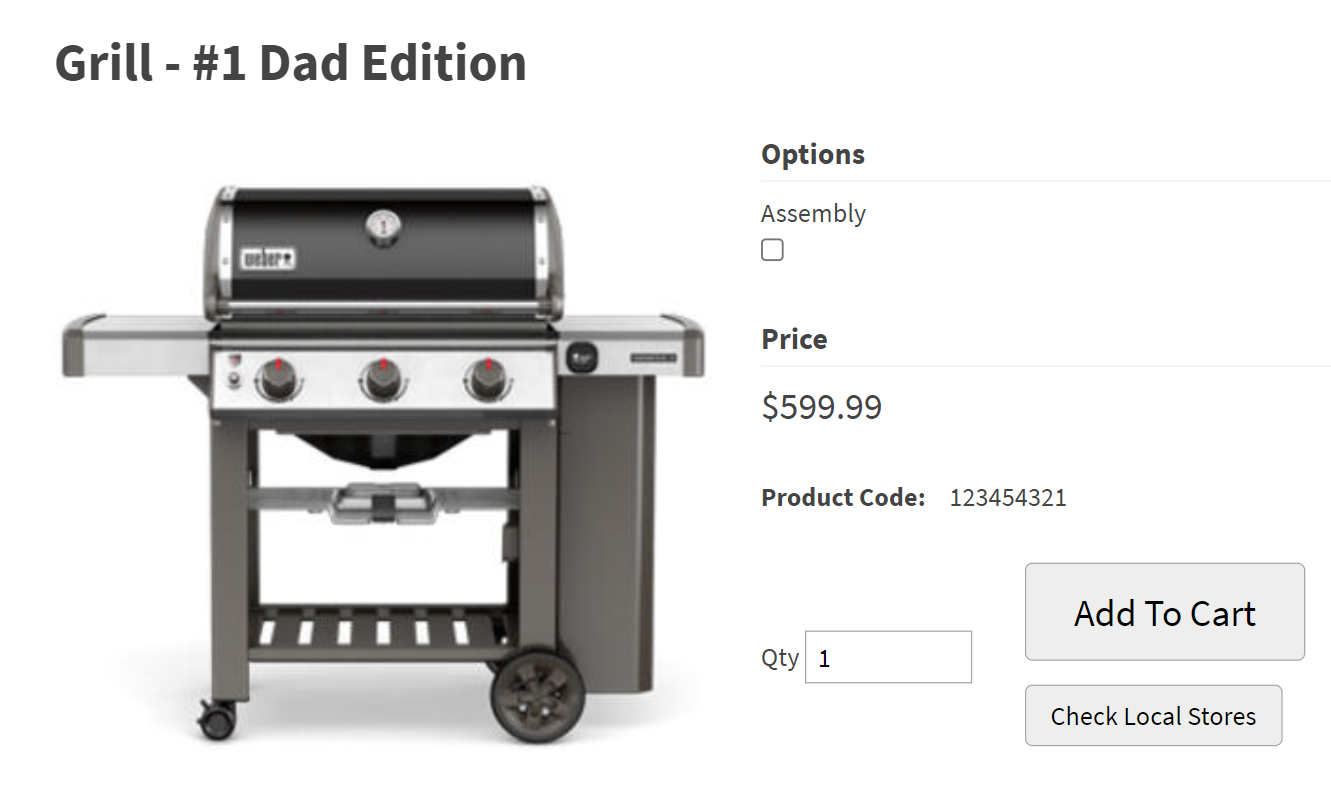
Configure Order Preparation
To configure, you must first create a product type for it and then apply that to your physical products as an extra.Create Product Type
For each preparation service that you want to offer, add a new product type in the schema:- Go to System > Schema > Product Types.
- Click Create New Product Type.
- Give this product type the name of the service, such as “Assembly.”
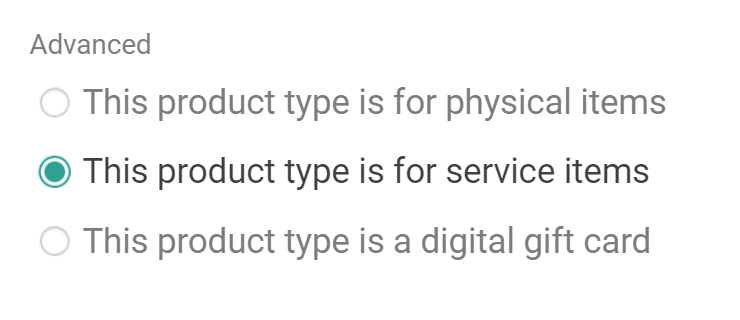
- Under Advanced at the bottom of the page, select This product type is for service items.
- Click Save.
- Go to System > Settings > General.
- Expand the dropdown menu for Action on BOPIS Reject.
- Select either Cancel or Customer Care.
- Click Save.
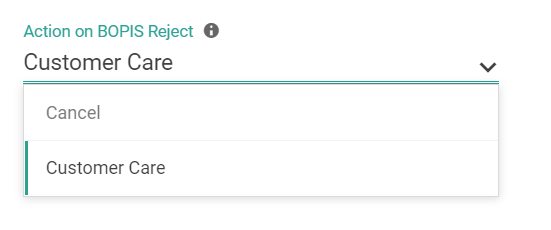
Create Product Extra
First, create the extra:- Go to Settings > Schema > Product Attributes.
- Click Create New Attribute.
- Give the extra a label and name, such as Assembly.
- Indicate Yes/No (in most preparation cases) for the Input Type.
- Set Extra as the Attribute Type.
- Enable filtering and sorting on the extra if desired.
- Click Save.
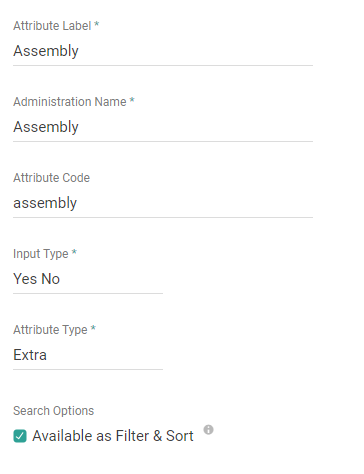
Add Extra to Products
Then, apply the extra to applicable products:- Go to Main > Catalog > Products.
- Click a product (or click Edit from the dropdown menu on that product in the table).
- In the Extras section, click Add Extra and select the preparation option.
- Apply any additional fields as needed, such as requiring a shopper to select preparation for this product.
- Click Save.
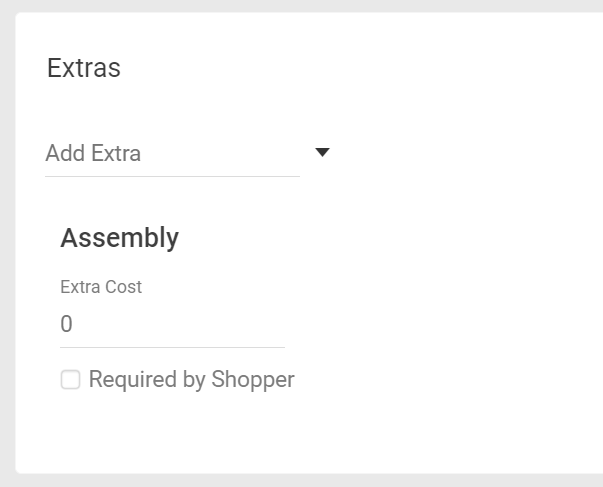
Fulfillment Example
Assembly-only shipments do not have their own table. Instead, they are accessible through the Order Preparation and Prepare for Delivery steps of the BOPIS or Delivery shipment list.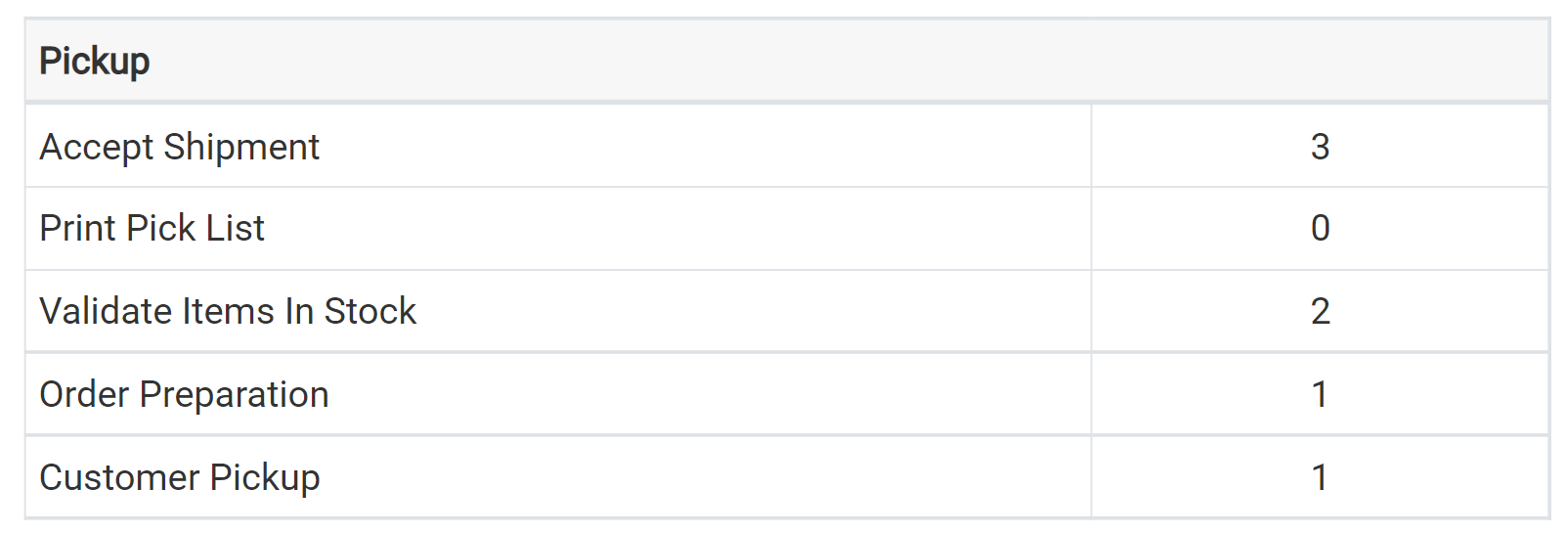
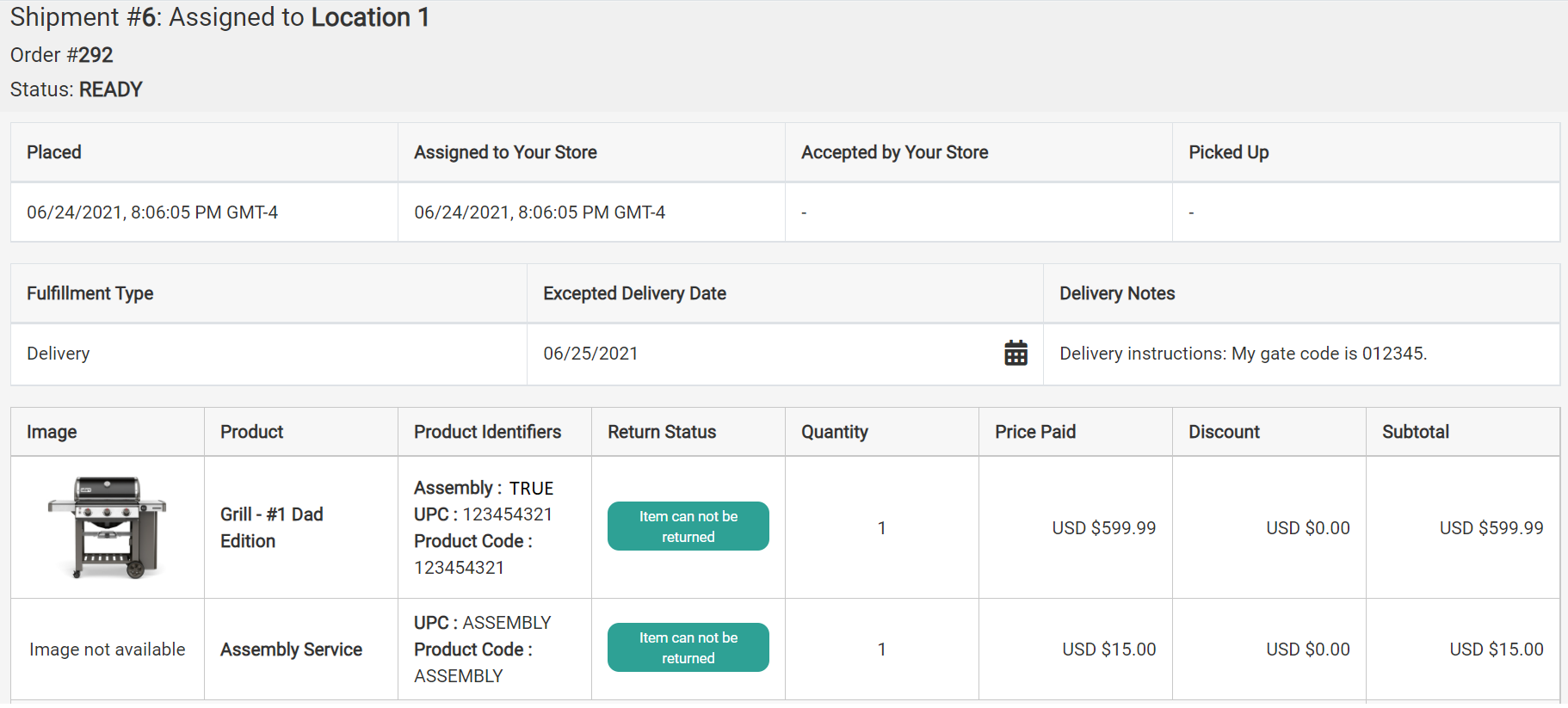
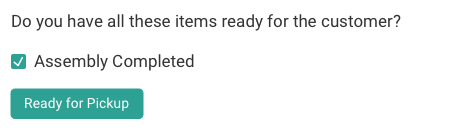
- If regular items are in stock and assembly items are not, the regular items can be partially picked up just like standard BOPIS shipments.
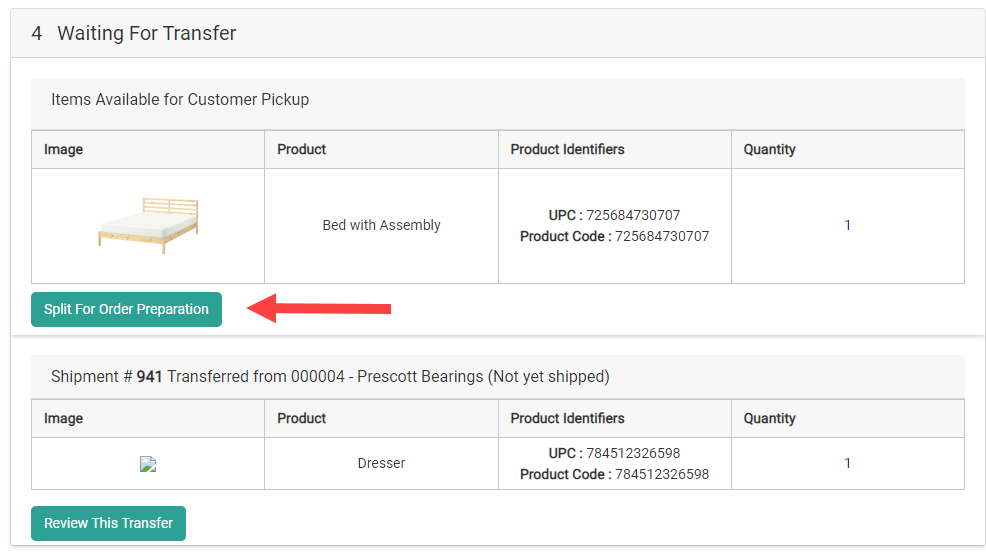
- If any assembly items are in stock and you would like to move them to Order Preparation so that they can be picked up, you can click “Split for Order Preparation.” This will split the in stock assembly items to a new shipment in the Order Preparation step. You can still perform a partial pickup on the parent shipment for any regular items that may also be in stock.
Cancelling and Refunding Service Items
If the physical product is cancelled, then its associated service items will be automatically cancelled as well. When performing a refund on a return in the Fulfiller UI, amounts can be refunded for the service fees as line items.
API Integration
In the API, service items have attributes that indicate them as non-physical and what actual products they apply to in a parent-child relationship. This relationship determines the grouping of items within shipments to ensure that the shopper’s requested services are being associated with the correct physical products. In the item object payloads of Commerce APIs, thegoodsType field indicates that the order item is a service item when set to the value "service". Assembly service items also need the additional attribute to be set:
parentItemId: The product that is being assembled.
isAssemblyRequired: Indicates whether the item requires assembly.childItemIds: The ID of the assembly service item.