

Test the Default Theme
If you are using a custom theme in your implementation, Kibo Support recommends that you set up a tenant with the default “Core” theme for debugging purposes. Creating this version of your production site allows you to identify whether the problem is in the Core platform or your theme customization, which can help narrow down the underlying cause and solution.- In Admin, go to System > Settings > Sites. Create a new site with exactly the same Catalog, Currency, and Locale as the site you are testing under core. For example, if you have a single site named “Mystic Sports”, create a new site named “Mystic Sports Core” with the same settings. Wait 10 minutes for the site to fully provision.
-
Go to System > Settings > General and make sure all the of settings match the Core site. Upload a Robots.txt file as shown below to make sure search engines don’t crawl the Core site. Technically this may be unnecessary as sites without primary domains will send a “x-robots-tag: noindex, nofollow” header, but it is still good practice to include.
- Go to System > Settings > Payment Types. Make sure the payment types are configured the same way as the main site, but do not use any NoOp payments.
- Go to Customization > Custom Routes and copy over the same custom route configuration (including any API Extension routes) into the new site.
- Go to Main > Site Editor > Themes. Make sure that “MozuCore” is selected as the theme for the Core site.
- Add the Core site to your location groups, if your tenant is not eCommerce-only. You must have Order Management enabled in order to configure location groups.
- Configure order routing for the Core site, if your tenant is not eCommerce-only. You must have Order Management enabled in order to configure order routing.
- Recreate any discounts for the Core site, because discounts are managed at the site level.
- In Settings > Shipping, copy over all shipping methods that are visible on the storefront and set the default “ship from” location.
- Make sure that any custom applications in System > Customization > Applications that need site level settings are configured for the new Core site.
Obtain a Correlation ID
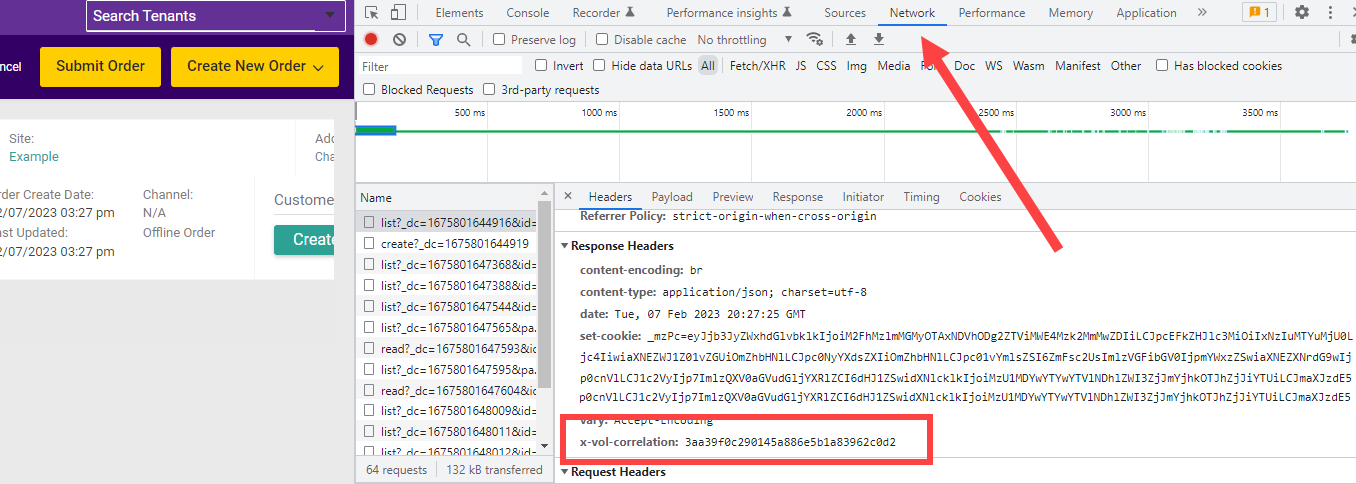
Correlation IDs are unique IDs that are available for all Kibo API events, and can be used by Kibo Support to look up events in internal logs. They are required in order to investigate intermittent issues. As the Storefront and Admin UIs make calls to the APIs, you can retrieve Correlation IDs by using your web browser’s dev tools to access the API response. To obtain the Correlation ID when experiencing unexpected platform behavior:- Open the Chrome Dev Tools.
- Reproduce the error in the UI.
- In the Network tab of the Dev Tools, you will see that an API request failed or succeeded.
- Click on the relevant request.
- Locate the Correlation ID in the Response Headers.
x-vol-correlation response header, such as:
changeMessages object of an API response such as from the Get Order call or API Extension logs. This object will include the correlationId field.