

Looking for Cybersource Decision Manager? See the Cybersource Decision Manager Application documentation.
Watch: Payment Gateways
Learn how to configure payment gateways
Supported Providers
A number of payment gateways are available out-of-the-box, while others require applications to be installed and configured in your Dev Center first. The table below lists the payment gateways provided by KCCP and which actions they support. You can also create your own applications and custom gateways through Payment Extensibility. The credit cards below are available out-of-the-box and do not require you to install an application. The only configuration required is providing your account credentials as shown in the Add a Payment Gateway section of this guide. However, the digital wallets, third-party payments, and fraud gateways do require additional integration. See their linked documentation for more information.
When viewing the list of all available options while configuring a new gateway, you may see “OMS Bundled.” This is from the previous version of Order Management and should be ignored by most users. Likewise, options with the “xAuth” prefix should only be used by certain implementations upgraded from the previous version of eCommerce.
Add a Payment Gateway
To create a new payment gateway:- Go to System > Settings > Payment Gateways.
- Click Add New Gateway.
- Select a payment gateway provider from the drop-down menu.
- Based on the payment gateway selected, enter a nickname and the necessary authentication credentials. The nickname is used to identify that particular set of credentials and payment gateway when enabling payment types. The Cybersource payment gateway requires additional actions on your part to complete this step. See the expandable Cybersource Gateways section below these instructions for more details.
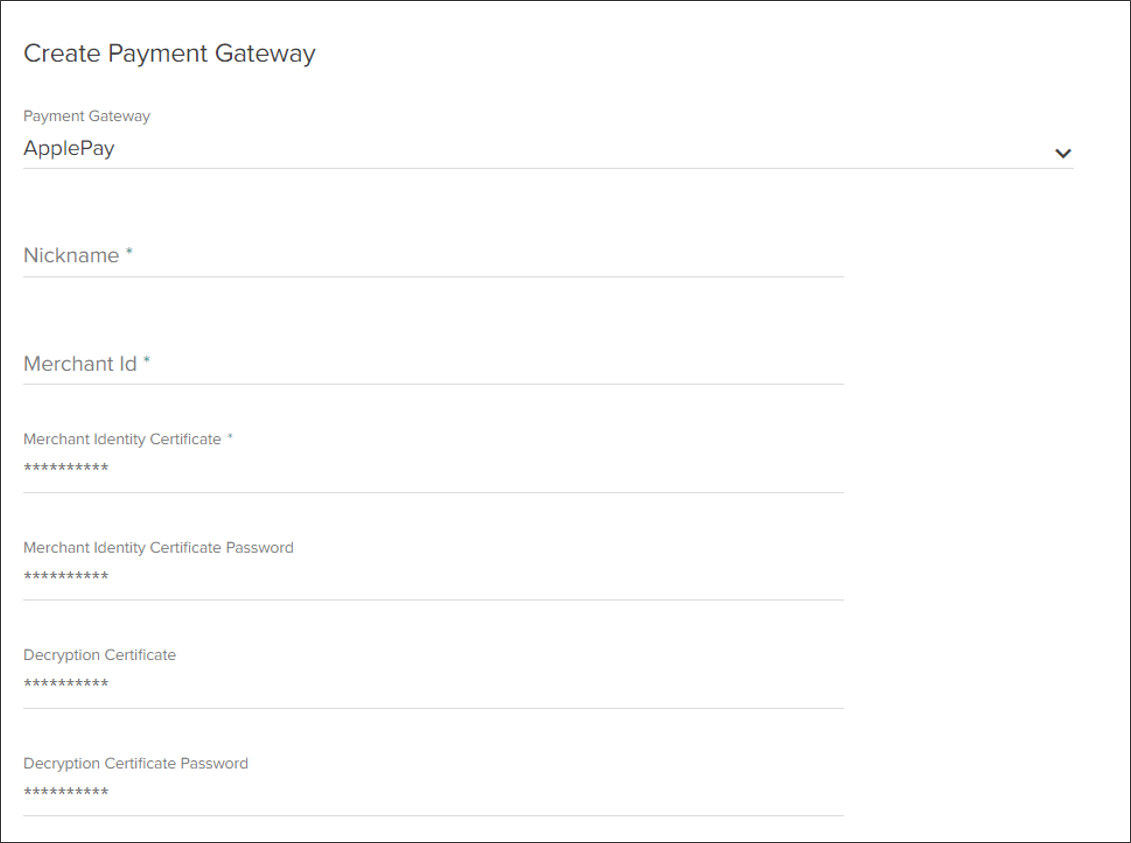
- Click Save.
No-Operation Gateways
A No-Operation, or “NoOp” gateway, is not a real gateway that connects to an external service. It does not require any credentials and will consider all actions submitted to it to be automatic successes, since it does not actually perform any operations. These may be used in cases such as Order Management-only instances of KCCP, where the actual payment actions have been performed by the storefront service (such as Klarna, CrowdTwist, or Sezzle) and the payment information is only being passed into KCCP with the order data for fulfillment.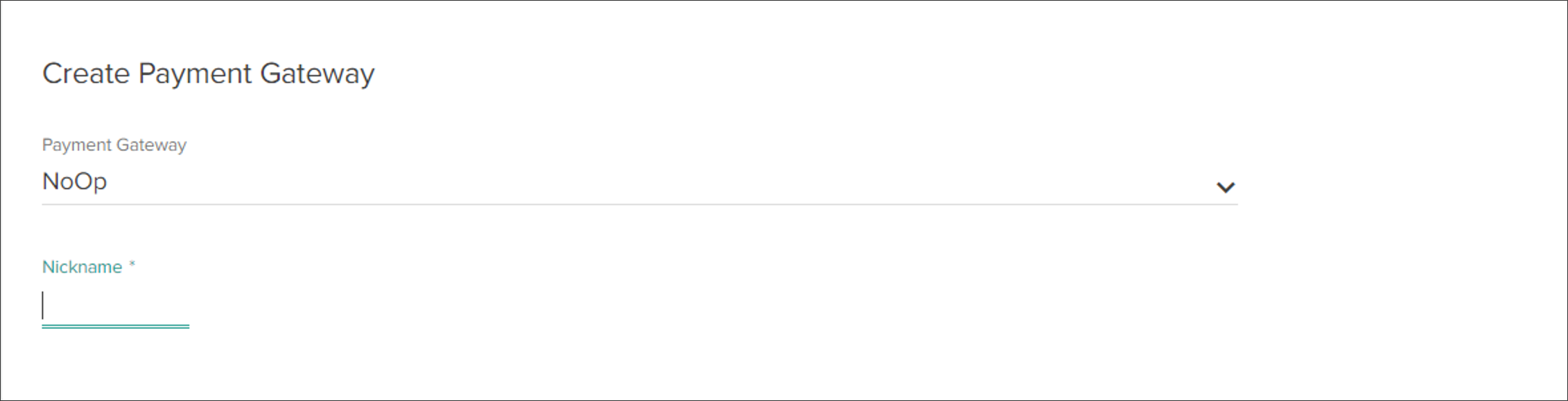
Gift Card Gateways
Sites can support payment via gift cards if the appropriate gateway has been enabled. These gift card gateways differ from standard credit cards, as they include functions specifically built to handle gift card payments. This includes an alternate type of payment capture and the ability to update card balances. Remember that once you create a payment gateway for gift cards, you must enable it as the processing gateway in the Gift Card payment type settings. This is different from “store credit” even if the credit has been given to a customer in the form of a merchant gift card. Store credit on customer accounts is managed through the eCommerce features of KCCP, but KCCP does not track the balances of external gift cards being used to pay for orders.Global Gateway
Global Gateway is a supported gift card provider. However, the payment gateway cannot be created unless its application has first been installed. The apps available in the Dev Center are Global Gateway Dev (used for testing environments) and Global Gateway Adapter (used for live environments). Once installed, then the Global Gateway option will be included in the dropdown options when creating a new payment gateway.Cybersource Gateways
When configuring a Cybersource gateway, a Merchant ID and Transaction Key needs to be provided. These details should be retrieved from the Cybersource account and copy-pasted into the KCCP payment gateway settings.- Log in to Cybersource. Note the Account ID and Merchant ID in the top banner of the dashboard; this is the Merchant ID that will soon be used for the gateway in KCCP.
- Generate a REST API Key and Shared Secret according to Cybersource’s instructions.
- In the Kibo Admin, go to System > Settings > Payment Gateways.
- Click Create New Payment Gateway.
- Select “Cybersource V2” from the drop-down menu.
- Enter a Nickname for the gateway.
- Provide Enable MLE, API Response MLE Private Key, API Response MLE Key Password, Merchant Id, Api Shared Secret, Api Key, SJC Public Certificate, and API Response MLE Key ID.
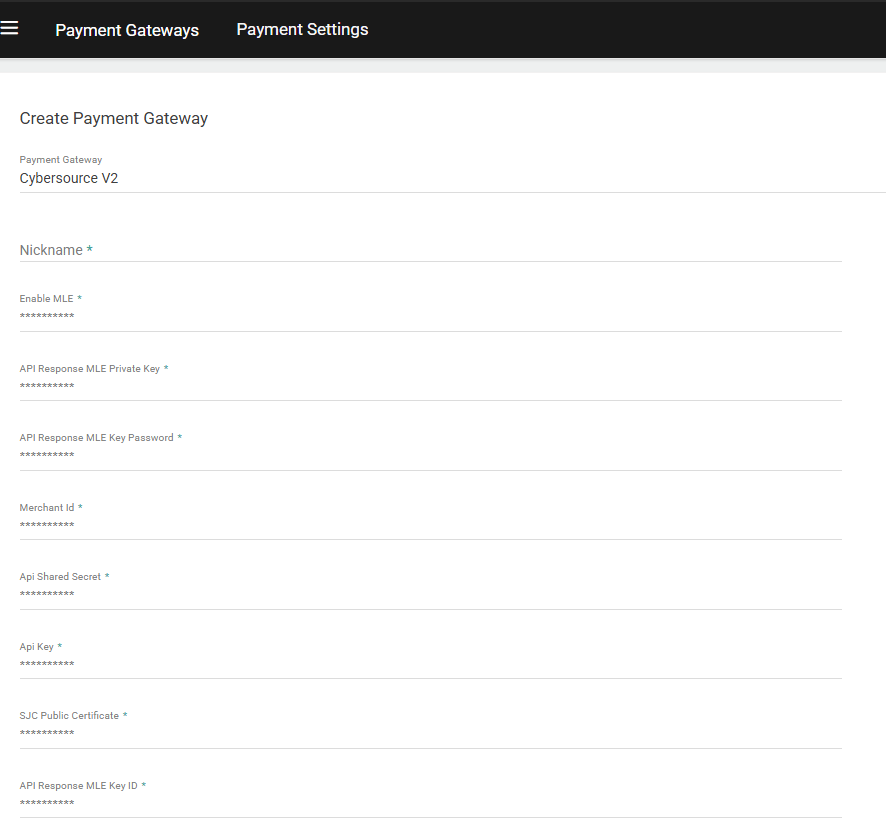
- Click Save.
Edit a Payment Gateway
- Go to System > Settings > Payment Gateways.
- Click the existing payment gateway that you want to edit.
- Make updates to the nickname or the authentication credentials. All authentication fields must be re-entered; partial updates result in blank fields being saved.
- Click Save to save your changes.
- Click Cancel to return to the Payment Gateways list.
Configure Gateway to Recognize Branded Credit Cards
To add branded credit cards to a gateway:- Go to System > Settings > Payment Gateways.
- Select the Payment Settings tab.
- Select a payment gateway.
- In the empty field below underneath payment gateway, enter the BIN number for the credit card you want your gateway to recognize.
- Click Add BIN to apply it to your gateway.
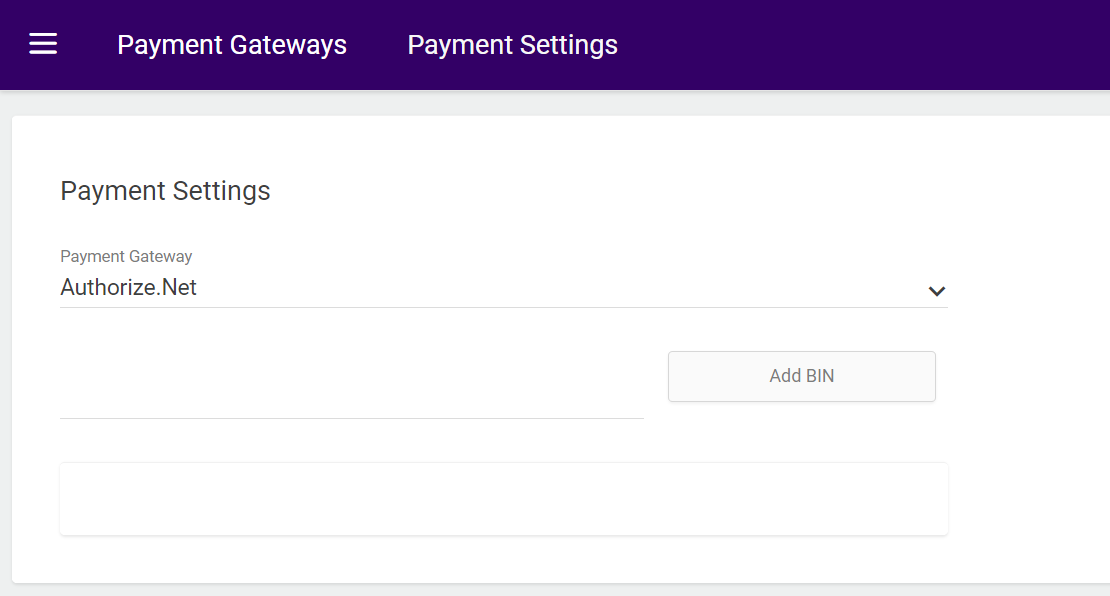
- On the Payment Settings page, select a payment gateway.
- Find the BIN number of the credit card you want to remove in the list.
- Click the X to the right of that number.
- The branded credit card has now been removed.