
Watch: Supply/Demand - Shipments
Learn how to search and filter allocated shipments, apply bulk state changes, and drill into a single shipment
Accessing the Shipments Page
Navigate to Main > Orders > Inventory > Shipments from the left nav. You can also reach it directly from any inventory record by clicking the Allocations button in the row actions — the page opens pre-filtered to that UPC and location. See View Allocated Shipments for all three access paths.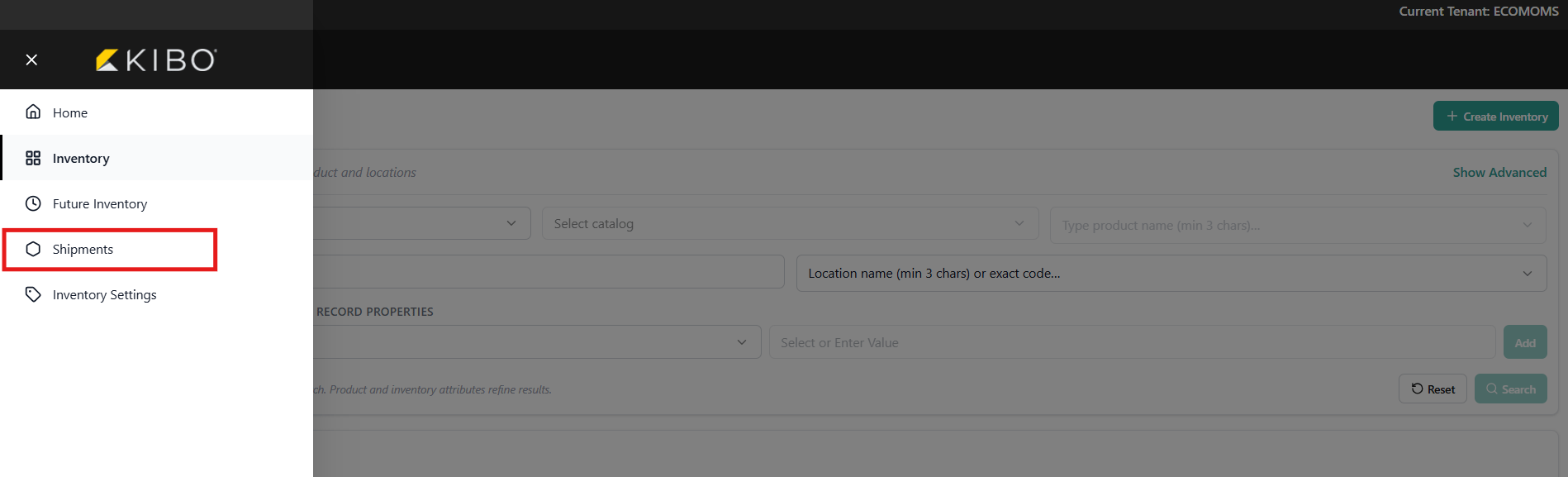
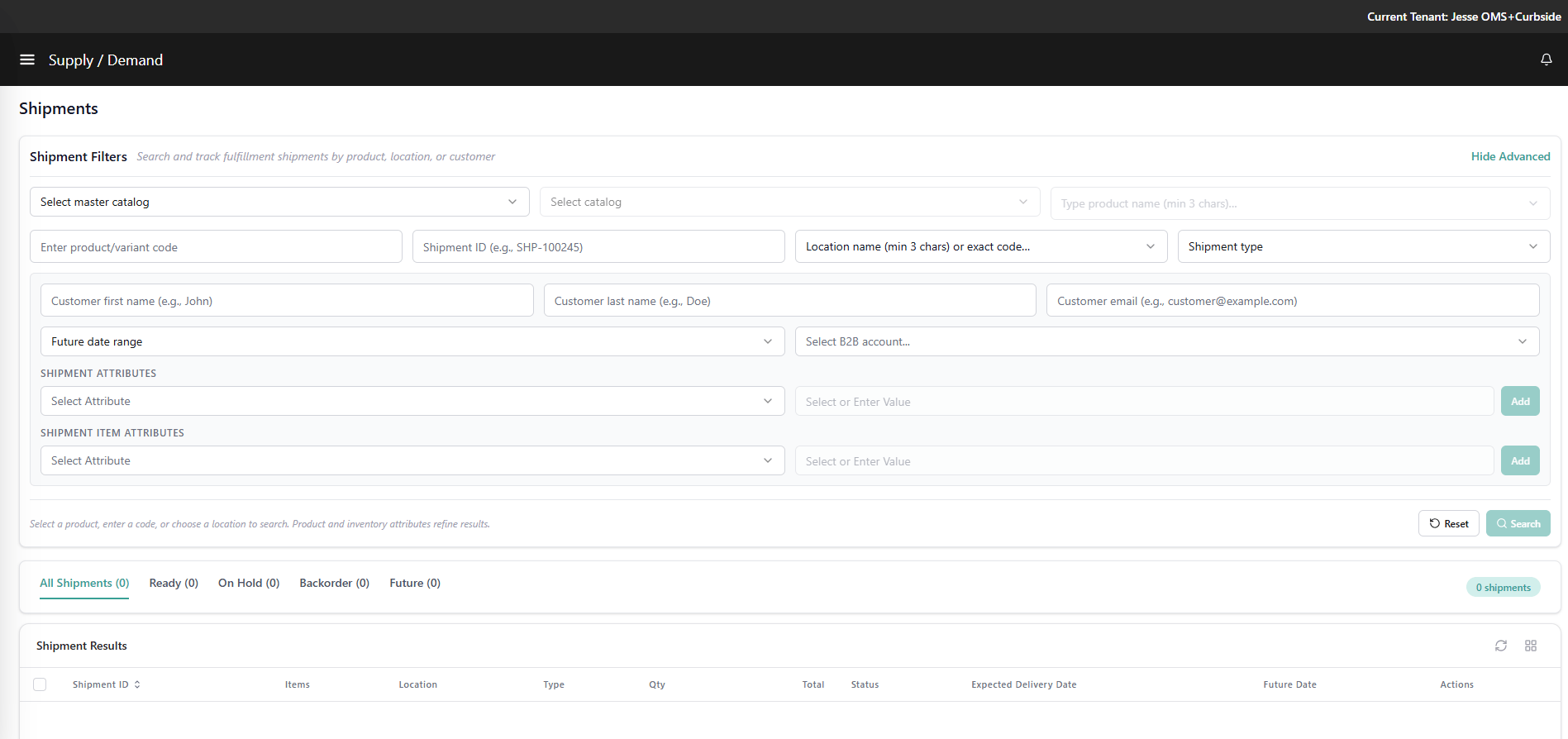
Search and Filters
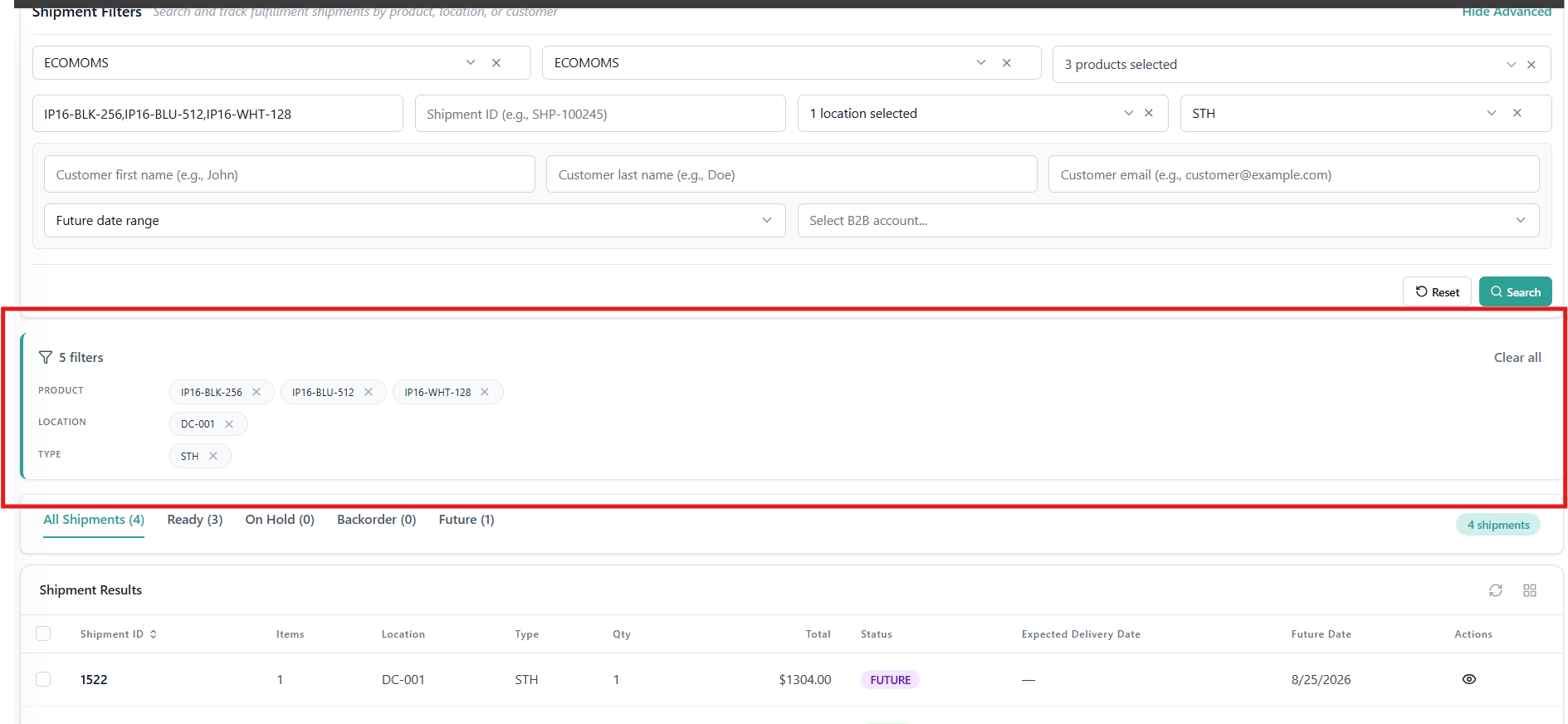
Search does not trigger on page load. Supported fields:- Product Name — typeahead search; catalog-enabled tenants only, Multi-Select
- Product code/Variant code - Search by product or variant product code , allows multi search comma separated.
- Location — single or multi-select
- Shipment ID- search by a shipment ID
- Shipment Type - single select dropdown allow to search by shipment type.
- B2B Account — scope results to a specific B2B account
- Customer First Name / Last Name
- Customer Email
- Future Date Range — filter to future-allocated shipments within a date window
- Shipment Attributes — filter by header-level extensible attributes configured for the Shipment entity
- Shipment Item Attribute — filter by line-item-level extensible item attributes configured for the Shipment Line entity
Results Grid
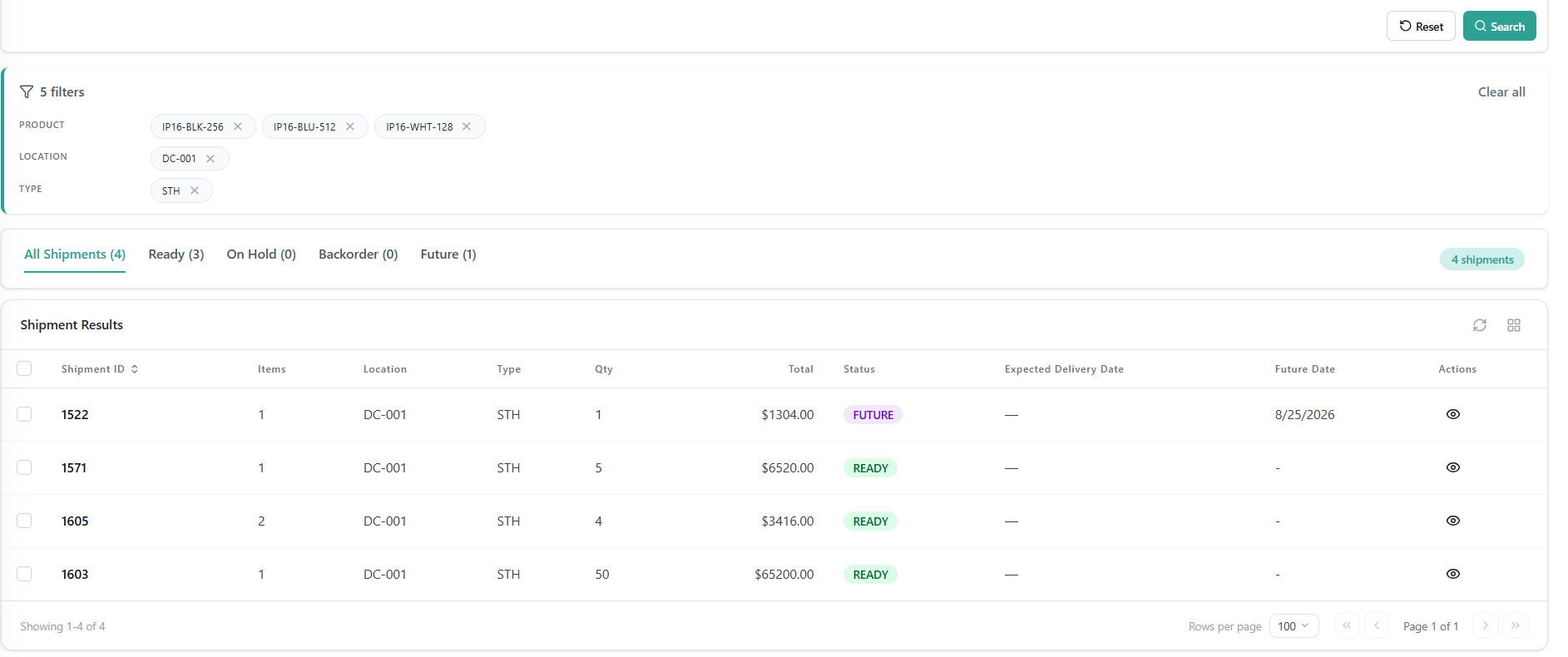
Results are organized into status tabs:
Each tab shows a record count of shipments , Columns: Shipment ID, No of Items,, Location, Type ,Qty ,Total Amount , Status , Expected Delivery Date , Future Date(for future shipments), Actions.
Shipment Detail Drawer
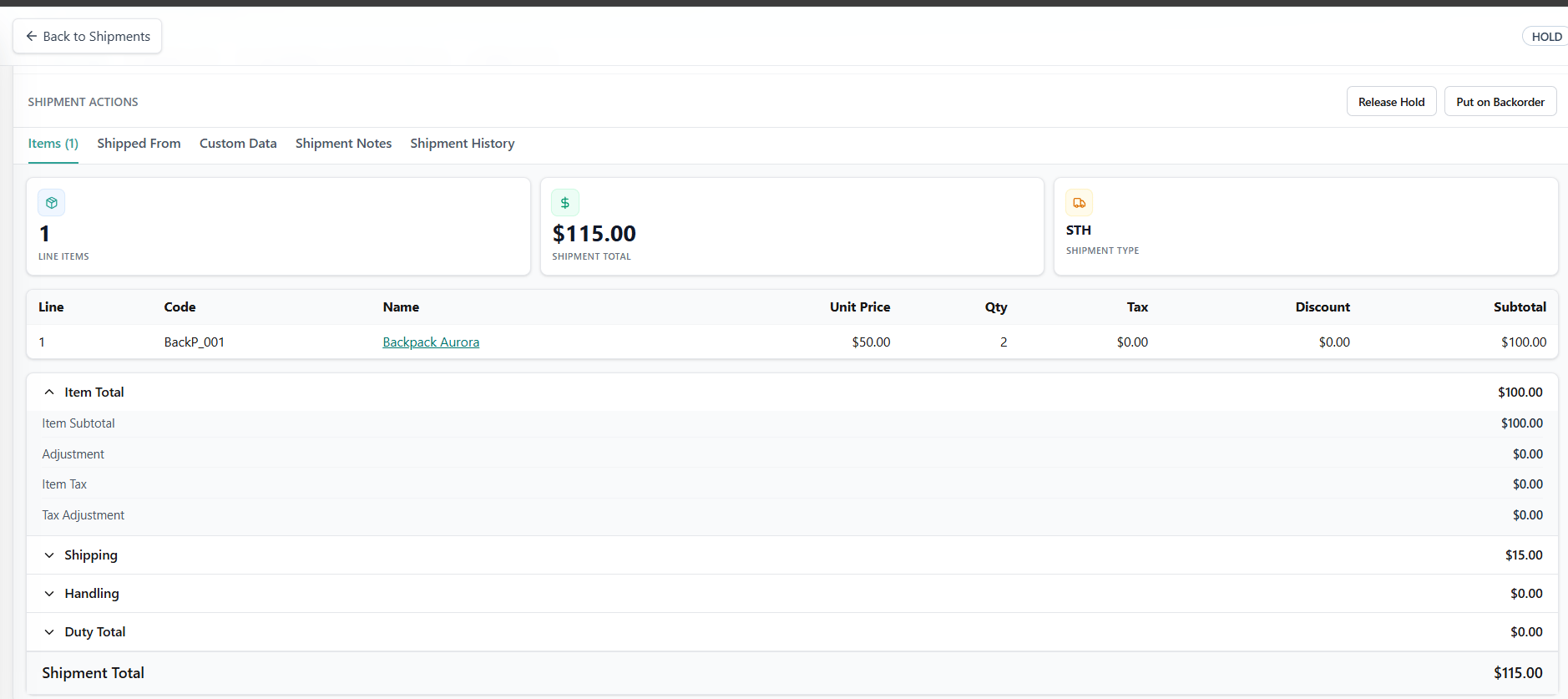
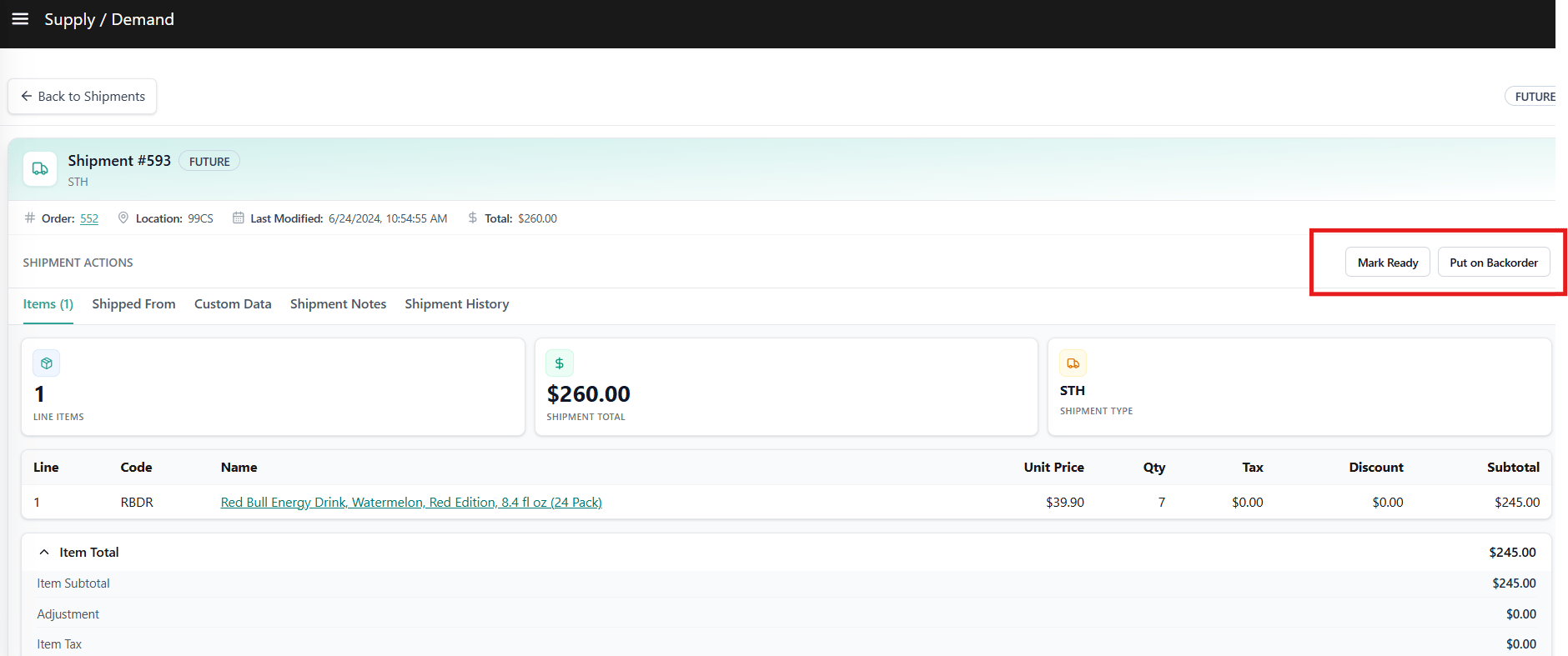
Click on the view button under actions column to open the shipment detail Modal. The Modal shows:- Order Number
- Shipment Status
- Line items and quantities
- Location
- Pricing
- Custom data
- Shipment Notes
- Shipment History
Shipment Actions
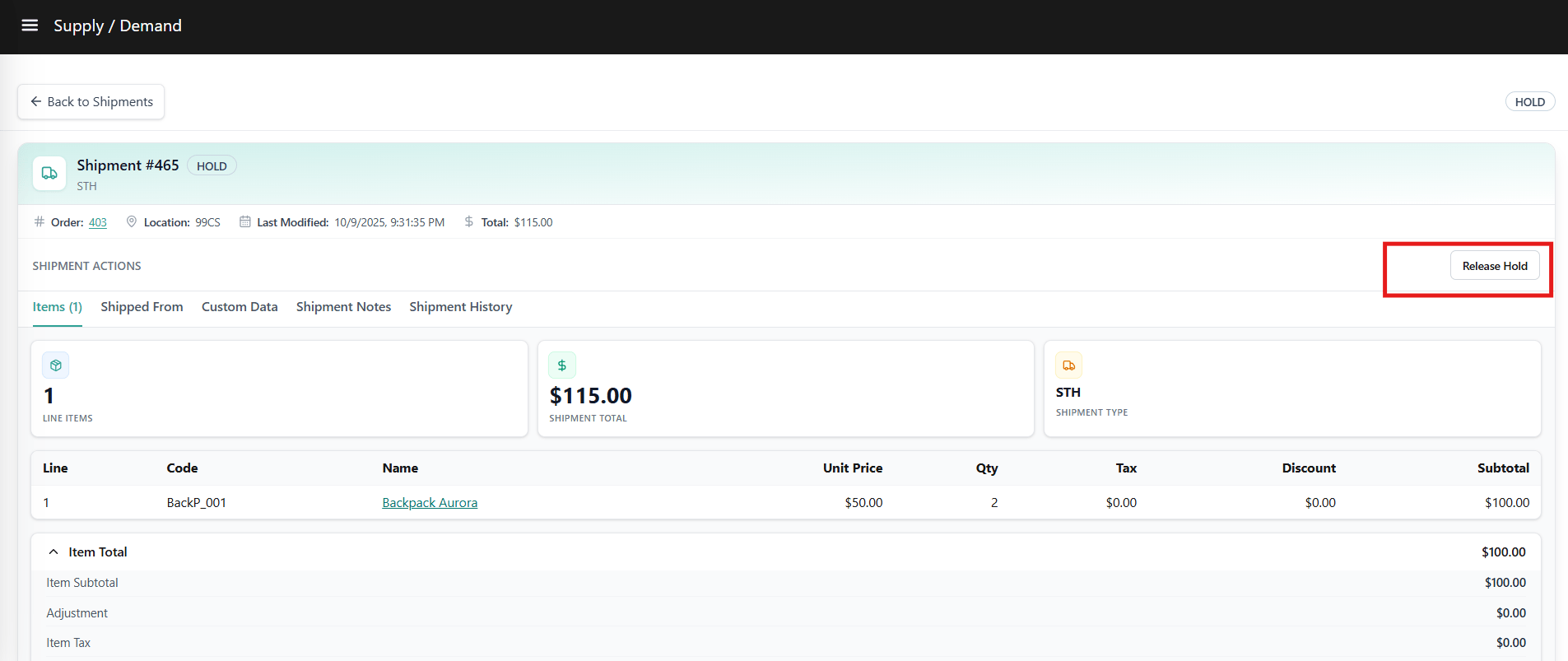
Actions available in the detail drawer depend on the shipment’s current status: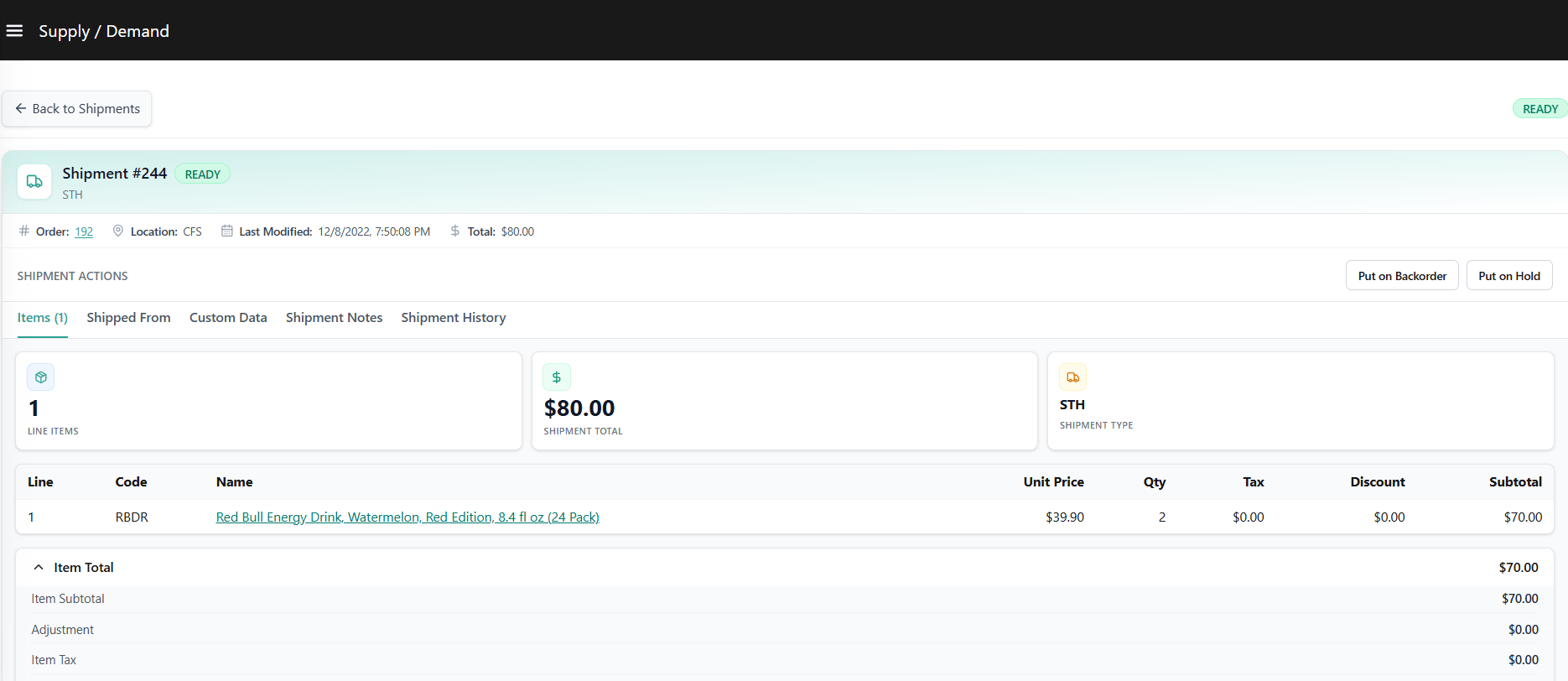
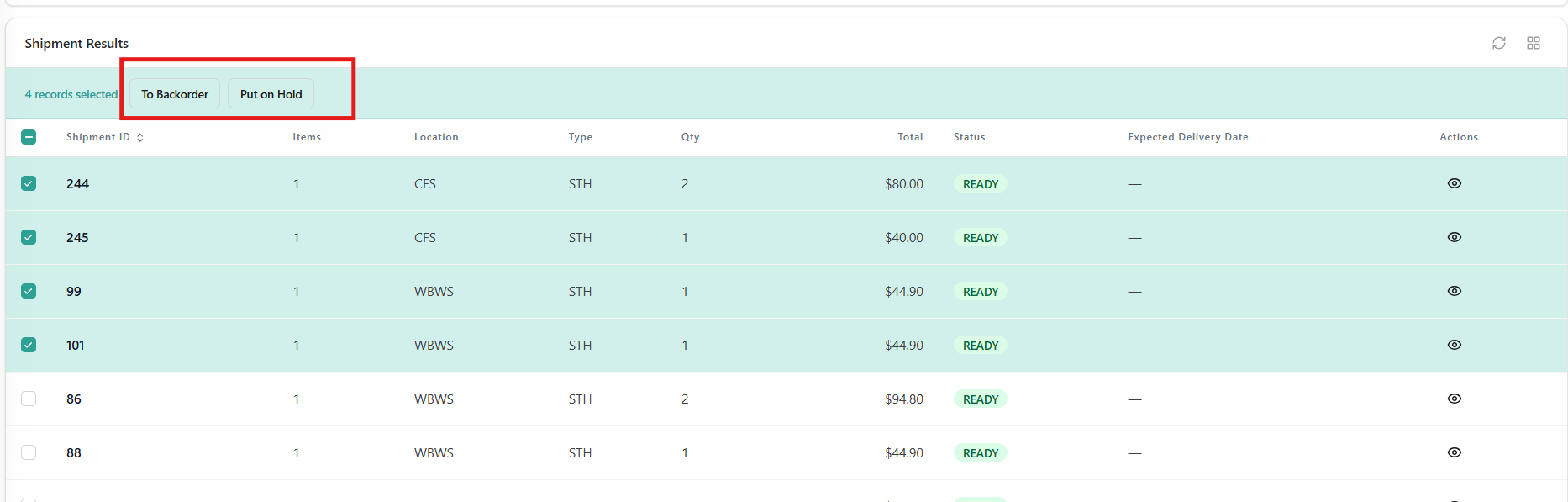
Bulk Actions
Select multiple shipments using the checkboxes on the left of the results grid, then use the bulk action bar that appears to change status across all selected shipments at once. Available bulk actions depend on which status tab you are on: