

Configuration and Setup
To use Cartonization, you must enable the feature at the tenant level and configure your packaging specifications within the Location Group settings.Enable Cartonization
Cartonization must be enabled by Kibo in your tenant settings. Once enabled, you can choose to use Kibo’s native Cartonization API or integrate with third-party cartonization providers, based on your business needs. Submit a request to Kibo Support if you want to use this feature. Cartonization is enabled using the tenant attribute"fulfillment.cartonization.enabled = true". In addition, a Cartonization Type setting must be configured to determine whether the tenant uses Kibo’s native in-house Cartonization API or integrates with a third-party provider. To enable Kibo’s native in-house Cartonization API with an optimization strategy based on total volume, set the tenant attribute: "fulfillment.cartonization.type = TOTAL_VOLUME" .
Configure Box Management
You must define the physical boxes available at your fulfillment centers so the algorithm knows what containers to recommend.- Navigate to Main > Orders > Location Groups
- Select the desired Location Group.
- Scroll to the Box Management section.
- Click Add New Box Type or edit an existing one:
- Box Type Name: Give the box a recognizable name (e.g., “Medium Shipping Box”).
- External Dimensions: Enter the Length, Width, and Height.
- Max Box Weight Limit: Enter the maximum weight capacity the box can support (e.g., 50 lbs).
- Save
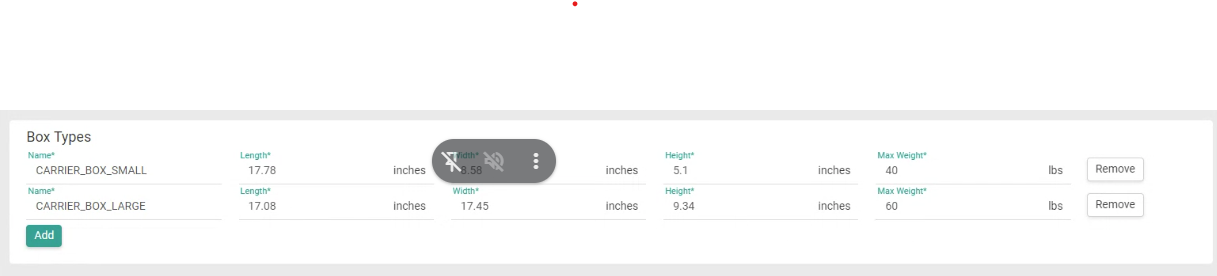
Location Group Fulfillment Settings
Ensure your fulfillment workflow is compatible with Cartonization.- In the Location Group settings, navigate to Other Settings.
- Maximum Packing Slips: Set the limit for how many packages can be generated for a single shipment (default is 10).
- Auto generate packing list: Enable, if you want to use a single packing slip for shipments. Disable this setting, if you want to use multiple packing slips for shipments.

Product Data Preparation
Cartonization requires accurate product dimensions to function. If dimensions are missing, the system will fall back to manual packing.- Navigate to Catalog > Products.
- Under the Shipping section for each product, ensure the following are populated:
- Length, Width, and Height
- Weight
- Ship by Itself: If this flag is enabled on an item, the cartonization engine will automatically isolate it into its own packing slip and will not attempt to pack it with other items.

How Cartonization Works
Once Cartonization is enabled, the package recommendation engine becomes an integrated step within the standard fulfillment workflow. Warehouse staff interact with these suggestions directly in the Fulfiller interface to ensure optimal packing.Fulfillment Step: Print Packing Slip
For ship to Home (STH), Delivery and Transfer shipments, the option to use Cartonization appears during the Print Packing Slip step.Get Packing Recommendation
- Navigate to the Print Packing Slip step after validating stock.
- Click on Get Packing Recommendations Button.
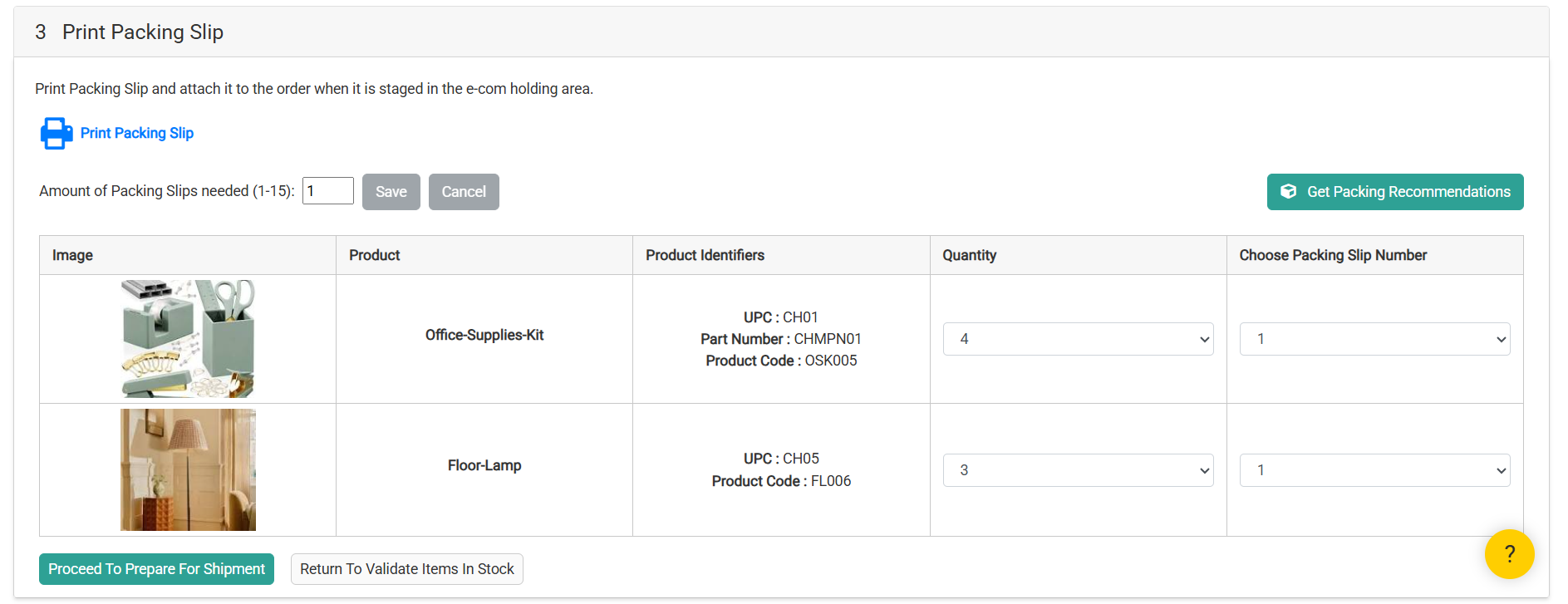
- The system analyzes:
- Item dimensions and quantities
- Available box types for the fulfillment location
- The system returns a cartonization recommendation showing:
- Recommended box type(s) with dimensions
- Specific items and quantities to pack in each box
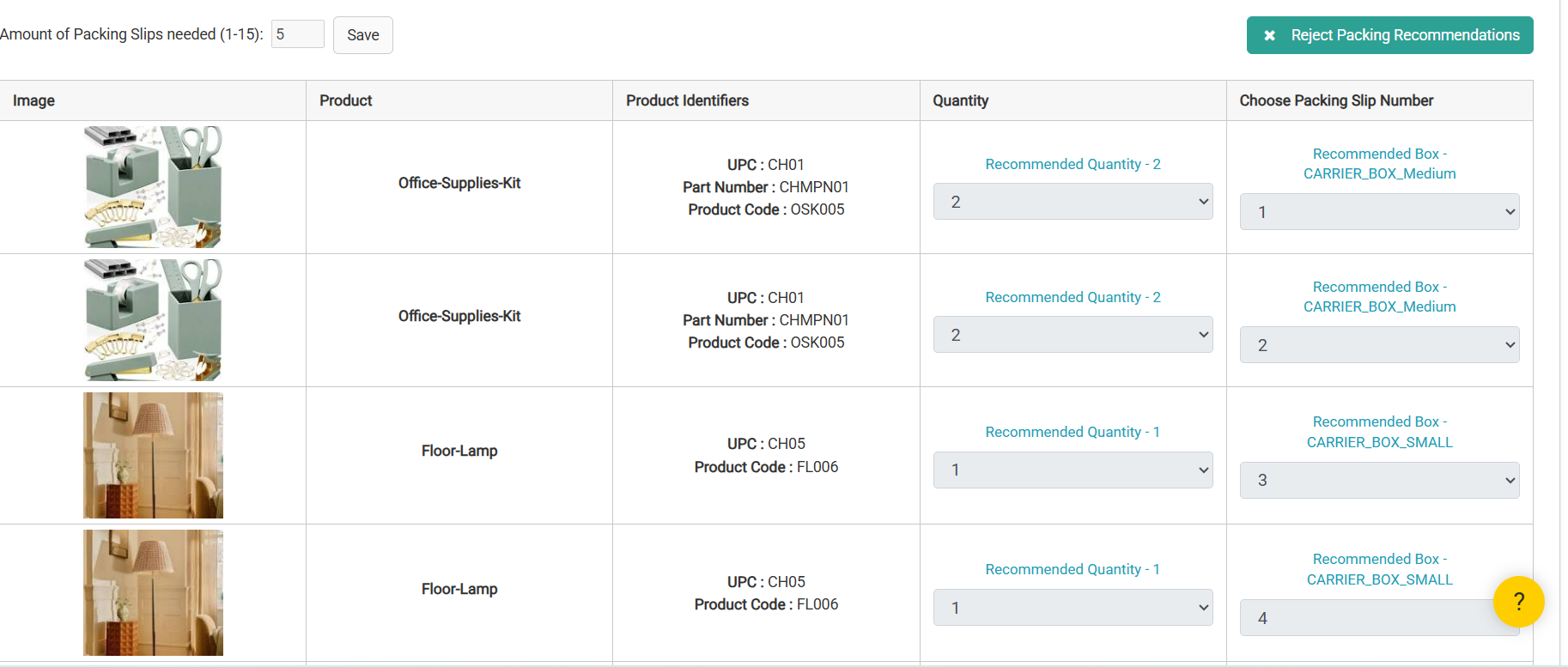
Review Recommendations
- Review which items and quantities are assigned to each box
- The system automatically updates the required number of packing slips
- Each packing slip corresponds to one recommended box.
- If acceptable, click Save, then click Proceed to Prepare for shipment step.
Manual Override/Reject Recommendations
Warehouse staff can override cartonization recommendations at any time:- Click Reject Packing Recommendations button.
- The system clears the cartonization results.
- The shipment reverts to a fully manual packing slip and box selection process.
Fulfillment Step: Prepare for Shipment
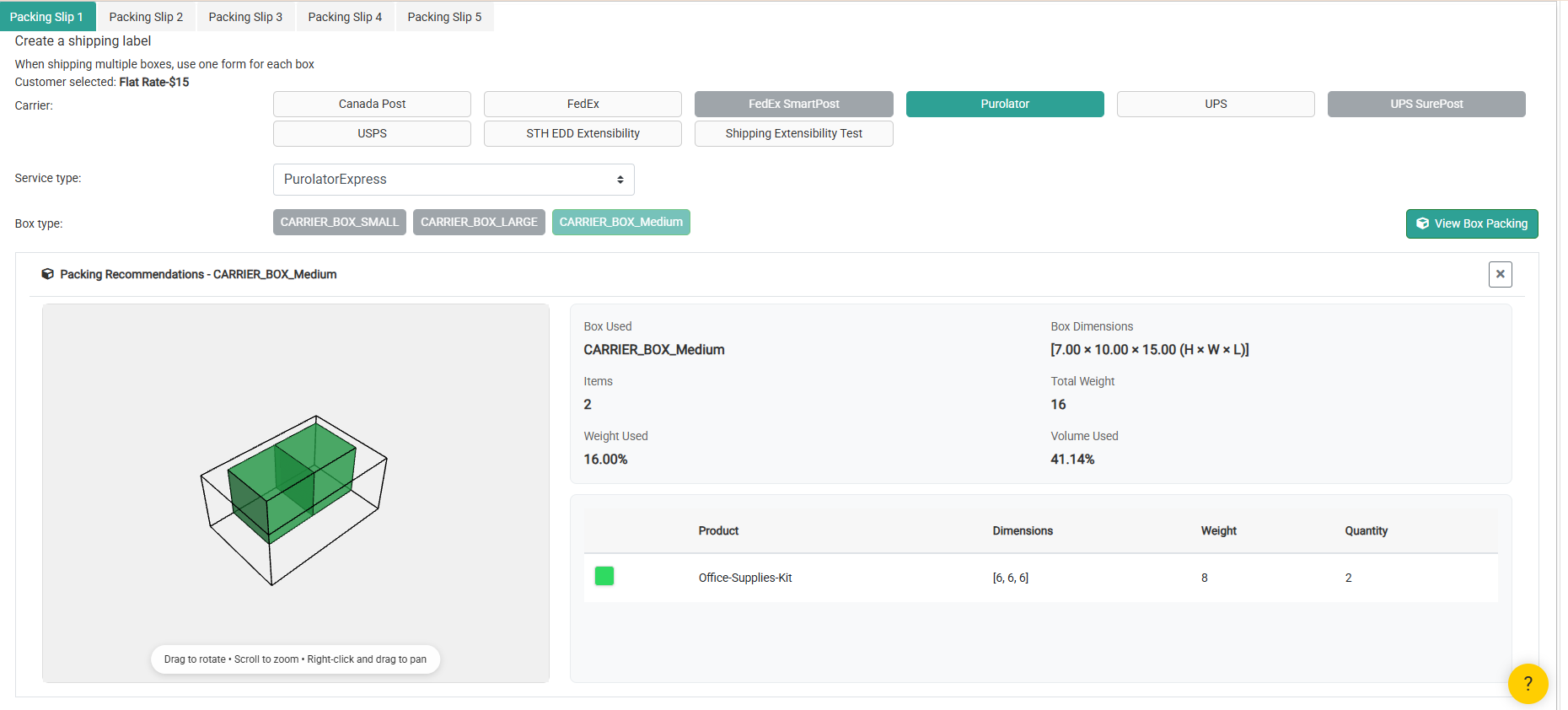
During the Prepare for Shipment step, cartonization data is used to finalize package details for label generation. Recommended box dimensions and weight are automatically pre-populated on every packing Slip. To change the box type at this stage, users must return to the Print Packing Slip step and perform a Manual Override.3D Visual Instructions
If proceeding with the recommendation, users can click View Box Packing button to open a modal displaying:- 3D visualization of item placement and quantities
- Box dimensions
- Complete item list with quantities
- Volume utilization percentage
- Overall package weight
Finalize Shipment
Once packaging details are confirmed:- Generate shipping labels as usual
- Tracking numbers are created per box (for multi-box shipments)