Watch: Creating B2C Customer Accounts
See how to create new B2C customer accounts through the storefront and admin UI
Watch: Customer Account Overview
Learn how to manage B2C customer accounts
Types of Customer Accounts
There are two types of customer accounts: registered shopper accounts and guest accounts. Both can be created organically by visitors or by administrators during a storefront visit or a Admin session, or by an administrator when importing customer data through the Kibo Composable Commerce Platform API or using the Kibo eCommerce Import/Export Tool.- Registered shopper accounts: Created through a registration event, with or without a purchase. They feature a username and password as login values. By default, the username is the shopper’s email address, but you or the shopper can change this value to any valid character string. Certain account functions are only available to registered shoppers. For example, you can disable accounts for security purposes, or unlock them when a shopper becomes locked out for too many failed login attempts. You can also trigger a password reset email on a shopper’s behalf.
- Guest accounts: Created when an order is placed without accompanying registration. They feature a unique ID number as the primary identifier. These accounts allow you to keep track of purchasing history for visitors who prefer not to register. A single email address may be used on an unlimited number of guest accounts, but it can only be used on one registered shopper account.
Customers Page
You can perform the following actions on the customers page at Main > Customers > Customers:- Search for shopper accounts.
- Sort your shoppers by clicking a column heading.
- View the available steps, such as unlocking or editing, you can apply to an account by expanding the actions menu.
- Click a row to view or edit account details.
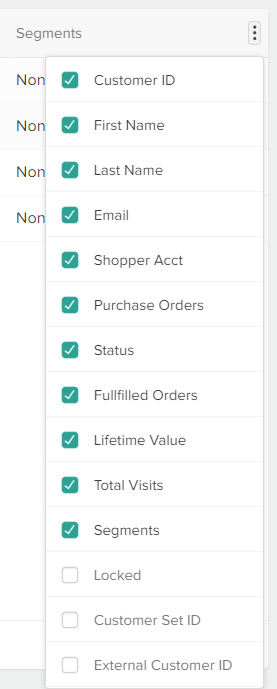
View Additional Customer Fields
Some fields do not display by default. To view additional fields:- In the right-hand corner of the customer grid, expand the actions menu (represented by three dots).
- From the drop-down menu, select the fields that you want to view on the Customers grid.