

Watch: Supply/Demand - Inventory Details
Drill into a single inventory record to read on-hand, available, and allocated quantities and edit safety stock, thresholds, tags, and attributes
Watch: Supply/Demand - Inventory Settings
See how to create inventory tags for segmentation and conditions for granular condition availability
Types of Granular Fields
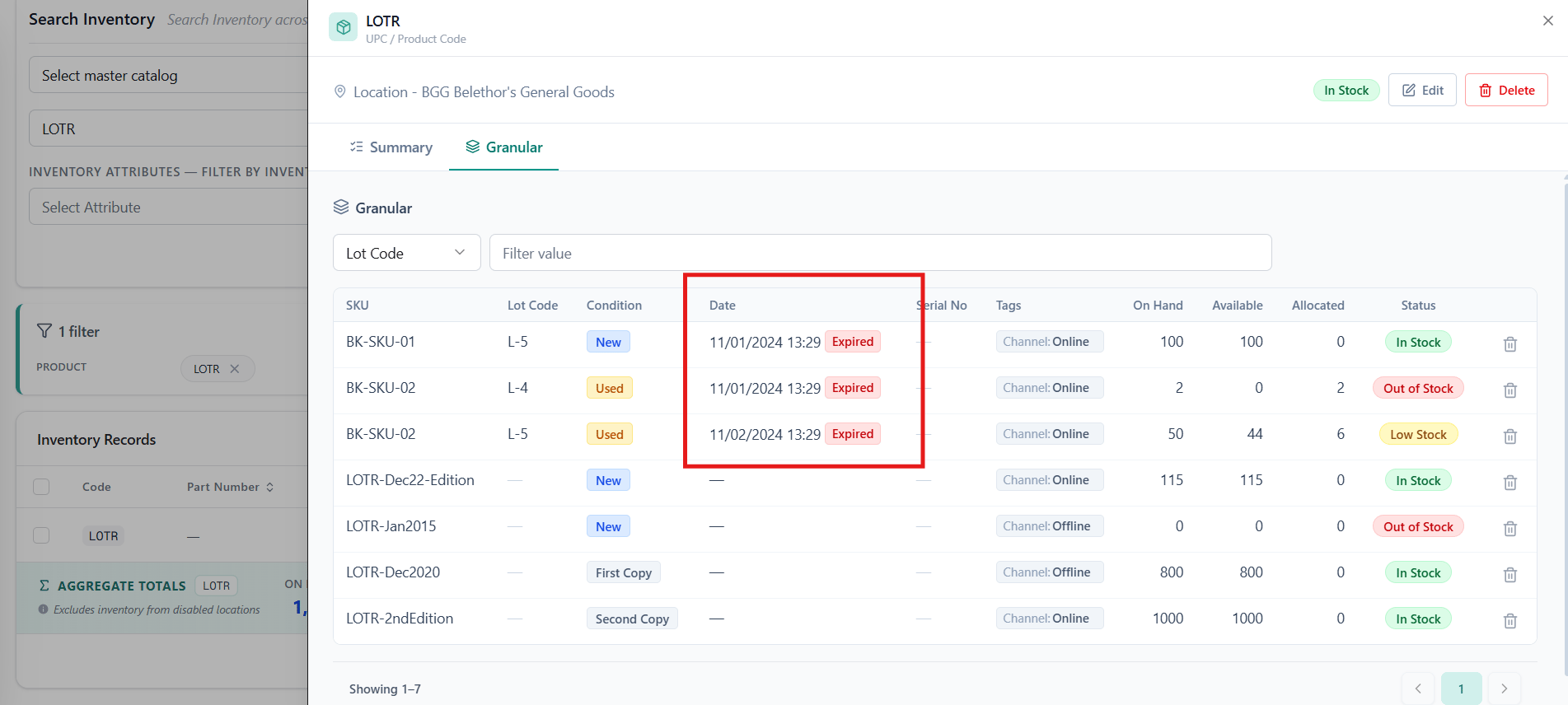
The following fields are available for granular inventory.- SKU: As a UPC may be associated with multiple SKUs, this field differentiates inventory for each individual SKU and allows an aggregate amount to be displayed at the UPC level.
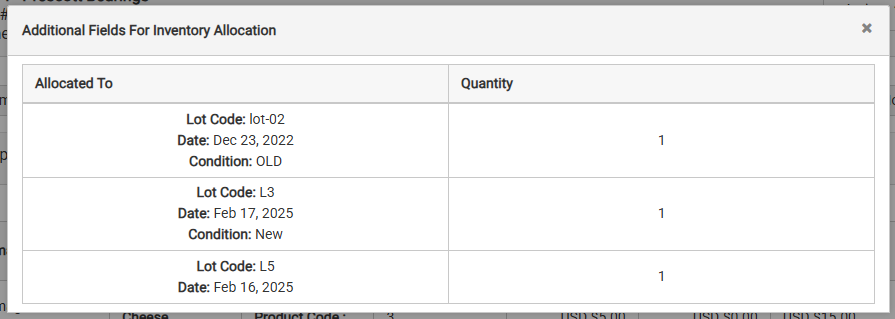
- Lot Code: Tracking which lot a product is manufactured in may be helpful with product recalls, or tracking SKU inventory in different lots. There is a limit of 50 characters.
- Date: A manufacturing or expiration date (MM/DD/YYYY format) can improve your stock management by ensuring older products are used first. By default, inventory will be allocated from items with the earliest date after a location has been assigned.
- Condition: You may offer different conditions for the same UPCs, such as New or Refurbished for a couch. If a condition is specified for an item, then it will only be allocated from the inventory record that matches that condition. If a item with a condition is substituted, then substitute items will only be available if they have inventory with the same condition. There is a limit of 50 characters.
- Serial Number: This is the lowest granular identifier for a physical piece of inventory, such as a laptop. A record with a serial number can only have an inventory quantity of 1 and cannot be substituted. There is a limit of 30 characters.
Enable Granular Fields
These additional identifiers must be enabled on your tenant by Kibo before you can use them. Please submit a request to Kibo Support to have this feature turned on for you.Manage Fields on Inventory Records
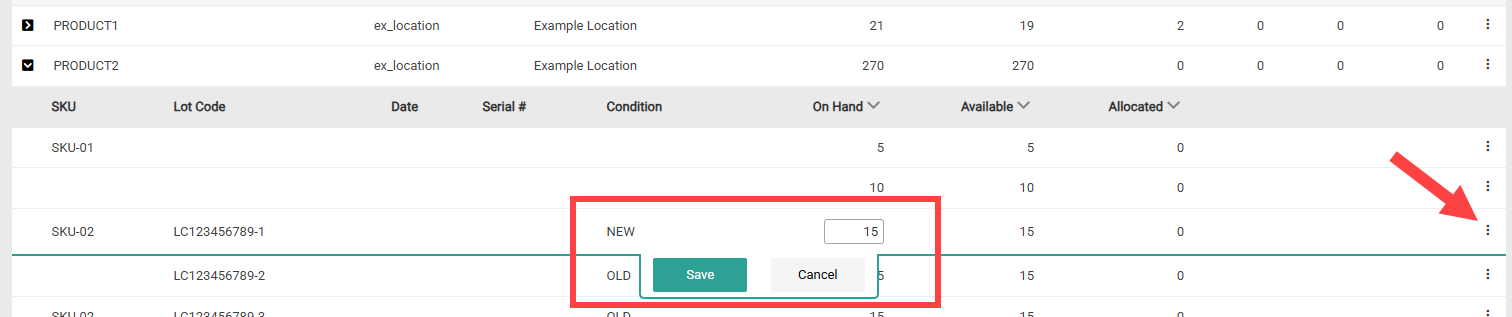
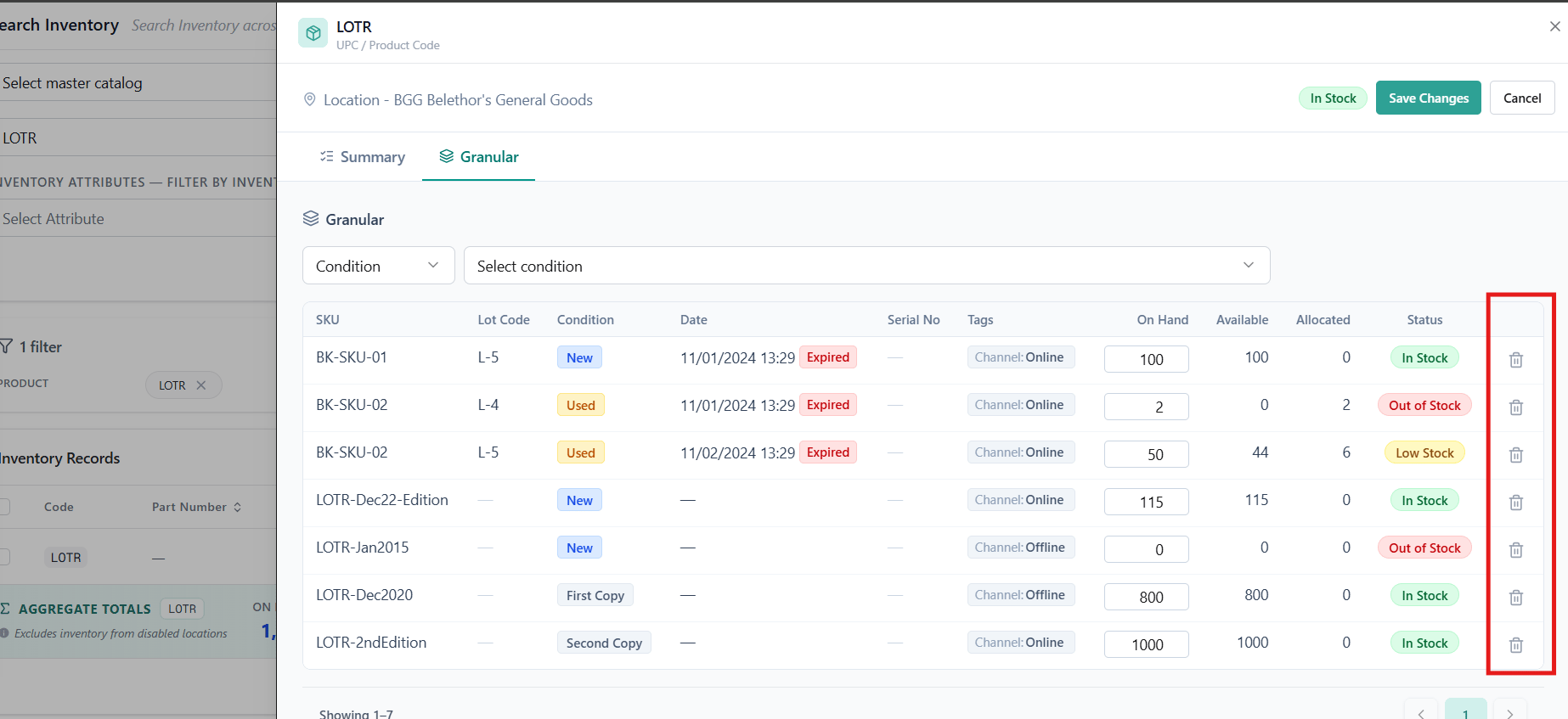
You can set and update granular quantities on inventory records via the Inventory APIs or the Inventory UI. By default, thequantity set in the APIs will be used as the On Hand value and the system will calculate the appropriate Available amount. Likewise, the Available field is not editable in the Inventory UI—you will instead modify the On Hand amount.
If you want to change this behavior so that Available inventory is directly set by the quantity value as well as editable in the Inventory UI, contact Kibo Support to update your tenant configurations.
Inventory APIs
Provide the appropriate fields at the item level of the Refresh and Adjust Inventory API calls, such as in the below example that includes a SKU, serial number, and condition. Be aware that when setting Safety Stock at the granular level, the value will be applied to all inventory records associated with that UPC-Location.Inventory UI
> Note: The Inventory UI has been updated with a new look and feel and new functional changes, and has been renamed to Supply/Demand UI. Contact Kibo Support to opt in and begin using it. All sandbox tenants will receive the new UI on July 21. Select the tab below based on which UI your tenant is currently using.
- Legacy Inventory UI
- Supply Demand UI
When creating a new inventory record, editable columns for available granular fields will be included underneath the UPC-Location record. If you have defined specific conditions in your inventory settings, then a dropdown menu will be displayed for Condition instead of a text field. You can add up to a maximum of 10 granular inventory records at once.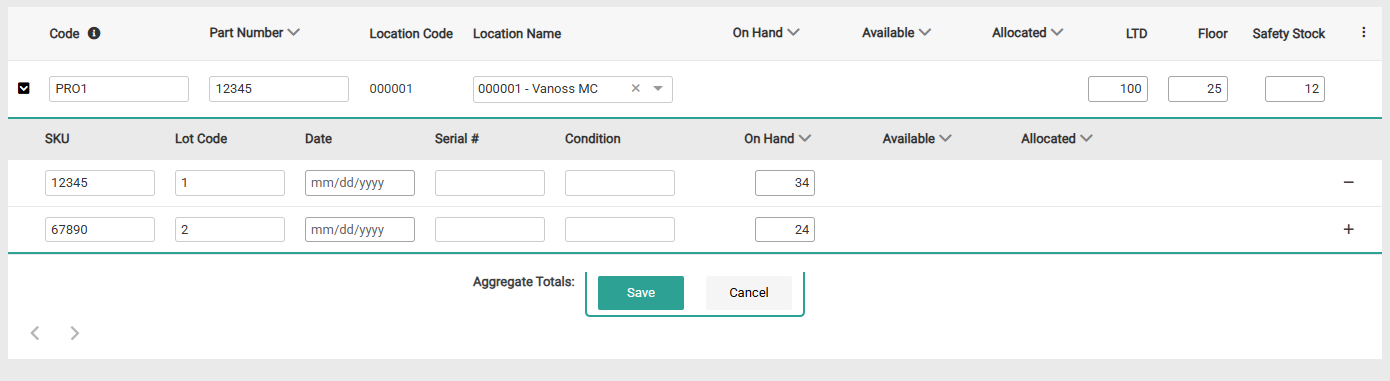


Granular Fields in Fulfiller UI
Granular fields will be displayed in Fulfiller UI shipment details under the Product Identifiers column. Line items will be separated by condition and serial number, meaning that if the customer purchases both a New and Used version of the same product then they will be displayed as two line items (shown below).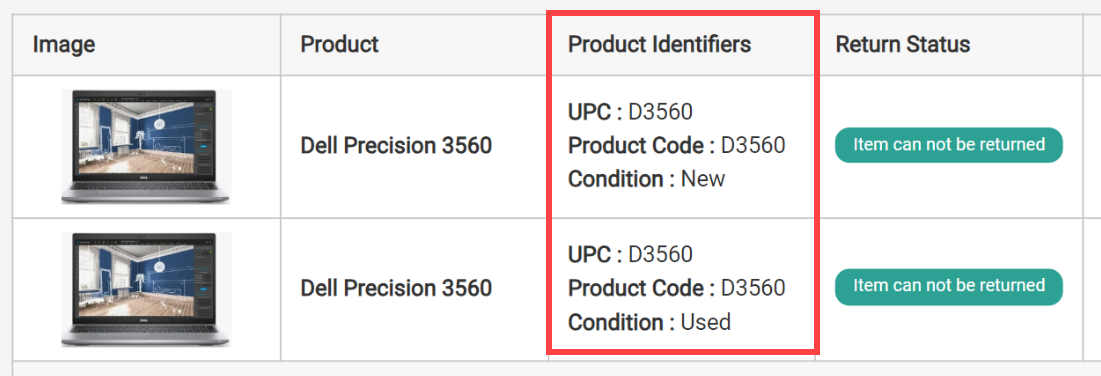

Available Inventory Counts
You can use granular Date and Condition fields to adjust how the Available inventory count is calculated and reflect more accurate Available-to-Sell (ATS) and Available-to-Promise (ATP) levels. This enables you to provide more accurate availability information and informed sales decisions, as you can display more finely-tuned inventory counts on your storefront.- ATS: The amount of inventory that is immediately available to sell. This is determined by filtering current inventory counts based on the item conditions and/or expiration dates that you set up.
- ATP: The amount of inventory that can be promised for later delivery. This is determined by filtering current and future inventory counts based on the item conditions and/or expiration dates that you set up.
Enable Inventory Expiration
If you want to use an item’s granular Date field as its expiration date and use that to determine Available counts, contact Kibo Support to enable this behavior in your tenant attributes. If it has been enabled and the Date field is present, then expired inventory (where the Date is earlier than or equal to the current date) will not be included in Available counts and therefore cannot be allocated to.Configure Condition Rules
In order to configure the possible conditions and whether or not to include them in Available counts in your inventory settings, you must have Kibo Support enable this feature in your tenant attributes. If not enabled, the below table will not appear in your inventory settings.- Legacy Inventory UI
- Supply Demand UI
- Go to Main > Orders > Inventory > Inventory Settings.
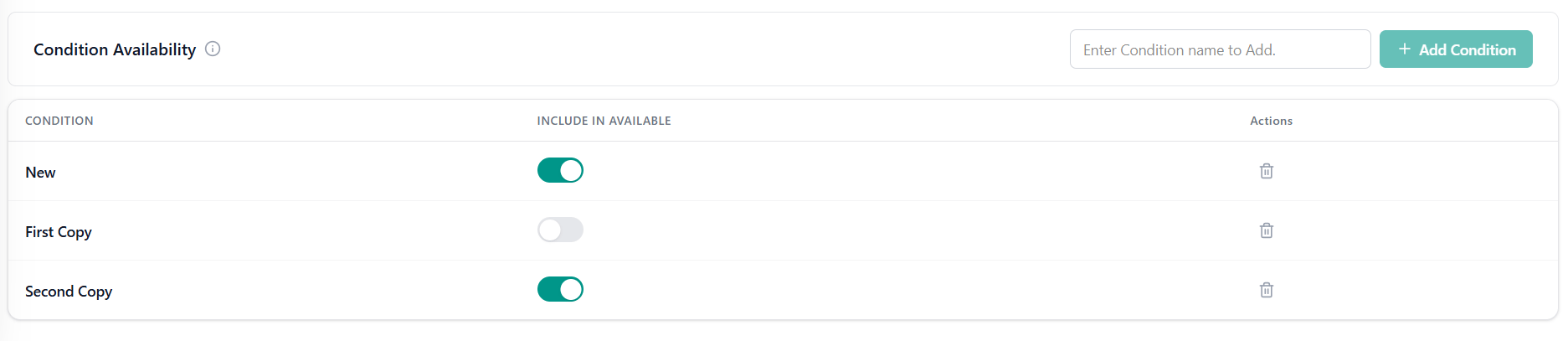
- In the Condition Availability section, click Add Condition. This will add an editable row to the table.
- Enter a Condition name.
- Toggle whether or not to Include in Available inventory counts. For example, you may want to exclude Damaged and Defective conditions while including New and Refurbished conditions.
- Click Save.
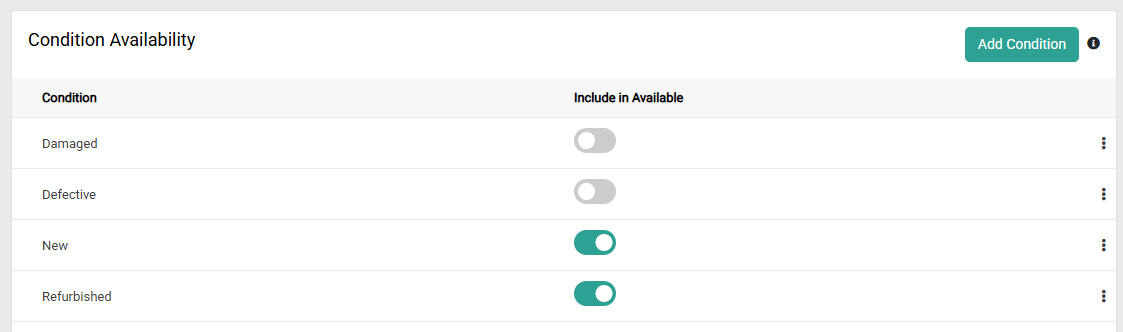
- To remove a condition, expand the actions menu on the far right of the row and click Delete. You should ensure that this condition has no allocated inventory before deleting it, meaning you may need to fulfill any allocated inventory and remove inventory records associated with it.
API Configuration
If you want to configure conditions via API instead, make a POST call to the.../inventory-management/v1/conditionavailability endpoint and a request body following the template below. This will set the given condition as a possible value, indicate whether it should be included in Available counts, and return a numeric ID in the response.
id field, retrieve all condition settings with a GET call to the same endpoint, and remove a condition by calling DELETE .../v1/conditionavailability/{ID}.
Filter in Inventory UI
- Legacy Inventory UI
- Supply Demand UI
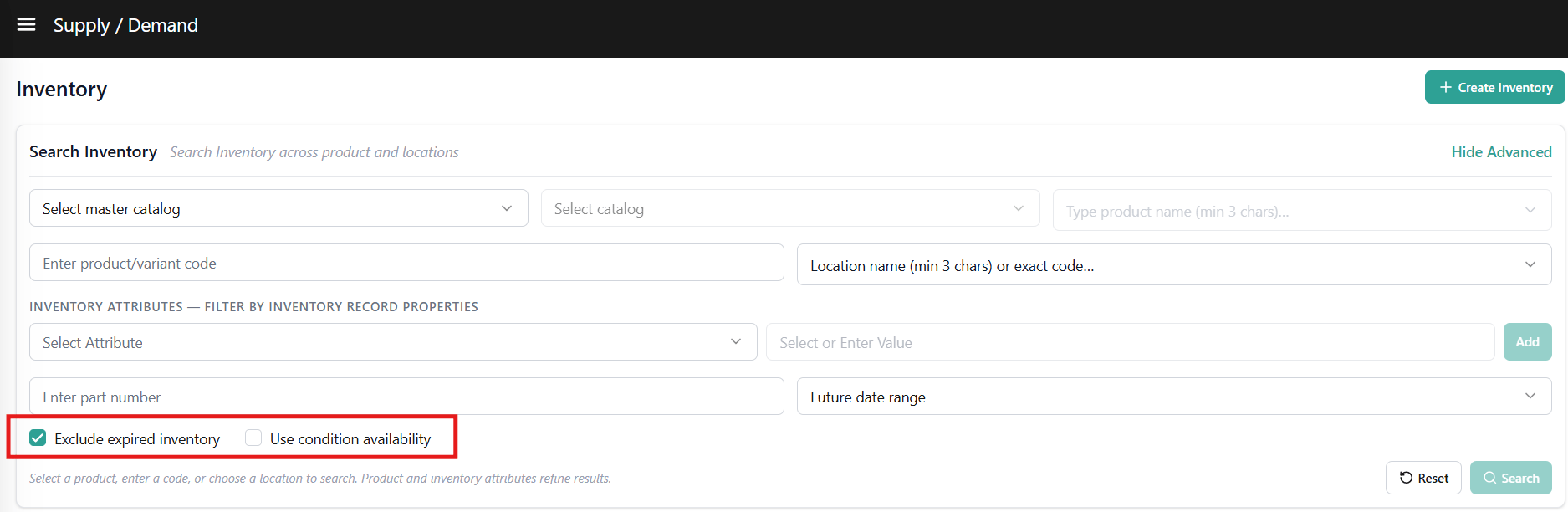
Once their respective settings have been set up, the Inventory UI will display checkboxes for Exclude Expired Products and/or Include Condition Availability in the top right. Toggle them as needed to filter inventory records and calculate Available counts based on their expiration status and/or conditions.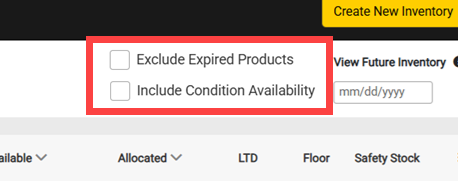
Display on Storefront
To display ATS and ATP counts on your storefront, include"enforceConditionAvailibility": true and/or "excludeExpiredInventory": true in the request when calling any of the below Real-Time Inventory Service APIs. This will filter the returned Available counts by the valid condition(s) or expiration status that you set up. Generally, determine ATS by retrieving current inventory and determine ATP by retrieving the combination of current and future inventory.
- Get Product Site Availability
- Get Group Site Availability
- Get Product Availability at Locations
- Get Group Availability at Locations
Assume Infinite Inventory at Granular Record:
To enable Infinite Inventory on a granular record, include"includeItemsWithInfiniteInventoryFlag": true in the request when using Refresh and Adjust APIs or inventory import process to create or update Granular Inventory Record. When active, this Boolean field bypasses standard allocation rules, allowing allocation even if no inventory is available.
To identify which inventory records have this flag enabled, use the Get Inventory API with the parameter includeItemsWithInfiniteInventoryFlag. Records with infinite inventory will return hasInfiniteInventory: true in the response.