

Create a New Publish Set
To create a new Publish Set:- Go to Main > Storefront > Publish Sets.
- On the Publish Sets grid, click Create New Publish Set. The Create Publish Set window opens.
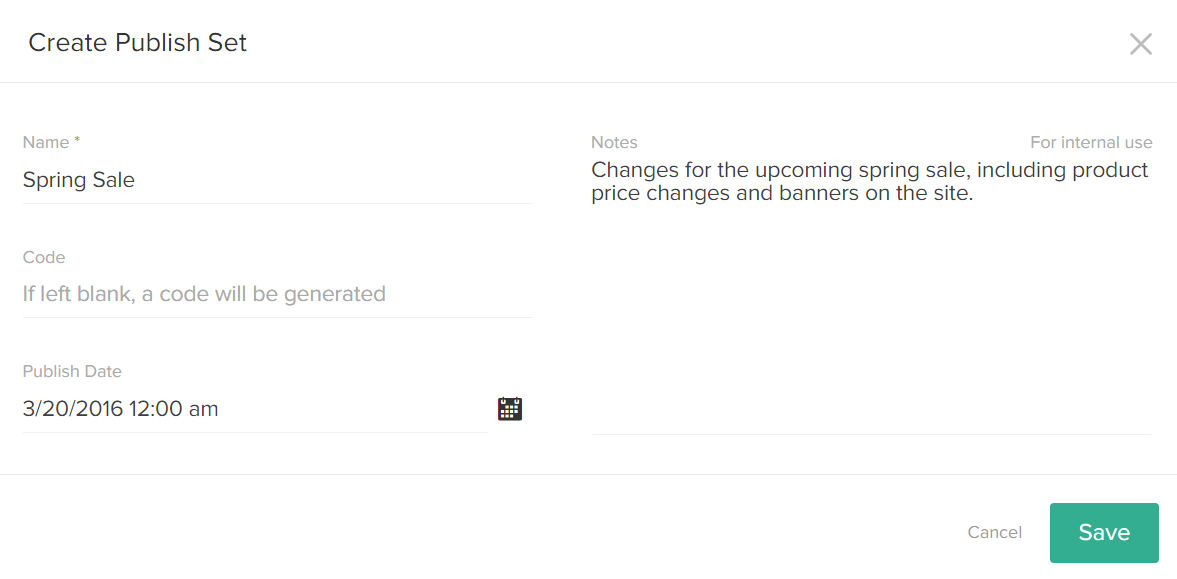
- Enter a Name for the Publish Set.
- (Optional) Enter Notes to help you identify the Publish Set.
These notes are for internal use only. - (Optional) Enter a Code for the Publish Set.
This code helps you identify the Publish Set. If you leave the Code field blank, Kibo eCommerce automatically creates one for you. - (Optional) Specific a date and time you wish the Publish Set to publish.
- Click Save.
Manage Publish Set Contents
You can access the contents of a Publish Set by selecting a Publish Set on the Publish Sets page, and then expanding the Publish Set Contents pane. You can also access the Publish Set Contents pane by expanding the actions menu for the Publish Set and selecting Manage Drafts.Add a Draft Change to a Publish Set
To add a draft change to a Publish Set:- Go to Main > Storefront > Drafts.
- On the Drafts page, select either the Product or Content tab to view the drafts that pertain to each.
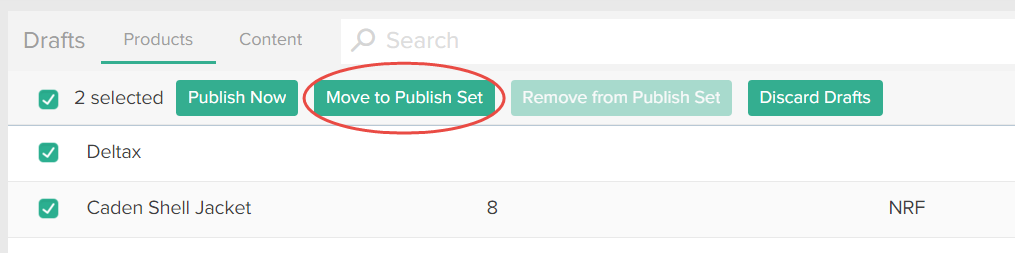
- Select the draft change you wish to move.
- Click Move to Publish Set in the selection list, and select your desired Publish Set.
Remove a Draft Change from a Publish Set
To remove a draft change from a Publish Set:- Go to Main > Storefront > Publish Sets.
- On the Publish Sets page, click the Publish Set that contains the draft change.
- If not already expanded, expand the Publish Set Contents pane on the right.
- Select either the Product or Content tab to view the drafts that pertain to each.
- Select the draft you wish to remove from the Publish Set.
- Click Remove from Publish Set in the selection list.

Delete a Publish Set
Deleting a Publish Set deletes the Publish Set and moves any unpublished drafts in the Publish Set to unassigned. To delete a Publish Set:- Go to Main > Storefront > Publish Sets.
- On the Publish Sets page, expand the actions menu to the Publish Set and select Delete.
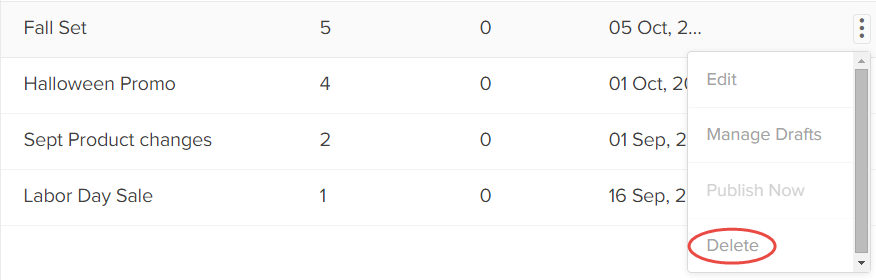
- Click Confirm when prompted.
Publish a Publish Set
Publishing a Publish Set immediately publishes all of the product and content drafts assigned to the Publish Set. To publish a Publish Set:- Go to Main > Storefront > Publish Sets.
- On the Publish Sets page, expand the actions menu next to the Publish Set and select Publish Now.
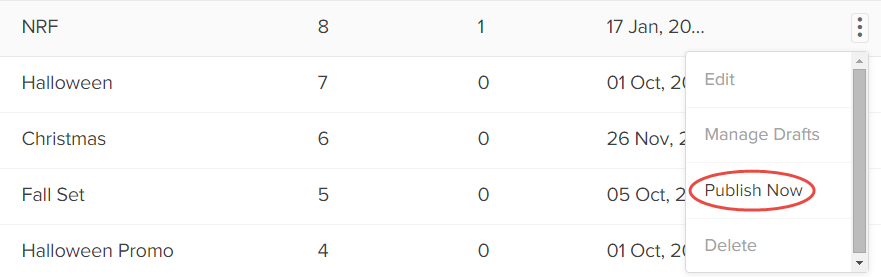
- Click Confirm when prompted.