Watch: Creating a Routing Strategy
Learn how to create an order routing strategy
Use Cases
The following sections describe example scenarios in which extensible order routing may be useful with custom product, location, order, Inventory or customer attributes. Note that this is only used with physical items (not digital or services).Product Attributes
Using order routing to route products to a certain set of locations based on custom product attributes that you have defined may be useful in scenarios such as:- Products that need warm weather packaging, based on a true/false attribute called “Perishable”
- Products that need two people to lift the package, based on a true/false attribute called “Two Person Lift Required”
- Products of a particular brand, based on a text attribute with options for “Brand”
Location Attributes
Using order routing to route products to a certain set of locations based on custom location attributes that you have defined may be useful in scenarios such as:- Not routing shipments to an area with a weather event, based on a true/false attribute called “Weather Events”
- Not routing shipments to locations where the capacity is less than 50%, based on a number attribute called “Capacity”
- Routing shipments to a location with the lowest cost of fulfillment, based on a number attribute called “Cost to Fulfill”
- Routing shipments to warehouses with a two-person forklift, based on a “Lifts” string attribute with options for one, two, or six person forklifts
Order Attributes
Using order routing to route products to a certain set of locations based on custom order attributes that you have defined may be useful in scenarios such as:- Routing orders with a BOPIS pickup time of 2:00 PM, based on a text attribute called “Pickup Time”
Customer Attributes
Using order routing to route products to a certain set of locations based on custom customer attributes that you have defined may be useful in scenarios such as:- Routing shipments specially for Platinum customers, based on a text attribute called “tier” with options of “Platinum,” “Gold,” or “Silver”
Inventory Attributes
Using order routing to route products to a certain set of locations based on custom inventory attributes that you have defined may be useful in scenarios such as:- Avoiding locations with negative inventory for critical items, based on a true/false attribute called “Negative Inventory Flag”
- Prioritizing locations trying to clear specific SKU inventory, based on a true/false attribute called “Do Not Replenish”
- Routing based on seasonal inventory availability, based on a text attribute called “Seasonal Availability” with options for “Spring,” “Summer,” “Fall,” or “Winter”
B2B Attributes
Using order routing to route products to a certain set of locations based on custom B2Battributes that you have defined may be useful in scenarios such as:- Define customers as “Small Business,” “Mid-Market,” or “Large Account” based on annual purchase volume. Small businesses might route to a general fulfillment pool, while Large Accounts get priority processing or dedicated warehouse space for their frequent orders.
- Company offers different service levels (Standard, Premium, Enterprise) defined as a custom B2B attribute. Enterprise customers require fulfillment from specific locations with white-glove service capabilities.
Note: To get the below Call Off order attributes make sure the B2B Wholesale OMS feature is enabled for your tenant. Contact Kibo Support to enable this capability.
Call Off Order Attributes
Using order routing to filter Call Off Orders based on Call Off Order header and line item attributes may be useful in scenarios such as:- Routing Call Off Orders from a specific submission channel (for example,
EDI) to designated EDI-capable fulfillment locations, based on the Call Off Channel first-class field. - Routing Call Off Order lines with a
BOPISfulfillment type to store locations that support in-store pickup, based on the Call Off Fulfillment Type first-class field. - Routing Call Off Order lines with large requested quantities to high-capacity distribution centers, based on the Call Off Requested Quantity first-class field.
- Routing Call Off Orders with a custom header attribute such as “Project Code” to fulfillment locations designated for that project, based on a custom Call Off Order attribute flagged as Available as Order Routing Filter.
- Routing Call Off Order lines with a custom line attribute such as “Priority Level” to expedited processing locations, based on a custom Call Off Order Item attribute flagged as Available as Order Routing Filter.
Multiple Attributes
You can also route shipments based on a combination of attributes from the above topics. For instance, you could reference both product and location attributes in the following scenario:- Perishable candy being routed to locations that offer insulated packaging, based on the true/false “Perishable” product attribute and the true/false “Insulated Packaging”
Enable Attributes for Order Routing
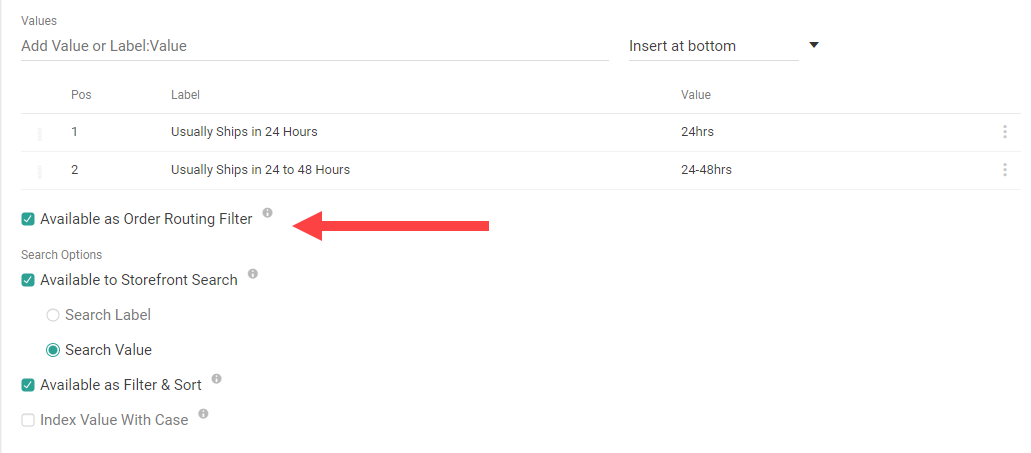
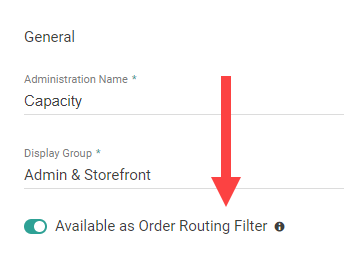
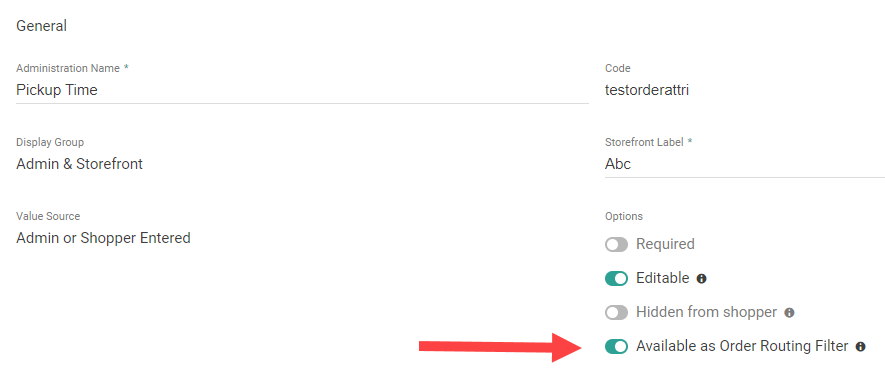
You must make the attribute available to Order Routing in the attribute configurations in order to use the attribute in routing filter logic. For more information about creating and configuring attributes in general, see the following documentation:- Extensible Attributes
- Extensible Item Attributes
- Customer Attributes
- Product Property Attributes
- Location Attributes
- Inventory Attributes
- B2B Attributes
Extensible Attributes schema allows users to create Multiple extensible attributes of different entities - Order , Shipments , Subscription , Blanket Orders & Call Off Orders.Similarly Extensible Item Attributes schema allows users to create Multiple extensible attributes of different entities - Order , Shipments , Subscription , Blanket Orders & Call Off Orders. at a item level.Order routing filters supports Extensible Attributes where entity = Call off or Orders and for extensible item attributes it supports for call off order item attributes.
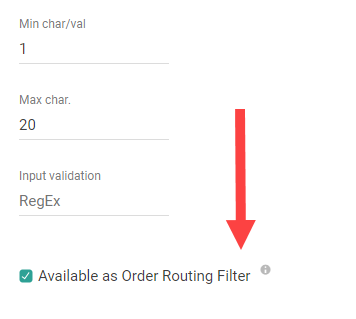
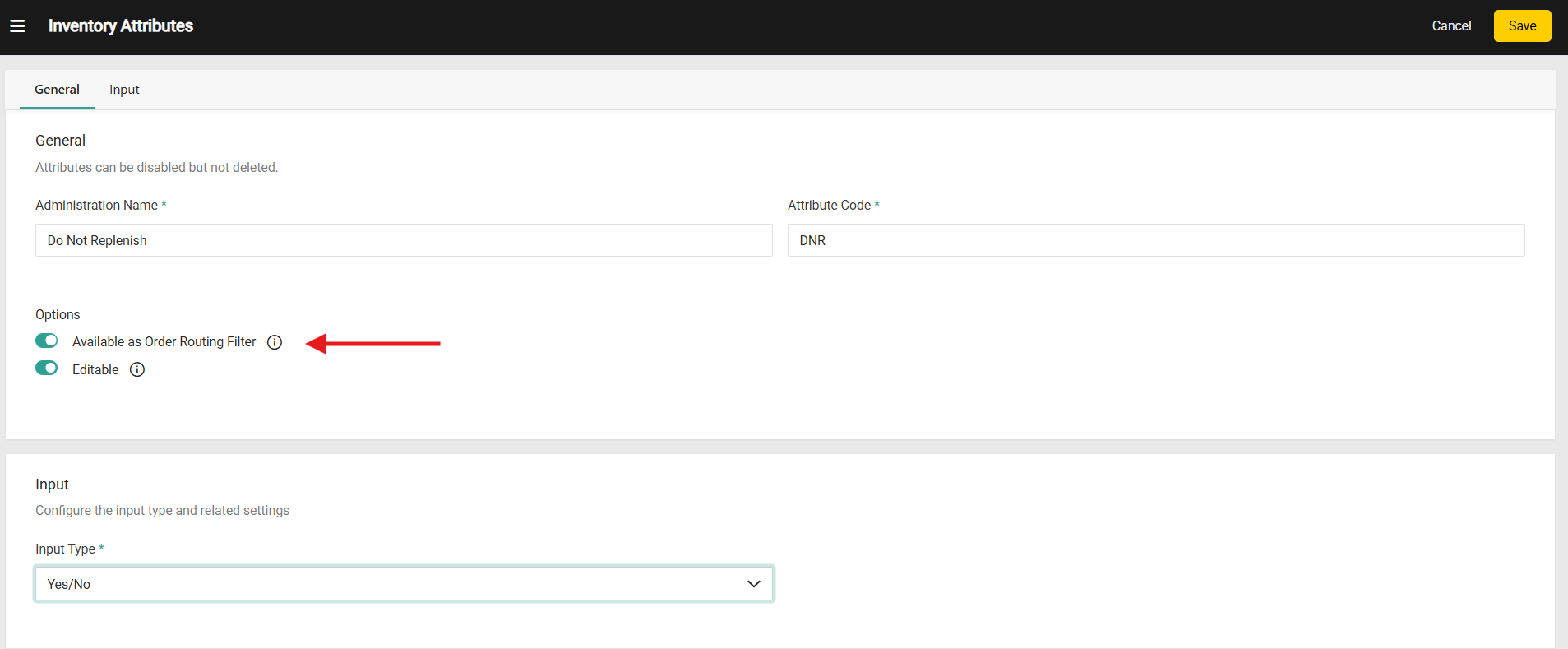
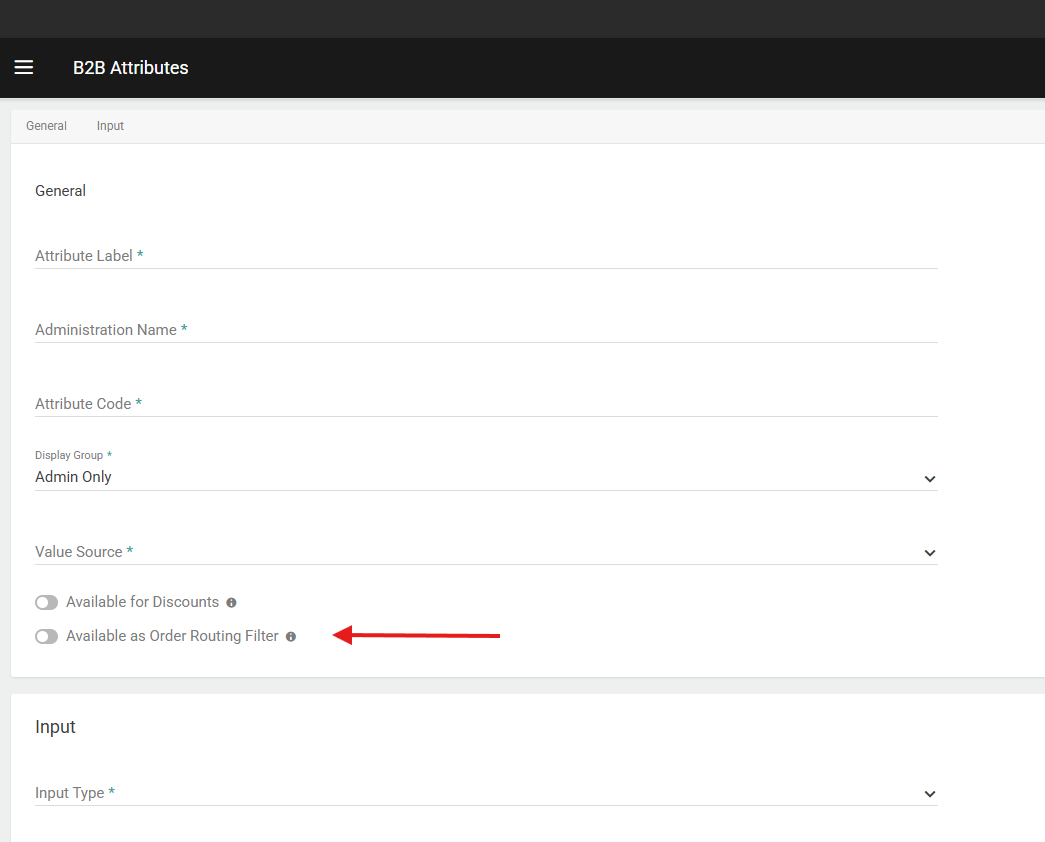
Create Attribute Filters in Order Routing
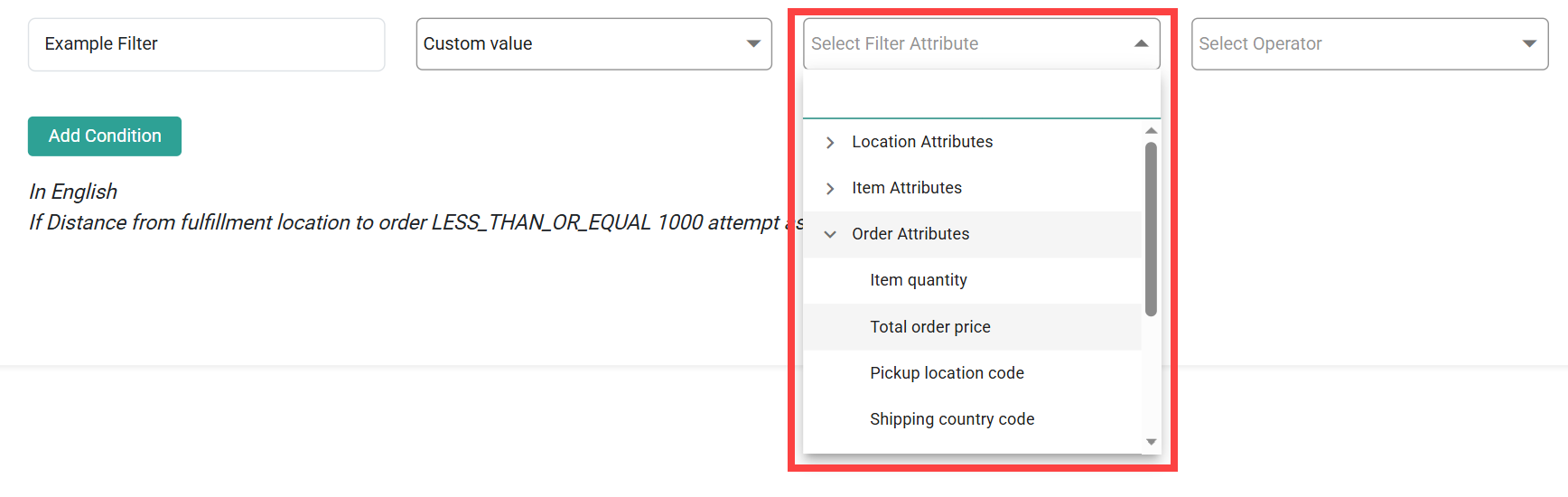
Once enabled, you will be able to select the attribute in routing filters. Be aware that filters are defined within scenarios and cannot be shared across multiple scenarios. When configuring a filter, you can define logic based on that attribute by selecting the Custom Value filter type.