
Inventory Concepts
Learn about inventory management fundamentals
Developer Reference
See the Inventory API documentation for programmatic access
Inventory Attributes Dashboard
View existing inventory attributes on the Inventory Attributes page located at System > Schema > Inventory Attributes. You can change the columns displayed in the table by expanding the dropdown menu on the far right of the table headers, which allows you to toggle on additional columns such as Input Type or Available for Order Routing.
Create Inventory Attributes
The attribute definition determines the data type, whether it can be used for order routing, and whether the attribute value is editable. To define a new inventory attribute:- Go to System > Schema > Inventory Attributes.
- Click Create New Inventory Attributes.
- In the General section, complete the following:\
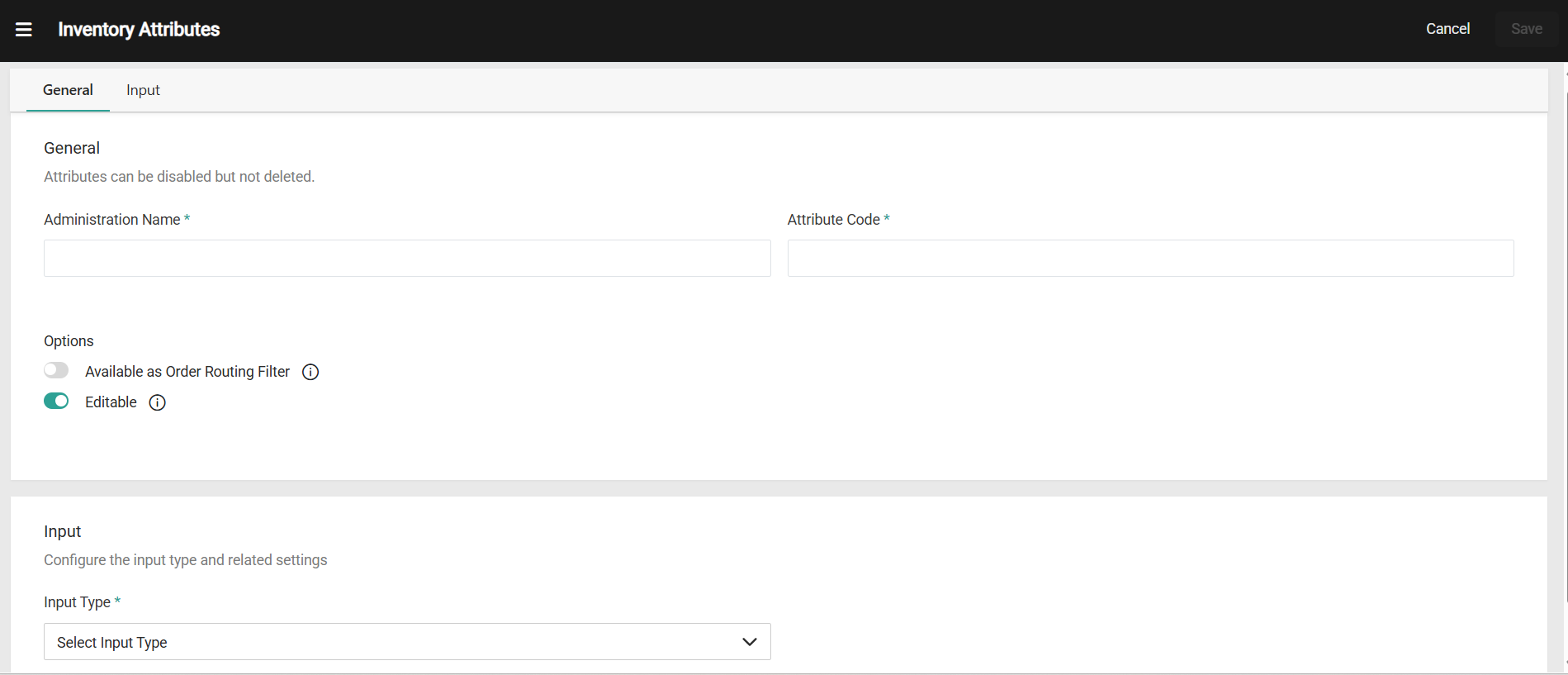
- Enter an Attribute Name.
- Enter a Code (if not provided, a code will be automatically generated).
- Set Options Editable (enabled by default). If disabled, the attribute values cannot be updated through APIs or Inventory UI after creation.
- Available as Order Routing Filter: Toggle to enable this attribute for use in order routing filters. When enabled, this attribute will appear under Inventory > Extensible Attributes in the Order Routing filters. This option is disabled by default.
- Toggle on Available for Rules: If you want this attribute to be used as a condition in rule criteria. The setting is disabled by default and applies across all rule types.
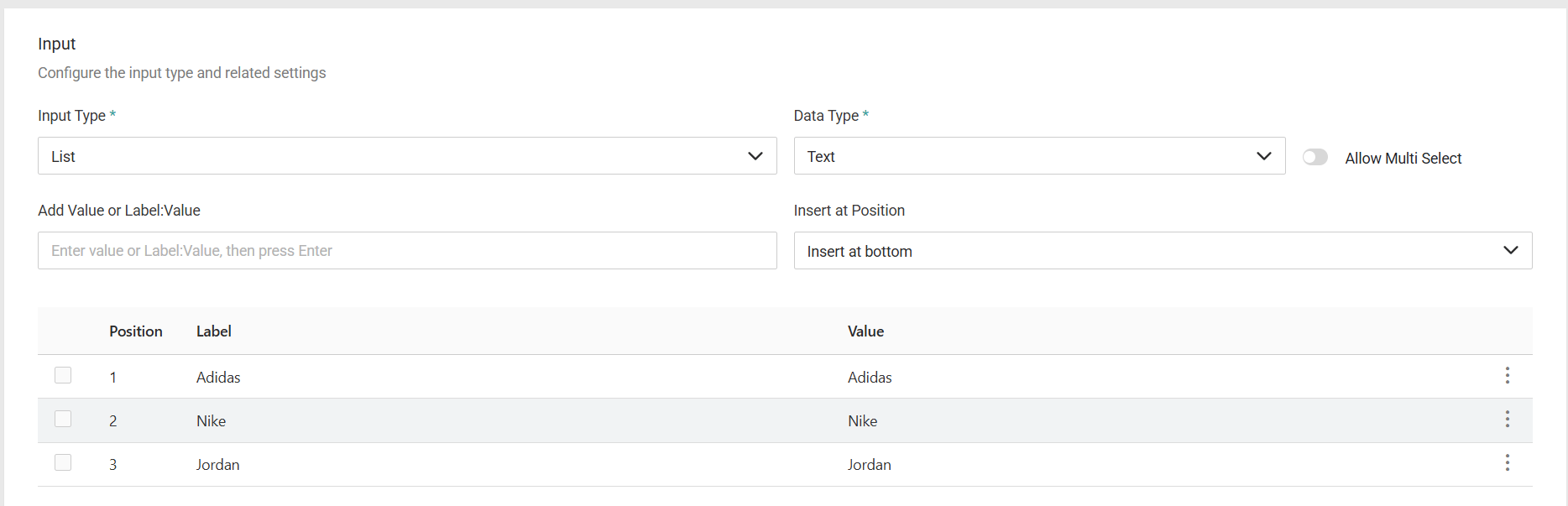
- In the Input section, use the Input Type drop-down menu to specify the input type for the attribute. You can choose:
- List: Select from predefined options (supports multi-select)
- Text Box: Single-line text input
- Text Area: Multi-line text input
- Yes/No: Boolean values
- Date: Date pickerDepending on the input type you select, additional fields might display that require more information.