

Price List Order Details
Whenever a shopper orders a product that participates in a price list, and the price list is applicable for the shopper, the price list is associated with the order. When you view the order details for an order, the associated price list’s name is displayed at the top of the order details section: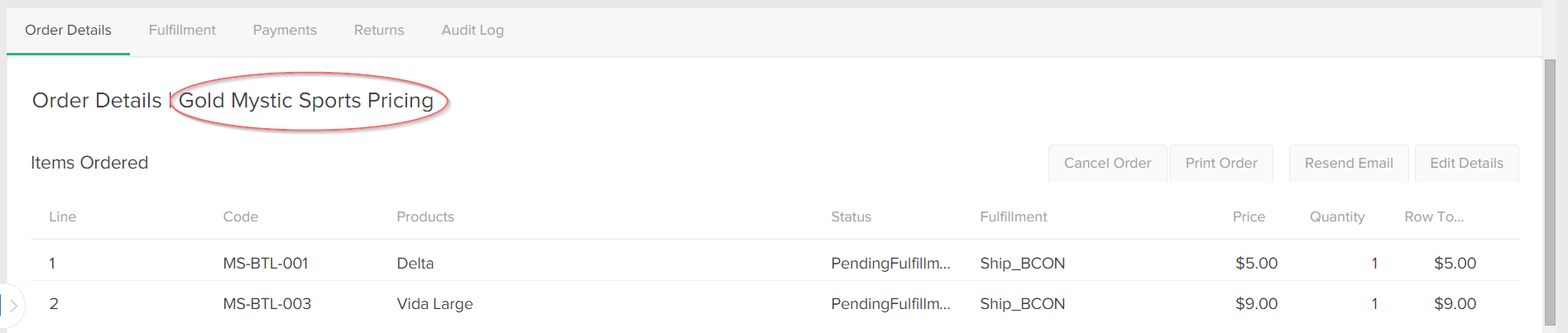
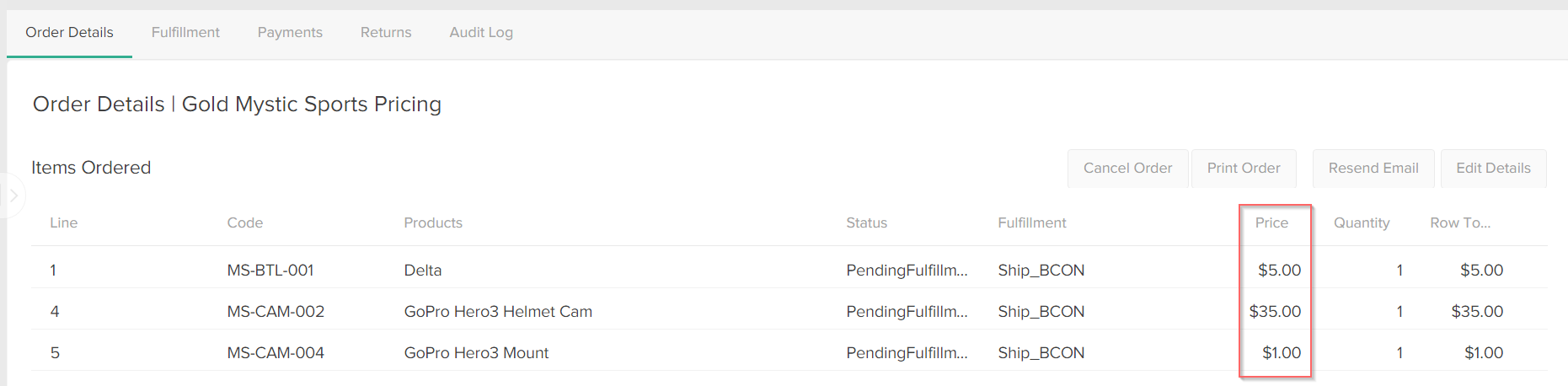
Associate a Price List
You can associate a price list with an existing or pending order to override any of the product pricing in the order. To associate a price list with an order:- Go to Main > Fulfillment > Orders.
- Select the order with which you want to associate a price list.
- Under Order Details, select Edit Details.
-
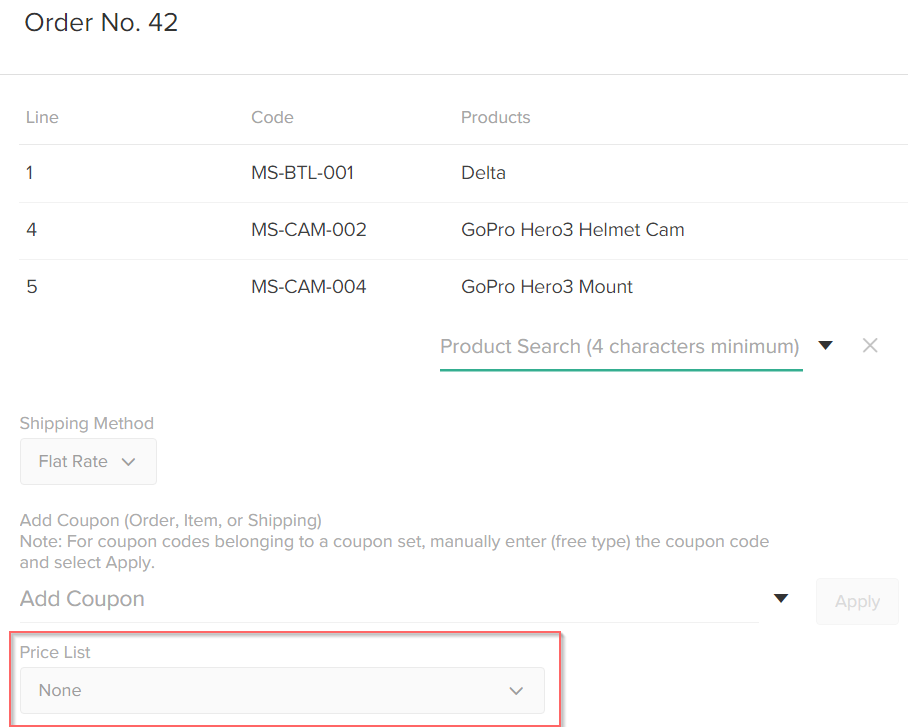
In the Order Details window, use the Price List drop-down menu to select a price list to associate with the order, ensuring that the product quantity is equal to the minimum purchasable quantity of the product in the price list:
Volume Pricing and Minimum Quantity
You can use volume pricing in price list entries to specify product prices that are based on specific quantities of products. Refer to Volume Pricing documentation for more information. If you associate a price list that has volume pricing with an order, for any applicable products in the order that have a minimum purchasable quantity greater than 1, you must set the product quantity amount in the order to the minimum purchasable quantity. For example, you create a price list for hammers, and you set the lowest minimum quantity shoppers can purchase to 10: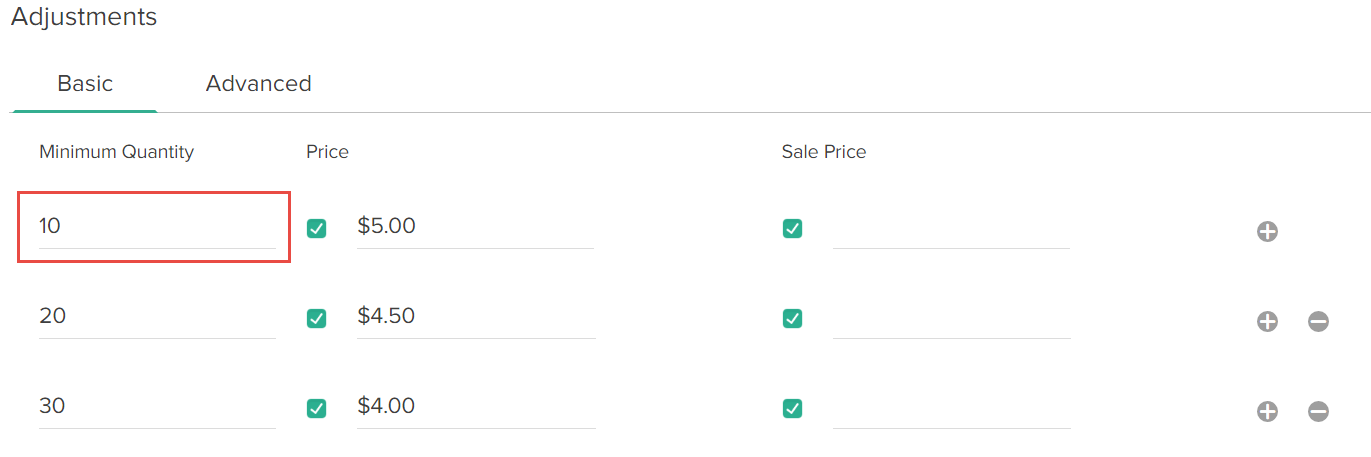

Exclusive Price Lists
You can associate an exclusive price list with an order. Exclusive price lists only allow a shopper to view and/or purchase products that are explicitly defined in them and any of its parents. Associating an exclusive price list with an order can potentially remove products from the order. Any products that are not explicitly defined in the exclusive price list or its parents will be removed from the order, and you will not be able to add them back to the order until the exclusive price list is no longer associated with the order. Before associating the exclusive price list with the order, ensure that the exclusive price list is the correct price list you want to associate with the order. Exclusive price lists are denoted in the Price List drop-down menu: