

Order Routing Concepts
Understand how Kibo routes orders to fulfillment locations
Developer Reference
See the Order Routing API documentation for programmatic access
Watch: Order Routing Overview
Get an introduction to order routing in Kibo
Watch: Order Routing Strategies Dashboard
See an overview of the order routing strategies dashboard
Watch: Creating a Routing Strategy
Learn how to create an order routing strategy
Watch: Routing Strategy Management
See how to manage and modify order routing strategies
Watch: Filter Data Lists
Learn how to create and manage filter data lists for order routing
Note that changes to routing settings may not immediately take effect when processing orders. It may take up to 15 minutes for updates to be reflected in the system while the cache refreshes.
View and Manage Strategies
The landing page of the Routing UI is the Routing Strategy page, which lists all active and inactive strategies you have created each strategy represents one particular fulfillment type and only one strategy can be active per fulfillment type at a time. The List Strategies page of Routing displays all strategies you have created for your site(s). Click the Current Site selector in the top right to switch to a different site and view its strategies instead. Only one strategy per fulfillment type can be active at a time, which determines the routing rules applied to the production tenant and affects real orders. Any number of inactive strategies can be created so that tests can be done in a safe environment instead of in the active strategy. For example, you may have strategies for Direct Ship (active), Transfer (active), and Test Direct Ship (inactive).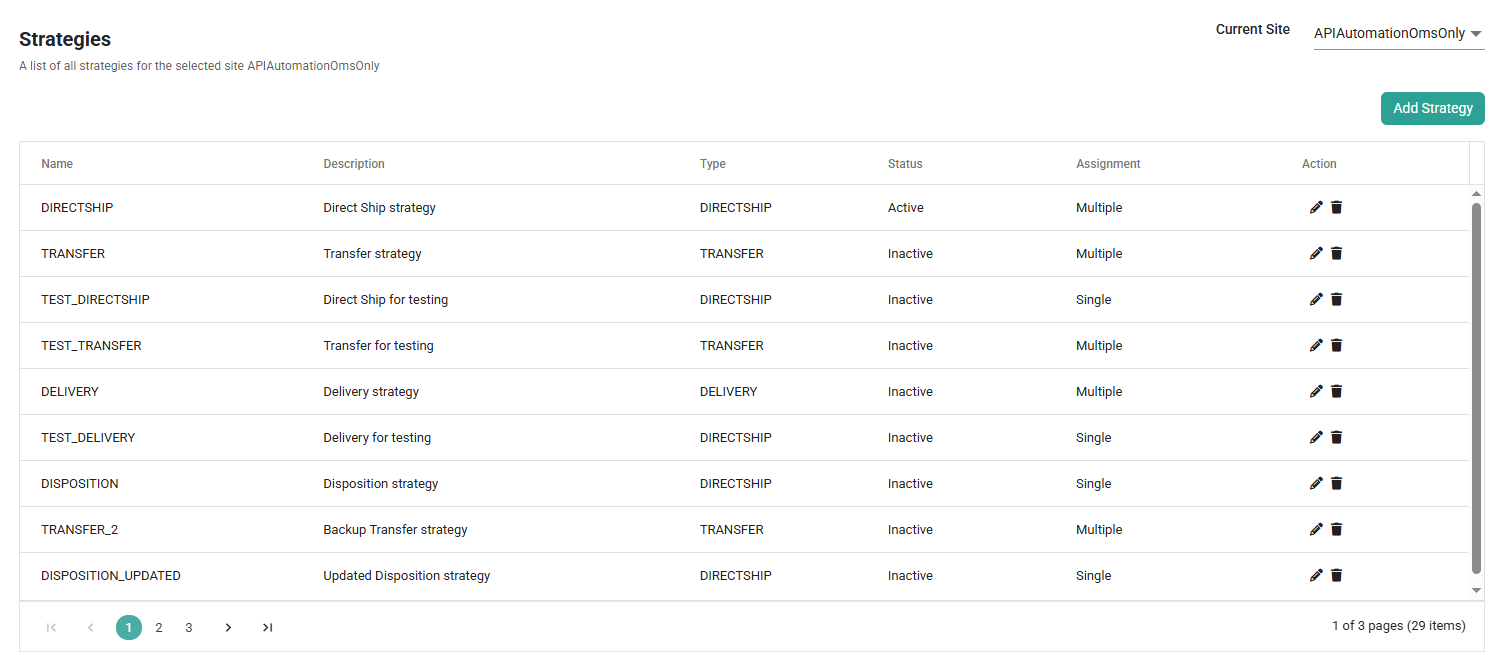
Create a New Strategy
To add a new strategy to Order Routing:- Go to the List Strategies page.
- Click Add Strategy in the top right. This will open the basic strategy configuration form.
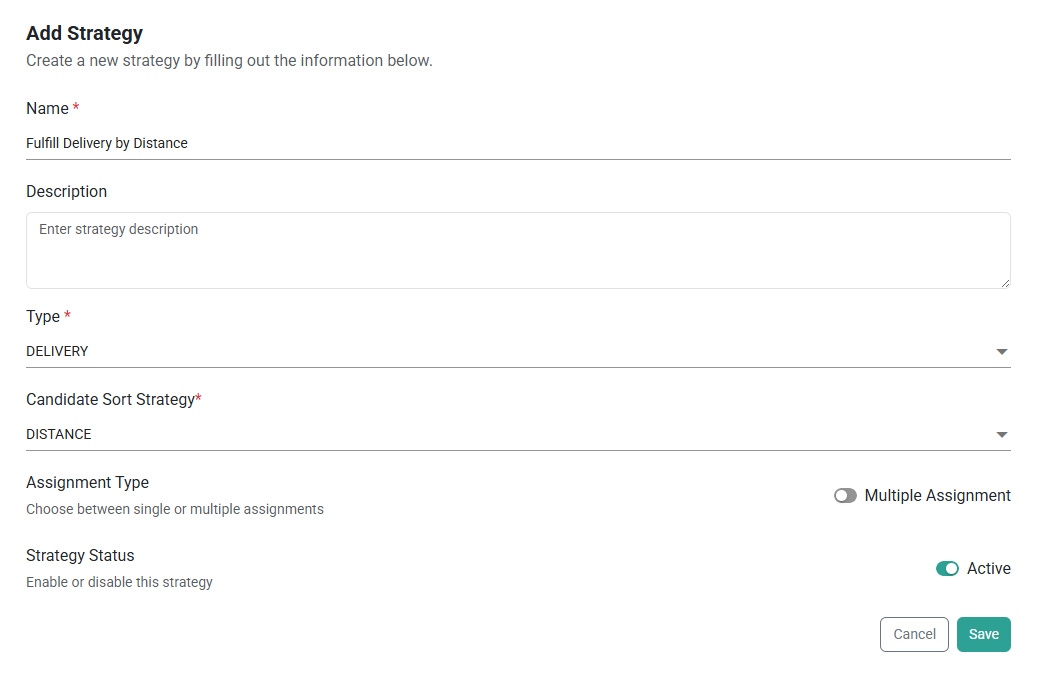
- Enter the Name. It is recommended to use strategy names that reflect the fulfillment type being used.
- Enter an optional Description.
- Select the strategy’s fulfillment Type.
- Select a Candidate Sort Strategy. This will prioritize routing candidates based on a minimal number of shipments, scenario rank and quantity, quantity, or distance from the shipping destination.
- Determine what Assignment Type you want to use. If you want to allow assignment across different scenarios, toggle on Multiple Assignment. If you want to keep all item assignments within a single scenario, leave Multiple Assignment toggled off.
- Toggle the strategy to Active if you want this to be your active strategy for the selected fulfillment type. If another strategy of that type is already active, then an error message will be displayed. You must disable the currently-active strategy before creating a new active one.
Note: The Active/Inactive toggle is disabled and defaults to Inactive when a strategy has no scenarios configured. It cannot be changed until at least one scenario has been added. A helper text below the toggle reads: “Status can only be set to Active once at least one scenario has been added to this strategy.”
- Click Save.