Watch: Transfer Shipments
Learn how transfer shipments work to fulfill orders from alternative locations
How It Works
This is supported for both Ship to Home (STH) and Delivery shipments. In both cases, the original shipment is placed into a Waiting for Transfer step while inventory is transferred to the assigned consolidation location. Both types of consolidation work with inventory reservations, though this may result in multiple consolidated shipments as items are evaluated individually. For example, if the quantity of a line item reserved in the cart is increased or a new item is added, then Order Routing may make a new consolidation suggestion for the additional quantity or new item. This would result in multiple consolidated shipments at the time of shipment creation.STH Shipments
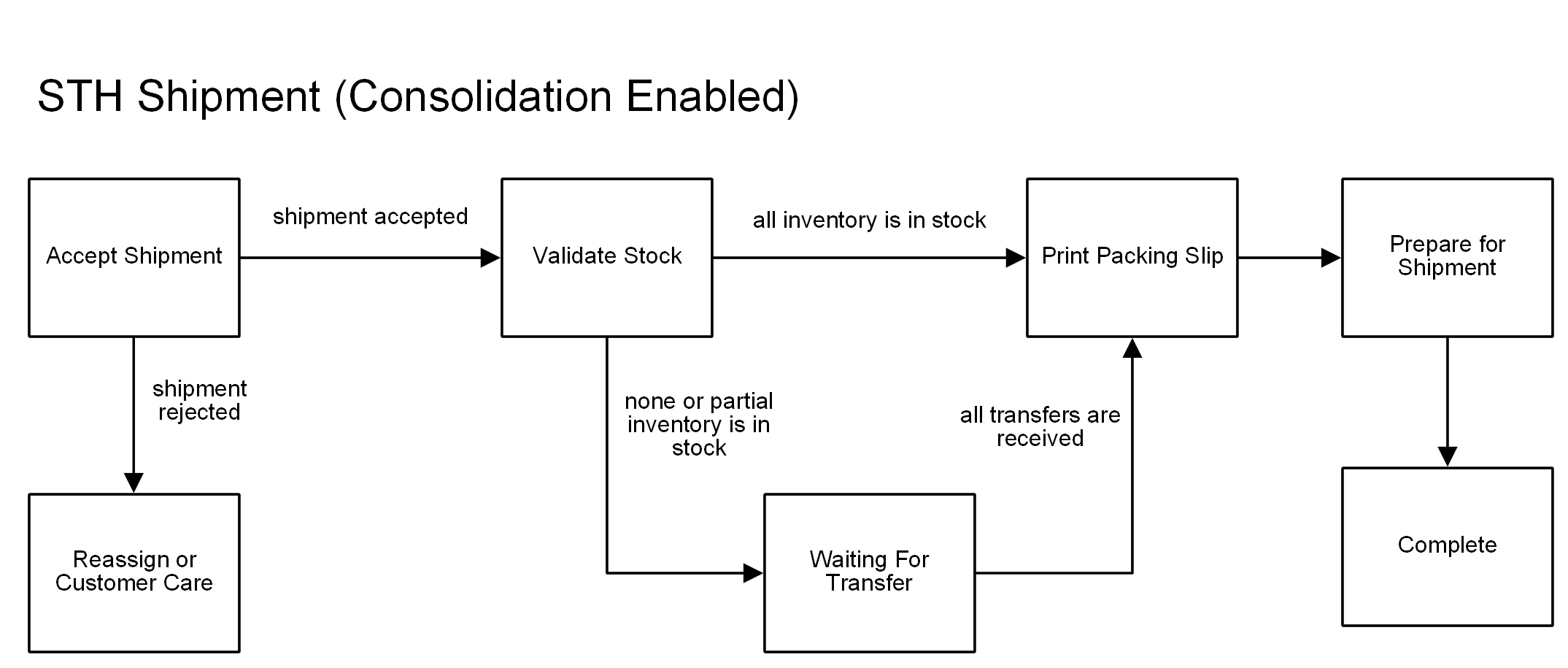
Transfer shipments for STH Consolidation (STH-C) get created when one of the following two scenarios occur:- An order is placed for Ship to Home. If there is not inventory at any one location, then Order Routing automatically assigns a STH-C location and creates transfer shipments to transfer inventory to the STH-C location. Order Routing has additional optimization built in to minimize the number of shipments when selecting a consolidation location. However, in this optimization process, the system bypassed the original filters that were applied in the initial step. The system now has an additional check that re-validates all applicable filters before assigning items. Items that fail any filter in applicable scenarios will not be assigned to the consolidation location, even if inventory is available. To trigger this additional check, please contact Kibo Support to have this turn for you.
- An order is placed for Ship to Home and assigned to a location. While fulfilling the order, the fulfiller finds that there is not enough quantity at the location and requests a transfer for the quantity that isn’t available. Order Routing determines the optimal qualifying locations to transfer inventory to the parent location.
Delivery Shipments
Delivery follows a similar method as Ship-to-Home Consolidation when not enough inventory is available at the chosen delivery location. If there is inventory at transfer locations, then transfers will be created to consolidate all items at the delivery consolidation location with no inventory (either the provided location selected by the customer or the location determined to have the shortest distance from the customer). This diagram illustrates the basic delivery process flow, with options for whether a transfer is needed to supply missing inventory or consolidate shipments (which follows a similar process as that for STH Consolidation).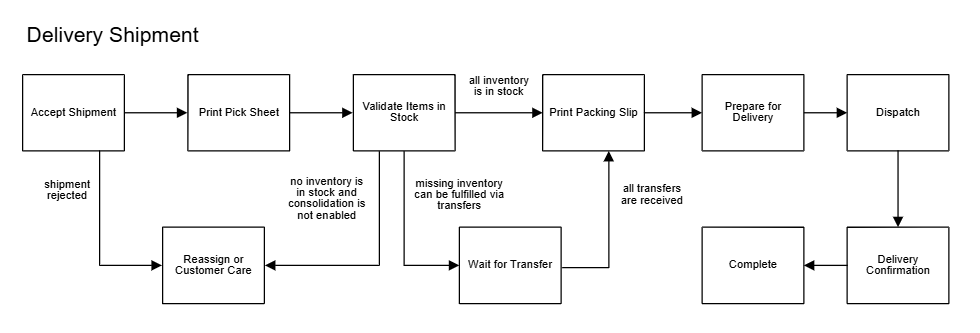
Enable Consolidation
Consolidation is enabled and configured separately for STH and Delivery fulfillment methods.STH Consolidation
First, enable STH-C in your site’s transfer settings.- Go to System > Settings > General > Site.
- In the Transfers section, toggle on Ship to Home Consolidation.
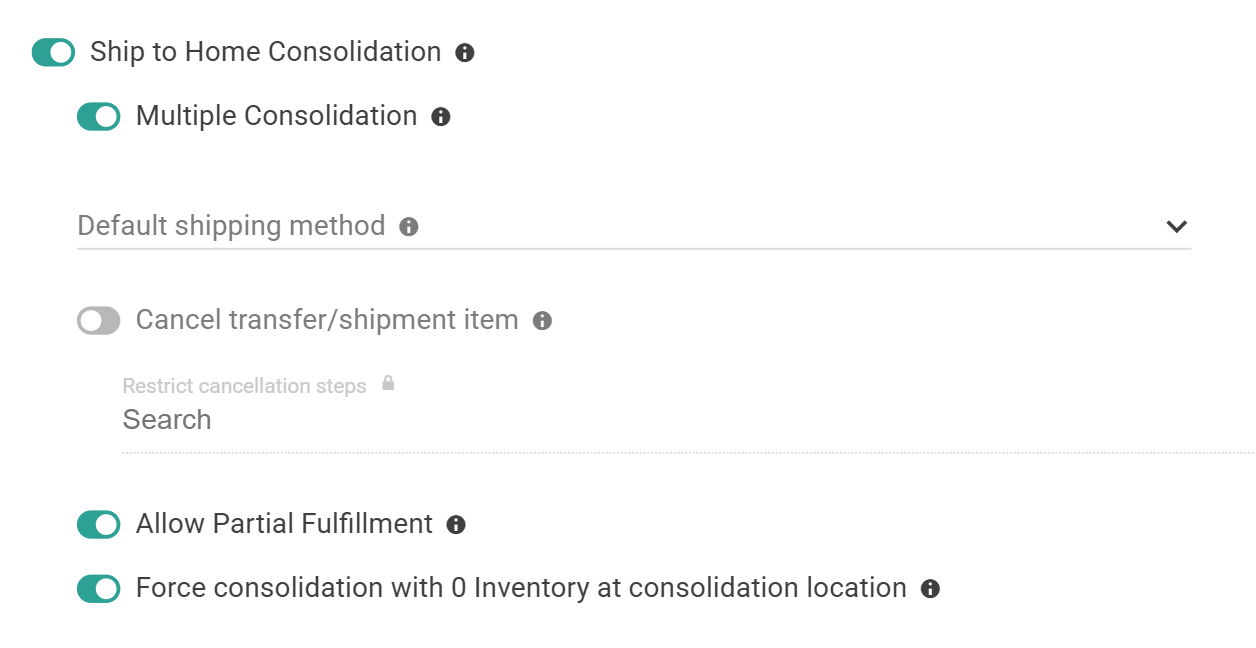
- Enable Multiple Consolidation if you want to route items through multiple consolidation locations when there no single consolidation location is appropriate for an order and you don’t want to use force consolidation (Step #7) to handle that scenario. This requires additional configuration of location attributes and Order Routing logic. See the Multiple Consolidation section for more details.
- You can optionally set a Default shipping method for STH transfers.
- Toggle on Allow Partial Fulfillment if you want to ship items separately when some of the quantity in a shipment is available at the consolidation location, while the remaining quantity is pending transfer to the location. In this case, available items will be moved to a new shipment that can immediately proceed with fulfillment. The transfer items will remain in the original Waiting for Transfer shipment until they arrive. See the Partial Fulfillment section for more details.
- Toggle on Cancel transfer shipment/item if you want to cancel transfer shipments and items when a cancellation occurs on the parent shipment. If you enable this, you can also select which fulfillment steps to restrict cancellation on.
- Toggle on Force consolidation with 0 Inventory at consolidation location if you want to consolidate even when there is no inventory at any STH-C enabled location. If enabled and there is inventory at transfer locations, then transfers will be created to be consolidated at a STH-C location with no inventory (either a specified location or the location determined to have the shortest distance from the customer).
- You can override this site setting in the Create Order API request by enabling or disabling the
forceSTHConsolidationOnSplitShipmentsfield.
- You can override this site setting in the Create Order API request by enabling or disabling the
- Click Save.
- Go to Main > Supply > Locations.
- Select a location from the table.
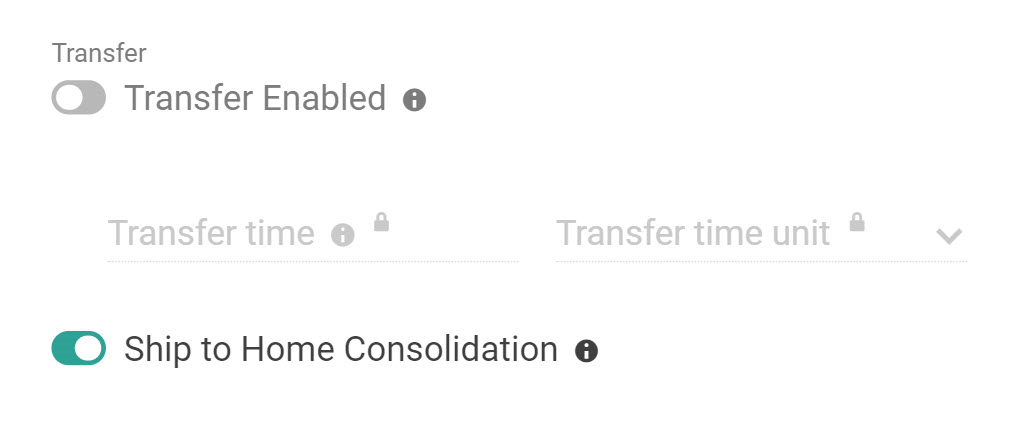
- In the Transfer settings section, toggle on Ship to Home Consolidation if you want that location to be able to consolidate shipments.
- Click Save.
Delivery Consolidation
First, enable Delivery Consolidation in your site’s transfer settings:- Go to System > Settings > General > Site.
- In the Transfers section, toggle on Delivery Shipment Consolidation.
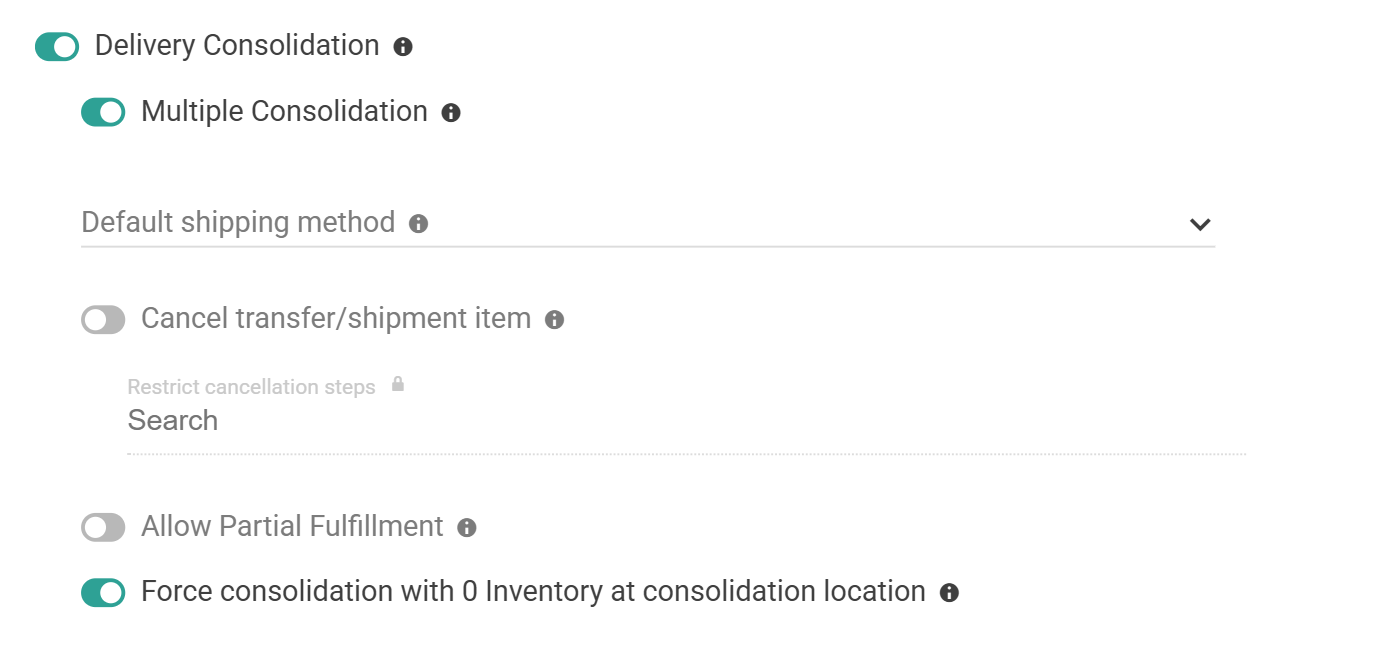
- Enable Multiple Consolidation if you want to route items through multiple consolidation locations when there no single consolidation location is appropriate for an order and you don’t want to use force consolidation (Step #7) to handle that scenario. This requires additional configuration of location attributes and Order Routing logic. See the Multiple Consolidation section for more details.
- You can optionally set a Default shipping method for the transfer shipments.
- Toggle on Allow Partial Fulfillment if you want to ship items separately when some of the quantity in a shipment is available at the consolidation location, while the remaining quantity is pending transfer to the location. In this case, available items will be moved to a new shipment that can immediately proceed with fulfillment. The transfer items will remain in the original Waiting for Transfer shipment until they arrive. See the Partial Fulfillment section for more details.
- Toggle on Cancel transfer shipment/item if you want to cancel transfer shipments and items when a cancellation occurs on the parent shipment. If you enable this, you can also select which fulfillment steps to restrict cancellation on.
- Toggle on Force Consolidation with 0 inventory if you want to consolidate even when there is no inventory at any consolidation location. If enabled and there is inventory at transfer locations, then transfers will be created to be consolidated at a delivery location with no inventory (either a specified location or the location determined to have the shortest distance from the customer) If the system cannot identify a valid delivery consolidation location, it will follow the after-actions defined in your Delivery routing strategy.
- Go to Main > Supply > Locations.
- Select a location from the table.
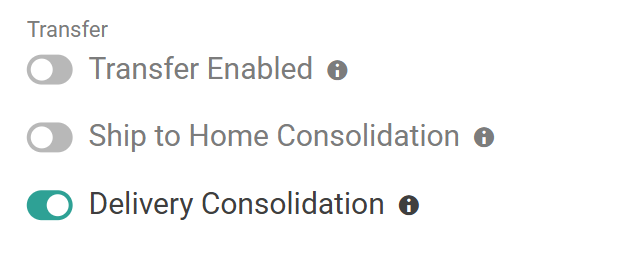
- In the Transfer settings section, toggle on Delivery Consolidation if you want that location to be able to consolidate shipments.
- Click Save.
Fulfillment Process
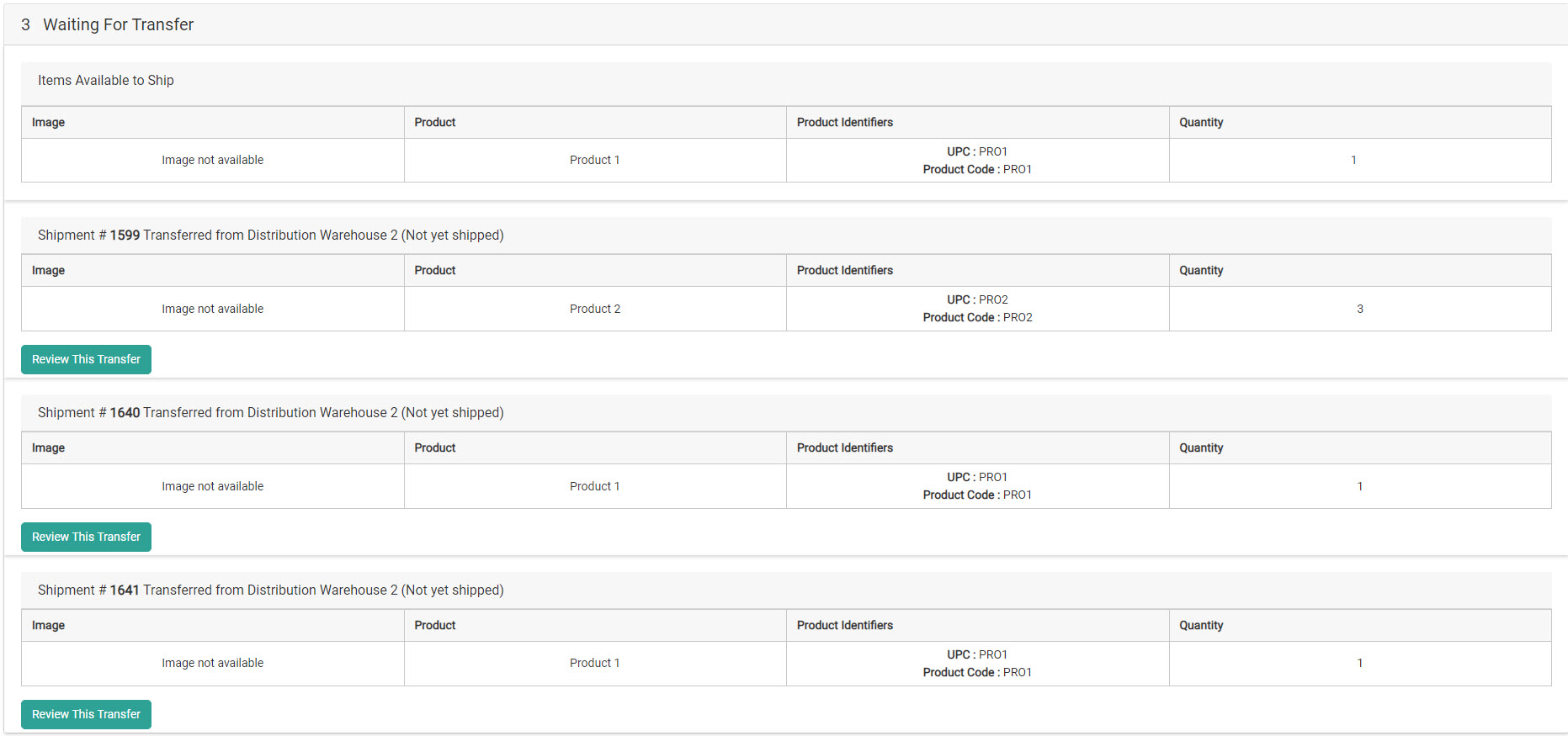
Transfers can be requested during the Validate Stock step of the fulfillment process. The process will be similar to the non-Consolidation BOPIS example shown here. When an STH or Delivery Consolidation shipment requires transfers, then the shipment will be moved into the Waiting for Transfer step as long as some quantity in the shipment is still pending transfer to the location. Transfers are listed with their shipment number, assigned location, and current status as well as a table detailing the items included in that transfer. The Review This Transfer button will redirect you to its shipment details listing at the assigned location, allowing you to view and fulfill that transfer if you have access to the location.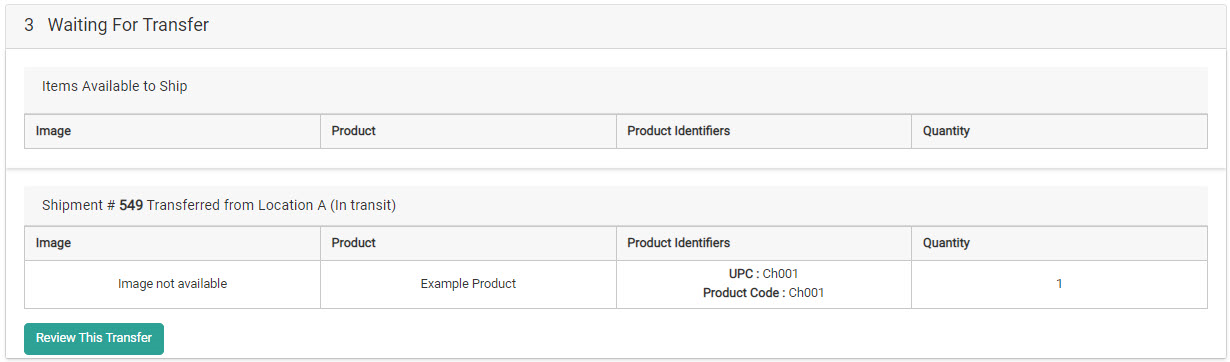
Partial Fulfillment
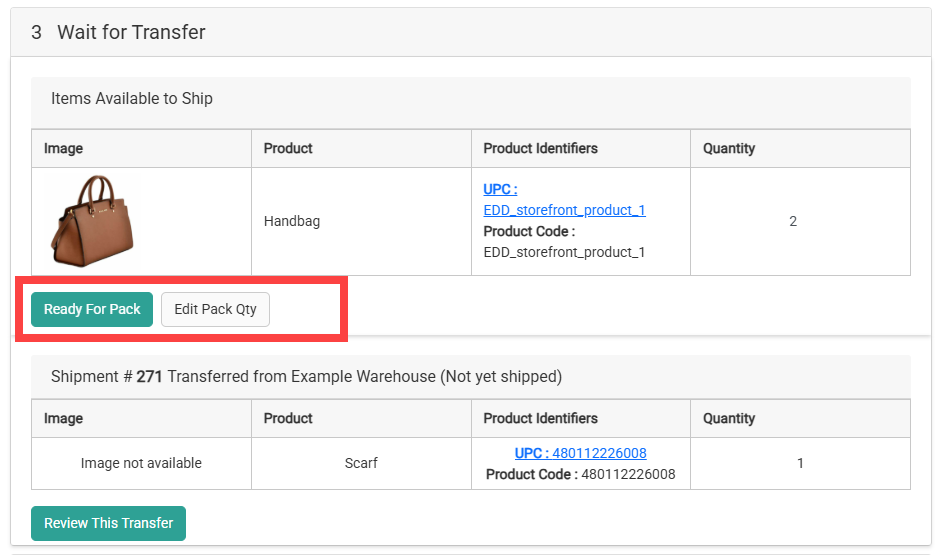
By default, you must wait until all inventory is received before continuing with fulfillment of any quantity. But if the Allow Partial Fulfillment site setting is enabled, then you can move any available items to a new shipment for immediate fulfillment instead. This new shipment retains the original shipping info, and the other items remain in the original Waiting for Transfer shipment until they arrive at the location. To perform partial fulfillment in the Fulfiller UI:- View the eligible shipment in the Wait for Transfer step.
- By default, all currently-available quantity would be included in partial fulfillment. If you want to fulfill only some of the available quantity, click Edit Pack Qty to make that field editable in the table.
- Be aware that if any service items are included in the shipment, they will always remain with their parent item. If the quantity of a parent item is being split, then the service item quantity will also be split to match.
- Be aware that if any service items are included in the shipment, they will always remain with their parent item. If the quantity of a parent item is being split, then the service item quantity will also be split to match.
- Click Ready for Pack. This will immediately generate a new shipment with the indicated item quantity and provide you with the shipment number. You can then navigate to this new shipment to fulfill it.
.../api/commerce/shipments/itemsReadyForPack with a list of line item quantities such as the below example. This API will move those items to a new shipment that can immediately proceed with fulfillment.
Multiple Location Consolidation
Order Routing will prioritize consolidating shipments at one location when possible, but if a single location cannot be identified due to location network restrictions then multiple consolidation locations can be used instead. This reduces manual intervention and exceptions when needed, and lets you design more efficient routes between locations in a complex network. This is particularly useful in cases such as transfer hubs that can only transfer inventory to a specific set of shipping locations, thus requiring multiple consolidation locations when inventory is available at different hubs. For example:- Transfer Hub A has 50 quantity of Item A and can transfer to Location 1, Location 2, and Location 3.
- Transfer Hub B has 50 quantity of Item B and can transfer to Location 4, Location 5, and Location 6.
- An order is placed for 5 quantities each of Item A and Item B, and requires consolidation as no inventory is available at shipping locations.
- With multiple consolidation enabled, 5 quantities of Item A would be routed to Transfer Hub A and then to its transferable location nearest to the customer. Meanwhile, 5 units of Item B would be routed to Transfer Hub B and then to its transferable location nearest to the customer.
Configure Multiple Location Consolidation
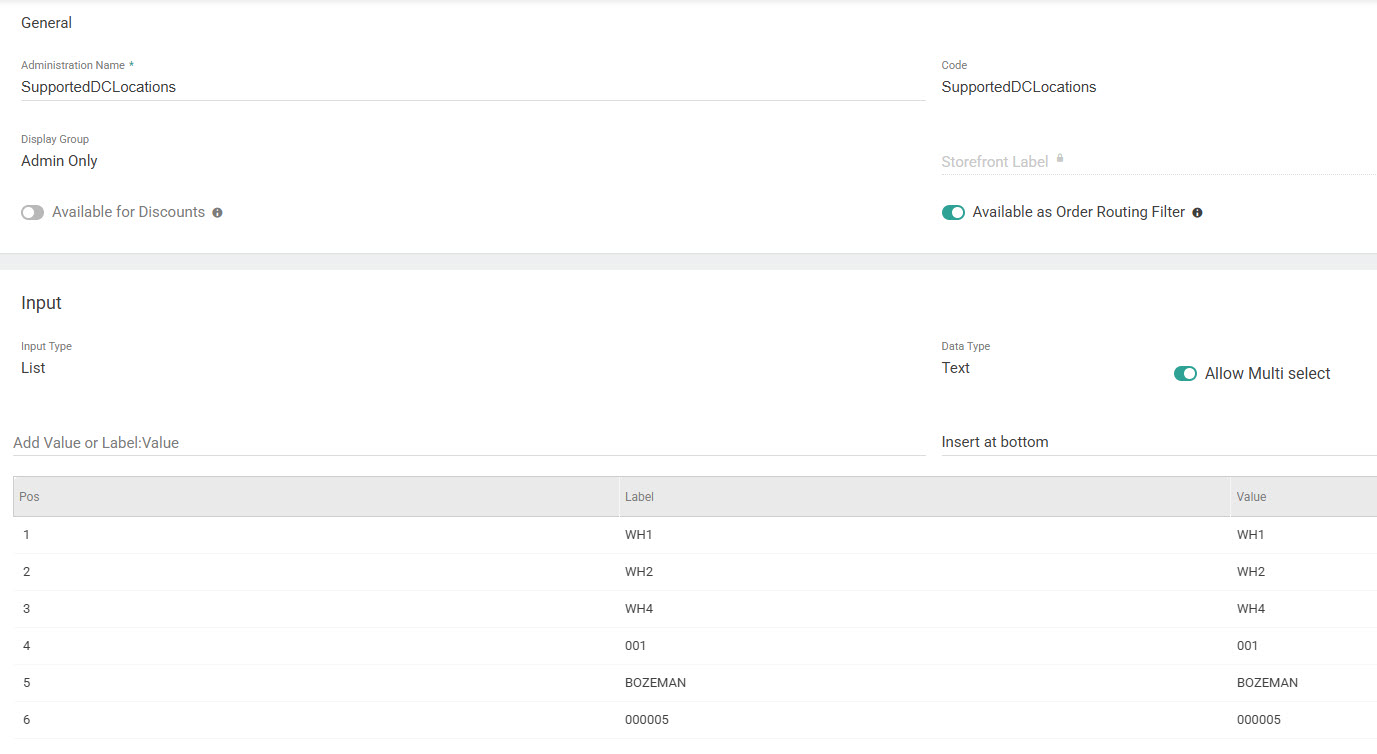
In addition to enabling Multiple Consolidation in the site settings for either STH or Delivery, you must configure an extensible attribute to define location relationships and Order Routing filters to handle them.- Go to System > Schema > Location Attributes.
- Click Create New Location Attribute.
- Enter the general attribute information and toggle on Available as Order Routing Filter.
- Set the Input Type to “List” with a Data Type of “Text.”
- Enter label:value pairs in the Add Value or Label Value text field to define the Location Code of all potential consolidation locations.
- Go to Main > Supply > Locations.
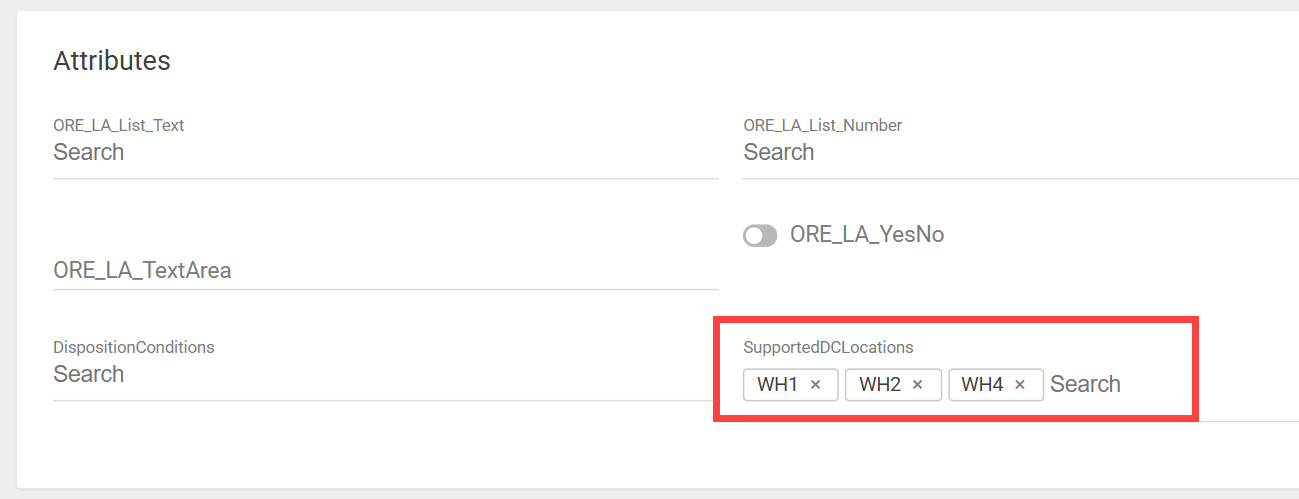
- For each transfer location, set the attribute to that location’s associated consolidation location(s).
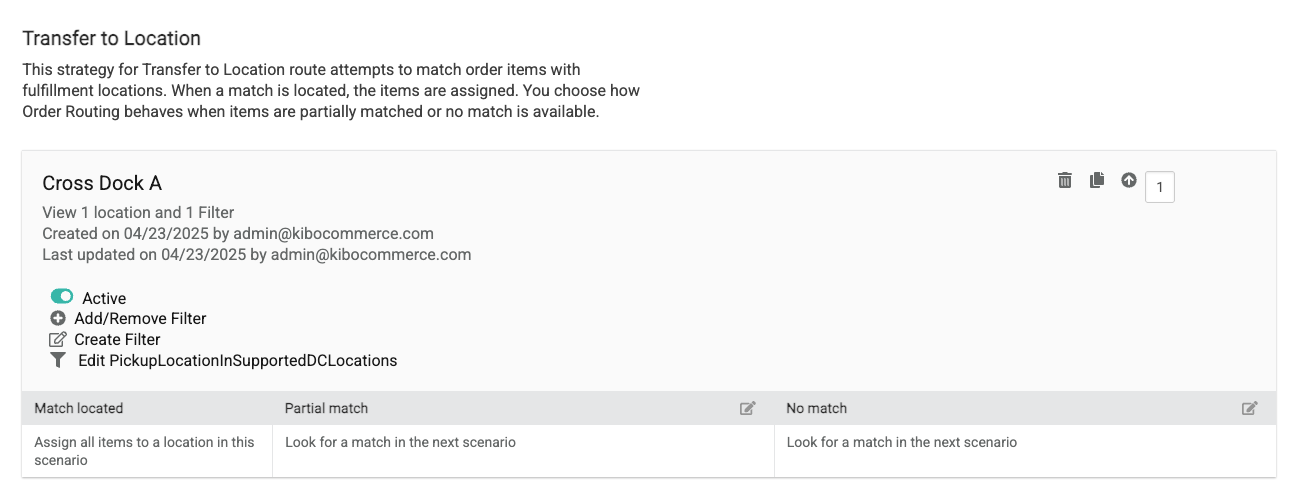
- In the Order Routing UI, go to the Filters page and create a data point filter that compares location codes with your attribute. In this example, the “pickup location code” refers to a potential consolidation location and so the filter will determine whether transfers to it are valid from a given transfer location.
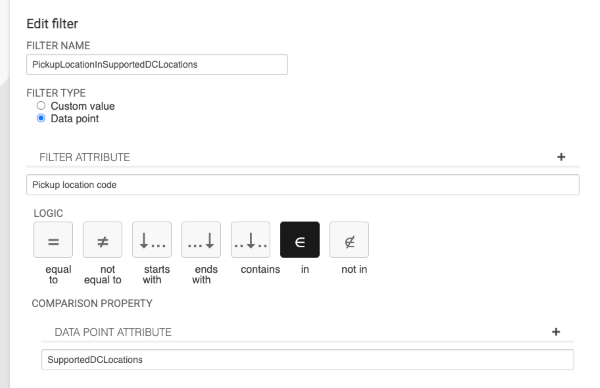
- Go to the Scenarios page and apply this filter to your Transfer scenario(s).