

- Adding custom steps with buttons like proceed, back, and skip.
- Displaying a static message on a custom step.
- Changing the name or look and feel of custom steps.
Step 1: Set Up jBPM with Business Central
The jBPM Server distribution is the easiest way to start with jBPM, as the included Business Central application is useful for authoring processes. To get up and running quickly, use the jBPM single distribution which can be downloaded at jbpm.org. Look at the Getting Started guide to get yourself familiar with Business Central. By default, Business Central is available here.Step 2: Fork the Fulfillment Workflows Repository
Forking the repository is a simple two-step process:- On GitHub, navigate to the Kibo Fulfillment Workflows repository.
- In the top-right corner of the page, click Fork.
Keep Your Fork Synchronized
It’s a good practice to regularly synchronize your fork with the upstream repository. To achieve this, you’ll need to use Git via the command line by following the below steps:- Set Up Git
- Create a Local Clone of Your Fork
- Configure Git to Synchronize with the Original Repository
- Make Changes to the Fork
Set Up Git
If you haven’t yet, first set up Git. Don’t forget to set up authentication to GitHub from Git as well.Create a Local Clone of Your Fork
Right now, you have a fork of the Kibo Fulfillment Workflows repository on GitHub but you don’t have the files in that repository on your computer. Let’s create a clone of your fork locally on your computer.- On GitHub, navigate to your fork of the repository.
- Under the repository name, click Code and then the desired Clone or Download option.
- To clone the repository using HTTPS, click the clipboard icon under Clone with HTTPS. To clone the repository using an SSH key, including a certificate issued by your organization’s SSH certificate authority, click Use SSH and then click Clone URL.
- Open Terminal.
- Type
git clone, and then paste the URL you copied earlier. It will look like this, with your GitHub username instead ofYOUR_USERNAME: - Press Enter. Your local clone will be created.
Configure Git to Synchronize with the Original Repository
When you fork a project, you can configure Git to pull changes from the original (or upstream) repository into the local clone of your fork.- On GitHub, navigate to the Kibo Fulfillment Workflows repository.
- Under the repository name, click Code and then the desired Clone or Download option. To clone the repository using HTTPS, click the clipboard icon under Clone with HTTPS. To clone the repository using an SSH key, including a certificate issued by your organization’s SSH certificate authority, click Use SSH and then click Clone URL.
- Open Terminal.
- Change directories to the location of the fork you cloned in Create a Local Clone of Your Fork.
- To go to your home directory, type just
cdwith no other text. - To list the files and folders in your current directory, type
ls. - To go into one of your listed directories, type
cd your_listed_directory. - To go up one directory, type
cd ..
- To go to your home directory, type just
- Type
git remote -vand press Enter. You’ll see the current configured remote repository for your fork. - Type
git remote add upstream, paste the URL you copied, and press Enter. It will look like this: - To verify the new upstream repository you’ve specified for your fork, type
git remote -vagain. You should see the URL for your fork as origin, and the URL for the original Kibo Fulfillment Workflows repository as upstream.
Make Changes to the Fork
You have the flexibility to make various changes to your fork, which includes creating and opening branches. You will have to synchronize your custom fork with the upstream repository as well as with your jBPM Business Central repository.- Creating Branches: Branches allow you to build new features or test out ideas without putting your main project at risk.
- Opening Pull Requests: If you are hoping to propose a change to the original repository, you can send a request to Kibo to pull your fork into their repository by submitting a pull request.
Step 3: Modify Forked Repository Files
To update your pom.xml file:- Modify pom.xml by changing the following elements to match your project requirements:
- Commit changes to your local copy of the forked repository.
Step 4: Import Assets into Business Central
You can easily import the forked business assets project into Business Central, as it’s a valid Git repository:- Create a git branch named master from the default develop branch.
The assumption here is that there’s no existing
masterbranch in your forked repository. The namemasteris used to align with the default branch name used by the development jBPM instance. - Log in to Business Central and go to Menu > Design > Projects.
- Select
Import Projectfrom the Add Project menu and enter the filesystem location of the project git repository within theRepository URLfield. For example: - Click Import, confirm the project to be imported, and click Ok. Note that if attempting upload within a Docker container, a volume must be mapped.
- Once the business assets project is successfully imported into Business Central, you can begin working on it. Navigate to the project and make additions or modifications to assets such as business processes, forms, rules, decision tables, and more.
Optional: Pick Wave Requirement
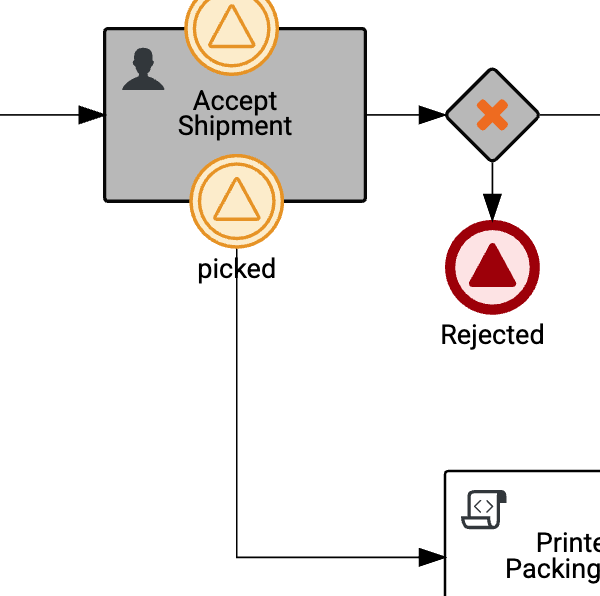
If you intend to use this custom fulfillment workflow for pick waves, then it must have a “picked” signal component in order for shipment progression to follow your routing logic upon closing a pick wave. This is required for compatibility with the Close Pick Wave API.- Include the Picked Signal
- Ensure your BPMN workflow includes a signal event named “picked.”
- Enable Triggering via API
- Position the signal so it can be triggered when the fulfillment service calls the Pick Wave Close API.
- Route to the Next Task
- Once triggered, the workflow must route to the appropriate user task or fulfillment step—either an existing or a custom task—based on the custom signal route.
- Ensure Proper Workflow Progression
- This signal-driven routing allows shipments associated with the pick wave to continue progressing through the workflow as intended.
Step 5: Pull Custom Assets to the Fork
Updated business assets need to be pulled back to the forked project source code repository:- Go to Settings of the project within Business Central.
- Copy the URL value from the General Settings view.
- Go to the filesystem location of the forked and imported repository.
- Type
git remote -vand press Enter. You’ll see the current configured remote repositories. - Type
git remote add jbpm, and then paste the URL you copied in Step 2. Modify the value to includewbadmin@and press Enter. It will look like this: - To verify the new jbpm repository you’ve specified for your fork, type
git remote -vagain. You should see the URL for the jBPM Business Central project as jbpm, the URL for your fork as origin, and the URL for the original repository as upstream. - Pull or fetch your custom business assets from jBPM Business Central to your forked git repository.
orIf you encounter issues connecting to the jBPM generated Git repository over SSH, you can change the protocol to http within the same Business Central Settings view for your project.
- Synchronize the develop branch of your fork with the origin repository on GitHub.
- Rebase your updated local master branch commits on the synchronized develop branch.
- Squash all dedicated jBPM Business Central changes in the develop branch of your fork.
- Add & commit the merged changes to the develop branch and then push to your fork on GitHub.
- Reset the jBPM Business Central master branch using the updated develop branch.
- With your custom business assets now part of the forked project source tree, Maven commands can be used to build and publish the KJAR artifact to a Maven repository without using the standalone jBPM server.
Step 6: Deploy Custom Assets to KIE Server
After adding assets to your project in Business Central, you can easily deploy it to a running KIE server instance:- Navigate to your project and click Deploy.
- After a few seconds, you should see the project successfully deployed.
Step 7: Interact with Deployed Assets
You can use Process Definitions and Process Instances perspectives of Business Central to interact with your newly deployed business assets, such as processes or user tasks.Step 8: Install Custom Workflows
Provide Kibo Professional Services with your repository. They will verify and upload your workflows, as well as provide any further instructions needed to modify or install your BPMs.Step 9: Enable Workflows for Location Groups
Update your location group configuration settings to use customized processes, referencing the new containerId(s) and processId(s) by shipmentType. Some example cURL requests are listed below. Get all location groups for a tenant and site:Step 10: Execute Custom Workflows in Fulfiller UI
To execute custom workflows as a fulfiller user, such as for testing the new workflow:- Log in to the Admin UI and select the appropriate tenant.
- Create a new order and shipment type matching the custom workflow configuration.
- Go to Main > Fulfiller and locate the corresponding shipment.
- Proceed through the workflow tasks for the shipment and confirm functionality.
Step 11: Sync Custom Fork with Upstream Repository
To sync your custom forked repository with the upstream repository:- Open Terminal.
- Change the current working directory to your local project.
- Fetch the branches and their respective commits from the upstream repository. Commits to develop will be stored in a local branch,
upstream/develop. - Check out your fork’s local
developbranch. - Merge the changes from
upstream/developinto your localdevelopbranch. This brings your fork’sdevelopbranch into sync with the upstream repository, without losing your local changes. - If your local branch didn’t have any unique commits, Git will instead perform a “fast-forward”:
Configuring Workflow Step Behaviors
Once your custom BPM is deployed and executing in the Fulfiller UI, you can configure additional on-complete behaviors for any workflow step — including custom steps you have defined in your BPM and out-of-the-box steps. These behaviors are configured in your Fulfiller theme’s language file, not in the BPM process itself, and require no changes to your KJAR or BPM authoring. The following behaviors are available per step:- Instructions pop-up — a configurable modal dialog displayed when the user clicks Continue on the step
- Dashboard redirect — returns the user to the shipments dashboard after step completion
- Email notification — triggers an outbound email using a specified template and recipient audience