View and Invite Users
Once you define your organization’s roles, you can invite specific users to your account. Go to System > Permissions > Users to view the list of current users. If searching for an existing user, use the search bar or expand the drop-down menu to filter the results by first name, last name, or email address.
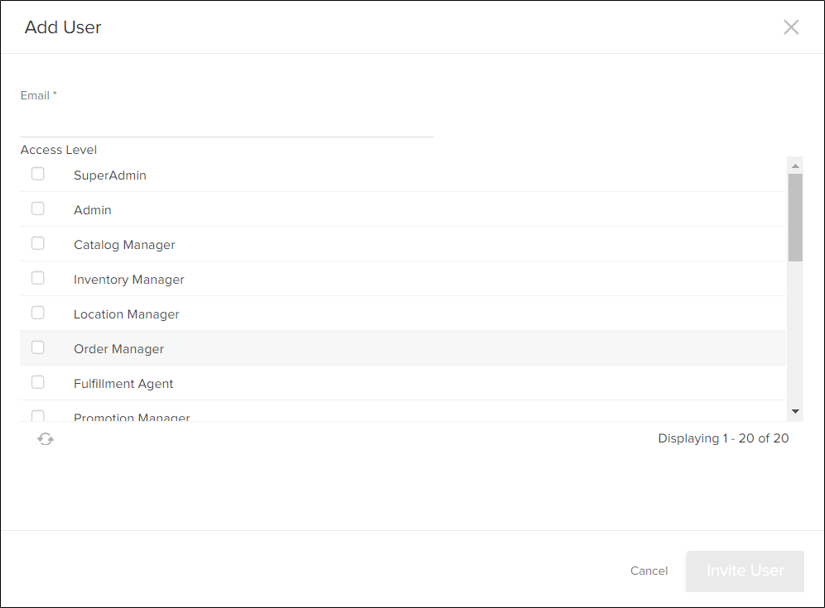
- Click Add User.
- Enter an email address.
- In Access Level, select one or more roles.
- Click Invite User.
- When the user accepts the invitation, they will register their account and can begin working in Admin.
Edit Users
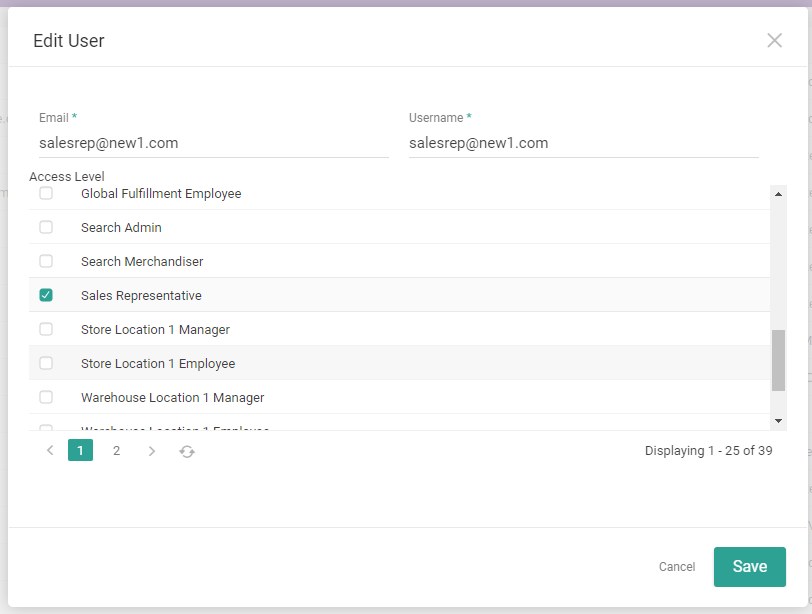
You can edit an existing user’s email, username, and access level.- Go to System > Permissions > Users.
- Click a user in the table whose account you want to edit, or expand the drop-down action menu on the right of the table row and click Edit.
- Edit their Email and/or Username as needed.
- Select and/or deselect roles as needed under the user’s Access Level.
- Click Save.
User Groups
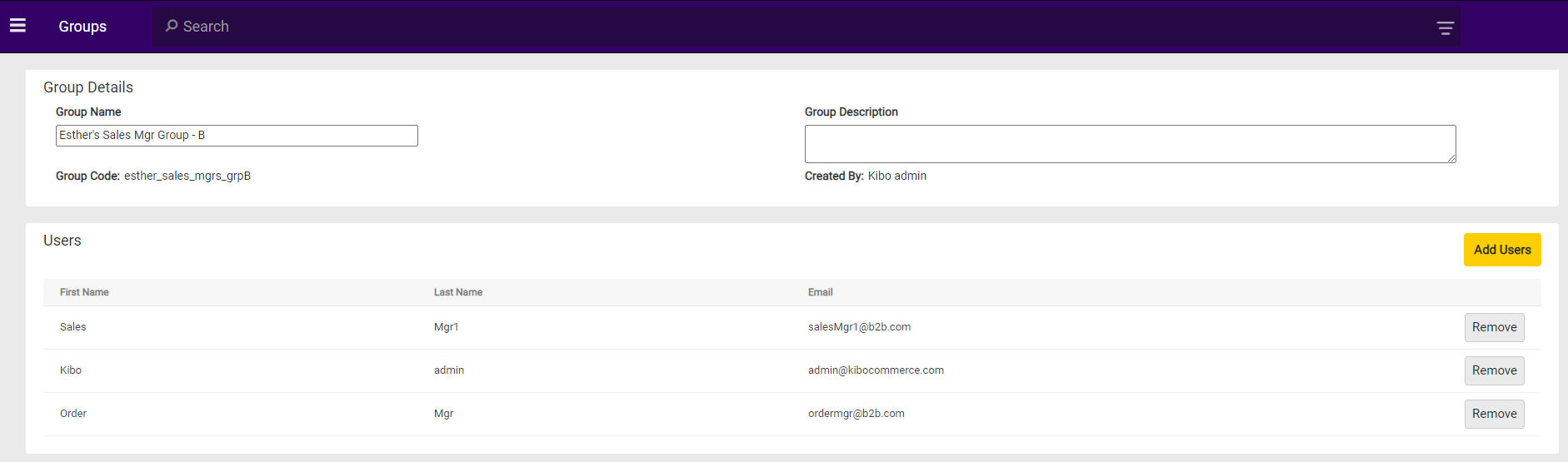
Users can be organized into groups at Settings > Permissions > Groups. Create groups and assign existing users to them in order to create sets of similar users such as regional administrators, sales managers, etc. depending on your needs.
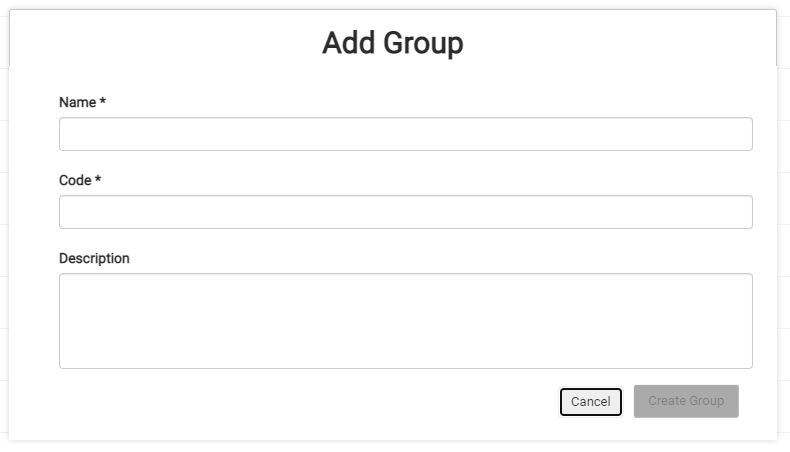
- Click Add Group.
- Enter a required name and a shorthand code for the group.
- Enter an description if desired.
-
Click Create Group to confirm.
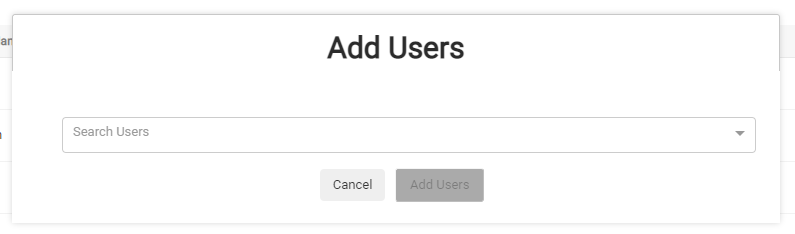
- Begin adding users by selecting them from the drop-down. You may begin typing the user’s name and they will appear as the suggested result.
-
Click Add Users when complete.