

Update and Enable IP Address Security Rules
Follow the below steps to enable and/or update security rules. If you make changes to your security rules file and upload a new version, the new version will permanently overwrite the previous version.- Go to System > Permissions > IP Restrictions.
- Click Download to download the existing security rules file to your local machine. If you haven’t configured security rules before, this file is blank.
-
Open the security rules file and add your specific rule information, including the IP start range, end range, and site ID. You can add rows for additional security rules. If you leave the site ID blank, the IP address is blocked at the tenant level, across all of your sites. You also have the ability to block all IP address to access Admin except for a few given ranges. To do this, create a set of rules where
isWhiteListis True for at least one entry. For example: - Save and close the file.
-
In Admin, click Upload File to upload your new security rules file to Kibo eCommerce.
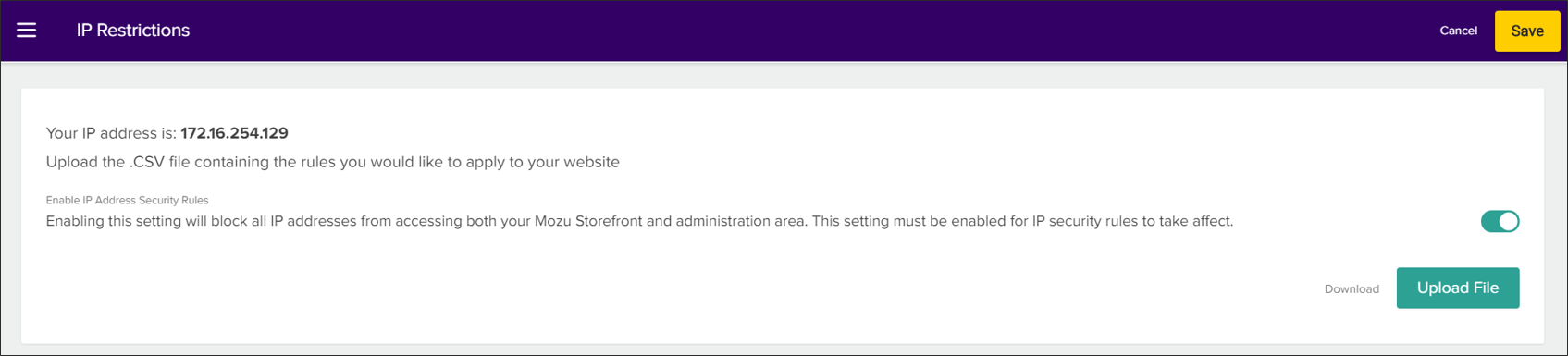
- Enable Enable IP Address Security Rules.
- Click Save. It may take approximately 10 minutes for a new IP block to kick in.