

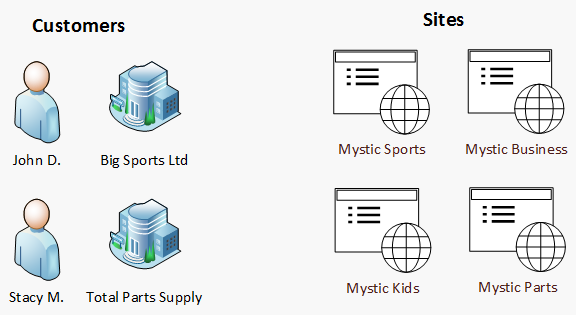
Offline Orders and Customer Sets
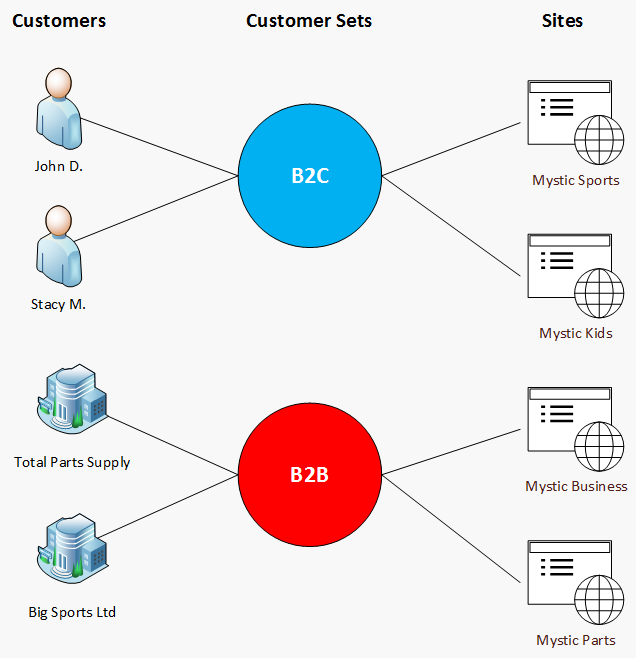
When creating offline orders, you can only select customers that belong to the same customer set as the site on which you place the order. If the shopper you’re creating the offline order for doesn’t belong to the same customer set as the site, then you must create a new unique customer account for the shopper and then assign the customer account to the applicable customer set. For example, you create an offline order for Stephanie on your Mystic Sports site. Your Mystic Sports site belongs to a B2C customer set; however, Stephanie does not have a customer account that’s assigned to the B2C customer set. In order to place the order for Stephanie, you either must create a new unique customer account for her, or she can create her own customer account on the Mystic Sports site. If you create a new customer account for her, then you must also assign her new account to the B2C customer set. If Stephanie creates her own customer account on the Mystic Sports site, then Kibo eCommerce automatically assigns her account to the B2C customer set. Refer to Create Orders for Offline Shoppers for more information about creating offline orders.Membership Restrictions
Customer accounts and sites can only belong to one customer set. If you want to add a customer account to more than one customer set, either the customer or a CSR must create a new unique customer account for each customer set. Customers can create multiple accounts using the same username for multiple sites. When they create a new account for a site that belongs to a customer set, Kibo automatically assigns the new account to the applicable customer set to which the site already belongs. Customers cannot create a new account using the same username for a site to which they already have a customer account with the same username assigned to a customer set. For example, Stacy has multiple customer accounts all with the same username, stacy@mail.com, for three of your sites. Kibo eCommerce treats each of Stacy’s accounts as a separate account, regardless that each account has the same username. Because of this, you can assign each of Stacy’s accounts to a different customer set; however, you cannot assign more than one of Stacy’s accounts to the same customer set, because they share the same username. If Stacy had another customer account with a username of stacy.test@mail.com, you could assign this account and a stacy@mail.com account to the same customer set. You can reassign sites and customer accounts to different customer sets if you no longer wish them to be a member of their current customer set. Refer to either Assign Customers to Customer Sets or Assign Sites to Customer Sets for more information.Shopper My Account Behavior
When a shopper logs into their customer account on a site, they can view their My Account page, which displays information specific to their customer account such as shipping and billing addresses, saved payment information, and past order history. Shopper’s My Account information is shared across all sites that are assigned to the same customer set to which the shopper’s customer account is assigned. For example, you have the following customer sets with to which John and sites assigned: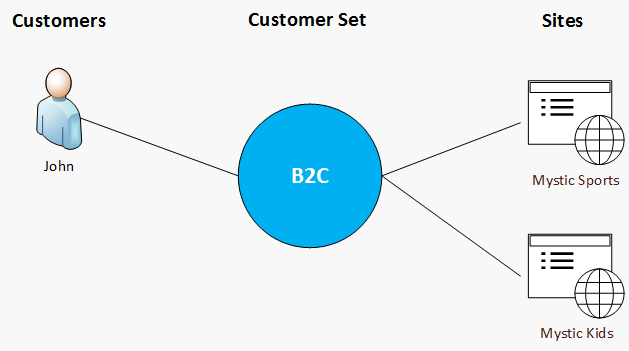
Default Customer Set
Every Kibo eCommerce tenant has a default customer set. Initially, every site and customer within a tenant are assigned to the default customer set. When you create a new site, Kibo eCommerce automatically assigns the site to the default customer set. You can reassign the site to a different customer set. Refer to Assign Sites to Customer Sets for more information. When you create a new site, it can take up to 30 minutes for Kibo eCommerce to assign the new site to the default customer set. When you delete an existing customer set that’s not the default, you must reassign all customers and sites assigned to that customer set to a different customer set. The default customer set is automatically selected by default, but you can select another customer set in the dialog box.Create Customer Sets
To create a new customer set:- Go to System > Structure > Customer Sets.
- Click Create New Customer Set.
- Enter a unique Code to identify your customer set across Kibo eCommerce.
- Enter a Name to serve as a label for your customer set in Admin.
- Specify whether you want the customer set to be the default customer set for new customers and sites.
- Select the site(s) you want to assign to the customer set. Sites can belong to only one customer set.
-
Click Save:

Assign Customers to Customer Sets
To assign a customer to a customer set:- Go to Main > Customers > Customers.
- Click a customer account.
-
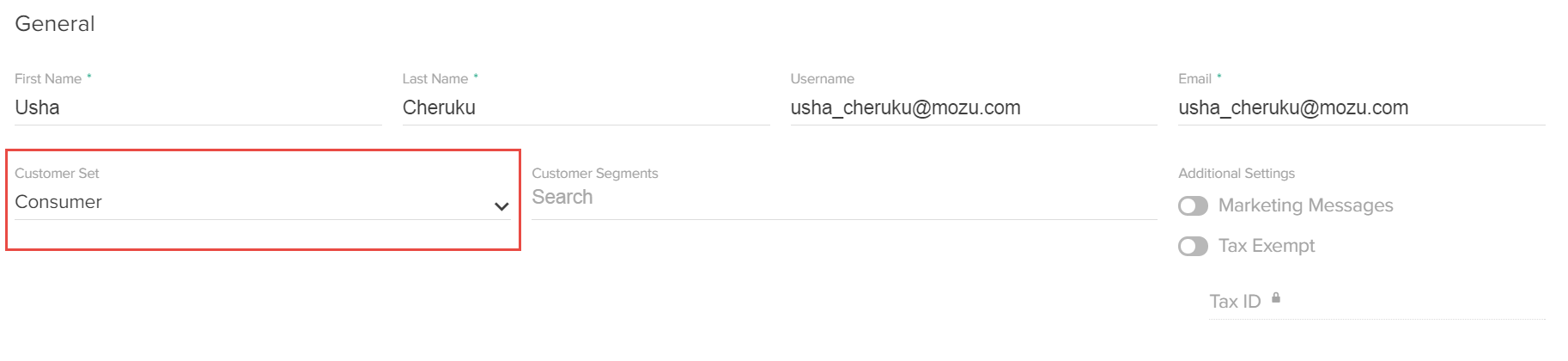
Under General, use the Customer Set drop-down to add the customer to a customer set:
Assign Sites to Customer Sets
You initially assign a site to a customer set when you create the customer set. However, you can assign a site to a different customer set, or assign a new site to an existing customer set. If you reassign a site to a different customer set, ensure that you also reassign all applicable customer accounts to the same customer set. Otherwise, if you reassign a site to a different customer set without also reassigning the customer accounts, the customers will no longer able to use their login credentials on the reassigned site and will have to create a new customer account for that site. To assign a site to a customer set:- Go to System > Structure > Customer Sets.
- In the applicable Customer Set row, select the Sites entry.
- In the Sites drop-down menu, select the applicable sites you want to assign to the customer set.
-
Click Save:
