
Prerequisites
Before configuring Reservation Rules, ensure the following:- The B2B Wholesale OMS feature is enabled for your tenant. Contact Kibo Support to enable this capability.
- You have the Admin or Super Admin role, or a role with the following behaviors assigned:
- Product Rule: Read, Create, Update, Delete
- Customer Rule: Read, Create, Update, Delete
- Reservation Rule: Read, Create, Update, Delete
- At least one Call-Off Order exists in Hold status as input to the engine.
How Reservation Rules Work
Rule Evaluation Order
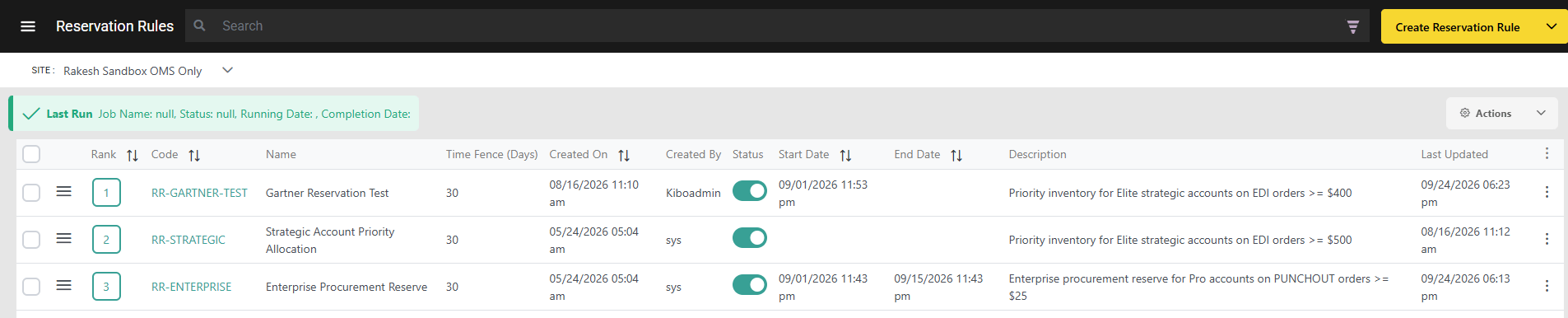
Call Off reservation Rules are evaluated in ascending rank order — the rule with Rank 1 has the highest priority and runs first. All Call-Off Orders matched by Rank 1 are allocated inventory before Rank 2 runs. Rank 2 only sees inventory remaining after Rank 1 has completed its full pass. A Call-Off Order line matched by a higher-priority rule is excluded from lower-priority rules in the same batch cycle. This prevents double-allocation and ensures deterministic, priority-based inventory distribution.Note: All enabled Call Off reservation Rules run as a group in each batch cycle. There is no option to trigger an individual rule in isolation.
Rule Matching Logic
A Call-Off Order must satisfy all criteria types defined on a rule (AND logic across criteria types) to be eligible under that rule. Within a single criteria type — for example, within Product Criteria — conditions can be combined using AND or OR logic as configured in the expression editor. If a rule defines a simple criteria for a particular type which will match all the call off orders (e.g Total Amount ≥ 1$), all orders automatically pass that criterion. This makes it straightforward to configure a catch-all rule at the lowest rank to ensure every Call-Off Order receives an allocation pass.Priority Enforcement
The rule engine processes rules as the outer loop. Rule N+1 only receives the inventory left after Rule N has fully completed allocation across all its matched Call-Off Orders. This architecture ensures that high-priority buyers always receive their inventory preference before lower-priority segments are served.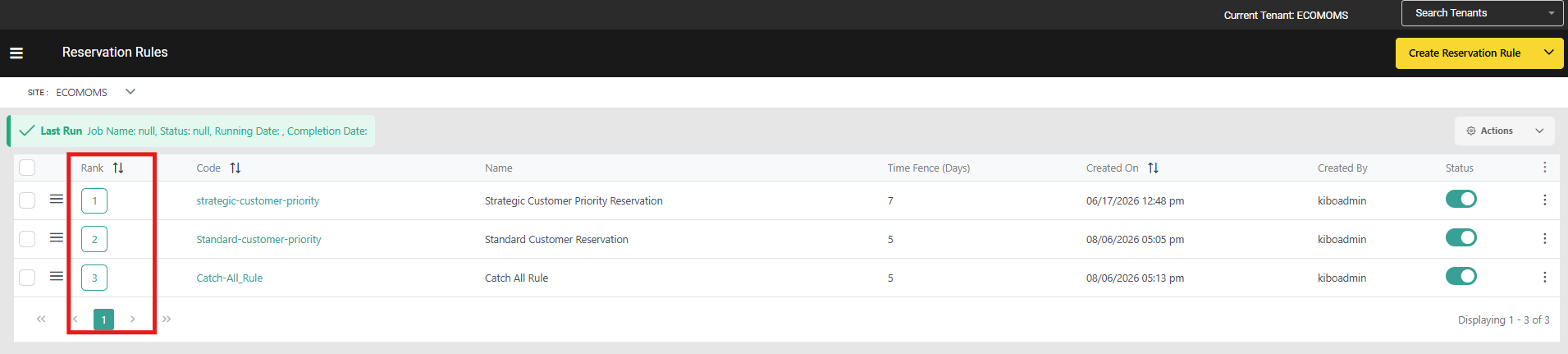
Rule Criteria
A Call Off reservation Rules is a composite rule made up of up to three criteria types. All types present on a rule must match (AND logic across types) for a Call-Off Order to qualify:Note: Product Rules , Customer Rules and call off order rules created for Call Off reservation Rules are exclusive to Call Off reservation Rules and cannot be shared with other rule types such as Purchase Limit Rules or Return Rules.
Time Fence Configuration
Each Reservation Rule includes a Time Fence Days parameter that controls the inventory search window used when performing Order Routing for matched Call-Off Order lines. The time fence is calculated symmetrically around the line’s Requested Ship Date:deliveryDateAfter = requestedShipDate − timeFenceDaysdeliveryDateBefore = requestedShipDate + timeFenceDays
0 means only inventory available exactly on the requested ship date is considered.
Note: Requested Ship Date is mandatory on every Call-Off Order line. The time fence has no site-level fallback default.
Rule Attributes
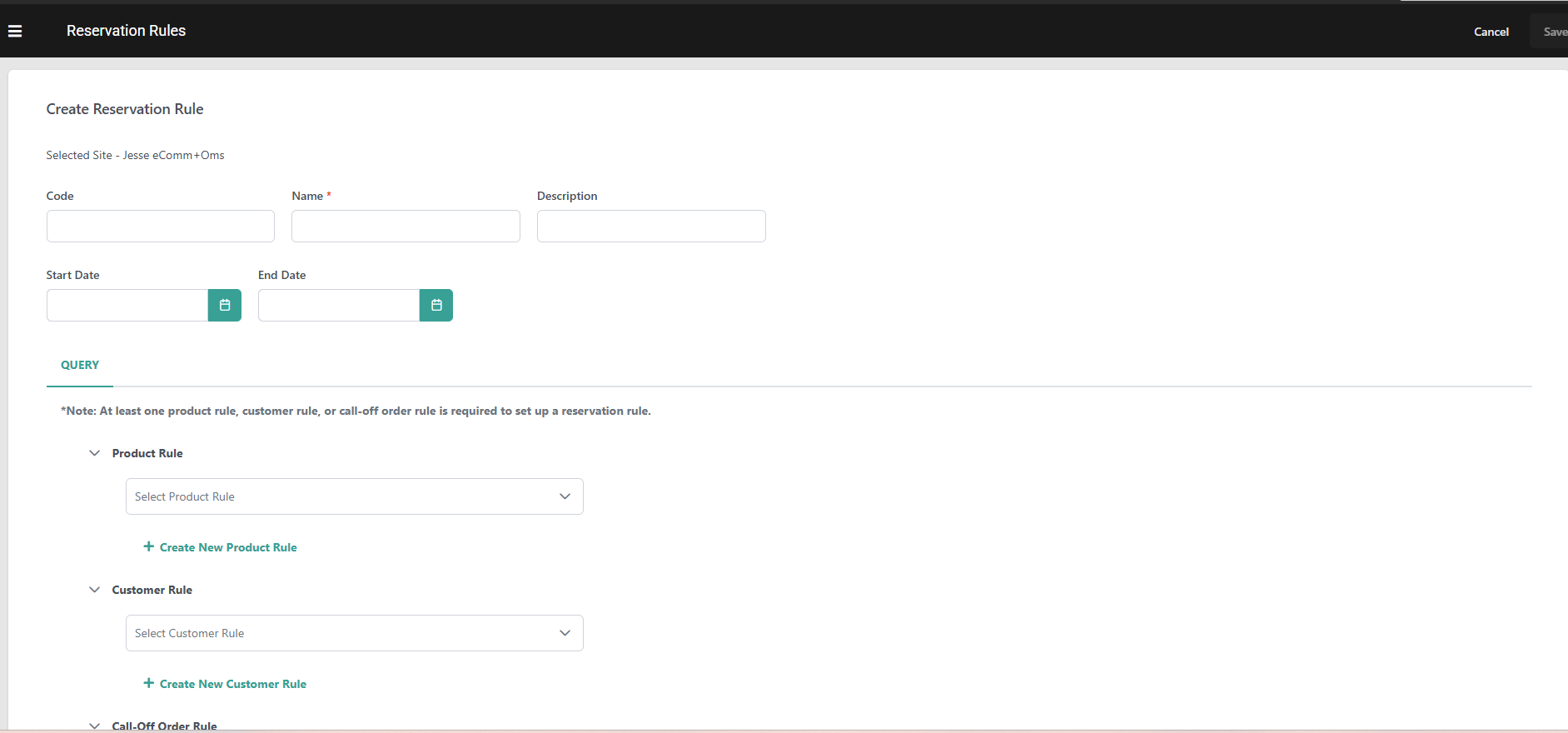
At least one Criteria is mandatory out of Product Criteria , Customer Criteria & Call-Off criteria
Configure Call Off Reservation Rules
To create a new Call Off Reservation Rule:- Go to Main > Supply> Rules > Call Off Reservation Rules.
-
Select a Site from the site selector.
- Click Create Reservation Rule.
- Enter a Code. If left blank, the system generates one automatically.
- Enter a Name and an optional Description.
-
Use the optional Start Date and End Date fields to schedule when the rule is eligible for evaluation.
- If both fields are blank, the rule is always eligible — the default behavior.
- The rule is only evaluated when it is Enabled and the current date and time falls within the window.
- Enter a Rank value. The lower the number, the higher the priority.
-
Enter a Time Fence Days value. Enter
0to restrict the inventory lookup to the exact requested ship date only. -
Toggle the rule Enabled to activate it for batch processing.
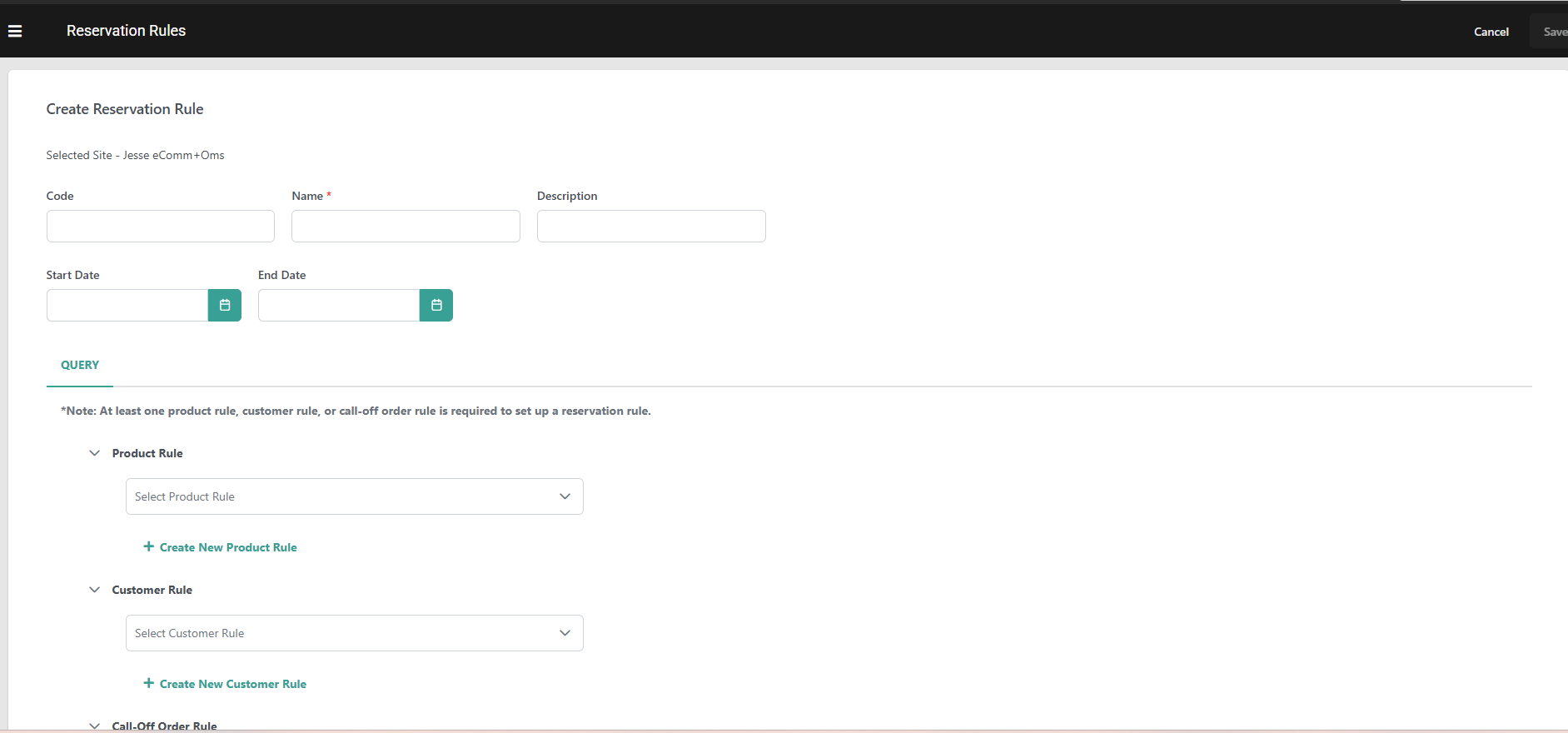
-
Optionally, add Product Criteria:
- Click Add Product Rule to select an existing product rule or create a new one.
- Use the expression editor to define product-level conditions. Click Preview to view a list of products that would be matched by the expression.
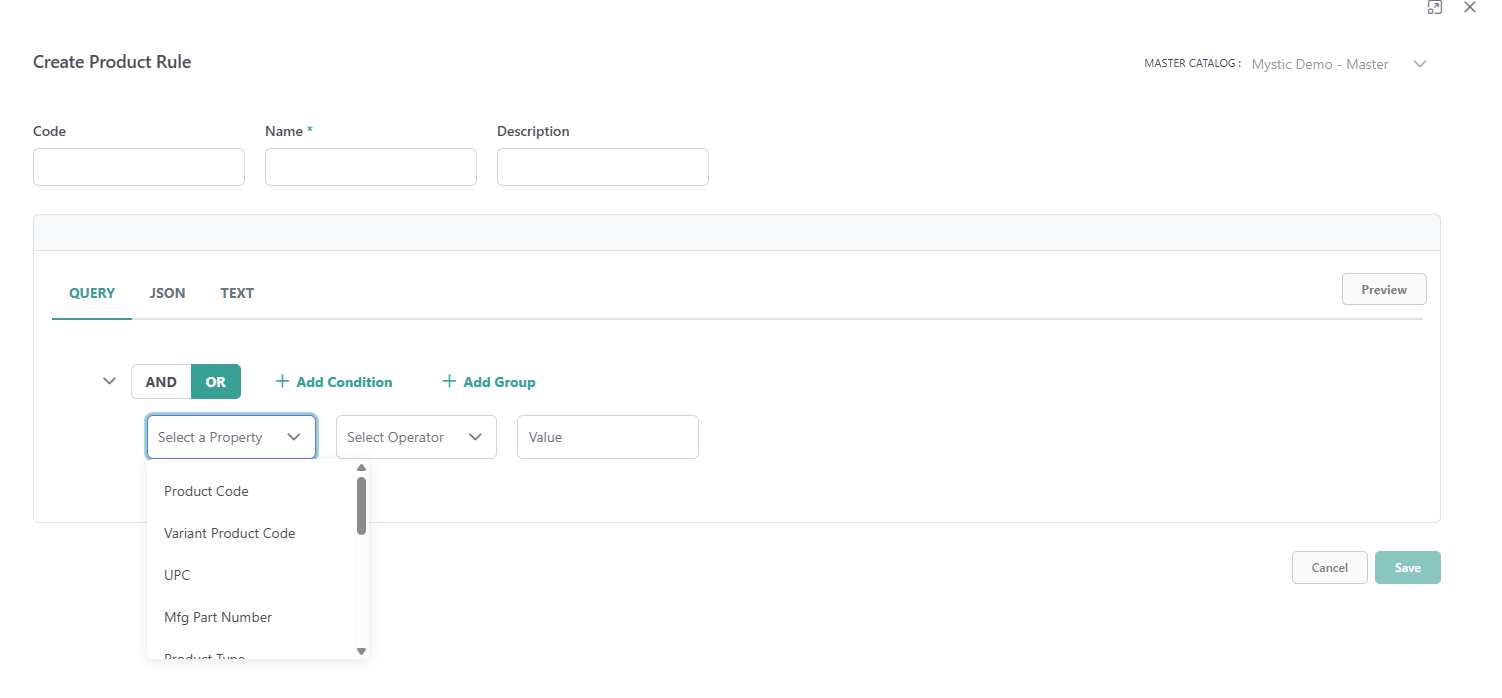
-
Optionally, add Customer / Account Criteria:
- Click Add Customer Rule to select an existing customer rule or create a new one.
- Use the expression editor to define account-level conditions such as segment, priority, ID, or custom attributes.
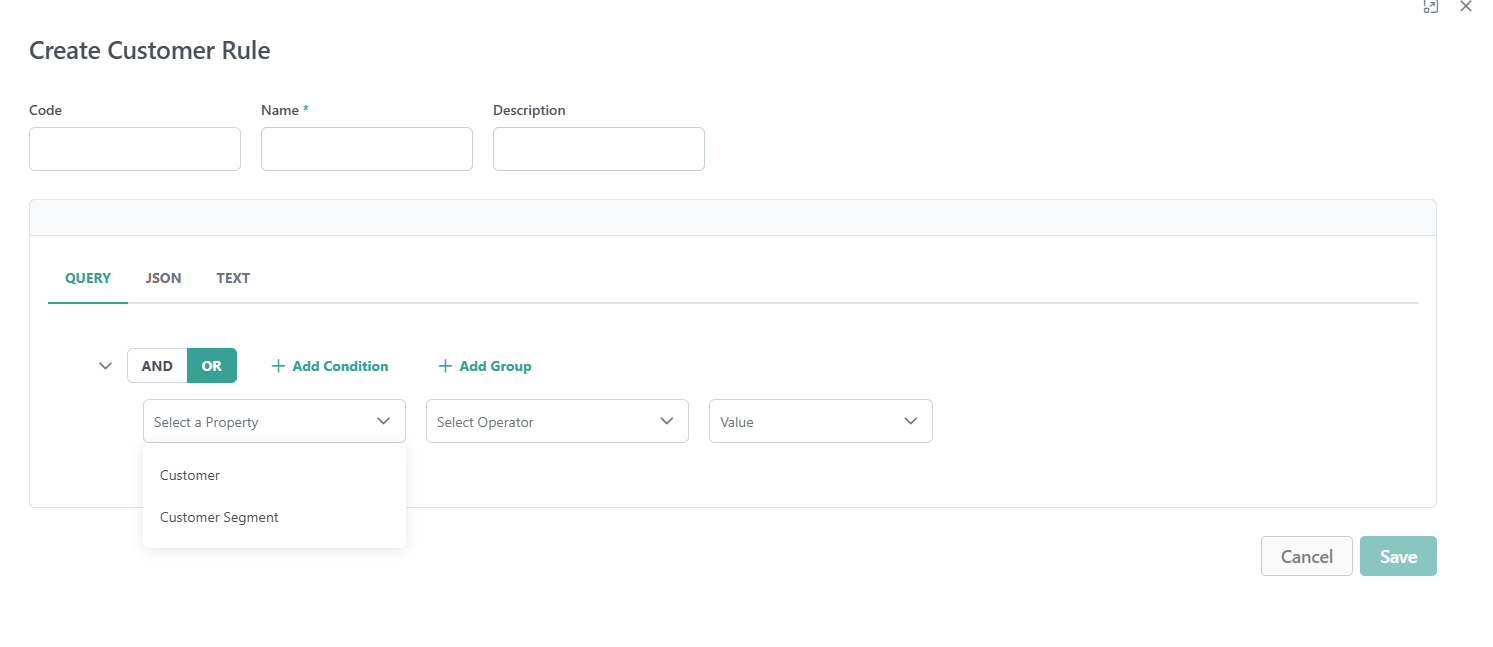
-
Optionally, add Call-Off Order Criteria:
- Click Add Call-Off Order Rule to create a new expression for order-level conditions such as channel, total amount, custom attributes, or requested ship date.
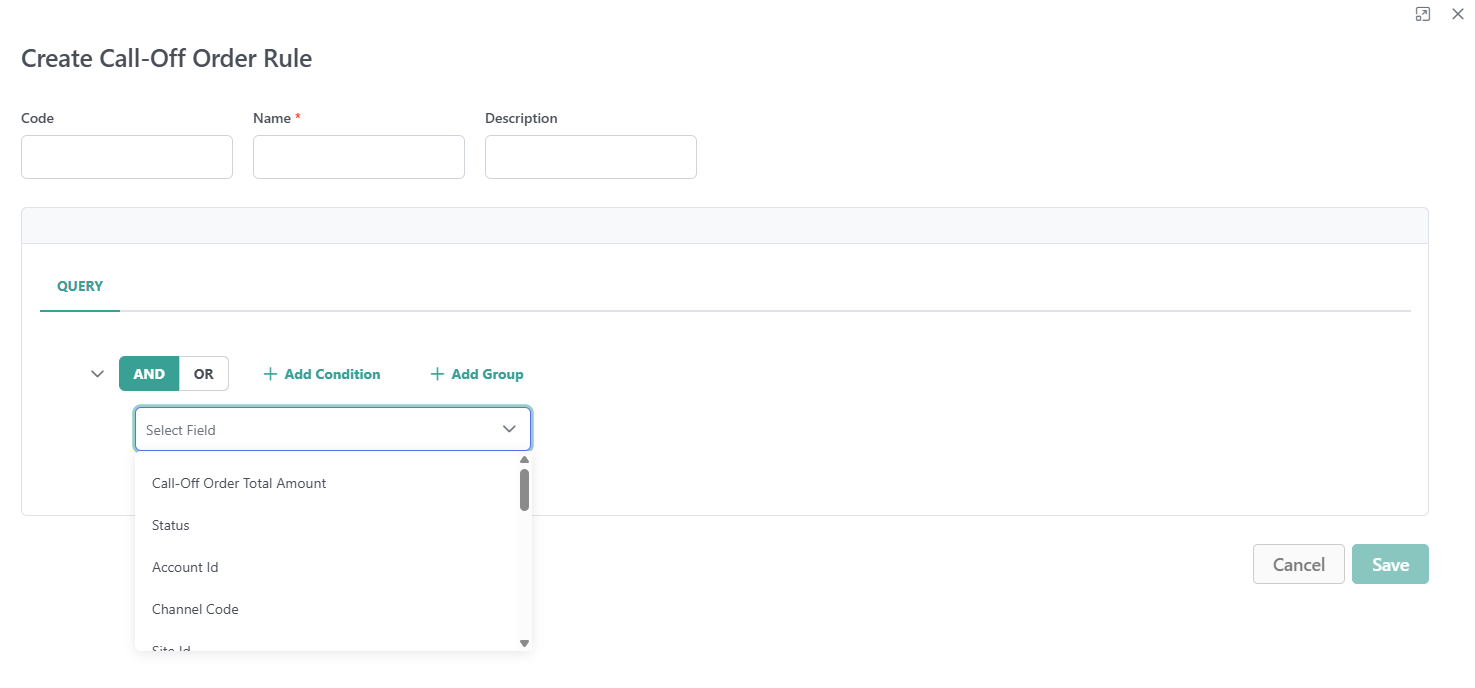
Note: Only Extensible/Custom attributes marked Available for Rules on their attribute definition appear in this rule’s criteria builders for Product Rules and Call off Order Rules. - Click Add Call-Off Order Rule to create a new expression for order-level conditions such as channel, total amount, custom attributes, or requested ship date.
-
Configure Sort Criteria: Under Primary Sort Attribute, select a sort field and choose a Sort Direction of Ascending or Descending.
Optionally, under Secondary Sort Attribute, select a tie-breaker field and its own Sort Direction. The secondary sort is applied only when matched call off orders have the same primary sort value. - Click Save
Note: Rules are scoped to the site level. A rule configured for one site applies only to Call-Off Orders processed under that site.
Manage Call Off Reservation Rules
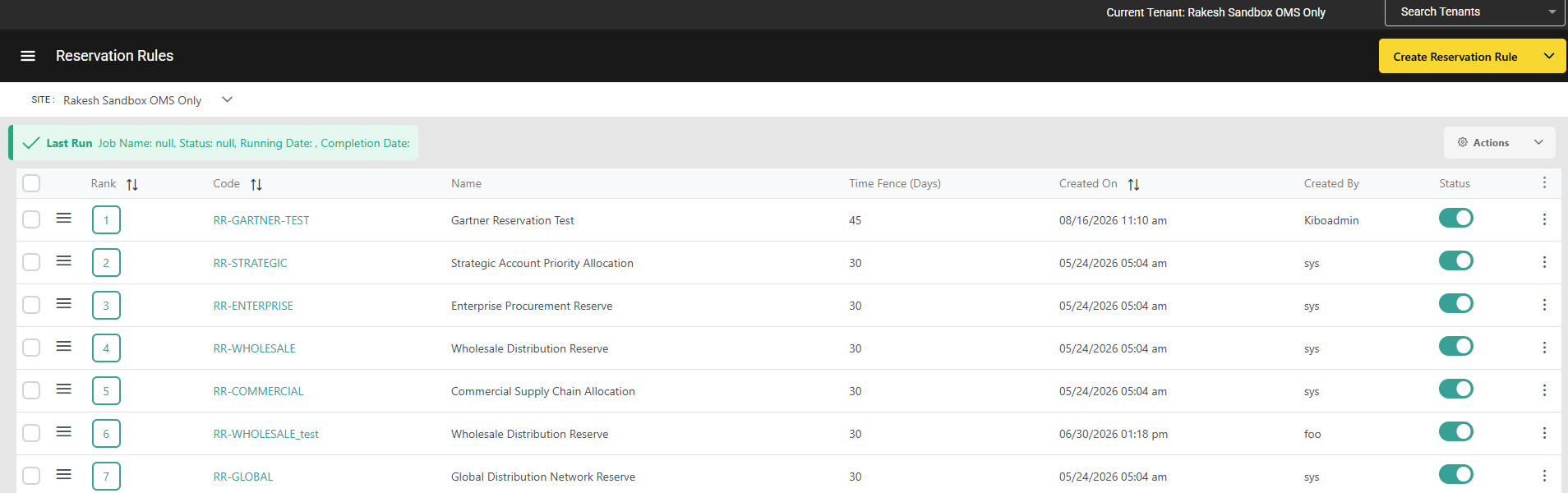
The dashboard at Main > Supply> Rules >Reservation Rules displays all existing rules and allows you to manage them with the following actions:- Toggle the Status icon on a rule to activate or deactivate it without deleting it. Disabled rules are skipped during batch processing.
- Click on the Kebab icon on a rule to Edit or Delete it.
- Check multiple rules and then use the Actions menu in the top right to enable, disable, or delete them in bulk.
- Edit the Rank of a rule directly in the table, or click and drag to reorder. Rules are always evaluated from highest to lowest rank, with Rank 1 running first.
- The list displays Start Date and End Date columns. Click either column header to sort the list by that date.
- Use the Search & Filter section to narrow the list by Rule Code, Rule Name, Start Date, End Date, Status (Enabled/Disabled), and Created By.