

Returns Concepts
Understand return processing and reverse logistics
Return Rule Criteria
Return rules are based on expressions called product and customer rules, at least one of which is required to create a return rule. These are made up of a set of conditions that can be used with logical operators like OR or AND, such as in a product rule of “Color = Blue AND Brand = Adidas” that would restrict the return rule to products that fit those conditions. Product rules can be based on product type, code, variant, static category, attribute, and some other first class fields. For example, a product-based return rule could consider:- Whether a specific product can be returned
- Whether products in a specific static category can be returned
- Whether a product with a certain attribute can be returned
- Whether a product with a certain product type can be returned
- The return window, or number of days after it was delivered to the shopper in which it is eligible for return
- Whether a specific customer can return an item of that product, product type, static category, or attribute
- Whether customers in a customer segment can return an item of that product, product type, static category, or attribute
- The maximum quantity of the specific product that can be returned
- The maximum quantity that can be returned by the customer or customer segment
Return Rule Behavior
Returns are validated against the rules whenever one is initiated from the Order Admin, Fulfiller UI, or My Account page on the storefront. The Order Admin’s returnable item details will also display any quantity limit or return window that has been passed, and restrict the item from being selected for a return (though this can be overridden in the initiation process). If any return fails validation, an error will be displayed and it will not be created. Return rule information will be reflected in the item-level data of Shipment APIs, such as when creating or updating a shipment. The belowreturnRuleInfo object indicates whether the item is returnable and if so, any applicable return quantity limit or maximum return window. The API documentation will be updated with these fields soon.
isItemReturnable flag on each order item that indicates whether it can be returned or not based on your return rules (including whether it is still within the allowed return window).
Enable Return Rules
Contact Kibo Support to enable this feature. The following behaviors allow users to view and update return rules. The Admin and SuperAdmin roles have these behaviors by default.- Product Rule
- Product Rule Read, Product Rule Create, Product Rule Update, Product Rule Delete
- Customer Rule
- Customer Rule Read, Customer Rule Create, Customer Rule Update, Customer Rule Delete
- Return Rule
- Return Rule Read, Return Rule Create, Return Rule Update, Return Rule Delete
Configure Return Rules
To configure a return rule:- Go to Main > Demand > Rules > Return Rules.
- Select a Site to view its existing rules.
-
Click Create Return Rule or click an existing rule in the table.
- If you choose to create a new rule, clicking the button directly will create a rule for the current site. Expand the drop-down menu on the Create button to select a different site instead.
- When creating return rules via this UI, a rule can only be applied to one site. If you want to assign a rule to multiple sites, create or update it via the Rule APIs instead.
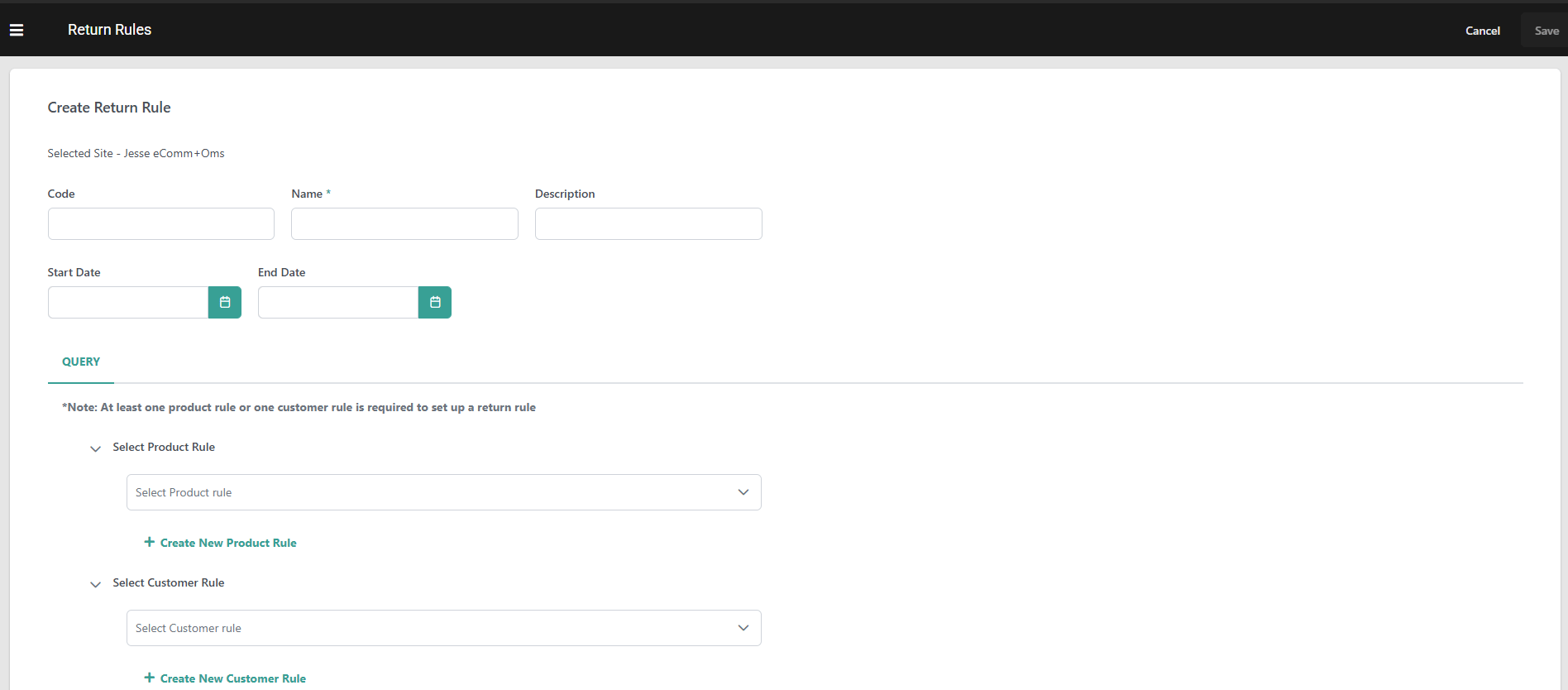
- Enter a Code. If not provided, the system will generate one automatically.
- Enter a Name.
-
Enter an optional Description.
-
Use the optional Start Date and End Date fields to schedule when the rule is eligible for evaluation.
- If both fields are blank, the rule is always eligible — the default behavior.
- The rule is only evaluated when it is Enabled and the current date and time falls within the window.
-
Select or create at least one product rule or customer rule.
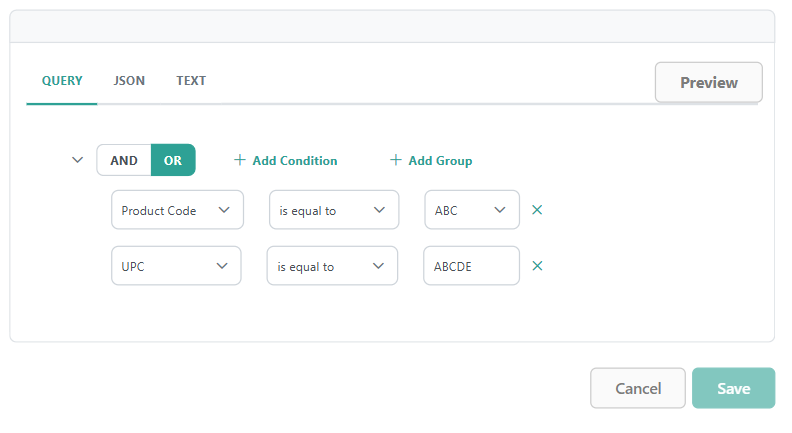
- Creating or editing a rule will open an expression editor that you can view in Query, JSON, or Text format. Here you can define one or more conditions by entering a product property, logical operator, and value to compare the property against and grouping them as needed. Click Preview to view a list of records that would be impacted by the expression.
- Product and customer rules cannot be shared across any other rule features, such as purchase limit rules. This means that only those that were created as part of return rules will be available here.
- Only Extensible attributes marked Available for Rules on their attribute definition appear in this rule’s criteria builders for product rule
- Creating or editing a rule will open an expression editor that you can view in Query, JSON, or Text format. Here you can define one or more conditions by entering a product property, logical operator, and value to compare the property against and grouping them as needed. Click Preview to view a list of records that would be impacted by the expression.
- Check Item is returnable if applicable to validate that the item is returnable.
- Enter the Max Returnable Quantity you want to allow per return.
- Enter a Return Window as an integer to represent the number of days after an item completes fulfillment in which returns are accepted. Kibo advises including a buffer period to account for the time taken to deliver an item. For instance, if delivery generally takes 5 days after shipment fulfillment and you want to provide the shopper with a 30-day return window, you should enter a window of 35 days.
- Click Save. Once a return rule is created, it is assigned the lowest rank. You can change this on the dashboard shown below.
View Return Rules
This page at Main > Orders > Return Rules displays all existing rules and allows you to manage them with the below actions:- Change the Site in the top left to view rules for a different site.
- Toggle the Status icon on a specific rule to activate or deactivate it.
- Expand the actions menu on a specific rule to Edit or Delete it.
- Check multiple rules and then use the Actions menu in the top right to delete, enable, or disable them.
- Edit the Rank of a rule or click and drag it to reorder them. When the rules are run, they will always be applied in order of the highest to lowest rank (with 1 being the highest rank).
- Ranks are unique per rule across all sites in the master catalog. This means that if a rule is ranked #1 and only assigned to one site, then all other sites will not display a rule in the #1 rank position. If that rule is assigned to multiple sites, it will be ranked #1 on each assigned site and the sites it is not assigned to will not display a rule in the #1 position. If a rule needs to have a different rank on two different sites, then it should be created twice and a different unique rank should be assigned to each.
- Click Test Rule to open a sidebar and enter a product with a customer or customer segment. The system will evaluate which rule affects that case and display it with its returnable status and any maximum return quantity or return window, as well as a link to view or update the rule configurations.
- The list displays Start Date and End Date columns. Click either column header to sort the list by that date.
- Use the Search & Filter section to narrow the list by Rule Code, Rule Name, Start Date, End Date, Status (Enabled/Disabled), and Created By.
