

Returns Concepts
Understand return processing and reverse logistics
Watch: Returns for Refund
See the end-to-end process of handling a customer return and issuing a refund
- Go to Main > Orders > Returns.
-
Click the return you want to refund. Note that the table will display the refund status of each return per the below calculation:
- Fully Refunded means that the total refund is greater than or equal to the sum of the total price and tax.
- Partially Refunded means that the total refund is less than the sum of the total price and tax.
- In the Refunds tab, click Issue Refund.
-
Use the pop-up refund calculator to refund the shopper’s original payment (partially or in full) or provide them with either store credit or a new gift card instead. With the refund calculator, you can:
- Choose to refund specific items or refund the entire order.
- Choose to refund a specific quantity by editing the Refund Quantity field (which defaults to the Refunded Quantity subtracted from the Returned Quantity). This value cannot be greater than the returnable quantity on the order. The system will calculate the appropriate refund amount based on that quantity.
- Choose to include or exclude the original shipping and handling from the order.
- Add a processing fee for RMA labels, handling, etc.
- View what refunds have already been applied to a line item.
-
Refund back to the original payment method, new store credit, a new gateway gift card, or a new check.
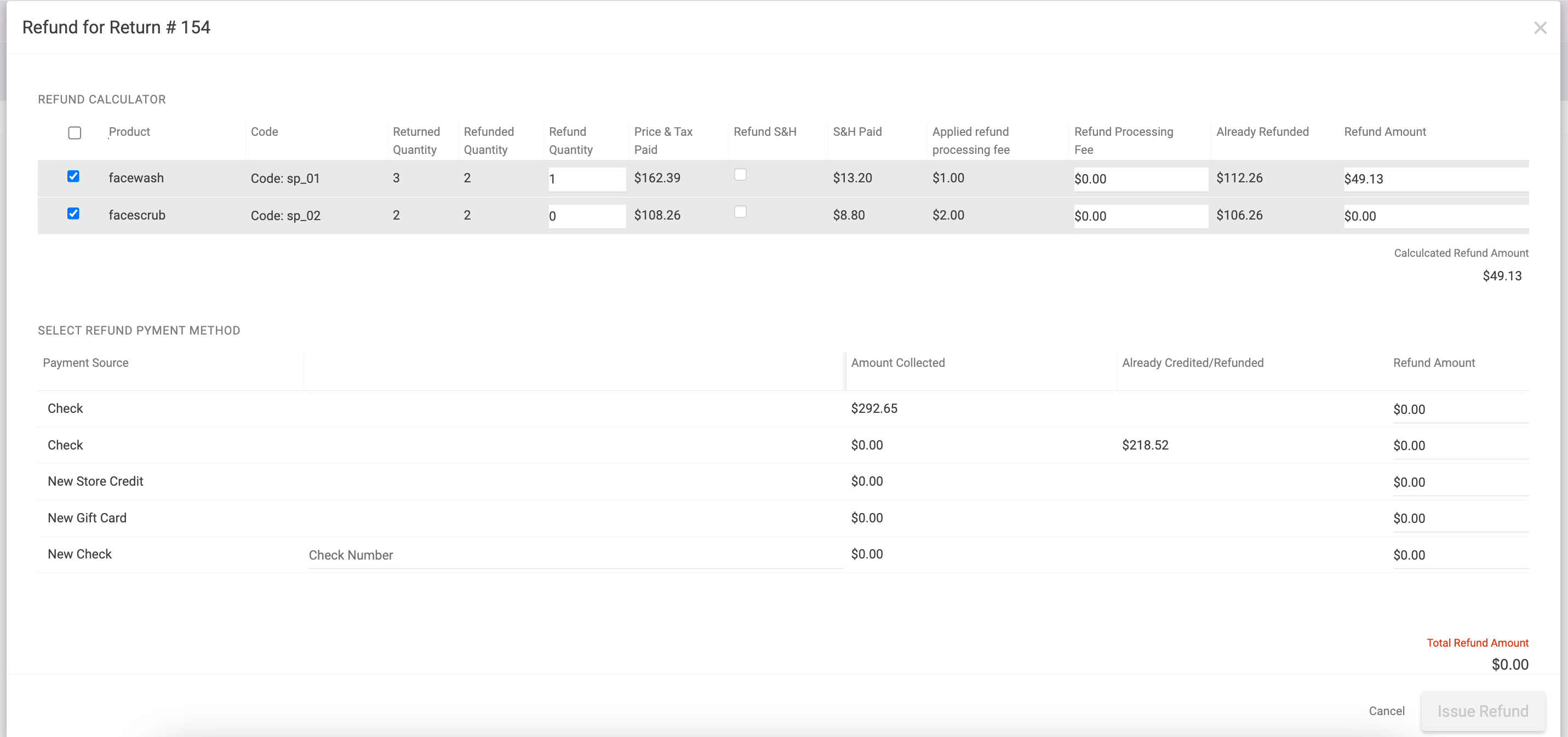
- Click Issue Refund in this calculator when you are done.
- A pop-up will ask you to confirm before finalizing the refund.