
Note: Network-Level Reservation is available only for tenants with the B2B Wholesale OMS feature enabled. Contact Kibo Support to enable this capability.
Prerequisites
Before using Blanket Order Network-Level Reservation, ensure the following:- The B2B Wholesale OMS feature is enabled for your tenant.
- New Supply Demand UI (Inventory UI) is enabled for your tenant. Contact Kibo Support to enable this capability
- At least one Blanket Order has been created in network-level mode. See Create a Blanket Order for steps.
- The Ring-Fence Scope site-level setting is configured before network-level Blanket Orders are placed. See Ring-Fence Scope below.
- You have Admin or SuperAdmin role permissions.
Key Concepts
Modes
Every Blanket Order is created in one of two immutable modes:Note: The only difference between the two modes is the ring-fence. In both modes, a Call-Off Order reserves real inventory when it is placed.
The Called / Uncalled Ledger
For every network-level Blanket Order, Kibo maintains a live Called / Uncalled ledger that tracks the reservation position of the commitment at all times.
The invariant that always holds:
Contracted = Called + UncalledAny operation that would break this invariant is rejected. Every committed unit is counted exactly once: it is either in Called (reserved, in Allocated) or in Uncalled (ring-fenced, subtracted from network availability). It is never in both and never in neither. Example — ledger in motion:
When the third Call-Off Order finds no stock, Called and Uncalled do not change — the 100 units remain in Uncalled, and the platform retries reservation automatically as new inventory arrives (see Partial Reservation and Retry).
Availability Model
Network-level ring-fencing works by subtracting the Uncalled balance from the network aggregate availability calculation. Call-off-level Blanket Orders have zero uncalled balance and therefore subtract nothing.(On Hand − Allocated) drops by the reserved quantity while the Uncalled subtraction shrinks by the same amount — total network availability does not change at the instant of reservation.
Note: The network ring-fence is a soft aggregate reserve. It protects the availability number returned by network-level queries, but it does not hard-lock specific physical units at specific locations. Location-level orders — such as B2C sales orders, BOPIS, or store fulfillment — allocate against location availability, which is intentionally blind to the blanket’s uncalled balance. This can drive network availability negative (see Network Availability Going Negative).
Ring-Fence Scope
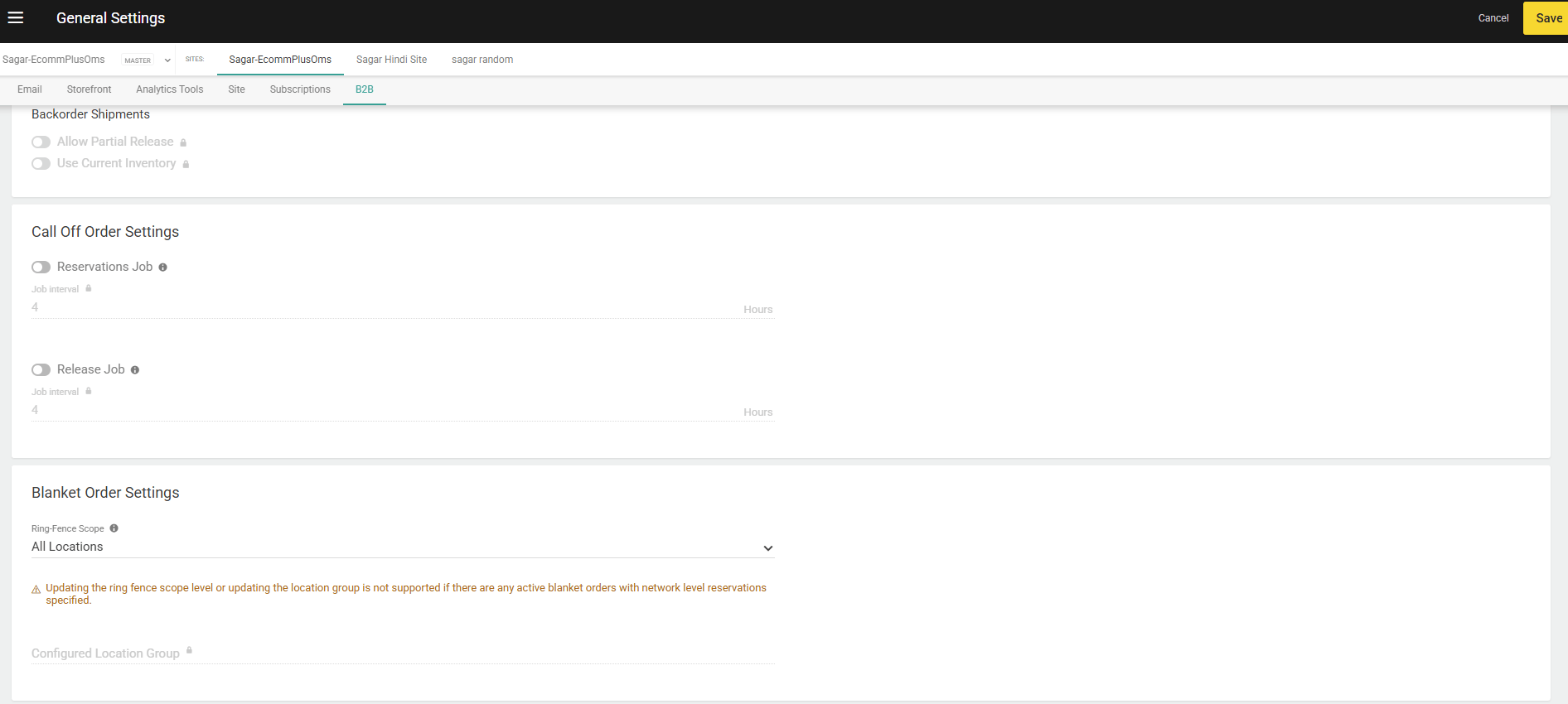
By default, a network-level Blanket Order’s uncalled balance nets against all locations in the network. Administrators can optionally restrict the ring-fence to a specific Location Group — meaning netting and reservation apply only to locations within that group, not the full network. This is a site-level setting that applies uniformly to every network-level Blanket Order on the site. It is not configured per Blanket Order.Configure Ring-Fence Scope
- Go to Main > System > Settings > General.
- Select the Site tab.
- Scroll to the B2B section.
- Under Blanket Order Settings, set Ring-Fence Scope to All Locations or Location Group.
- If Location Group is selected, choose a valid, existing location group from the Location Group field. Exactly one group may be configured per site.
- Click Save.
Selecting the Reservation Mode
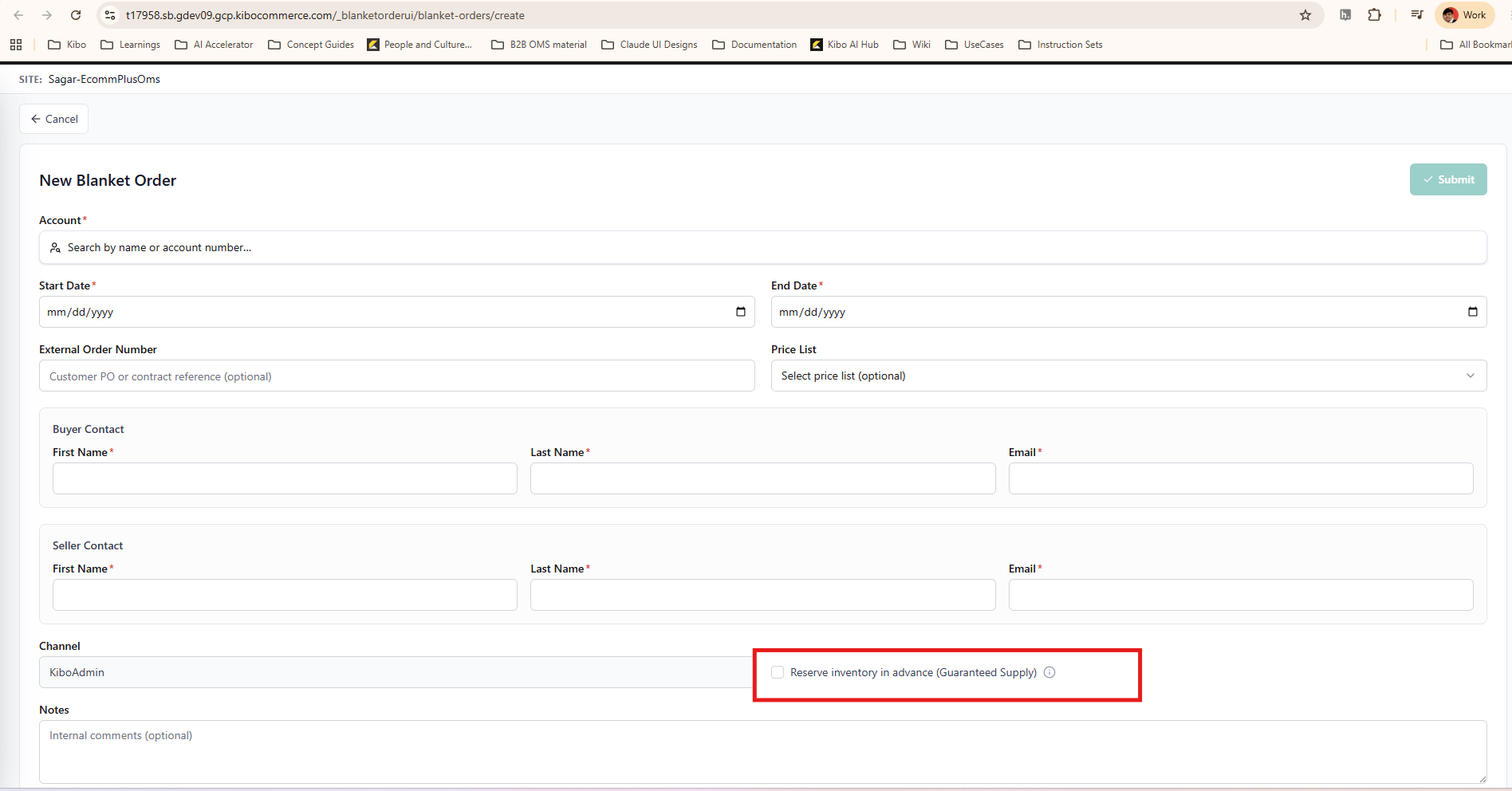
When creating a Blanket Order in the Kibo Admin UI, the reservation mode is selected via a single checkbox:- Go to Main > Demand > Blanket Orders.
- Click Create Blanket Order.
- Enter the required header details (B2B Account, Start Date, End Date, etc.).
- Locate the Reserve inventory in advance (Guaranteed Supply) checkbox.
- Check or uncheck the box:
- Checked — The Blanket Order is created in network-level mode. The committed quantity is ring-fenced from network availability at signing.
- Unchecked (default) — The Blanket Order is created in call-off-level mode. No inventory is reserved in advance.
- Add line items and specify committed quantities.
- Click Submit.
Note: The reservation mode cannot be changed after the Blanket Order is submitted.
How Network-Level Reservation Works
At Blanket Order Creation
When a network-level Blanket Order is created:- The ledger initializes: Called = 0, Uncalled = Contracted quantity
- The uncalled balance is immediately subtracted from the network availability calculation (or Location Group availability, if configured)
- The entitled buyer’s committed quantity is ring-fenced from the moment of signing — before any Call-Off Order is placed
When a Call-Off Order Is Placed
When the entitled buyer places a Call-Off Order against a network-level Blanket Order, the reservation flow runs as follows:- Validate commitment — the requested quantity must be within the Blanket Order’s remaining commitment. Any quantity in excess of the contracted balance is rejected.
- Reserve — the platform attempts to soft-reserve inventory for the requested quantity using Order Routing, scoped to the configured ring-fence scope (All Locations or Location Group).
- Update the ledger — for the quantity that reserves successfully: Called increases and Uncalled decreases by the same amount. The reserved units move into Allocated. This ledger update and the reservation are a single atomic operation — availability is never overstated between them.
- Retain the remainder — any portion of the request that could not be reserved stays outstanding on the Call-Off Order and remains within Uncalled. The platform retries reservation automatically (see Partial Reservation and Retry).
Note: At the moment a reservation succeeds, total network availability does not change. The reserved units move from Uncalled (subtracting from availability) into Called and into Allocated (also subtracting from availability). The subtraction simply shifts from one mechanism to the other.
Partial Reservation and Retry
A Call-Off Order reserves as much of its requested quantity as inventory allows — it does not require full availability to proceed. Whatever reserves successfully moves from Uncalled into Called; the unreserved remainder stays outstanding on the Call-Off Order and remains within Uncalled. The platform automatically retries reservation for outstanding quantities at timed intervals via a background job. As new inventory arrives, the job reserves what it can — each success moving additional quantity from Uncalled into Called. The original requested quantity on the Call-Off Order is preserved throughout and is never reduced by partial reservation. Example:
The invariant holds at every step: 1,000 = Called + Uncalled.
Note: The automated retry job, Reservation Rules, and Call-Off Order reservation are documented in detail in Reservations and Reservation Rules. The retry and partial reservation behavior described here is specific to how network-level Blanket Orders interact with those mechanisms.
Entitlement
The uncalled balance of a network-level Blanket Order belongs exclusively to its entitled customer. Only that customer can draw down the balance through Call-Off Orders against that specific Blanket Order. While the ring-fence reduces network availability for everyone, the ring-fenced quantity is not available for purchase by any other customer — even though it is not physically reserved at a specific location. This protection is enforced on every reservation drawn against the Blanket Order.Contract Increase
The contracted quantity of a Blanket Order can be increased at any time. For a network-level Blanket Order, increasing the contracted quantity raises the uncalled balance by the same amount, which further reduces network availability immediately.Note: Reducing the contracted quantity is handled through cancellation or reduction of Called quantity (see Cancellation and Reduction). There is no direct “reduce contract quantity” operation.
Cancellation and Reduction
When a Called quantity is cancelled or reduced:- The Blanket Order’s Uncalled balance is restored by the cancelled or reduced quantity
- The matching inventory reservation is released and returned to general availability
- The invariant is maintained: Contracted = Called + Uncalled
Supply-Shortfall Prioritization
A drop in physical supply does not reduce a Blanket Order’s uncalled balance. The committed quantity remains a contractual claim regardless of current on-hand position. When supply cannot cover all commitments:- Committed blanket quantities — including outstanding Call-Off Order quantities awaiting retry — are served ahead of general demand as new inventory arrives
- This ensures contracted buyers are protected under scarcity
Network Availability Going Negative
It is possible — and expected — for network availability to go negative. This occurs when total commitments (uncalled balances) across multiple network-level Blanket Orders exceed the available on-hand stock, or when location-level orders consume physical stock that was backing the ring-fence. Why location-level orders can erode the ring-fence: The network ring-fence subtracts from the aggregate availability figure, but location-level orders allocate against individual location availability — which is intentionally blind to the blanket’s uncalled balance. A B2C sales order, BOPIS pick, or store fulfillment order can therefore consume physical stock at a location even when network availability reads zero or negative.Multiple Network-Level Blanket Orders on the Same Item
When several network-level Blanket Orders exist for the same item, their uncalled balances are summed in the availability formula:Viewing Blanket Network Reservations
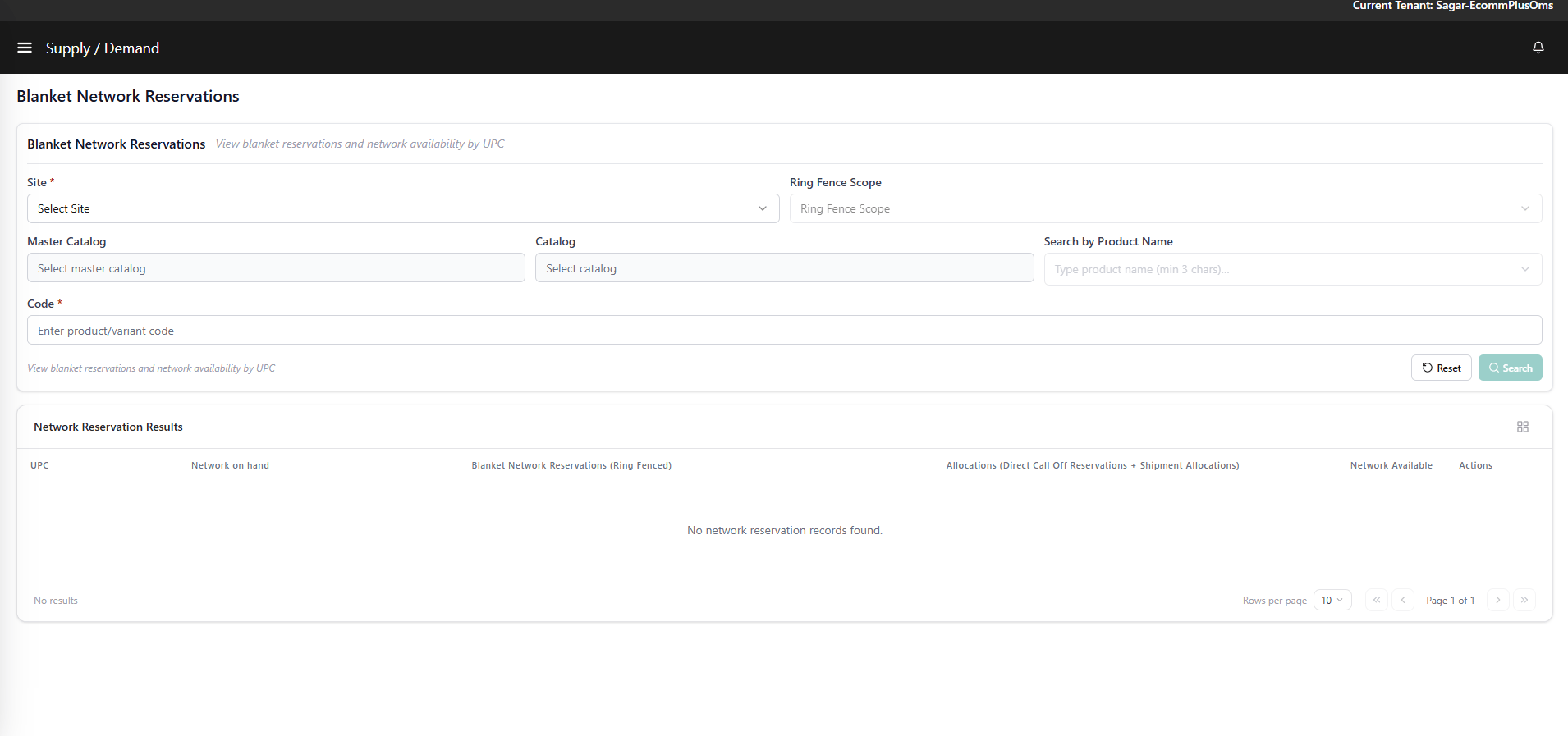
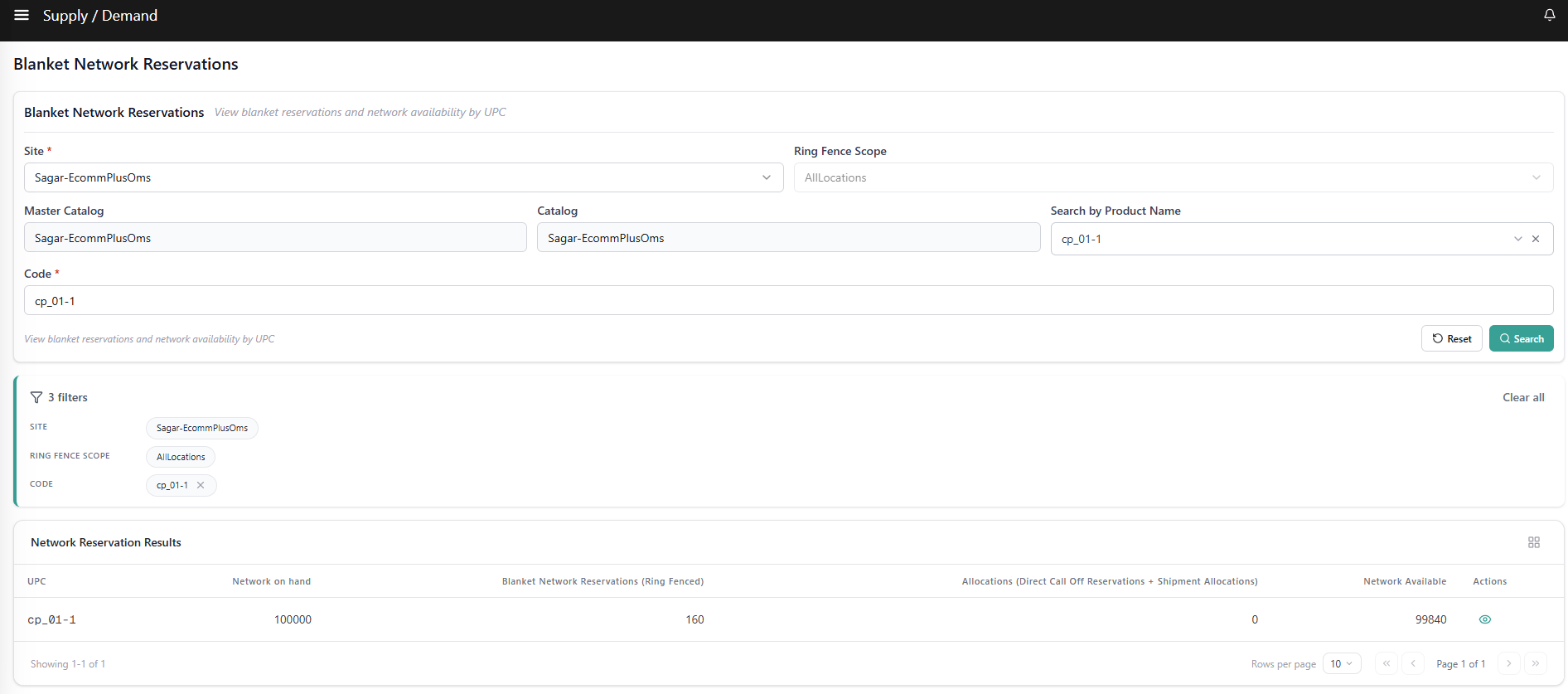
The Blanket Network Reservations view in the Supply Demand UI provides a consolidated, per-product picture of ring-fenced inventory and network availability. Use this view to see how much stock exists, how much is ring-fenced by blanket orders, how much is otherwise allocated, and how much is genuinely free to promise.Accessing the View
- Go to Main > Supply > Inventory > Supply Demand.
- Click the Blanket Network Reservations link.
- The page opens with the title Blanket Network Reservations and a filter section at the top.
Filters
The filter section at the top of the page contains the following controls:
After applying filters, a Selected Filters summary section appears below the filter area, showing active filter chips.
Network Reservation Grid (Primary Grid)
The primary grid displays one row per product (UPC) within the selected filters and scope. Each row shows the network-level inventory summary for that product.
Each row includes an view action on the right side. Click the view icon to open the blanket detail sidebar for that UPC (see below).
Blanket Detail Sidebar (Secondary Grid)
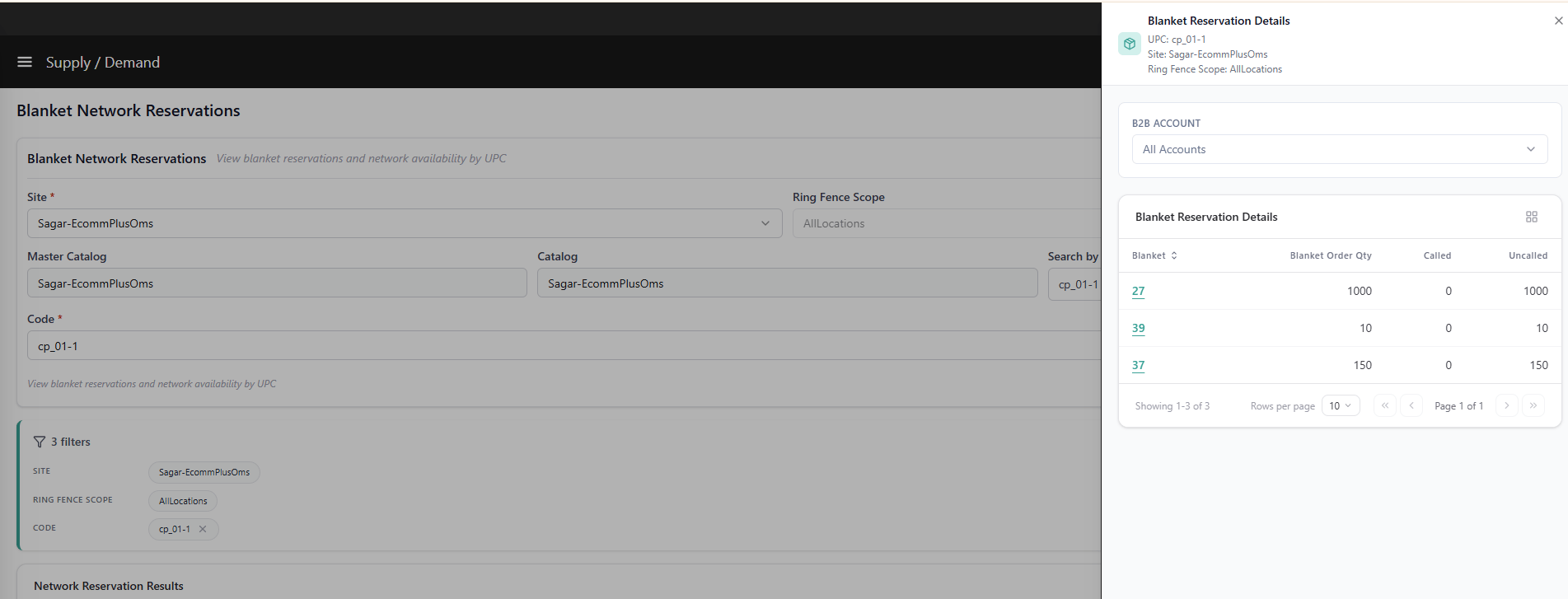
Clicking the eye icon on a primary grid row opens a right-side sidebar showing the individual Blanket Orders that contribute to that UPC’s ring-fenced quantity. The sidebar uses the same interaction pattern as the Inventory record view. Sidebar header displays:- The selected UPC
- The site selection details
B2B Account Filter
Above the secondary grid, a B2B Account filter allows you to filter the blanket order rows by customer account. Select an account from the dropdown to show only blanket orders belonging to that customer.Blanket Detail Grid