

How Shipment Release Rules Work
A scheduled background job runs every 2 minutes for each tenant. On each run, the job:- Loads all enabled Shipment Release Rules, ordered by Rank (ascending).
- Fetches all shipments currently in Hold status.
- For each held shipment, evaluates rules in rank order — the first matching rule wins.
- For matched shipments, computes a new Shipment Release Date by subtracting lead-time business days from the shipment’s Ship Date.
- If the computed date differs from the existing value, updates the shipment’s Shipment Release Date and sets the shipment as cross-dock eligible.
- Records counts of scanned, skipped, updated, and failed shipments for each run.
Prerequisites
- Hold Shipments must be enabled at the site level. See Hold Shipments for setup instructions.
- Lead-time attributes must be configured on the relevant Location, Product, and/or Customer entities. These are custom attributes (typed as integers) that represent processing or lead-time values in business days.
- Ship Date must be set on the shipment. Ship Date is a first-class field that flows from the order to the shipment and is set via API.
- Shipment Release Rule
- Shipment Release Rule Read, Shipment Release Rule Create, Shipment Release Rule Update, Shipment Release Rule Delete
Shipment Release Rule Criteria
Shipment Release Rules are based on filter criteria called product rules, customer rules, shipment rules, and location selections. These criteria determine which shipments qualify for the rule. At least one criterion is recommended, though a rule with all criteria empty will match any shipment.- Product Rules are made up of a set of conditions that can be used with logical operators like OR or AND, such as “Color = Blue AND Brand = Adidas” that would restrict the rule to products that fit those conditions. These can be based on product type, code, variant, static category, attribute, and other first-class fields.
- Customer Rules apply conditions based on customer segments or account attributes.
- Shipment Rules apply conditions based on shipment attributes.
- Location Codes and Location Groups restrict the rule to specific fulfillment locations or location groups.
Note: Product rules, customer rules, shipment rules, and location rules are exclusive to each rule type. For example, the same product rule cannot be used by both a Shipment Release Rule and a Safety Stock Rule.
Shipment Release Rule Properties
Each Shipment Release Rule has the following properties:Attribute Selection
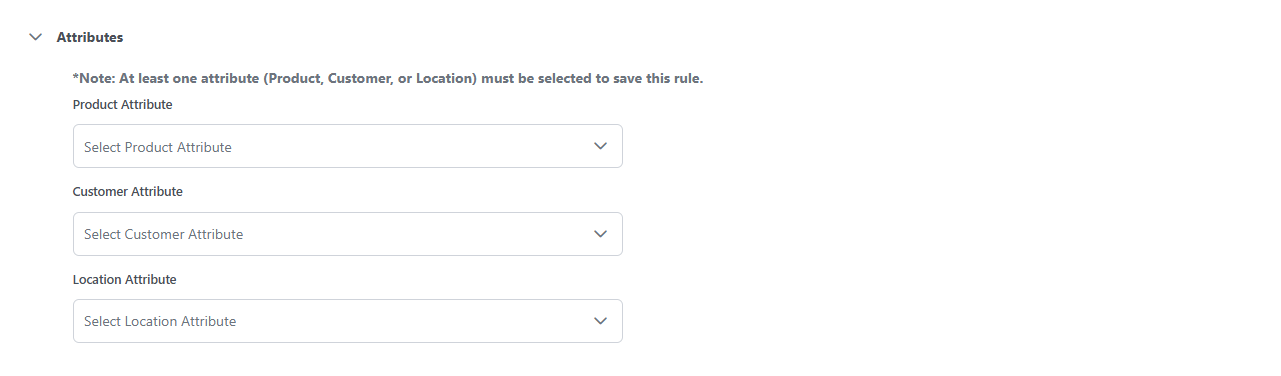
The Attribute Selection specifies which lead-time attributes to use when computing the Shipment Release Date. You can select one attribute from each of three sources: Location, Product, and Customer.Rules for Attribute Selection
- You are not required to select any attributes — an empty or partial selection is valid. If no lead-time attributes are selected, the release date defaults to the Ship Date (zero lead time subtracted).
- Only one attribute of each type (location, product, customer) may be selected per rule.
- Any combination of attribute types may be selected (e.g., location + product only, product only, all three).
Example Attribute Selection JSON
Lead-Time Formula
When a shipment matches a rule, the system computes the Shipment Release Date using the following formula: Shipment Release Date = Ship Date − Location Lead Time − Product Lead Time − Customer Lead Time Where:Business-Day Calculation
The system subtracts the total lead-time days from the Ship Date by decrementing one calendar day at a time, skipping Saturdays and Sundays. No holiday calendar is applied. All date arithmetic is performed in UTC. Note: If the computed Shipment Release Date is in the past (less than or equal to the current UTC time), the system clamps it to 30 minutes from the current time so the shipment is released promptly rather than scheduled retroactively.Example Calculation
Subtracting 6 business days from June 12 (Friday):
Result: Wednesday, June 3, 2026
Configure Shipment Release Rules
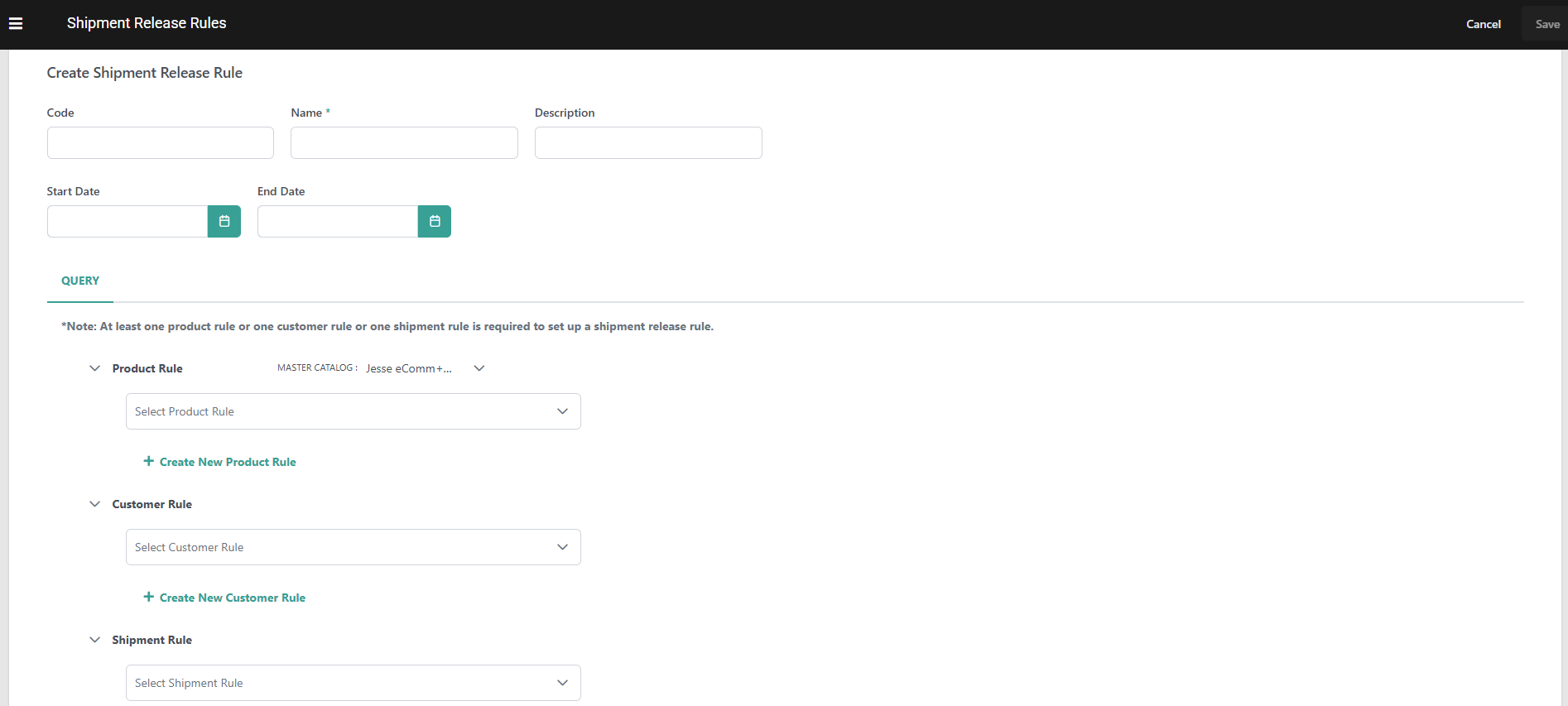
To configure a shipment release rule:- Go to Main > Fulfillment > Rules > Shipment Release Rules.
- Click Create Shipment Release Rule or click an existing rule in the table. /
- Enter a Code. If not provided, the system will generate one automatically.
- Enter a Name.
- Enter an optional Description.
-
Use the optional Start Date and End Date fields to schedule when the rule is eligible for evaluation.
- If both fields are blank, the rule is always eligible — the default behavior.
- The rule is only evaluated when it is Enabled and the current date and time falls within the window.
-
Configure the matching criteria for the rule:
- Location Codes: Select specific locations from the dropdown, or leave empty to match any location.
- Location Groups: Select specific location groups, or leave empty to match any group.
- Customer Rules: Select customer/account ranking rule codes, or leave empty to match any customer.
- Product Rules: Select product rules (with master catalog), or leave empty to match any product.
- Shipment Rules: Select shipment rules, or leave empty to match any shipment.
-
Configure the Attribute Selection to specify lead-time attributes:
- Select a Location Attribute FQN (optional).
- Select a Product Attribute FQN (optional).
- Select a Customer Attribute FQN (optional).
- You may select any combination, but only one of each type.
- Toggle Enabled to activate the rule.
- Click Save.
Note: Only Extensible/Custom attributes marked Available for Rules on their attribute definition appear in this rule’s criteria builders for Product Rules and Shipment Rules(header as well as item level).
Manage Shipment Release Rules
This page at Main > Orders > Inventory > Shipment Release Rules displays all existing rules and allows you to manage them with the below actions:- Toggle the Status icon on a specific rule to enable or disable it.
- Expand the actions menu on a specific rule to Edit or Delete it.
- Edit the Rank of a rule or click and drag it to reorder them. When the rules are run, they will always be applied in order of the highest to lowest rank (with 1 being the highest rank). The first matching rule wins.
- The list displays Start Date and End Date columns. Click either column header to sort the list by that date.
- Use the Search & Filter section to narrow the list by Rule Code, Rule Name, Start Date, End Date, Status (Enabled/Disabled), and Created By.

Rule Matching Logic
Rules are evaluated in ascending Rank order. The first rule whose criteria all match a given shipment is used — remaining rules are not considered (first-match-wins). A rule matches a shipment when all of the following criteria are satisfied. Empty or null criteria on the rule mean “any”:At least one Rule criteria must be selected to save the shipment rule