

Orders Resource
You can interact with orders and perform order operations using the orders resource: commerce/orders. There are a number of operations you can perform on orders and order subresources such as order items and order attribute, but key order-level operations include: Note that there are two similar fields related to credit card numbers in the Create Order API:cardNumberPartOrMask and ccLastFour. Order Management-only configurations store the credit card token in the card number field, which may result in a different set of last four digits than the actual card number. Thus, they should use ccLastFour to record the actual last four digits of the card number so that these digits can be displayed in the order details of the Admin UI. If not provided, Kibo will display the last four digits of the tokenized number.
However, eCommerce and eCommerce+Order Management configurations use the cardNumberPartOrMask field as described in the Create Order API model in which its value is the actual or masked credit card number. Thus, ccLastFour is not required because Kibo will display the last four digits from cardNumberPartOrMask in the Admin UI. However, using either one or both fields is acceptable for validation. If both are provided, then ccLastFour will take priority.
Import Orders for OMS-Only
Order Management-only implementations that do not use Kibo eCommerce need to import orders from their front end. This process uses the Create Order API and requires the following basic information.- Customer Account ID
- Import Flag: The
isImportflag should be set to “true.” - Items: Provide as many product details from the API model as possible for the item, including pricing fields from the supported list.
- Fulfillment Info: This contains the fulfillment contact and shipping address of the customer, as well as the shipping method name and code. Supported shipping methods will depend on the configurations you enabled in your shipping settings.
- Payment Info: Credit card authorization will happen on the external front end, but details will need to be provided via API to perform subsequent operations such as capturing and crediting. It is your responsibility to tokenize the credit card with the gateway provider and send the tokenized card in clear text along with authorization details.
- Authorization details are located in the interaction object, where the
interactionTypeis “Authorization” and the status is “Authorized.” Set theamountrequested field to the authorized amount on the payment, and send required gateway information ingatewayResponseData. - Fraud check happens on your external front end system. Send the fraud results in the
validationResultsobject, with thestatusas either “Pass” or “Review.” Review will put the order in Pending Review status.
- Authorization details are located in the interaction object, where the
- Billing Info: This should be populated for both order and payment objects, containing the billing contact, address, and card. The card details should indicate
card.isTokenized=truewhilecard.cardNumberPartOrMaskwill contain the tokenized card number.
Supported Pricing Fields
You can only send certain item-level pricing fields when importing an OMS-Only order, as shown above in theitems object. These fields are:
OMS-Only Payment Details
Payment information will look different depending on whether you are using Authorize.net or a No-Op/Third Party gateway.Authorize.net Tokenization
The Authorize.net gateway adapter supports tokenization from Authorize.net using customer profiles. The required information is:card.cardNumberPartOrMaskcustomerPaymentProfileIdinpayment.dataTransactionIdandApprovalCode(authCode) ininteractions.gatewayResponseData
No-Op and Third Party Payments
For no-operation payments, send the payment as a credit card with dummy payment details and set up a no-op gateway to process different card types. This gateway will return a success response for every transaction on the payment without any real interaction with the payment gateway. Paypal Express 2 is supported as a third party payment for imported orders. You need to have the Paypal Express 2 application installed on your tenant. The Create Order request should include:- The “PaypalExpress2” payment type
- PayPal token in
payment.externalTransactionId - Payer ID in
payment.billingInfo.data - Auth transaction ID in
payment.interaction.gatewayTransactionId
Import Completed Orders
Implementations that include eCommerce can import past orders from a previous system that have been completed. Importing these historical orders allows you to maintain their records in KCCP and perform returns, refunds, and credits on them. These imported orders can only have the Completed or Canceled order status.Enable Site Setting
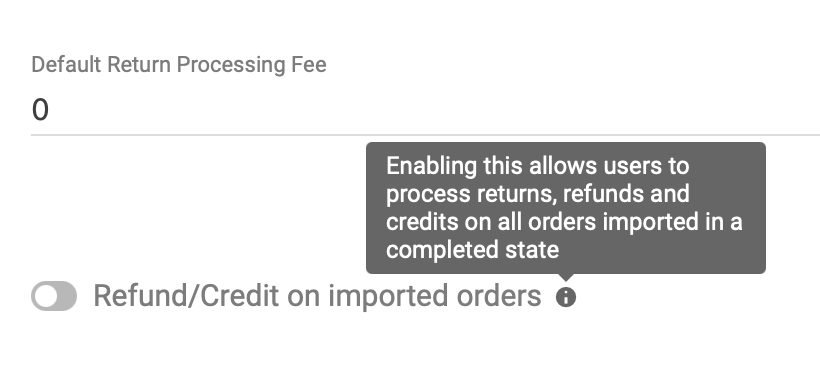
Before importing, you may want to enable a site setting to allow making returns and credits on imported completed orders. This will allow the system to create fulfilled shipments for these orders and process returns, refunds, and credits on them.- Go to System > Settings > General.
- Click the Site tab and locate the fulfiller settings section.
- Toggle on Refund/Credit on imported orders.\
Import Completed Order Data
Use the full Create Order payload to formulate your request, settingisHistoricalImport to “true” to indicate that it is a past order. You must include payment authorization and capture interaction information in order to support any refunds or credits on this order.
Shipments will be created in the Fulfilled state and the isHistoricalImport flag will be passed to them, which will not trigger any events such as status change notifications. If you do not include fulfillment location codes in the order item data, KCCP will use the default location as configured in the shipping settings. If there is no provided location code or default location, then an error will be returned and the order will not be imported.
Once imported, you will be able to view the completed orders and shipments in the Admin UI and Fulfiller UI where you can also perform refunds, returns, and credits if enabled. In both interfaces, there will be a message indicating that the order/shipment is a historical import and cannot be edited.
Pricing Field Mappings
Some pricing fields use slightly different names in the Admin UI compared to the Orders API. The following table maps each field in the Admin to its corresponding API property.
The following table maps each order-level pricing field in the Admin to its corresponding API property.
Order Drafts
Order drafts let you make incremental modifications to the order without immediately committing those changes. You can use order drafts to make order item adjustments, change item quantities, or apply additional coupons or discounts. You cannot make changes to an order payment, package, shipment, or pickup using order drafts. Kibo stores the order draft separately from the original order, but the draft maintains a link to the original order. When performing the GetOrder operation, you can choose to retrieve the draft or the original using thedraft parameter.
After either you or a shopper creates an order, you can use the following API order operations to create or update an order draft:
When you update an order draft, you can perform any of the following actions:
Each time you save an order draft as the original, or apply and commit the order draft, Kibo creates a new version of the order and increments the version number by one. If multiple users make simultaneous modifications to an order draft, Kibo applies the modifications to the draft based on the first user to save or commit the changes.
Queued Orders
When orders are submitted to Kibo, they are placed into a queue and then processed on a first-in, first-out basis, allowing detection of any failures during order processing. You can view the queued orders and historical queued orders by using the following APIs:- Get Queued Order: Allows you to view a specific order from all orders in the queue.
- Get Queued Orders: Allows you to view all orders in the queue.
- Get Historical Order: Allows you to view a single order from all the historical orders in the queue.
- Get Historical Orders: Allows you to view all the historical orders in the queue.
Edit and Cancellation Restrictions
After an order has been submitted, you can use the Update Order Restrictions API to set two flags which will determine whether a customer service representative is allowed to edit or cancel the order. These flags arerestrictEdit and restrictCancellation. If either is set to true, then only roles with the Override Order Update Restriction user behavior will be able to edit and/or cancel the order. If not set, then they will default to false and the order will not be restricted.
If the user has been restricted from editing the order, then it will be displayed in a read-only state on the Admin (but they will still be able to edit internal order notes and initiate or process returns). If the user has been restricted from cancelling the order but they are still allowed to edit it, then they will be able to cancel shipment line items.
The call is made using the below format: