Create and Apply a Theme
While Kibo provides a default Core theme, many implementations may have customized themes or multiple versions of themes installed. Before you can edit a theme, it must be uploaded to the Dev Center and installed on your tenant. The steps to do so are:- Create a Theme
- Prepare Your Development Environment
- Use the Theme Generator
- Make a Quick Change
- Upload Your Theme Files
- Install Your Theme in a Sandbox
- Apply Your Theme
Create a Theme
Themes live in the Dev Center. To upload theme files you’ve created or modified, you must first create a theme record in Dev Center. To create a theme record:- In the Dev Center Console, click Develop > Themes.
- Click Create Theme.
- In the Create Theme dialog box, specify the theme Name and ID as follows:
- Name: MyFirstTheme
- Theme ID: MyTheme
- Click Save. You should now see your theme in the Themes grid.
- Double-click your new theme to edit it.
- Note the Application Key. You will need this value to configure the Theme Generator and Dev Center Sync tools later in this tutorial.
Prepare Your Development Environment
Themes are designed to leverage inheritance, so all of your theme development should extend the latest Core theme. We recommend using the Theme Generator to manage your theme assets. The Theme Generator:- Creates new themes that inherit from the latest Core theme or clones an existing theme from a Git repository to a local directory. You can also use the generator to upgrade existing themes.
- Configures your local theme directory as a Git repository.
- Connects the Core theme Git repository (or any other theme Git repository) to your theme as a remote so you can merge upstream changes.
Use The Theme Generator
This tool is a Yeoman plugin that generates the scaffolding (e.g., directory structure, reference files, and build files) necessary to package a theme and upload it to Dev Center. It’s designed to augment, not overwrite, existing themes. If you have a theme that extends the Core theme, you can safely run this tool in that directory without overwriting your existing files. Whenever Kibo releases a Core theme upgrade, you can use this tool to merge changes from the Core theme (or any other theme Git repository) with your theme. For this tutorial, create a brand new theme that inherits from the latest Core theme:- Open a Terminal (OS X) or a Command Prompt (Windows).
- Install the Yeoman command-line tool globally:
npm install -g yo - Install the Grunt command-line tool globally:
npm install -g grunt-cli - Install the Theme Generator globally:
npm install -g generator-mozu-theme - Create a new folder for your theme on your local machine and navigate to it:
mkdir your_theme && cd your_theme - Run the Yeoman generator inside your theme directory:
/your_theme/$ yo mozu-theme - If you have an old version of the tool installed, you’ll be prompted to update it. Press
<Ctrl+C>to exit the application and enter the following command:npm install -g generator-mozu-theme - Select Brand new theme.
- Enter a public name for your theme.
- (Optional) Enter a short description of your theme.
- Enter the initial version.
- Select Kibo eCommerce Core Theme as the base theme from which your new theme will inherit.
- Select which version of the Core theme from which your new theme will inherit.
- Enter your theme’s Dev Center Application Key.
- Enter your Developer Account login email.
- Enter your Developer Account password.
- Select your developer account.
Make a Quick Change
Now that you have your own copy of the latest Core theme, you can begin making modifications.- Open theme.json in your project’s root directory for editing. This file contains the majority of your theme settings, structured in JSON format.
- In the about object, change the value associated with the name property from whatever you chose as a name to Quickstart.
- Save and close theme.json.
Upload Your Theme Files
You need to build and upload your theme files to Dev Center in order to apply your theme to a site. Kibo provides build tools that take care of this process for you. Complete the following steps to take advantage of these build tools:- Open a command prompt in your project’s root directory.
- Run
gruntto build your project assets and upload them to Dev Center.
grunt do and what are the common options you can use with it?
grunt:
- Checks your JSON and JavaScript for syntax and style errors
- Compares your theme with the remote base theme and notifies you if updates are available for merging
- Compiles your theme’s JavaScript according to the
./build.jsfile that you either inherit or override - Uploads changed files to Dev Center into the theme specified by the Application Key you provided when configuring the Theme Generator tool
- If you’ve added new files at the root level of your theme directory, you must add each file name to the mozusync.upload.src section of Gruntfile.js to upload them using the
gruntcommand.
grunt build-production:
- Checks your JSON and JavaScript for syntax and style errors
- Compiles your theme’s JavaScript according to the ./build.js file that you either inherit or override
- Compress and minify the compiled JavaScript for production
- Creates a .zip containing your theme files suitable for sharing or manually uploading within Dev Center (The ZIP file you upload contains only the contents of the theme folder that have changed and not the theme folder itself.)
grunt mozusync:wipe && grunt:
- Cleans up the theme in Dev Center by deleting all files and then re-uploading your theme files
grunt watch:
- Listens for any changes to your theme files
- If you save a change to a theme file,
gruntautomatically builds and uploads your theme to Dev Center.
Manually Uploading Your Theme Files to Dev Center
As an alternative to the build tools, you can manually upload a built and zipped package of your theme using the following steps. However, Kibo recommends using the build tools in most cases.- In the Dev Center Console, click Develop > Themes.
- In the Themes grid, double-click MyFirstTheme.
- Click More > Upload.
- Drag your zipped theme file into the Upload files dialog box.
- When the upload is complete, click Done.
- Click Packages. You should see the contents of your theme ZIP file.
Install Your Theme in a Sandbox
After your theme builds, install your theme to a sandbox so you can later apply the theme to a site. You only need to do this once. After installation, your theme remains installed on the sandbox until you remove it.- In the theme toolbar at the top right, click Install.
- In the Select a Tenant dialog box, select the sandbox you previously created.
- Click OK.
Apply Your Theme
The Content Editor is a module in Admin that merchants use to interact with themes. You can use this to test the functionality and appearance of your theme. To apply your theme to a site in your sandbox:- In the Dev Center Console, click Sandboxes.
- In the Sandboxes grid, right-click the sandbox you installed your theme to and select View.
- Log in to Admin.
- Click Main > Content > Themes.
- Click the dots on the
Quickstarttheme and click Apply.
Edit Email Templates
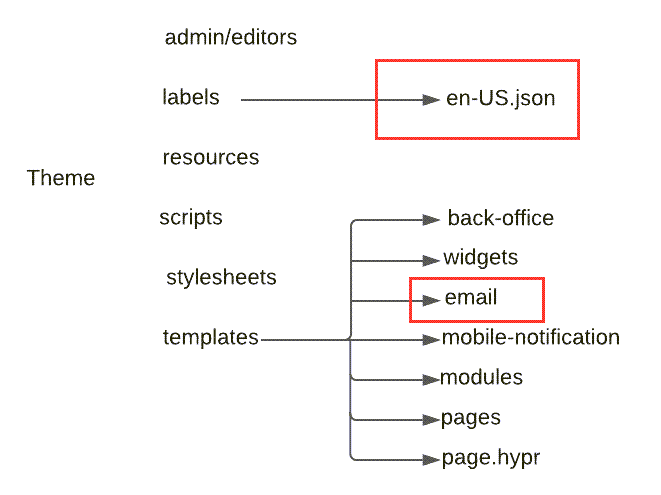
Once a theme has been installed, non-developers can customize the content. This section introduces the theme’s file directory and how to format the email template files.Theme Structure
Once you have been given access to the theme from your developers, you will be presented with a file directory. From the top level of the directory, there are two main areas that you will be navigating to for editing email templates.