Watch: Admin UI Overview
Get an introduction to the Kibo Business Admin interface
Environment URLs
KCCP may be viewed under sandbox or production environments. Each environment is identified by a different URL format, which will include unique identifying numbers for the tenant and sometimes the site being accessed. This guide provides templates with placeholder 0s standing in for those unique codes. You will replace any 0s with your own tenant pod, tenant, site, or other number but always retain the initial letter.- t00000: Your tenant number, e.g. t12345.
- s00000: Your site number, e.g. s54321.
- tp0: The tenant pod number that your tenant is assigned to. Every production tenant is assigned to one of four pods.
- stg1: This is NOT a placeholder! Do not replace the 1 with any other number.
t10000-s00000 instead of t10000)
Accessing KCCP
All admins and developers access the Kibo Composable Commerce Platform in any particular environment from the same log in screen.- US Sandbox: https://t00000.sandbox.mozu.com/login
- EU Sandbox: https://t100000.sb.euw0.kibocommerce.com/login
- US Production: https://t00000.tp0.mozu.com/login
- EU Production: https://t100000.tp0.euw1.kibocommerce.com/login
- GCP EUW4 Sandbox: https://t00000.sb.euw4.gcp.kibocommerce.com/login
- GCP EUW4 Production: https://t00000.tp0.euw4.gcp.kibocommerce.com/login
Dev Center
The Dev Center is an online portal for managing developer accounts, creating applications and theme records, and uploading, installing, and testing code before deploying it to a production site.- US Sandbox: https://developer.t00000.sandbox.mozu.com/console
- EU Sandbox: https://t100000.sb.euw0.kibocommerce.com/console
- US Production: https://developer.t00000.tp0.mozu.com/console
- EU Production: https://t100000.tp0.euw1.kibocommerce.com/console
- GCP EUW4 Sandbox: https://t00000.sb.euw4.gcp.kibocommerce.com/console
- GCP EUW4 Production: https://t00000.tp0.euw4.gcp.kibocommerce.com/console
Getting Access to Dev Center
Go here and fill out the form to request a demo. A representative will contact you with more information about a Dev Account. After Kibo provisions your Dev Account, you’ll receive an email invitation with instructions for logging in to Dev Center. The person who receives this email invitation is the Dev Account Owner, which is a role that is granted administrative permissions. The Dev Account Owner can then invite users so your team can begin development. For more information about this UI, see the Dev Center documentation.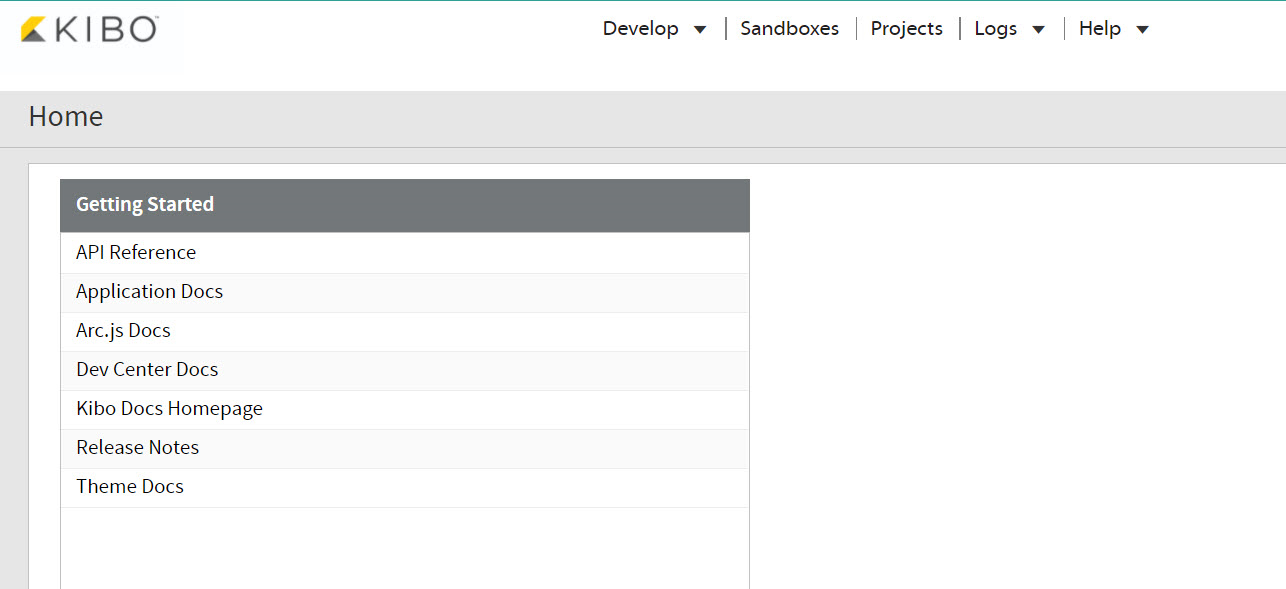
Admin
Also known as: Admin UI. The primary KCCP interface includes all the different pages and views for both eCommerce and Order Management implementations based on the below URL.- US Sandbox: http://t00000.sandbox.mozu.com/admin
- EU Sandbox: https://t100000.sb.euw0.kibocommerce.com/admin
- US Production: http://t00000.tp0.mozu.com/admin
- EU Production: https://t100000.tp0.euw1.kibocommerce.com/admin
- GCP EUW4 Sandbox: https://t00000.sb.euw4.gcp.kibocommerce.com/admin
- GCP EUW4 Production: https://t00000.tp0.euw4.gcp.kibocommerce.com/admin
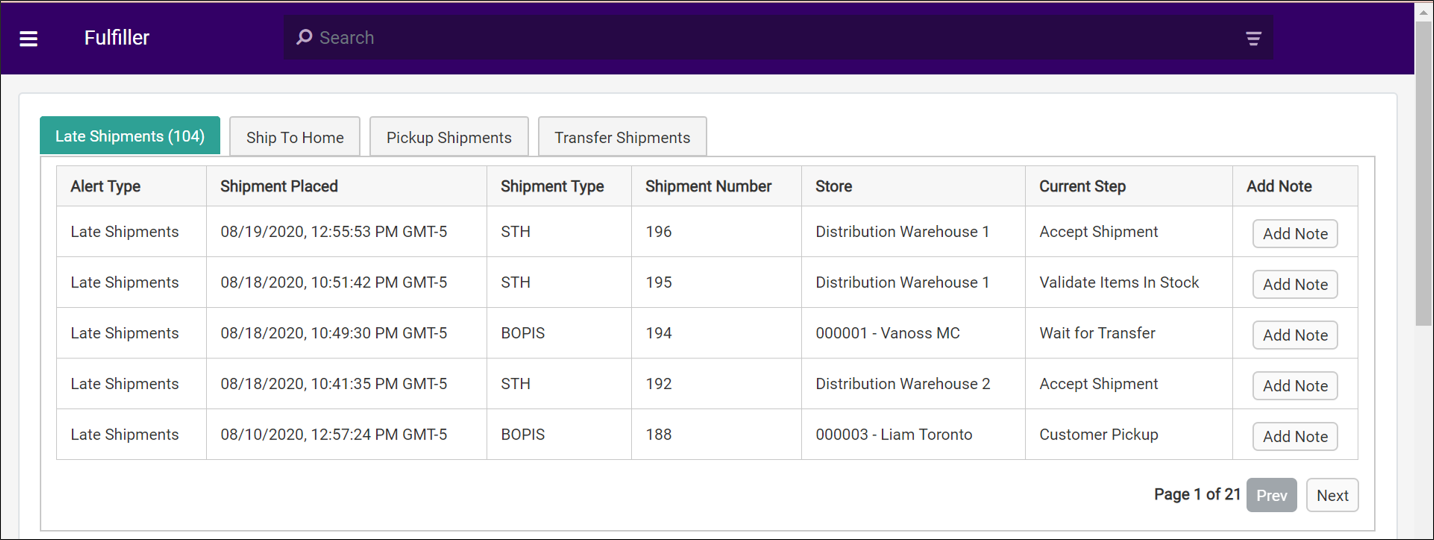
Fulfiller
Also known as: Fulfillment, FulfillerUI, FFUI. The external interface at the below URL performs all the fulfillment-related calls to the systems that maintain order and shipment related data for Order Management clients.- US Sandbox: http://t00000.sandbox.mozu.com/_fulfiller
- EU Sandbox: https://t100000.sb.euw0.kibocommerce.com/_fulfiller
- US Production: http://t00000.tp0.mozu.com/_fulfiller
- EU Production: https://t100000.tp0.euw1.kibocommerce.com/_fulfiller
- GCP EUW4 Sandbox: https://t00000.sb.euw4.gcp.kibocommerce.com/_fulfiller
- GCP EUW4 Production: https://t00000.tp0.euw4.gcp.kibocommerce.com/_fulfiller
Order Routing
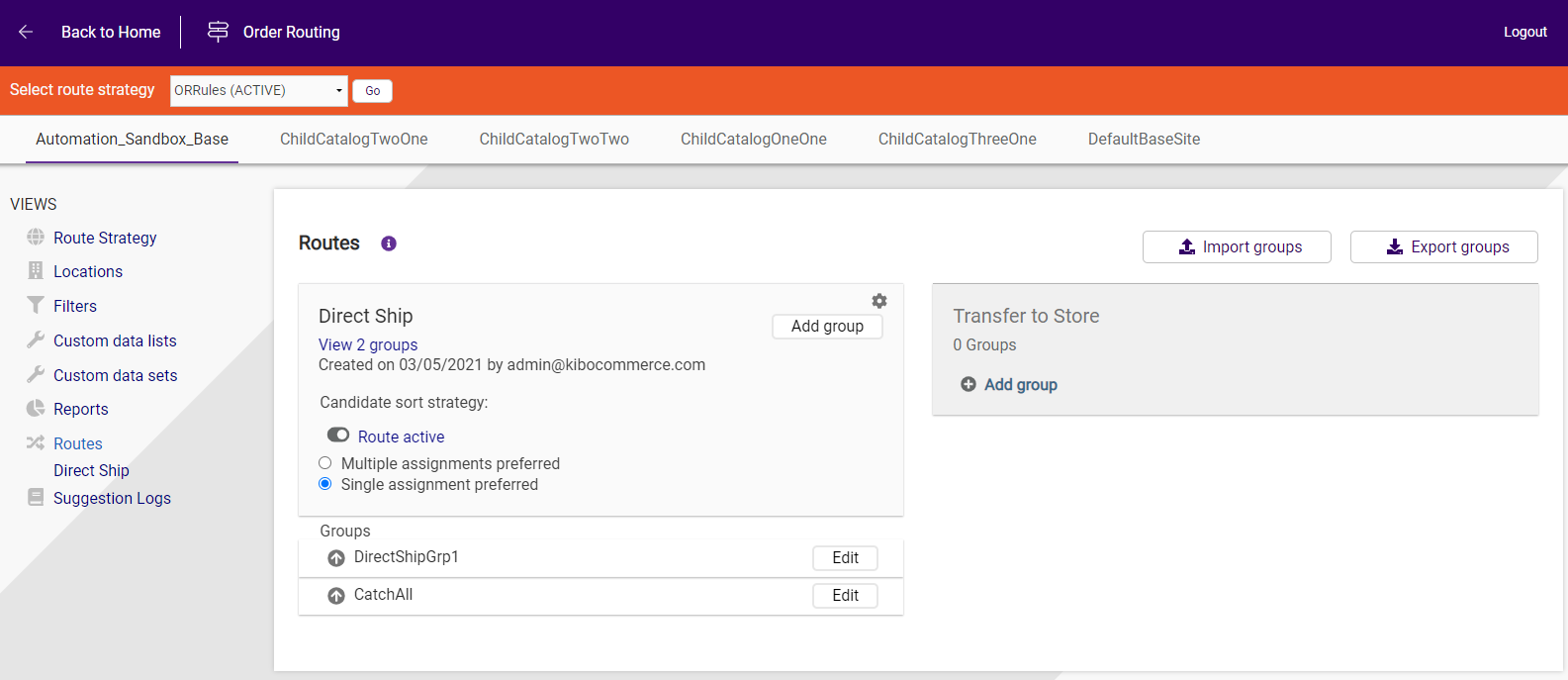
Also known as: OR. The external Order Routing interface lets Order Management clients design order assignment and visibility logic for routes on the below URLs.- US Sandbox: http://t00000.sandbox.mozu.com/_orderRouting
- EU Sandbox: https://t100000.sb.euw0.kibocommerce.com/_orderRouting
- US Production: http://t00000.tp0.mozu.com/_orderRouting
- EU Production: https://t100000.tp0.euw1.kibocommerce.com/_orderRouting
- GCP EUW4 Sandbox: https://t00000.sb.euw4.gcp.kibocommerce.com/_orderRouting
- GCP EUW4 Production: https://t00000.tp0.euw4.gcp.kibocommerce.com/_orderRouting
Switching Between Tenants
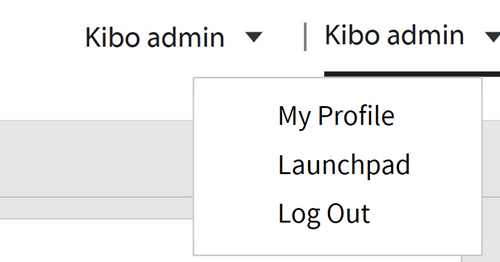
Once you have selected a tenant and entered the Admin or Fulfiller UI, you can still switch between the tenants available to you without navigating back to the Launchpad. Use the drop-down in the top right next to the name of your current tenant: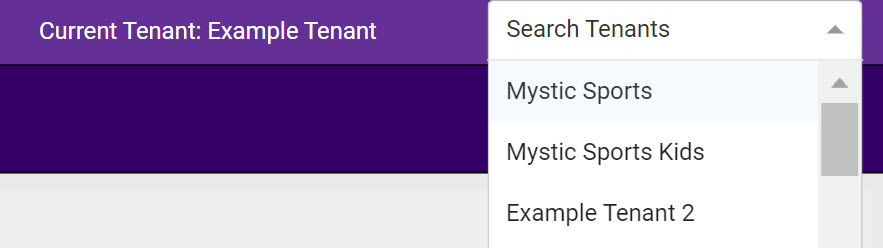
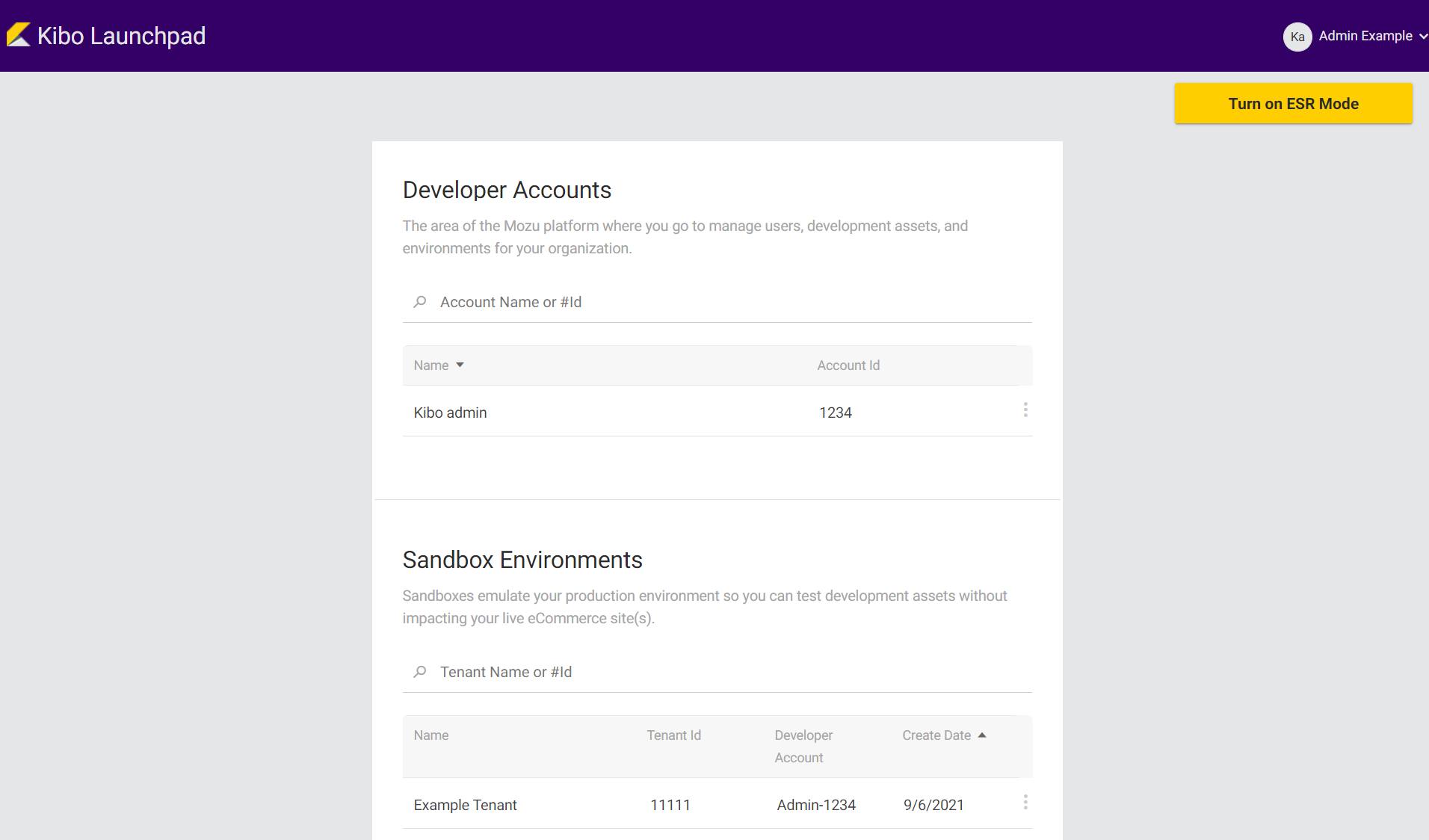
Returning to the Launchpad
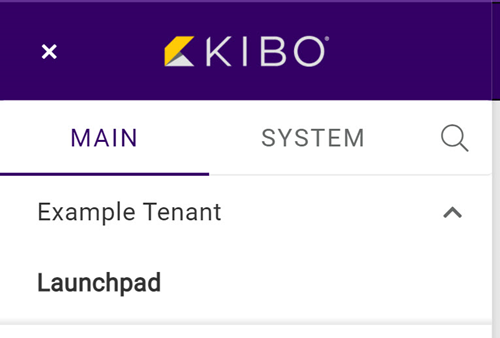
You can navigate back to the Launchpad from the Admin UI by expanding the drop-down that displays the current tenant’s name in the navigation menu and clicking Launchpad: