Watch: Orders Dashboard Overview
Get an overview of the Orders Dashboard and Order Detail page
Watch: Order Shipments Tab
Learn how to use the order shipments tab

Dashboard Actions
You can perform three types of bulk actions while viewing orders on this dashboard: Accept, Cancel, and Capture. To do so, check the boxes of all orders you want to update and the action buttons will appear at the top of the list. After clicking a button, you will prompted to confirm the action. If any of the checked orders are in a status that doesn’t allow an action (such as if the orders have already been accepted), then that button will not be selectable. In the example below, only Cancel and Capture are available.
View Order Details
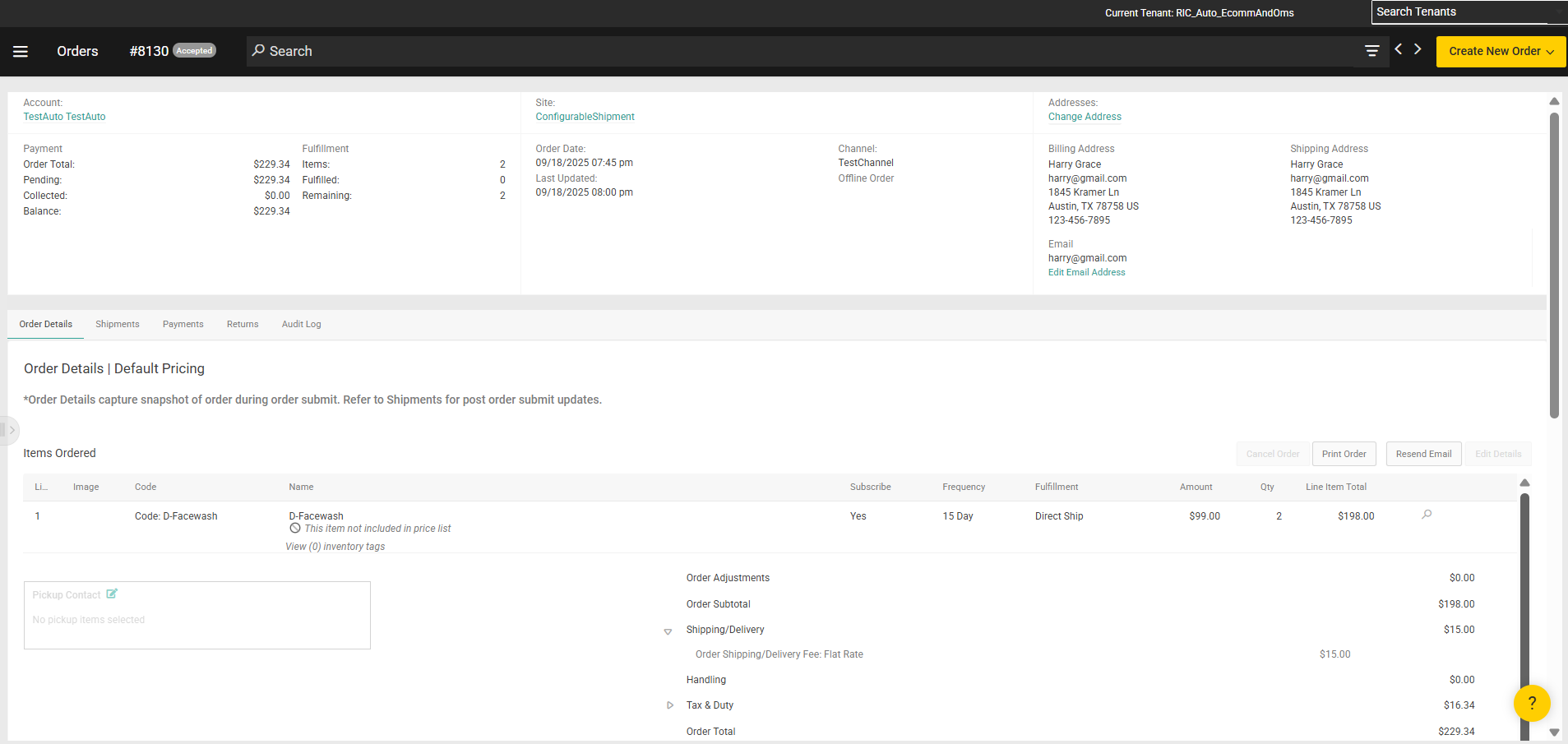
Click an order from the dashboard to display its details page with general order and customer information and an overview of all order items. Tabs for Shipments, Payments, and Returns offer additional details as well as editing capabilities at each level. Any attributes, customer notes, gift messages, and internal notes are displayed further down this page. When a shipping method is applied to individual items, these methods will be displayed in the Shipping Method column. This allows you to see the specific fulfillment method for each item within the order.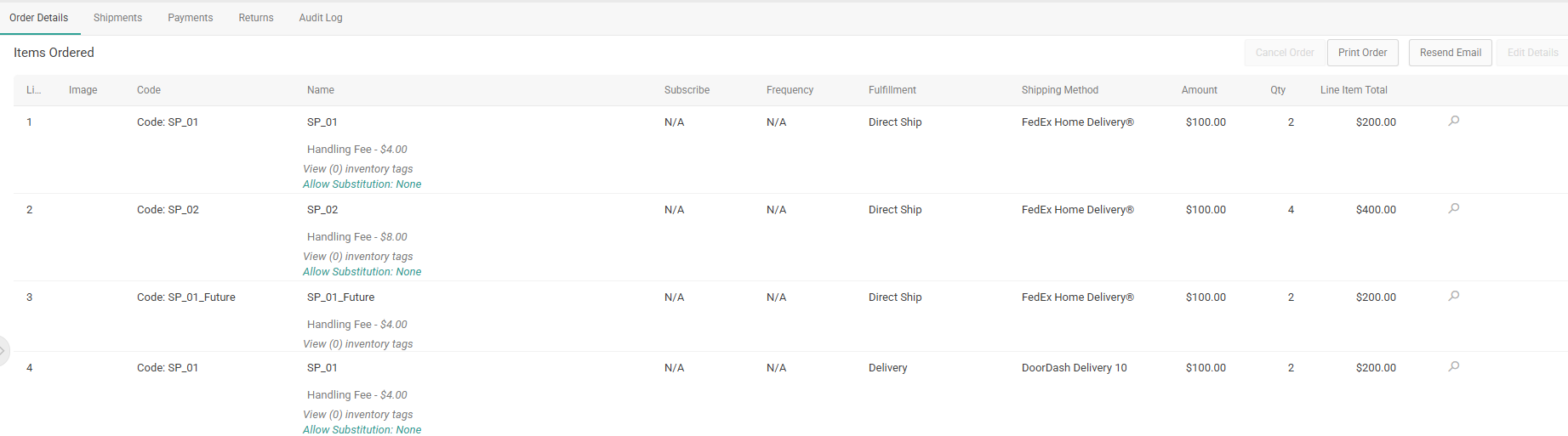
- Print Order: Print the order details.
- Resend Email: Resend the order confirmation email to the customer. Currently, any other emails (such as order cancellation) cannot be resent through the Admin UI.
Historical Orders
If an order record was imported in a Completed or Canceled state, a message will be displayed to indicate that this is a historical order and cannot be edited (shown below). A similar message will be displayed in the shipment details tab. You are only able to create returns, refunds, and credits for the order and its shipments if the ability to do so was enabled in site settings prior to the import. See the Import Orders via API documentation for more information on how to do this.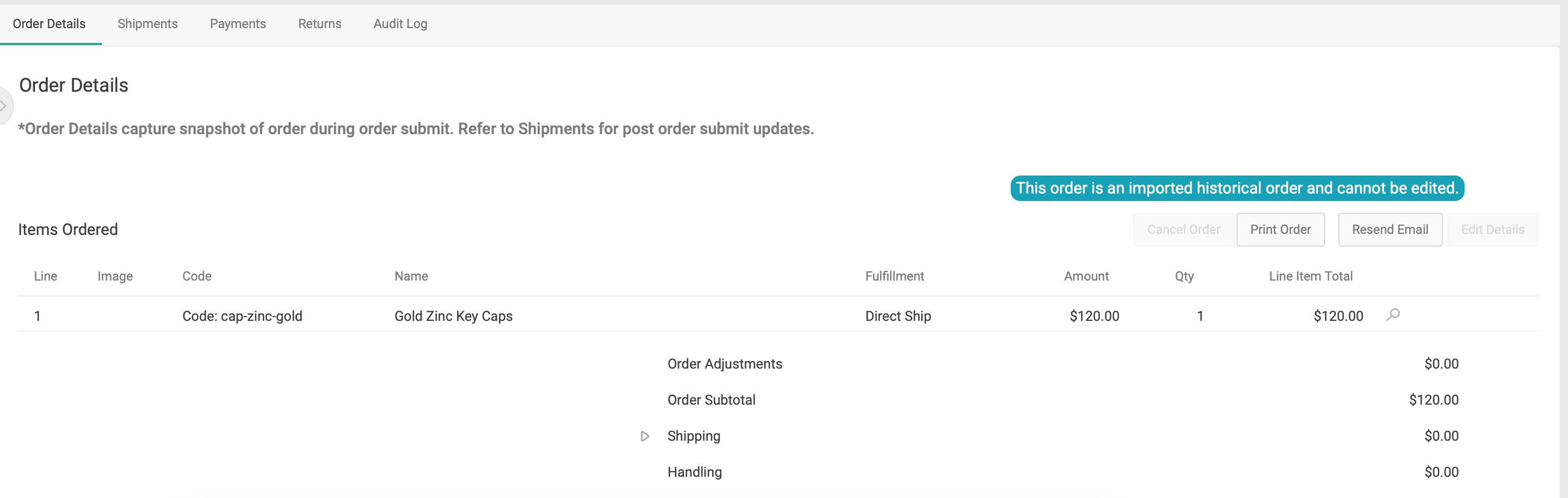
View Shipment Details
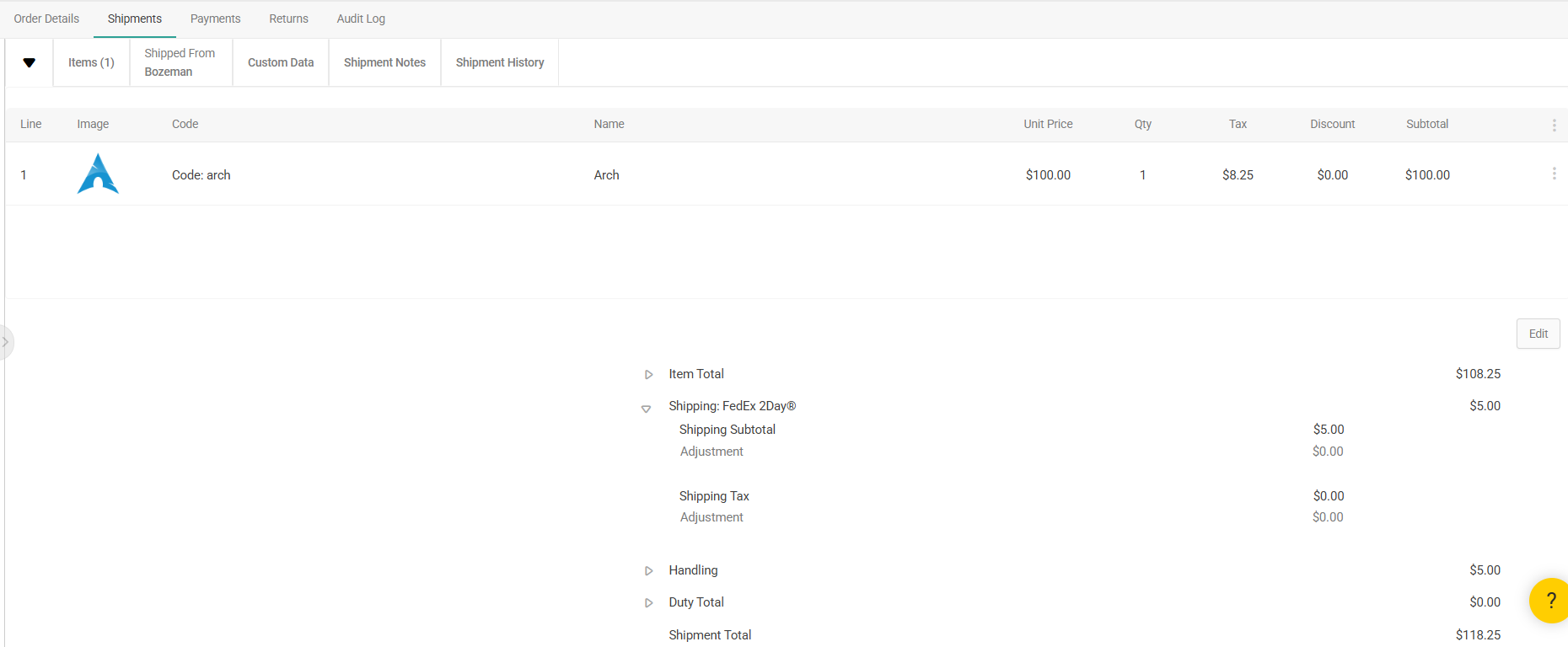
Switching to the Shipments tab will display the shipments that belong to the order, where you can both manage the shipment as well as make item-level edits such as pricing adjustments and cancellations. See the Edit Order Shipments or Edit Order Items guides for more details about these actions. For shipments identified as a Delivery type, the system displays specific labels. The labels on the shipment details page, including the subtotal and tax, will read Delivery instead of Shipping. If an order has a shipping method, the system displays “Shipping: [Shipping Method Name]” on the shipment. For shipments using a delivery method, it will display “Delivery: [Delivery Method Name].” If item-level identifiers are set for any item in the shipment, they will be viewable as a tooltip on the line item’s name. These identifiers are defined in thefulfillmentFields object of the Create Order API and can set by fulfillers during the fulfillment process, where they’re displayed as input fields during the Validate Stock step. The item identifier can be a serial number, manufacturer number, number for a gift card item to load a value to, or other identifying data point.
A record of all events and changes made to each shipment are displayed in the Shipment History tab. This matches the shipment log from the Fulfiller UI that tracks a shipment’s progress through fulfillment, edits to shipping or item details, and other updates.