
Create Order with Gift Items
When creating an offline order, enter an order-level gift message if the entire order is a gift. To designate specific gift item(s) or add an item-level gift message in addition to an order-level message, enable Include gift message for specific items and then select the desired order item to enter the text. You can add one message per item.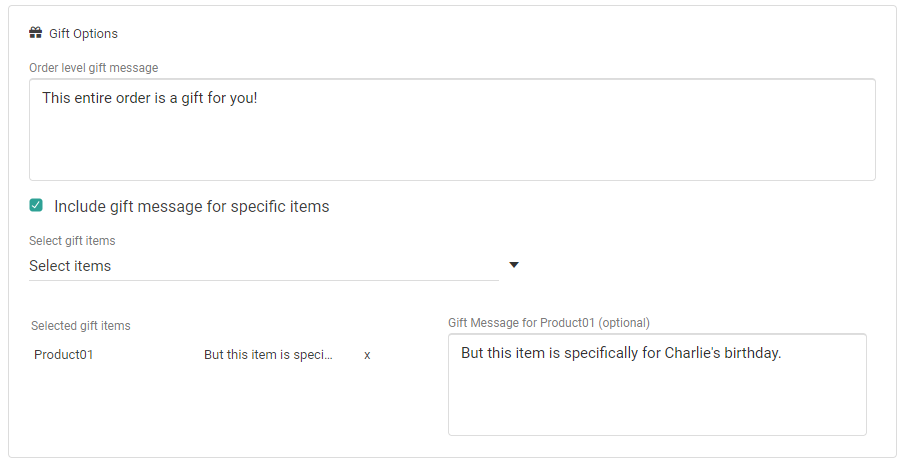
Create Order API
Alternatively, you can flag gifts and set messages in the Create Order API call. The order-level gift message is part of theshopperNotes object:
item.giftInfo object:
View Gift Items in Order Details
When viewing order details in the Admin UI, any gift items will be marked with an icon as shown below.
Edit Gift Messages
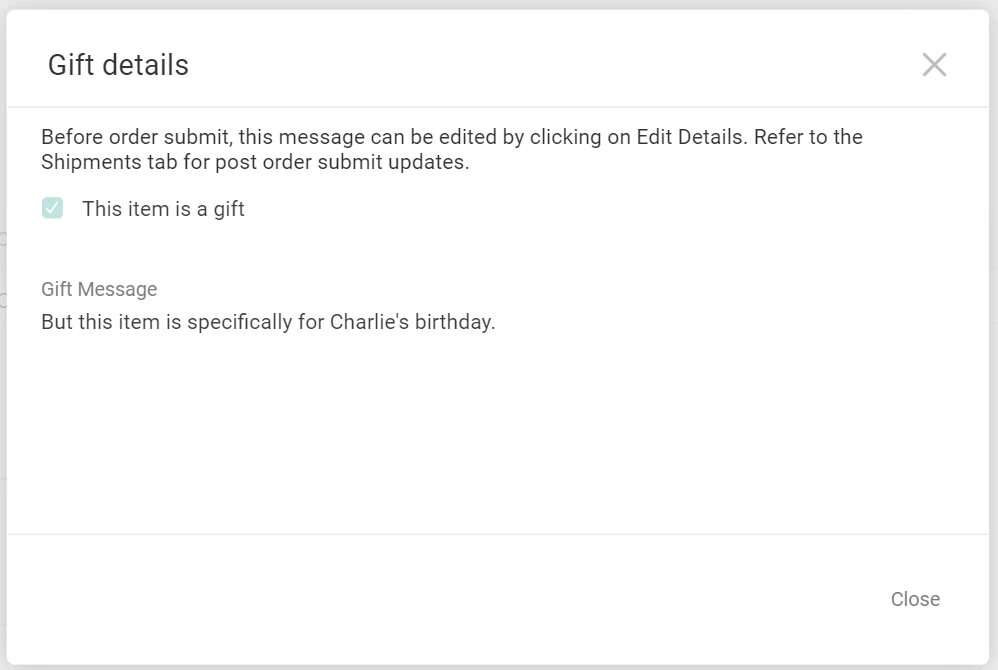
You can edit gift messages on orders that are not Fulfilled or Cancelled, but the process will differ depending on the order status.Pending Orders
If the order is still in Pending status, you can edit both order- and item-level gift messages from the Edit Details view.- Go to Main > Demand > Orders and select a pending order.
- Click Edit Details.
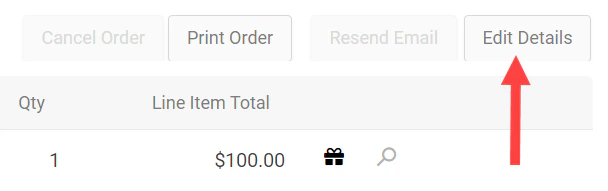
- This will open the same modal and gift options as shown earlier when creating a new order.
- Enter the new message(s) and click Save.
Other Order Statuses
Once the order has been submitted, you can only edit gift messages through the order shipments tab. To edit the order-level gift message:- Go to Main > Demand > Orders and select an order.
- Click the Shipments tab.
- Expand the shipment-level action menu (next to the New Shipment and Cancel Order buttons) and click View/Edit Order Gift Message. If there is not a preexisting gift message, this option will still be available and will allow you to add one.
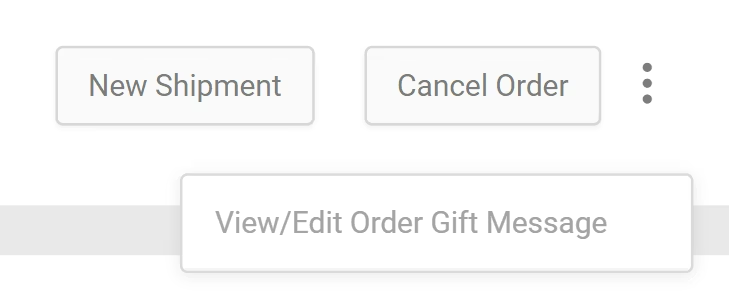
- Edit the message text in the pop-up that appears.
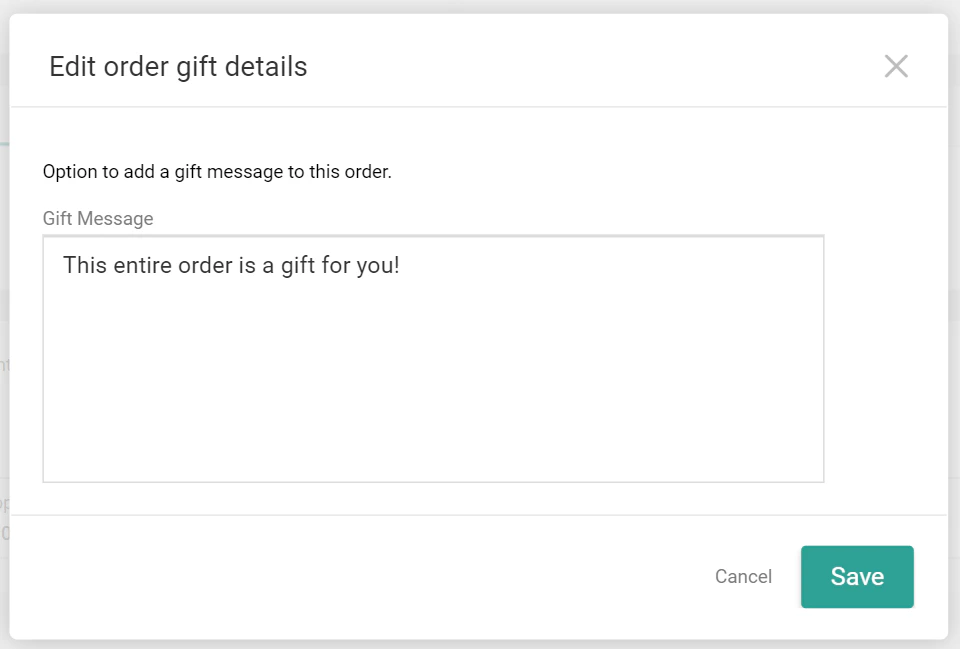
- Click Save.
- Go to Main > Demand > Orders and select an order that includes gift(s).
- Click the Shipments tab.
- Expand the item-level action menu for an item with a gift icon and click View/Edit Item Gift Message. This option will not be available for non-gift items.
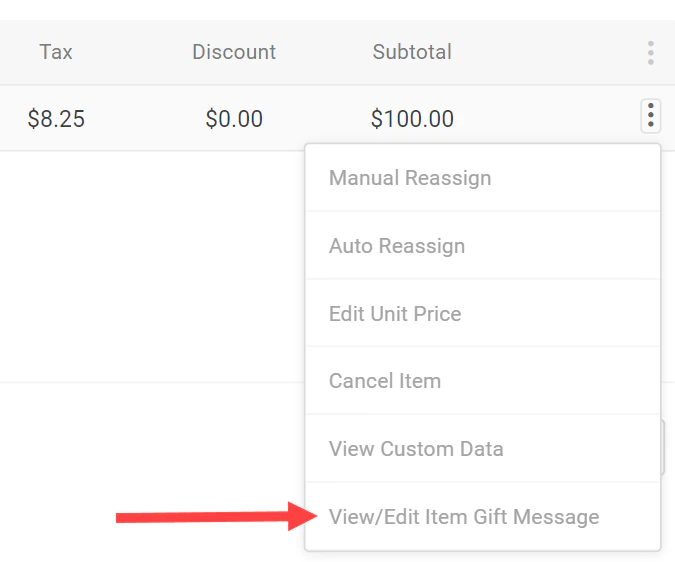
- Edit the message text in the pop-up that appears.
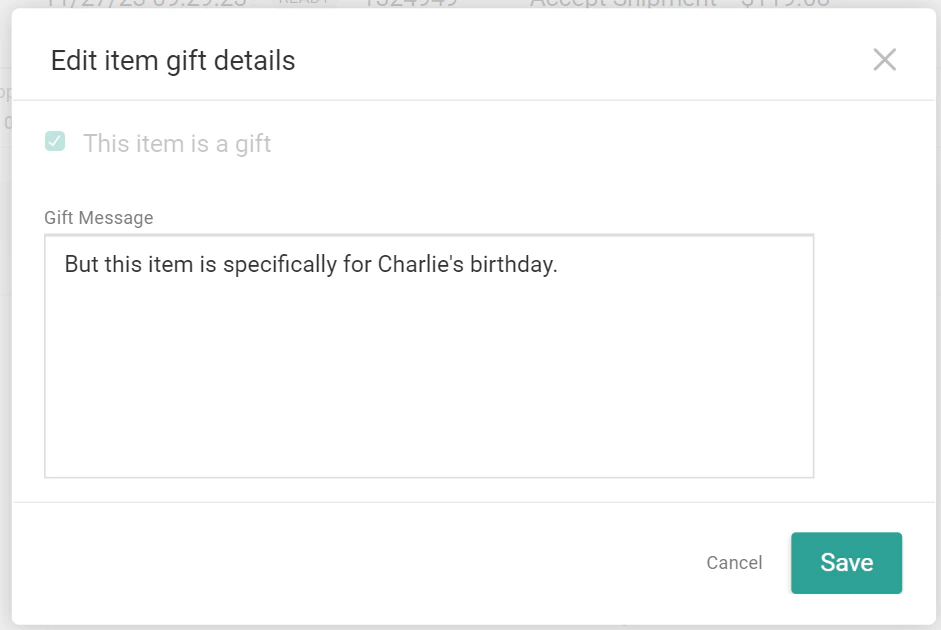
- Click Save.
Edit Messages via API
To update a gift message via API instead, make a POST call to the Update Order Item Gift Information or Upsert Gift Message endpoint as detailed in the linked documentation.Print Gift Receipts
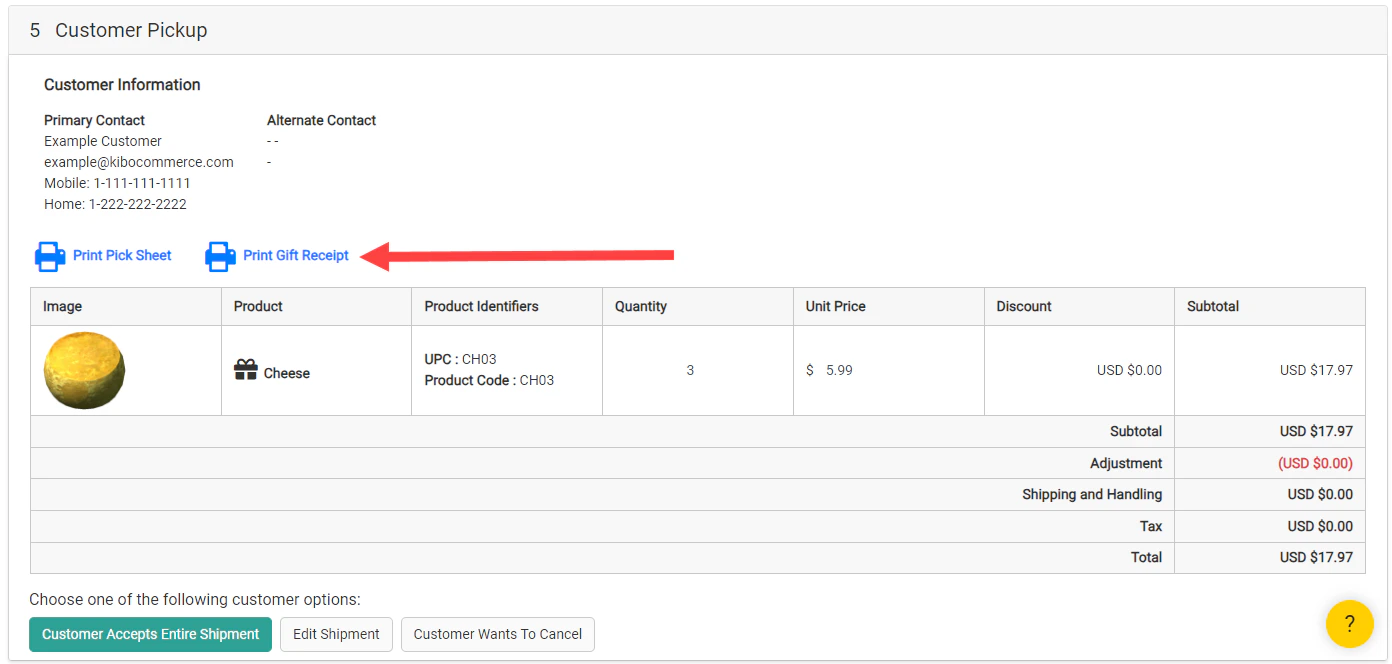
Printing gift receipts can only be performed while fulfilling a shipment via the Fulfiller UI. The Print Gift Receipt link will be available on the Prepare for Shipment step for Ship to Home shipments and the Customer Pick Up or Provide to Customer step for BOPIS and Delivery shipments. This link will print a single receipt for all gift items in the shipment, which are marked with an icon. This means that if there are multiple packages, then you will have to print off multiple receipts. This receipt will include the gift message inherited from the order and all item-level messages as well.