

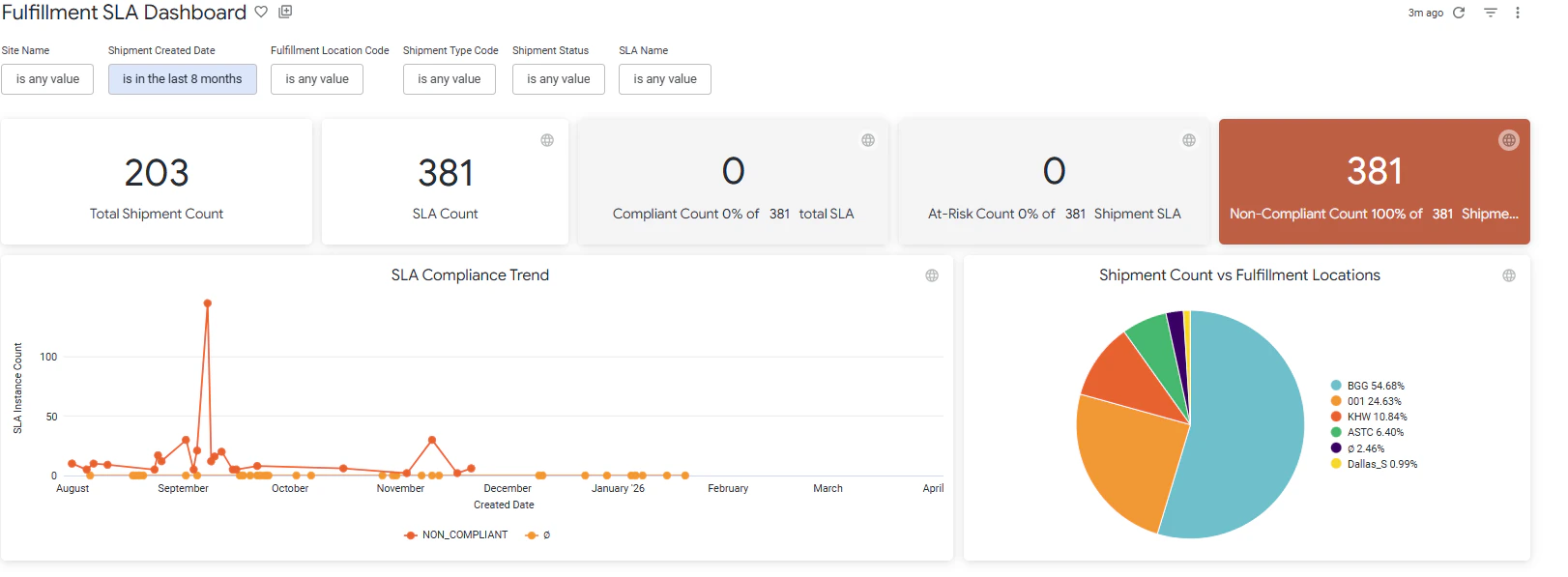
The Fulfillment SLA Dashboard provides historical analysis of SLA performance across locations, fulfillment types, and time periods. This helps in analyzing trend identification, comparative analysis, and performance benchmarking. This can be viewed under the shipment topic at Kibo Standard Reports > Shipment > Fulfillment SLA Dashboard in the navigation menu.
Fulfillment SLA Dasboard

The supported filters that can be applied to this dashboard are:
NameDescriptionDefault
Site NameRestrict results to one or more of your sites.All
Shipment Created DateLimit results to only shipments created within this time range.Last 30 days
Location CodeThe location codes where the shipments were fulfilled.All
Shipment TypeThe fulfillment method used, such as Ship to Home, BOPIS, Curbside Pickup, Delivery, or Transfer.All
SLAThe specific SLA(s) to analyze, sorted alphabetically by name.All
Shipment StatusThe status of the shipment such as canceled, Rejected, or fulfilled.All
The measures that are calculated by this dashboard are:
NameDescription
Total Shipments with SLACount of all distinct shipment records that have an SLA assignment within the selected time frame.
SLA CountCount of all SLA instances associated with shipments in the selected time frame.
Compliant CountCount of SLA instances where the compliance level is Compliant (below 80% of allowed time), displayed as a count and percentage of total SLA instances.
At Risk CountCount of SLA instances where the compliance level is At Risk (80–99% of allowed time), displayed as a count and percentage of total SLA instances.
Non-Compliant CountCount of SLA instances where the compliance level is Non-Compliant (at or exceeding 100% of allowed time), displayed as a count and percentage of total SLA instances.
The tiles that make up this dashboard are:
NameDescription
Total Shipments with SLATotal number of shipment records that have an SLA assignment within the selected time frame.
SLA CountThe total number of SLA instances across all shipments in the selected time frame.
Compliant CountThe number and percentage of SLA instances that are Compliant. Clicking this tile opens the SLA Breakdown modal.
At Risk CountThe number and percentage of SLA instances that are At Risk. Clicking this tile opens the SLA Breakdown modal.
Non-Compliant CountThe number and percentage of SLA instances that are Non-Compliant. Clicking this tile opens the SLA Breakdown modal.
SLA Compliance TrendA time-series line chart showing SLA instance counts over the selected date range, plotted by shipment created date.
Shipment Count vs Fulfillment LocationsA pie chart showing the distribution of shipments across fulfillment locations as a percentage of total shipment count.

SLA Breakdown Modal

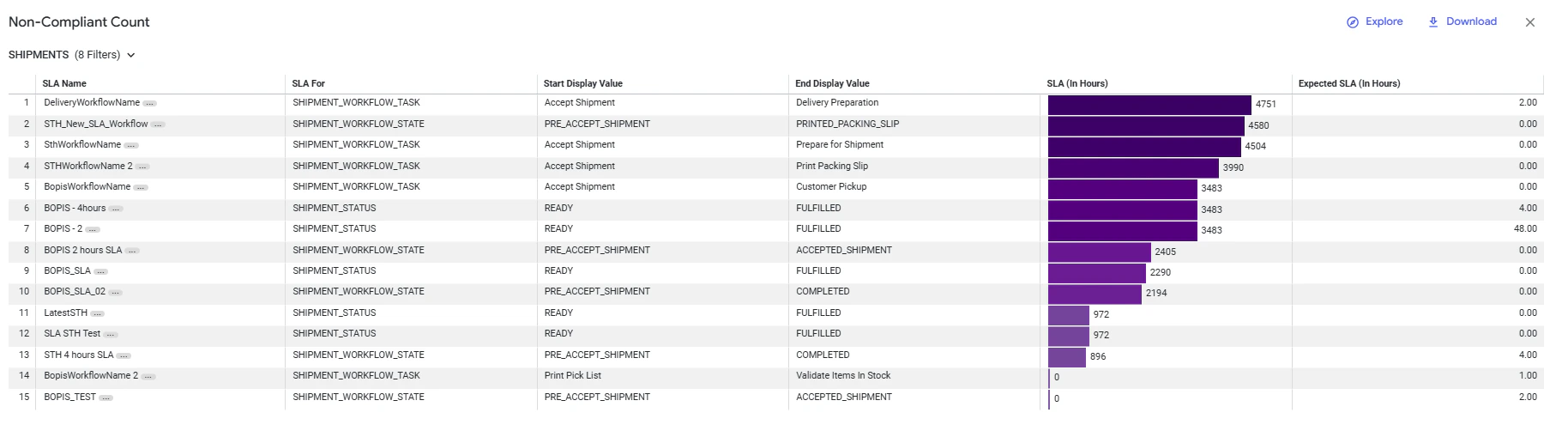
Clicking the Compliant Count, At-Risk Count, or Non-Compliant Count tile opens a detailed breakdown modal filtered to that compliance level.
SLA Count
The columns displayed in the SLA Breakdown modal are:
NameDescription
SLA NameThe name of the configured SLA.
SLA ForThe entity the SLA is measured against, such as SHIPMENT_STATUS, SHIPMENT_WORKFLOW_STATE, or SHIPMENT_WORKFLOW_TASK.
Start Display ValueThe starting point of the SLA measurement window, such as READY or Accept Shipment.
End Display ValueThe ending point of the SLA measurement window, such as FULFILLED or Delivery Preparation.
SLA (In Hours)The actual average time, in hours, that shipments are taking for this SLA. Displayed as a bar visualization for easy comparison across SLAs.
Expected SLA (In Hours)The configured time limit for this SLA, in hours.
Clicking an SLA Name in the breakdown modal opens the Individual SLA Steps Dashboard for that SLA.

Individual SLA Steps Dashboard

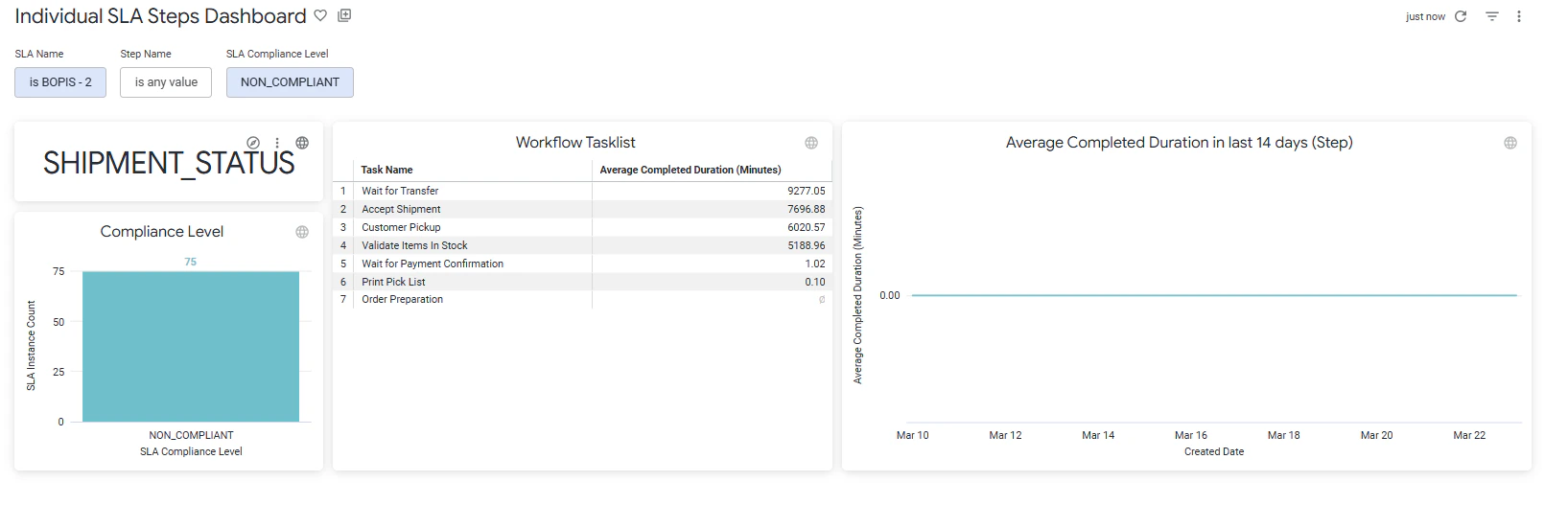
The Individual SLA Steps Dashboard provides a step-level view of average workflow task durations for a specific SLA. This view helps in  analyzing time spent at each step of the fulfillment workflow, supporting performance monitoring, trend identification, and operational optimization. It can be accessed by clicking an SLA name in the SLA Breakdown modal.
Individual SLA Steps
The supported filters that can be applied to this dashboard are:
NameDescriptionDefault
SLA NameThe SLA to analyze. Pre-populated from the selected SLA in the breakdown modal.Selected SLA
Step NameFilter results to a specific workflow task step. All steps defined for the selected SLA are shown by default.Any value
SLA Compliance LevelFilter to a specific compliance level: Compliant, At Risk, or Non-Compliant.Pre-Populated from SLA breakdown Modal
The tiles that make up this dashboard are:
NameDescription
SLA ForDisplays the SLA measurement type for the selected SLA (e.g., SHIPMENT_STATUS or SHIPMENT_WORKFLOW_TASK).
Compliance LevelA bar chart showing the count of SLA instances by compliance level (Compliant, At Risk, Non-Compliant) for the selected SLA and filters.
Workflow Task listA table listing each workflow task step with its average completed duration in minutes, calculated from step start and completion timestamps.
Average Completed Duration in last 14 days (Step)A time-series line chart showing the average completed duration per workflow step over the last 14 days, plotted by shipment created date. This enables identification of step-level performance degradation over time.