Overview
Vendor Settings is the central configuration page for two areas that drive the Vendor Analytics experience and the vendor onboarding flow:- Carrier Configuration - controls how your vendors record shipments across the tenant.
- Performance Configuration — define the weights used to calculate each vendor’s Performance Score and the thresholds that determine their Performance Category (High, Medium, or Low).
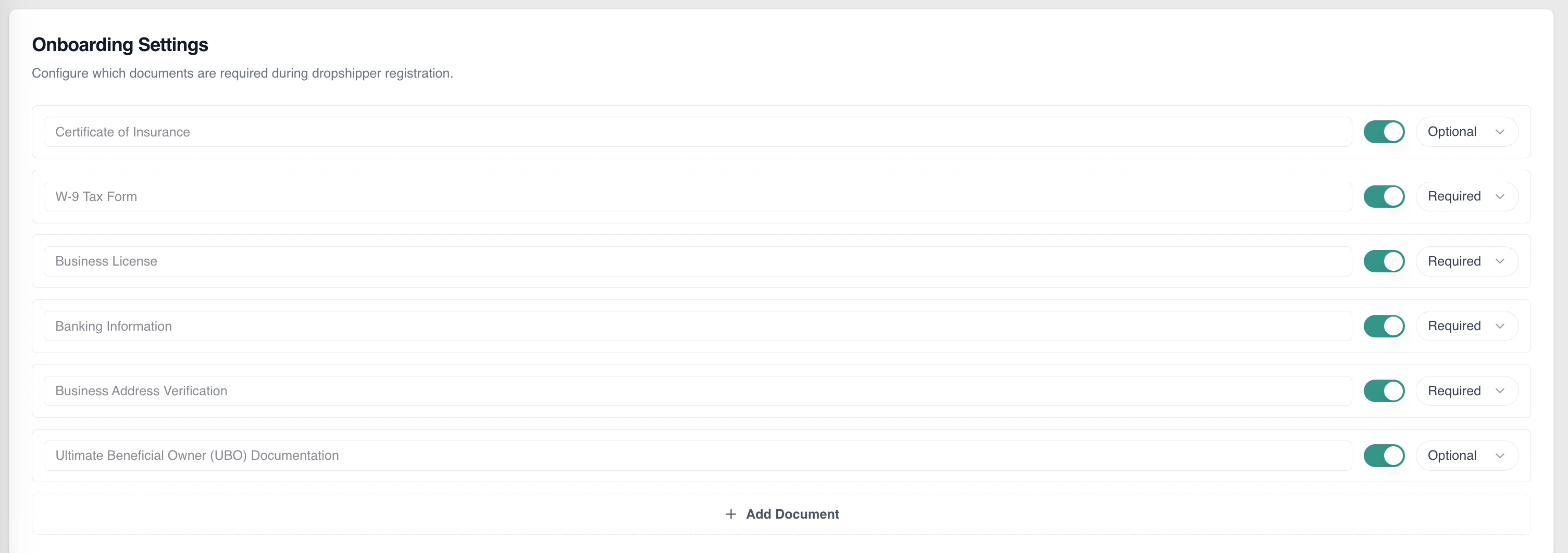
- Onboarding Configuration — manage the document checklist vendors must complete during dropshipper registration.
How to Access
Path: Operator Portal/Kibo Admin → System tab → Settings → Vendor Settings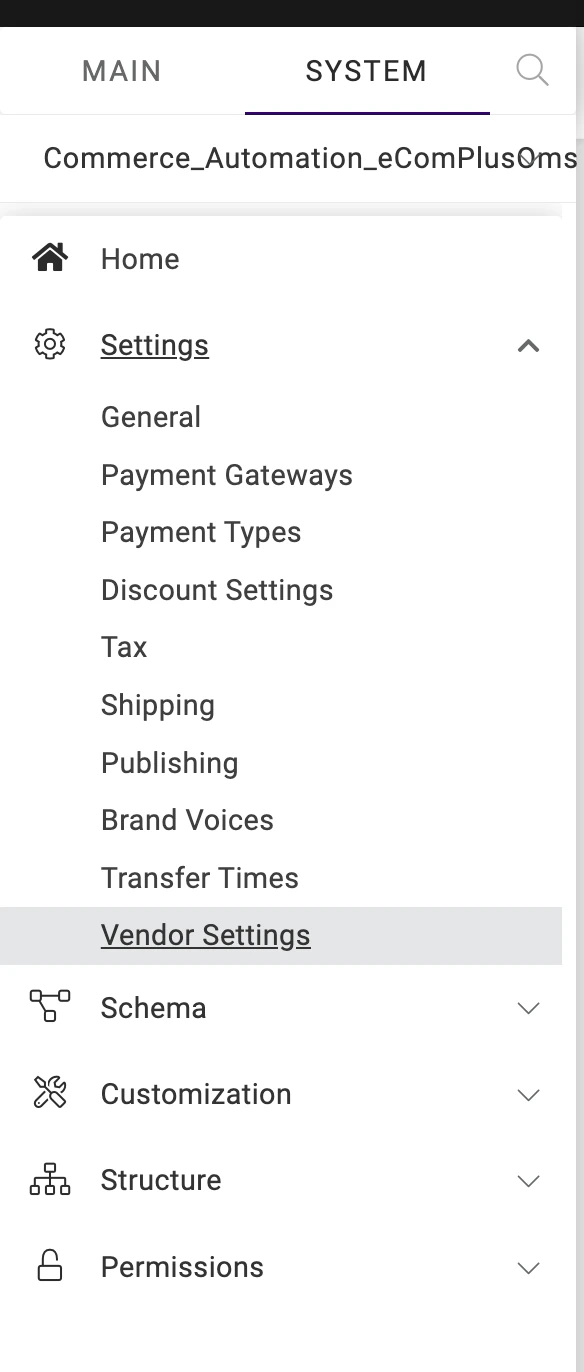
Carrier Configuration
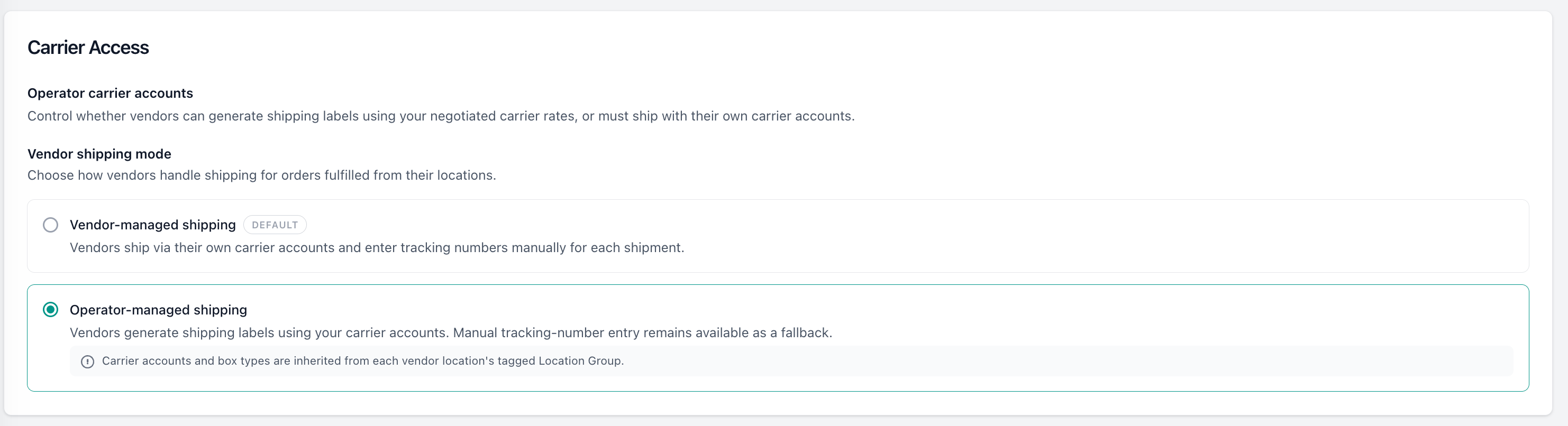
Carrier Configuration controls how your vendors record shipments across the tenant.Vendor Shipping Mode
The Allow vendors to use operator carrier accounts toggle selects the tenant-wide vendor shipping mode. It is stored once per tenant and defaults to OFF.
When operator-managed shipping is ON, label generation reads the carrier accounts, predefined packages, and unit type from the Location Group tagged to each vendor location — this setting does not store carriers or packages itself. A vendor location with no location group tag follows existing SOP.
Changing the mode takes effect on the next order; existing in-progress orders are unaffected. Only an operator admin can change this setting.
Performance Configuration
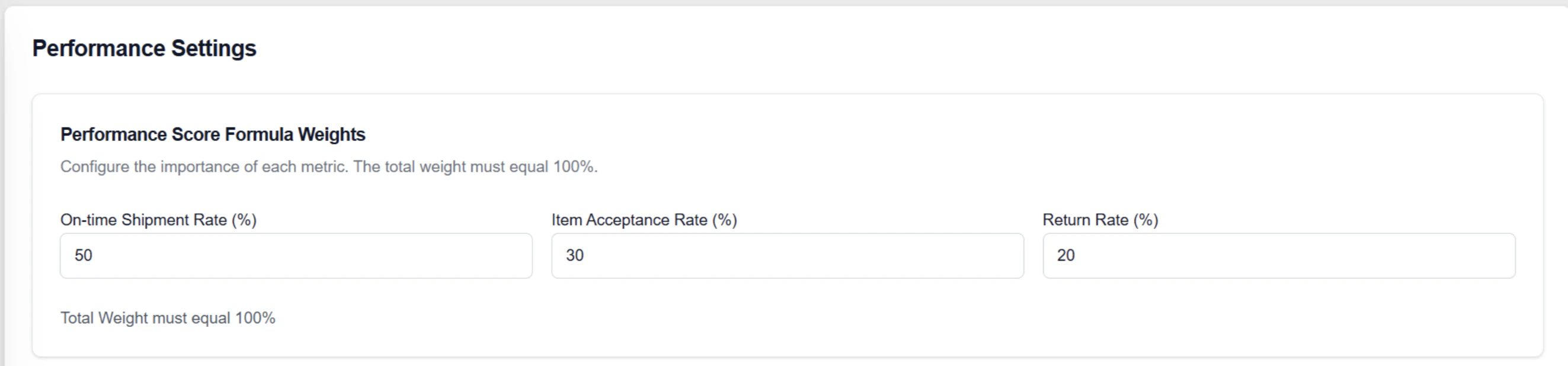
Performance Score Formula Weights
The Performance Score for each vendor is a weighted combination of three fulfillment metrics. Use this section to assign the relative importance of each metric. Configure the importance of each metric. The total weight must equal 100%.
The page displays a Total Weight indicator. The weights must sum to exactly 100% before the form can be saved.
Performance Category Thresholds
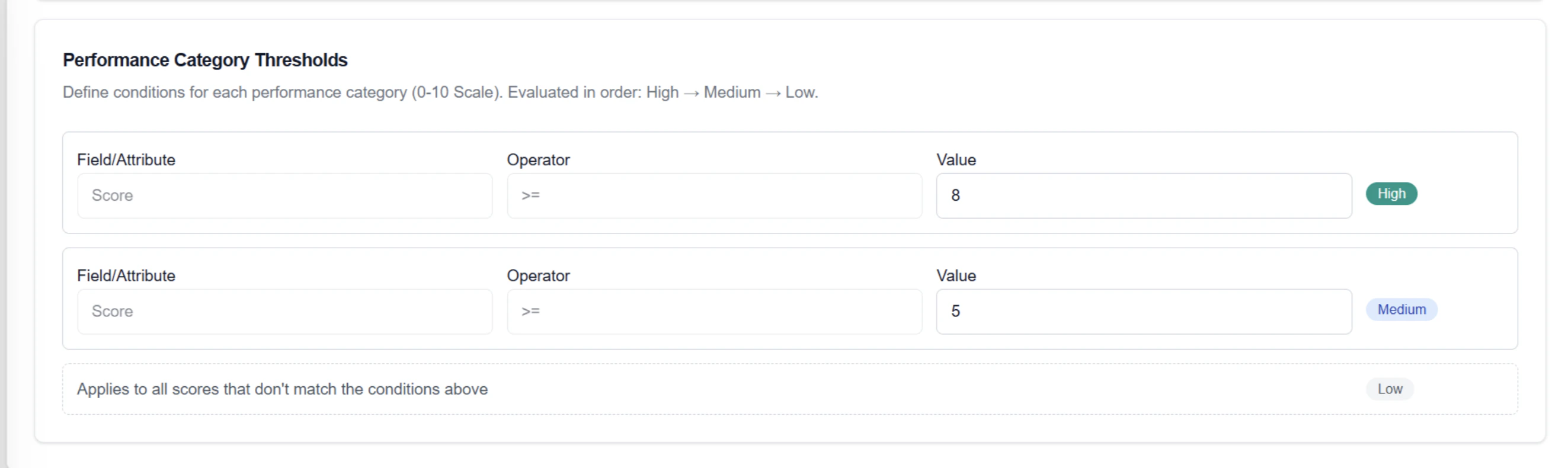
Use this section to define the score boundaries that determine each vendor’s Performance Category. Scores are evaluated on a 0–10 scale, and categories are applied in order: High → Medium → Low. Define conditions for each performance category (0-10 Scale). Evaluated in order: High → Medium → Low.
The Field/Attribute is fixed to “Score” and the Operator is fixed to >= for both High and Medium conditions — overlapping ranges are prevented by design. Only the Value field is editable for each category. The Low condition has no editable threshold; it automatically applies to all vendors that don’t match the conditions above.
Onboarding Configuration
Dropshipper Registration Document Configuration
Use this section to manage the documents vendors are required to submit during the dropshipper registration process. Configure which documents are required during dropshipper registration.Adding Custom Documents
Click Add Document to open the file upload dialog. Select a file to upload — on confirmation:- The uploaded file name is auto-populated as the document name in a new row.
- The new row includes: a document name field (editable), an active/inactive toggle, and a required/optional dropdown.