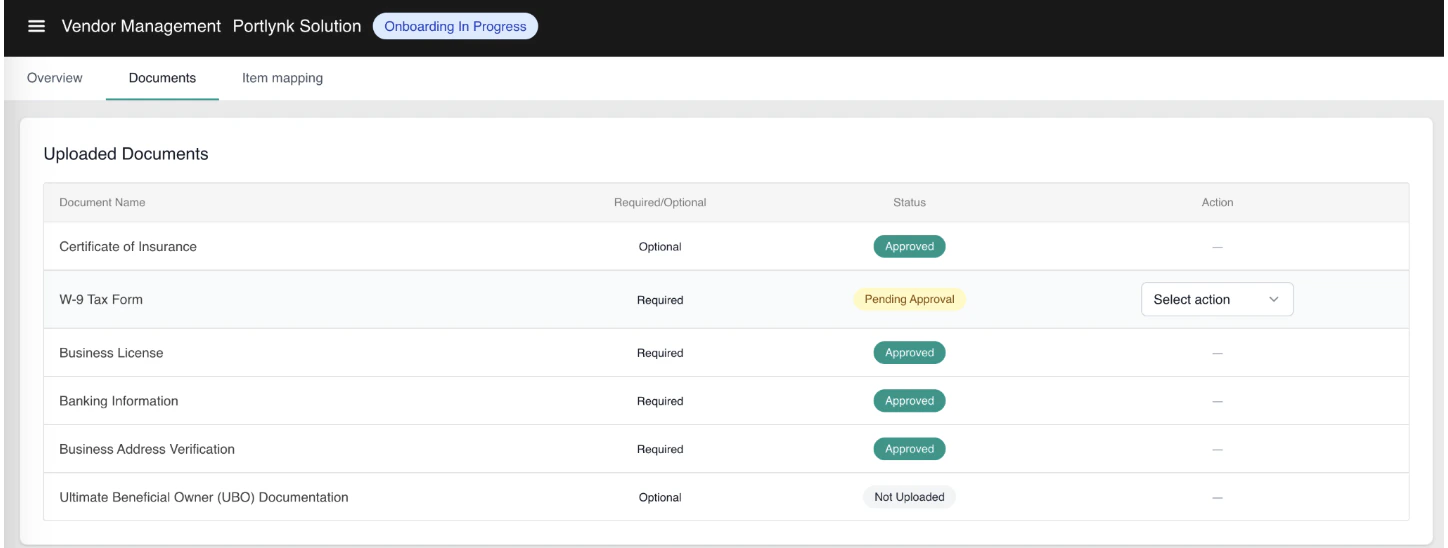
Watch: Vendor Onboarding & Operator Approval
See the four-step vendor onboarding process and the operator review and approval workflow
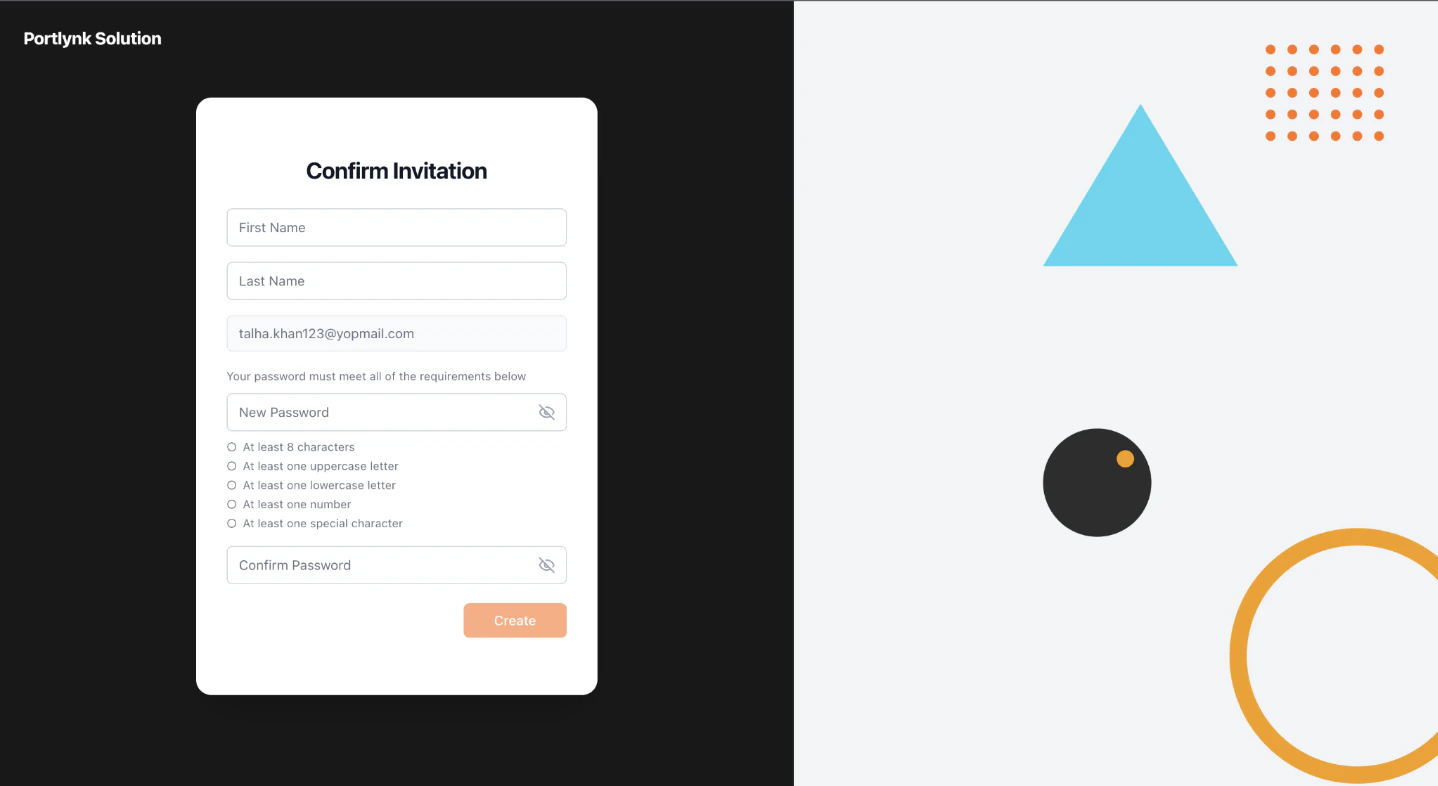
Confirm Your Invitation and Register
- Open the invitation email and click Join Now.
- On the Confirm Invitation page, complete:
- First Name and Last Name.
- Email — pre-filled from the invitation and not editable.
- New Password — must satisfy all of the requirements listed below the field (minimum length, uppercase letter, lowercase letter, number, special character).
- Confirm Password — must match.
- Click Create to register.
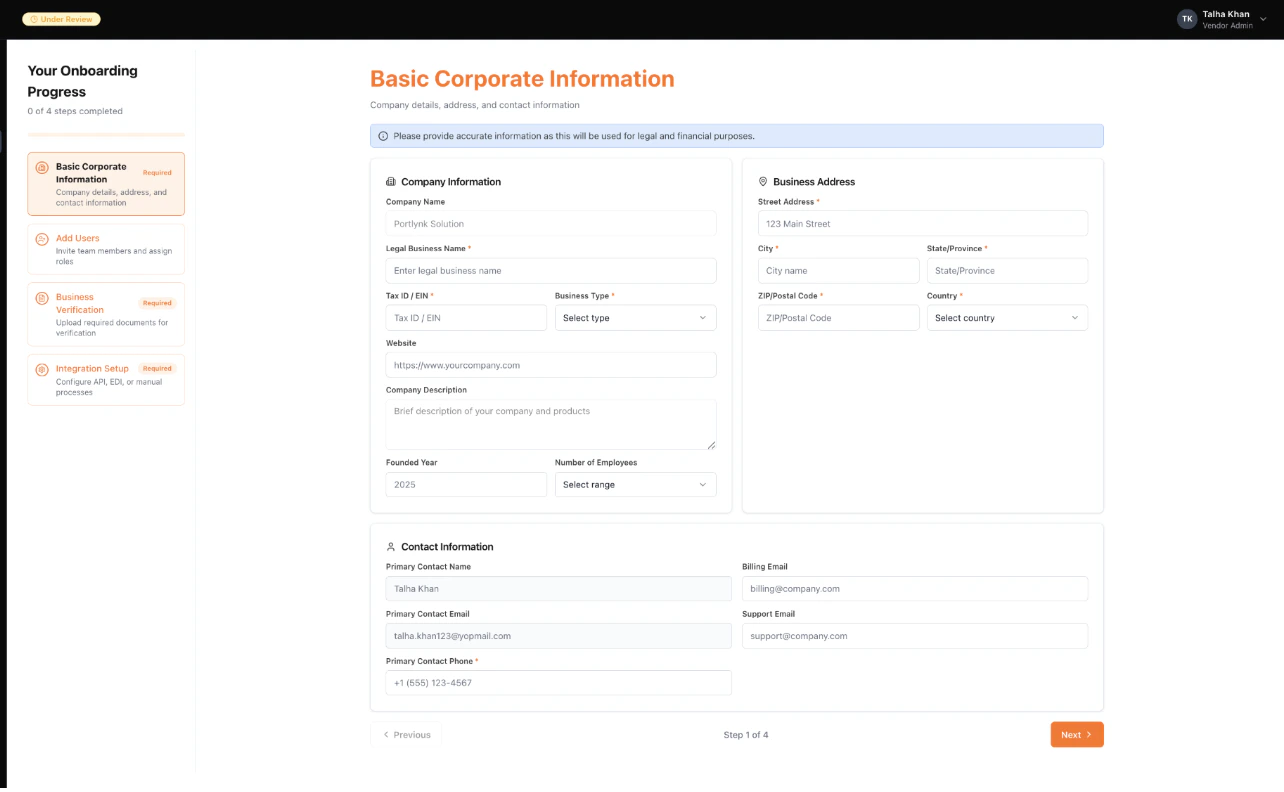
Step 1: Provide Basic Corporate Information
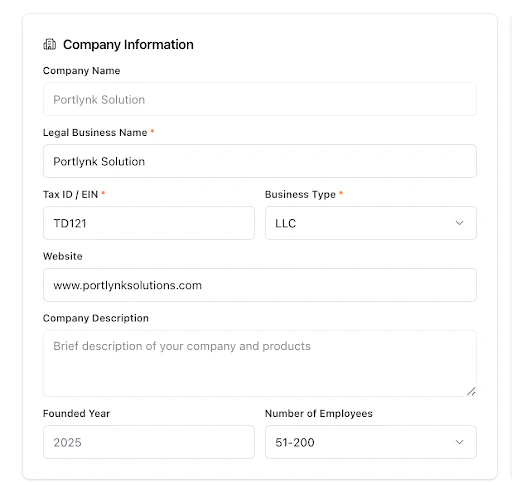
Company Information
- Company Name — pre-populated from the invitation.
- Legal Business Name — the official registered name used for legal and financial records.
- Tax ID / EIN — the unique identifier used for tax reporting.
- Business Type — your legal structure, selected from the dropdown.
- Website — your primary web presence.
- Company Description — a brief narrative describing your products and operations.
- Founded Year and Number of Employees — captured for operator reference.
Business Address
Enter your company’s mailing address: Street Address 1, City, State / Province, ZIP / Postal Code, and Country. This is the address surfaced on the Vendor Information block and on invoices.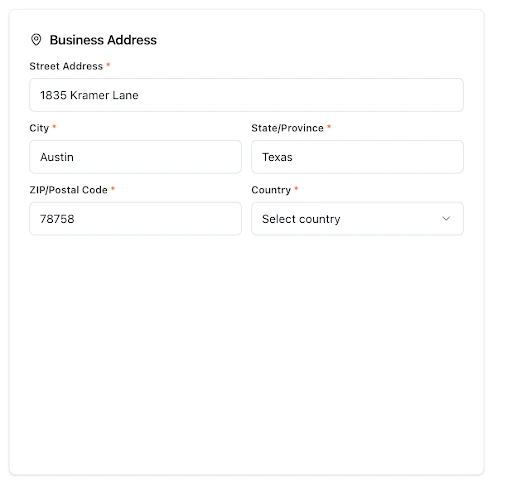
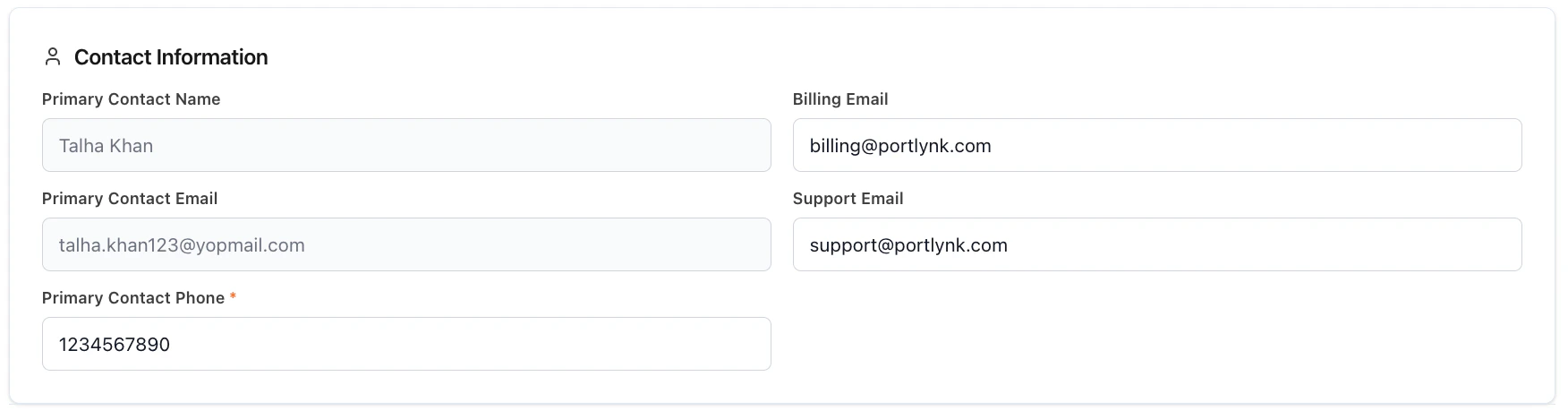
Contact Information
- Primary Contact Name
- Primary Contact Email
- Primary Contact Phone — required. The operator cannot mark the vendor Active until this phone number is on record.
- Billing Email — routes invoice-related correspondence.
- Support Email — routes support-related correspondence.
Click Next to advance to Step 2. Step 1 turns green in the left rail to confirm completion.
Step 2: Add Users (Optional)
Step 2 lets you invite additional users into your Vendor Portal. The step is optional — you can click Next without adding any users and revisit later. The Vendor Portal supports two roles: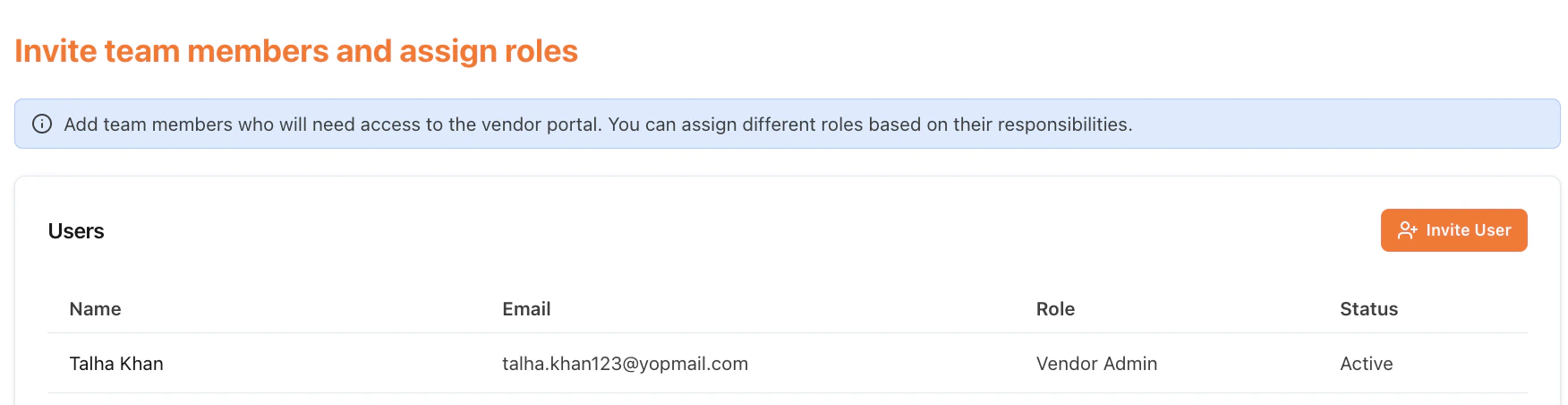
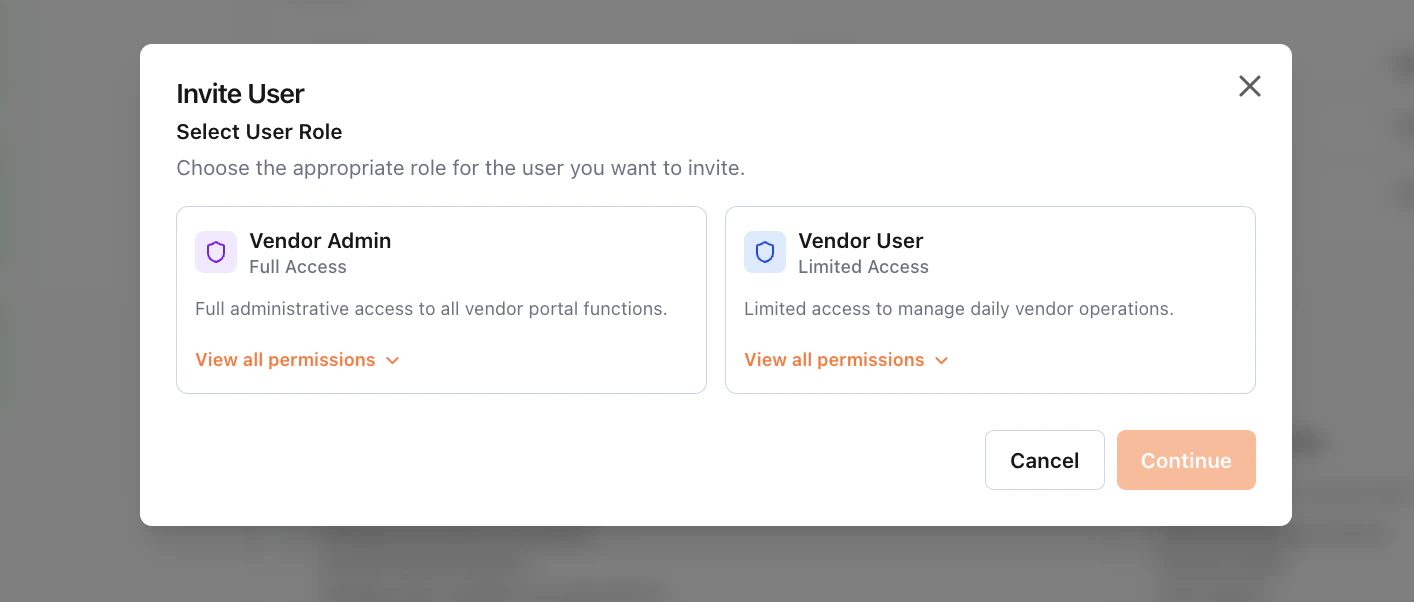
- Vendor Admin — full administrative access. Can manage all products and orders, access financial reports, manage team members and permissions, and configure integrations and settings.
- Vendor User — limited access for daily operations. Can view and manage products, process orders, and view reports. Cannot manage team or settings, and cannot invite other users.
Invite a User
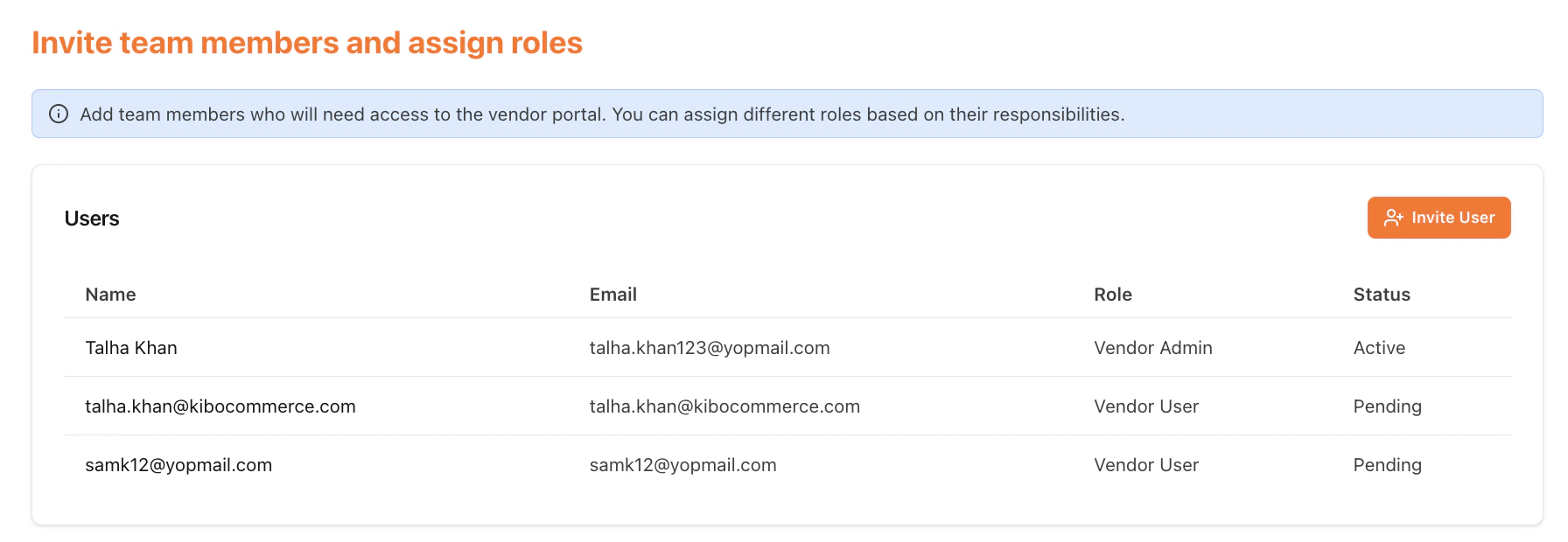
- Click Invite User in the top-right of the step.
- Choose the role for the user — Vendor Admin or Vendor User — and click Continue.
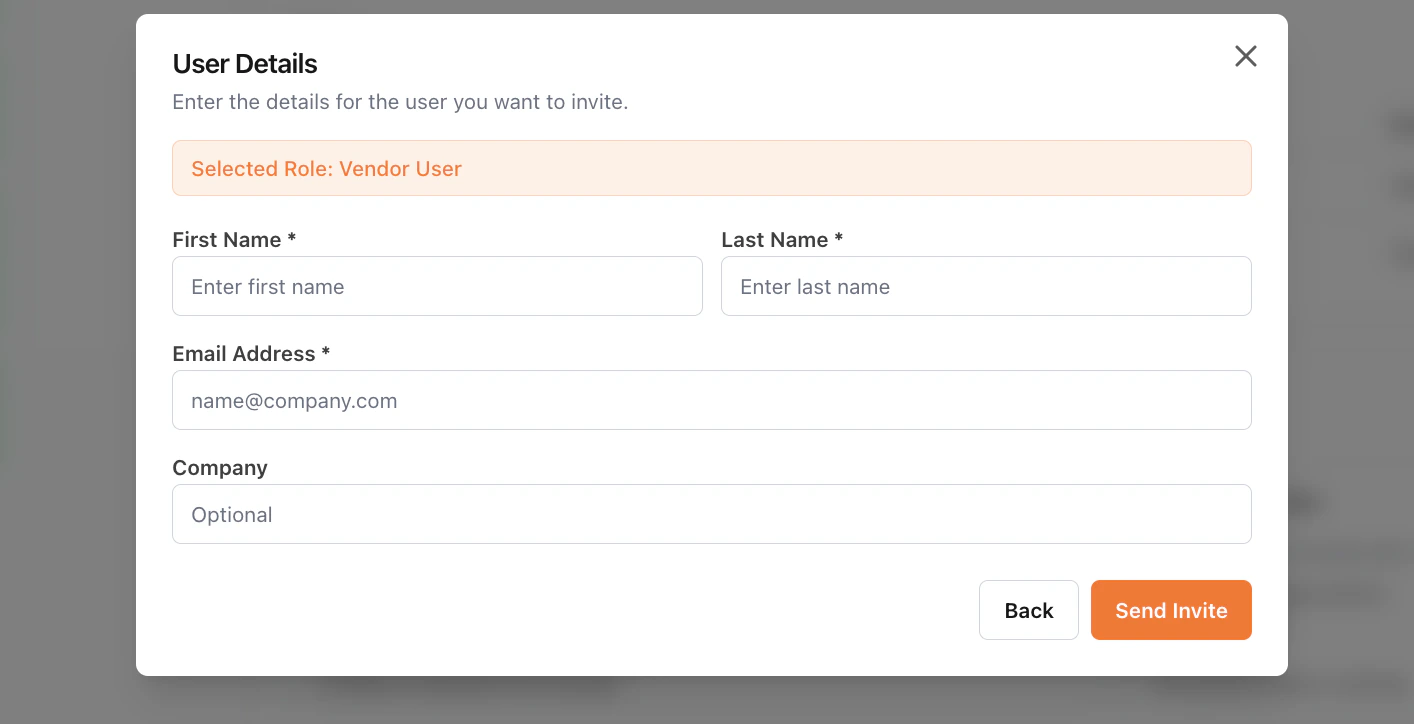
- Enter the user’s details:
- First Name and Last Name — required.
- Email Address — required. Becomes the user’s login.
- Company — optional.
Click Send Invite. A confirmation popup appears showing the invited user’s name and assigned role.
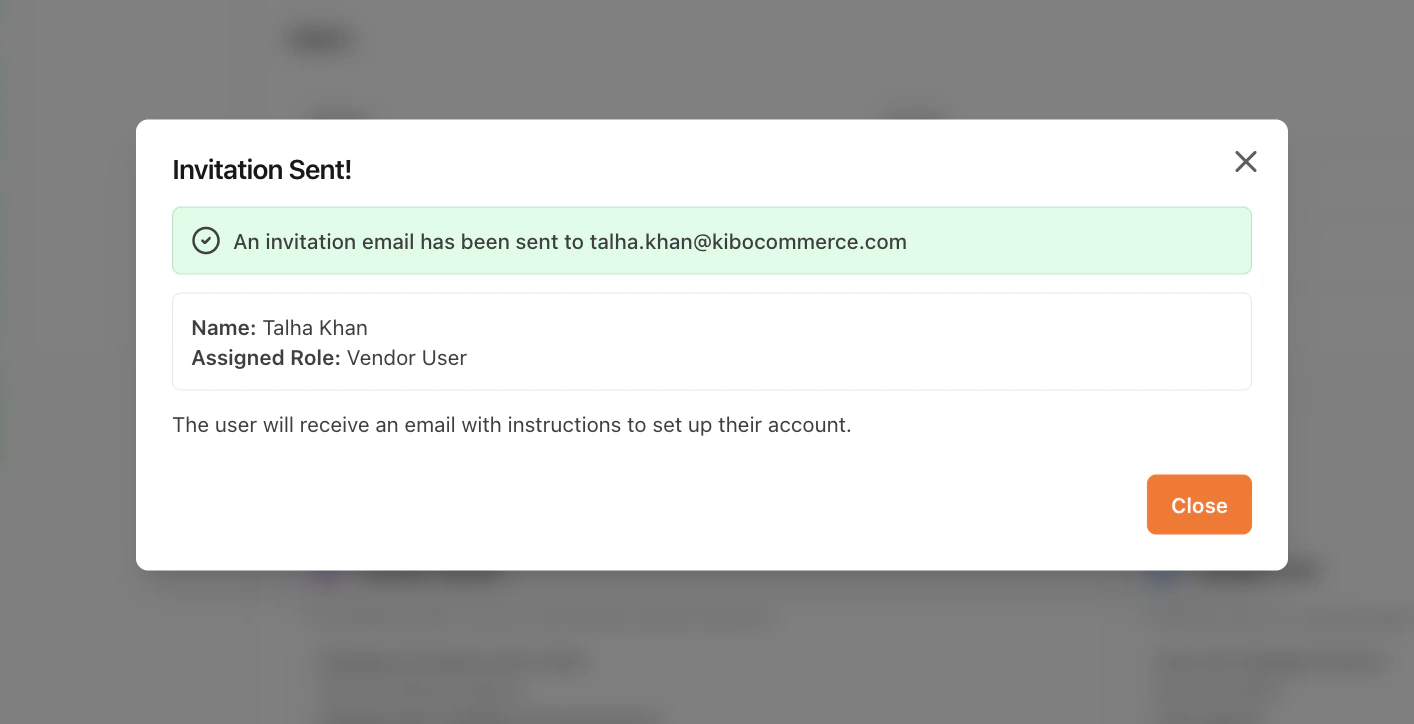
- In the user list, the new user appears with the status Pending. Once they accept the invitation and register, the status flips to Active.
- Click Next to advance to Step 3.
Step 3: Upload Business Verification Documents
Step 3 is where you upload the compliance documents your operator has configured. The set of documents you see here is operator-configured: each document type carries an operator-defined title and a Required or Optional flag. Required documents must be uploaded before you can complete onboarding.- For each document row, click Upload and select your file. The maximum size is 5 MB; oversized files are blocked with a “File too large” error.
- On a successful upload, a green confirmation banner appears, the file name is shown below the document title, and the document status changes to Pending Review. The operator now sees the document on their side for approval.
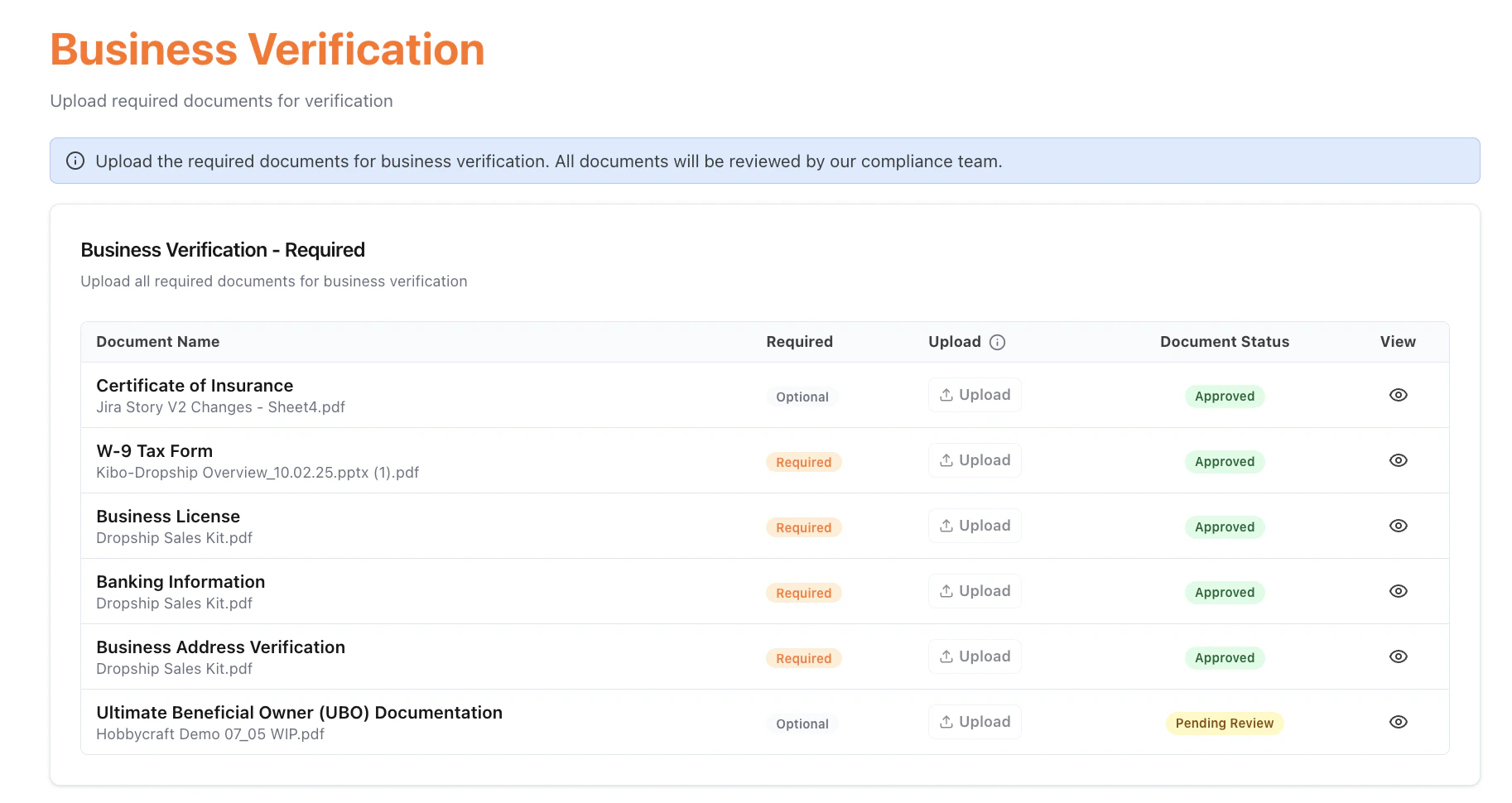
- Use the eye / view icon on each row to preview your uploaded file at any time.
- Not Uploaded — no file has been uploaded yet.
- Pending Review — the file is uploaded and waiting for operator review.
- Approved — the operator has approved the document. The Upload control is disabled.
- Rejected — the operator has rejected the document with a comment. The Upload control becomes enabled again so you can replace the file. See Re-upload a Rejected Document later in this guide.
Step 4: Choose Integration Setup
Step 4 is where you declare how your systems will integrate with the operator’s Kibo platform. Three integration modes are supported: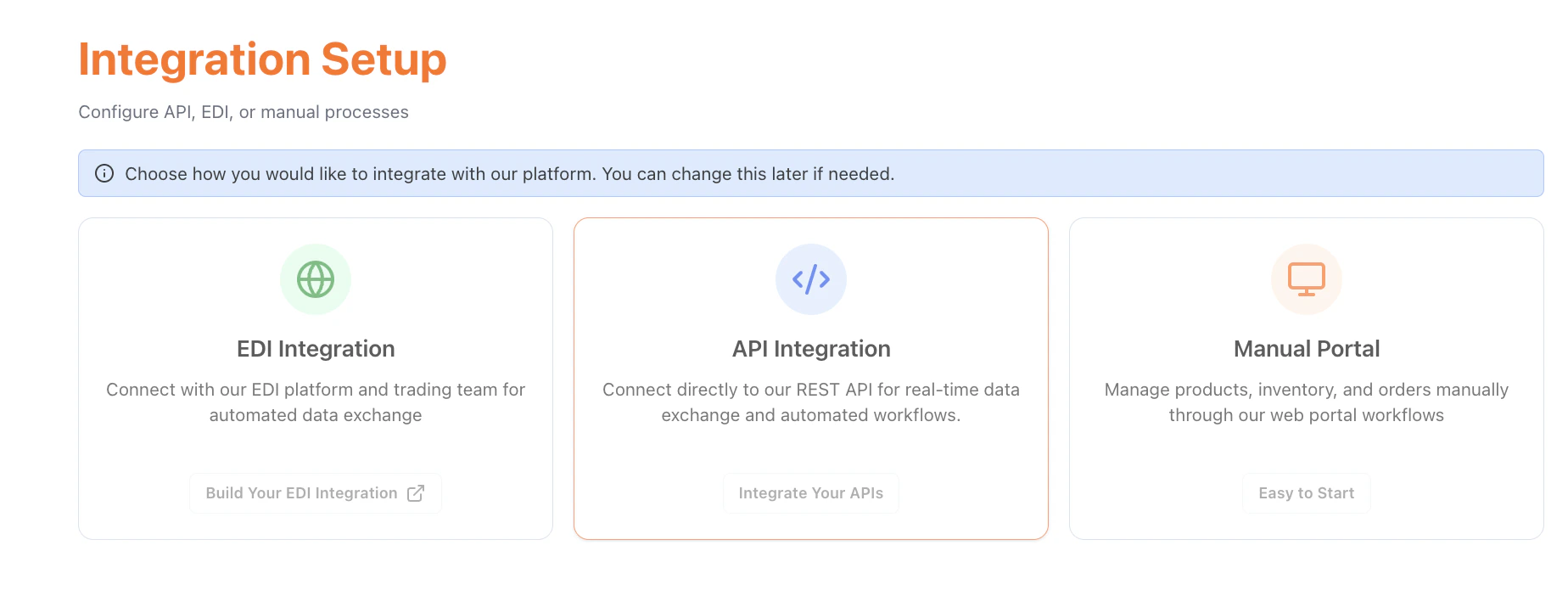
Option A — EDI Integration
If you operate an EDI environment, choose EDI Integration. You will be redirected to the EDI Orderful page to complete the trading-partner connection. Dropship’s EDI integration uses 850 Purchase Order, 855 Acknowledgement, 856 ASN, and 846 Inventory.Option B — API Integration
- Click API Integration.
- The API Integration Setup page lists four service categories — Catalog Listing, Locations, Inventory, and Orders. Each row has a documentation link and an Integration Complete button.
3. For each service, complete the integration on your side, then click Integration Complete on its row. A Confirm Completion popup asks you to confirm.
- Click Yes. The row’s status badge turns green to reflect Integration Complete.
- Repeat for each of the four services, then click Complete.
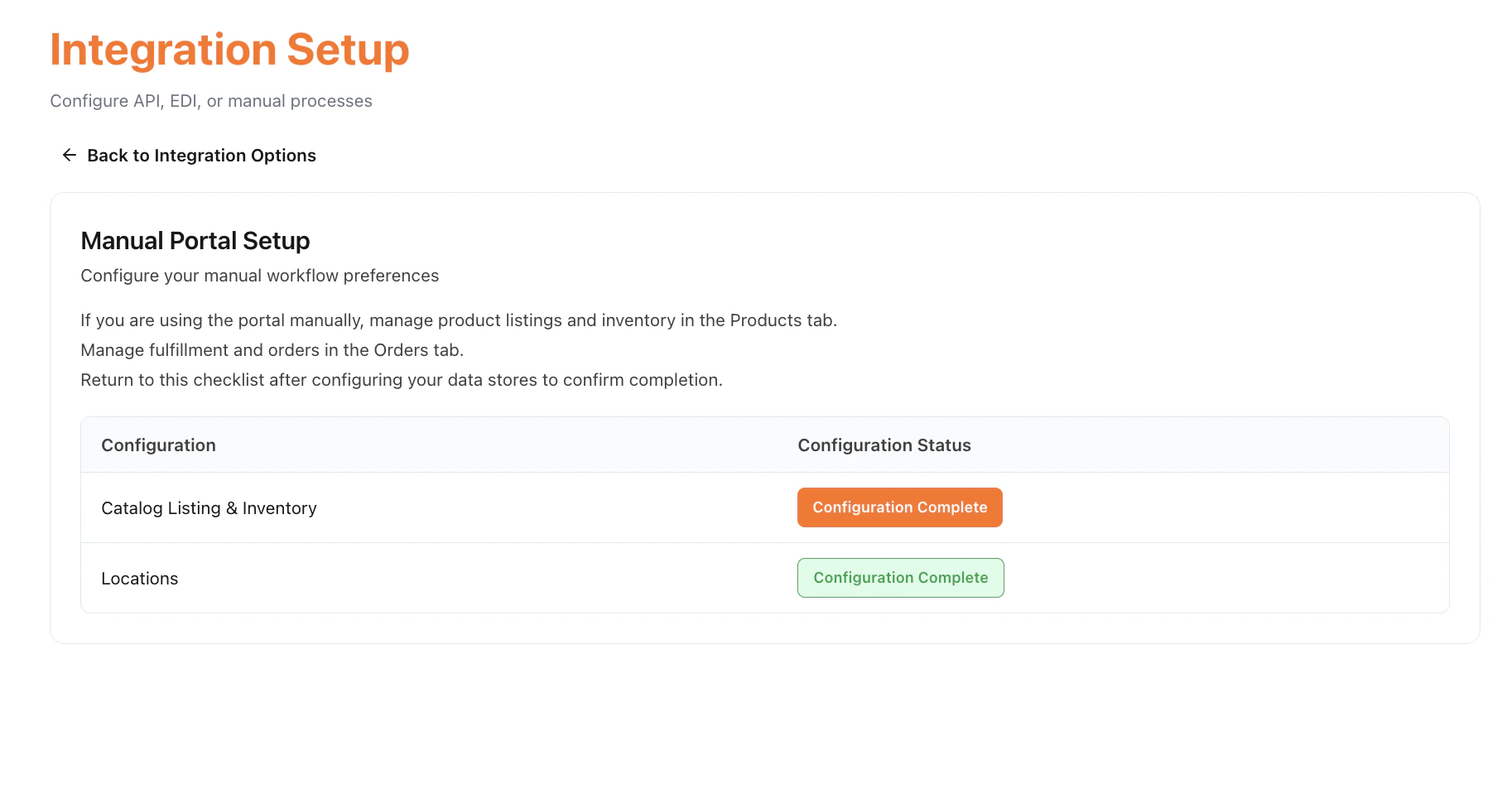
Option C — Manual Portal
If you do not have EDI or API integration capability, choose Manual Portal. You will operate entirely within the Vendor Portal UI: managing your inventory, and locations manually, and processing orders from the Orders tab.- Click Manual Portal.
- The Manual Portal Setup screen lists Catalog Listing & Inventory and Locations as configuration items, each with a Configuration Complete acknowledgement.
- Acknowledge each item and click Complete.
Note: A vendor that selects EDI or API can still use the Vendor Portal for any task — the manual portal remains accessible alongside the automated integration
Onboarding Complete
After completing Step 4, the Onboarding Module displays a “You’re all set!” summary showing your Integration Type, the count of team members added, the count of documents uploaded, and the Verification Status. From here you can click Go to Orders to begin processing orders (once your operator activates you).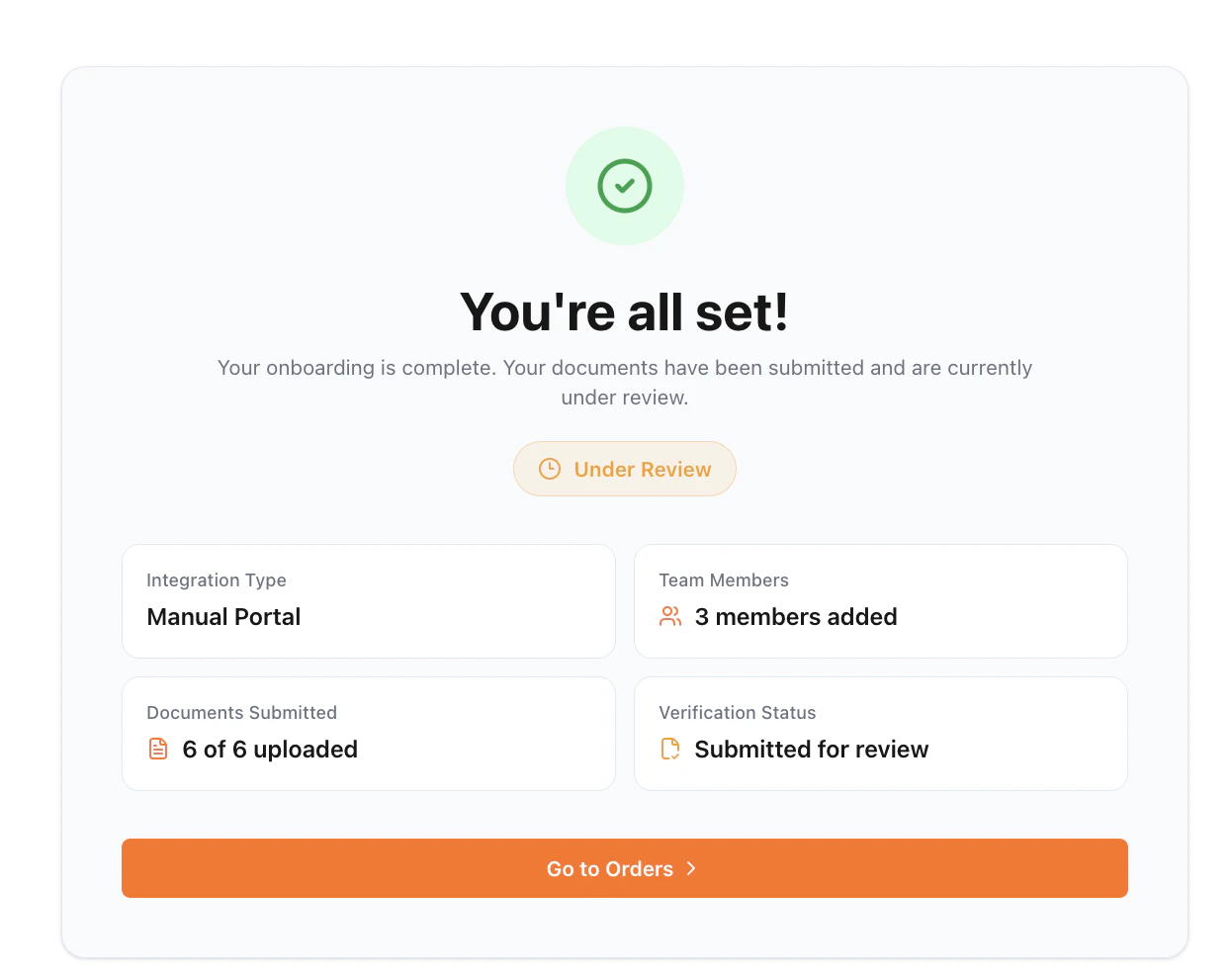
Re-upload a Rejected Document
If your operator rejects a document, Action Required banner at the top of every page in the Vendor Portal is visible, with a View details link that takes you back to the Business Verification step.
- Click View details in the Action Required banner. You arrive on the Business Verification page.
- The rejected document’s status badge displays Rejected

- Click the eye / view icon to preview the rejected file with the rejection reason in red at the top.

- Click Upload on the rejected row and select a corrected file. On a successful re-upload, the status changes to Pending Review and the operator is notified to review again.

- On the operator side, the document re-enters the operator’s Documents tab as Pending Approval and can be approved or rejected again.