Overview
The Vendor Analytics page gives operator admins a consolidated view of how each vendor is performing across three key metrics: item acceptance rate, on-time shipment rate, and item return rate. These metrics combine into a single Performance Score (0–10 scale), which determines each vendor’s Performance Category — High, Medium, or Low. Use Vendor Analytics to identify underperforming vendors, compare across your network, and take action on vendors that fall below acceptable thresholds.How to Access
Path: Operator Portal → Main tab → Vendor → Vendor Analytics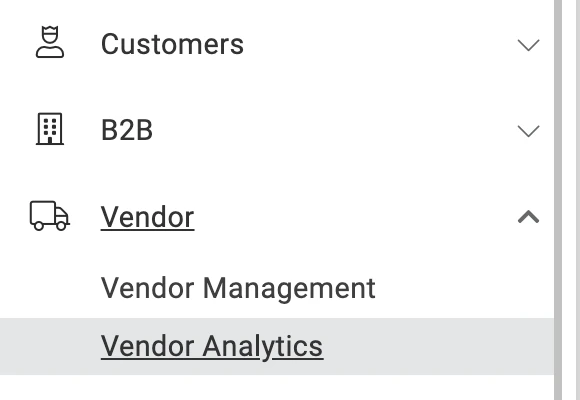
Performance Category Summary Cards
At the top of the Vendor Analytics page, three summary cards provide a snapshot of your vendor network health:
Searching and Filtering
Search
Use the search bar in the page header to filter the vendor grid by name or other vendor attributes. The grid updates in place as you type.Filter by Performance Category
Click any of the three summary cards to filter the grid to that category. When a category filter is active:- A “Filtered by: [category name]” indicator appears above the grid.
- A Clear filter link appears next to the indicator — click it to remove the filter and show all vendors.
Vendor Analytics Grid
The grid lists all vendors with the following columns: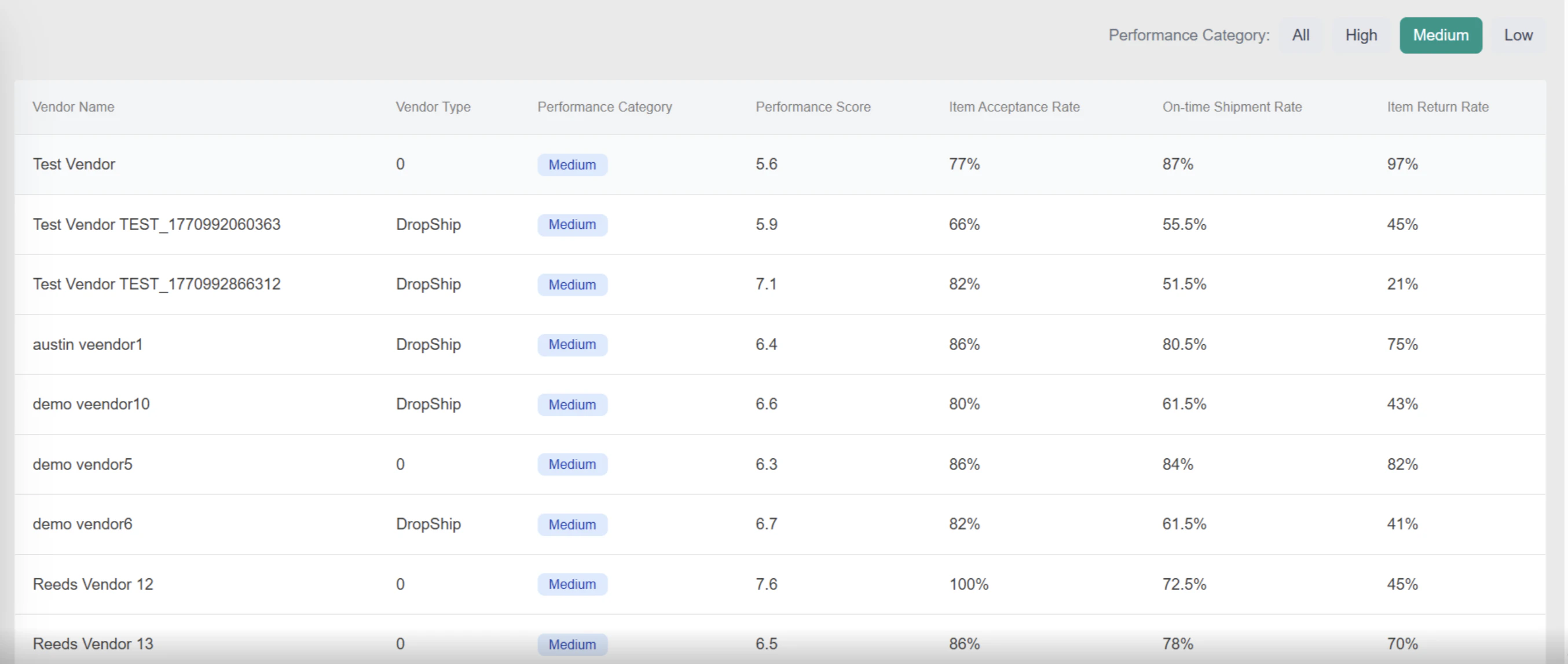
Performance Category Badges
Each vendor’s Performance Category is displayed as
Thresholds are configurable by operators. See Vendor Settings — Configuration Scoring for how to adjust them.
Metric Reference
All metrics are calculated lifetime-to-date (LTD) across all shipments assigned to the vendor’s locations.- Item Acceptance Rate Measures the percentage of ordered item quantities the vendor’s locations validated and fulfilled. A rate of 80% means 80 out of every 100 ordered units were accepted. Higher is better.
- On-time Shipment Rate Measures the percentage of shipments fulfilled within the configured SLA window. A shipment counts as on-time only if it was fulfilled at or before the SLA deadline. Higher is better.
- Item Return Rate Measures the percentage of fulfilled item quantities that were subsequently returned. Lower is better — a high return rate signals fulfilment quality issues at the vendor’s locations and negatively impacts their Performance Score.
- Performance Score A weighted composite of the three metrics above, scored on a 0–10 scale. The weight each metric contributes is configurable in Vendor Settings. Item Return Rate is inverted in the score calculation — a lower return rate contributes positively to the score, rewarding vendors who ship the right items correctly.
Note: Metric weights and category thresholds are operator-managed and apply across all vendors. See Vendor Settings to configure them.
Performance Score Calculation
A vendor’s Performance Score is a weighted combination of their three rate metrics, evaluated on a 0–10 scale. The weight assigned to each metric is configured in Vendor Settings → Performance Score Formula Weights. Thresholds that determine category boundaries are configured in Vendor Settings → Performance Category Thresholds. Both weights and thresholds are operator-managed — see Vendor Settings — Configuration Scoring.Viewing Analytics on a Vendor Profile
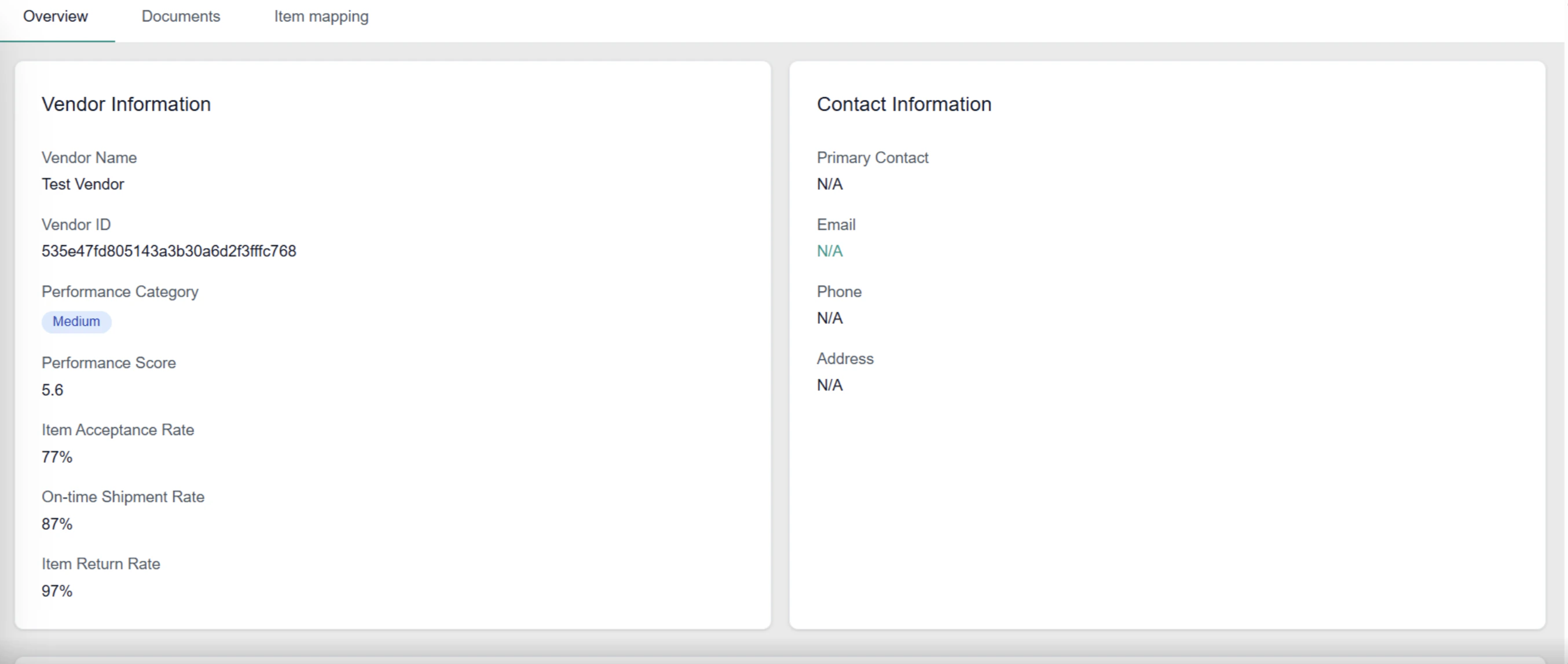
In addition to the Vendor Analytics grid, each vendor’s performance metrics are surfaced directly on their individual profile page. This gives you a quick read on a single vendor without navigating to the analytics grid. Path: Operator Portal → Vendor Management → [Vendor Name] → Overview tab The Vendor Information card on the Overview tab displays:- Performance Category — color-coded badge showing High, Medium, or Low.
- Performance Score — the vendor’s current score on a 0–10 scale.
- Item Acceptance Rate — lifetime-to-date acceptance rate as a percentage.
- On-time Shipment Rate — lifetime-to-date on-time fulfilment rate as a percentage.
- Item Return Rate — lifetime-to-date return rate as a percentage. Lower is better.