

- How the editor and your Next.js app connect
- How to clone and install the Website Builder Next.js starter kit
- How to configure API keys and environment variables
- How to create a page in the Admin editor and see it rendered
- Access to a Kibo CMS Admin instance
- Node.js 20.9+ and npm/yarn installed
- Familiarity with Next.js App Router — the starter kit uses App Router, not Pages Router
How It All Fits Together
Before writing any code, it’s worth understanding how the Website Builder actually works — because it’s a bit different from what you might expect. When a content editor opens the Website Builder in Kibo CMS Admin, they see a canvas where they can drag components onto a page, configure their inputs in a sidebar, and hit Publish. That’s the editorial experience. On the developer side, the picture is different — and it’s what makes the Website Builder stand out from most page builders. The editor doesn’t have its own components or styles. Instead, it’s always connected to a separate frontend app that you own — in this case a Next.js project. When the editor opens, it loads your Next.js app inside an iframe. The component palette, the live preview, all of it is your real app running right there. This means all your component code and all your styles live in your Next.js project. Kibo CMS only stores the page structure — which components are on the page and what input values the editor set for each one. It has no idea what a “Hero” or “Banner” looks like, and it never needs to.We cover how to create and register your own editor components in the Custom Components guide.
@webiny/website-builder-nextjs SDK is what connects the two sides — it handles the communication between the editor and your app when editing, and fetches published page documents from Kibo CMS when rendering pages for visitors.
Step 1: Open the Admin App
Navigate to your Kibo CMS Admin URL. You’ll need it running and accessible before creating pages later in this guide.Step 2: Clone the Starter Kit
The official Next.js starter kit wires up the SDK, routing, and rendering so you have a working base to build from.Terminal
npm install, make sure the @webiny/website-builder-nextjs and @webiny/sdk versions in package.json match your Kibo CMS version. You can find your Kibo CMS version in the Admin app under Support → About.
For example, if your Kibo CMS version is 6.2.1, your package.json should have:
package.json
Step 3: Gather Your Credentials
To connect the starter kit to your Kibo CMS project, you’ll need an API key, API host URL, and tenant ID. The easiest way to get these is through the Configure Next.js shortcut in Kibo CMS Admin — click Support in the bottom-left corner and select Configure Next.js.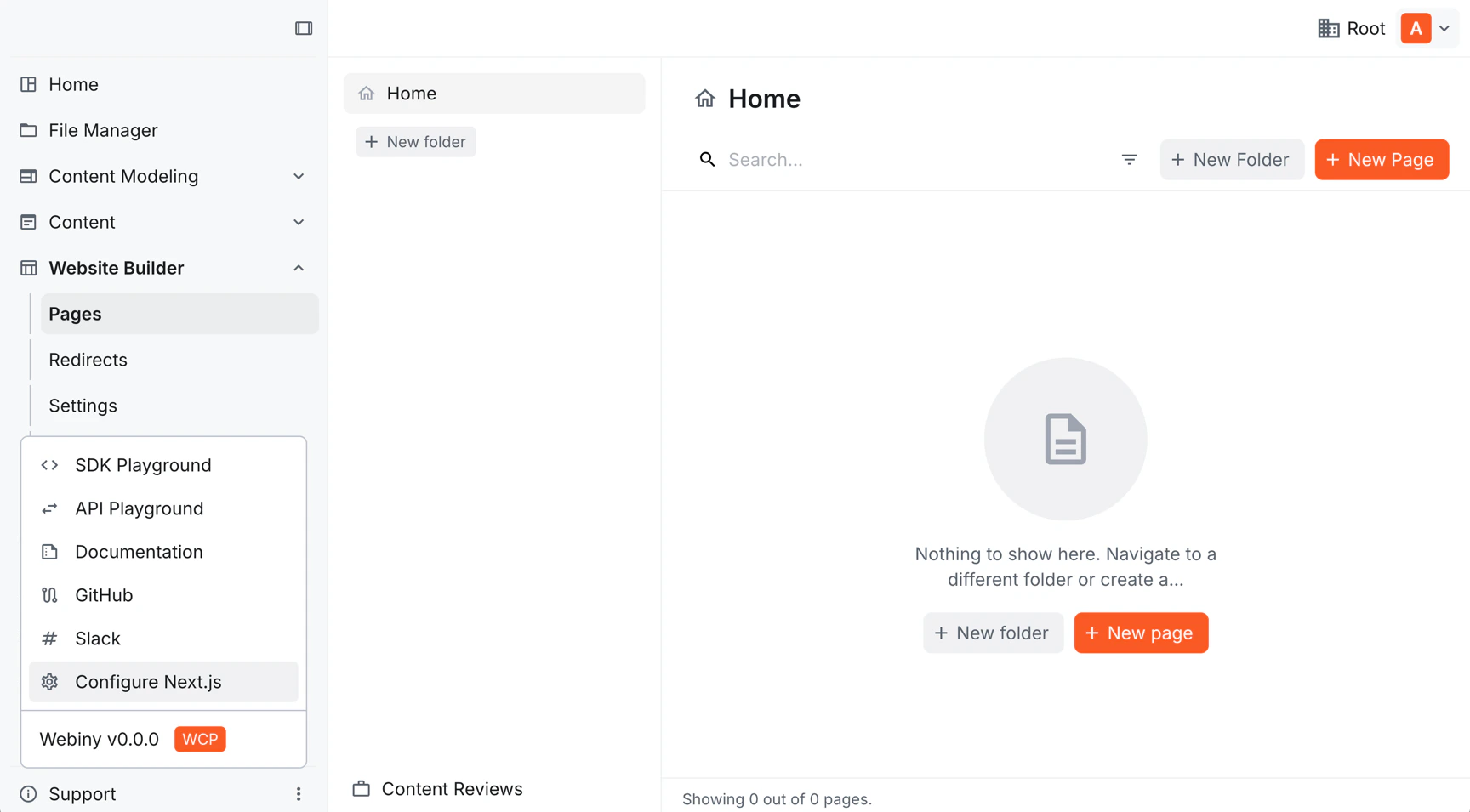
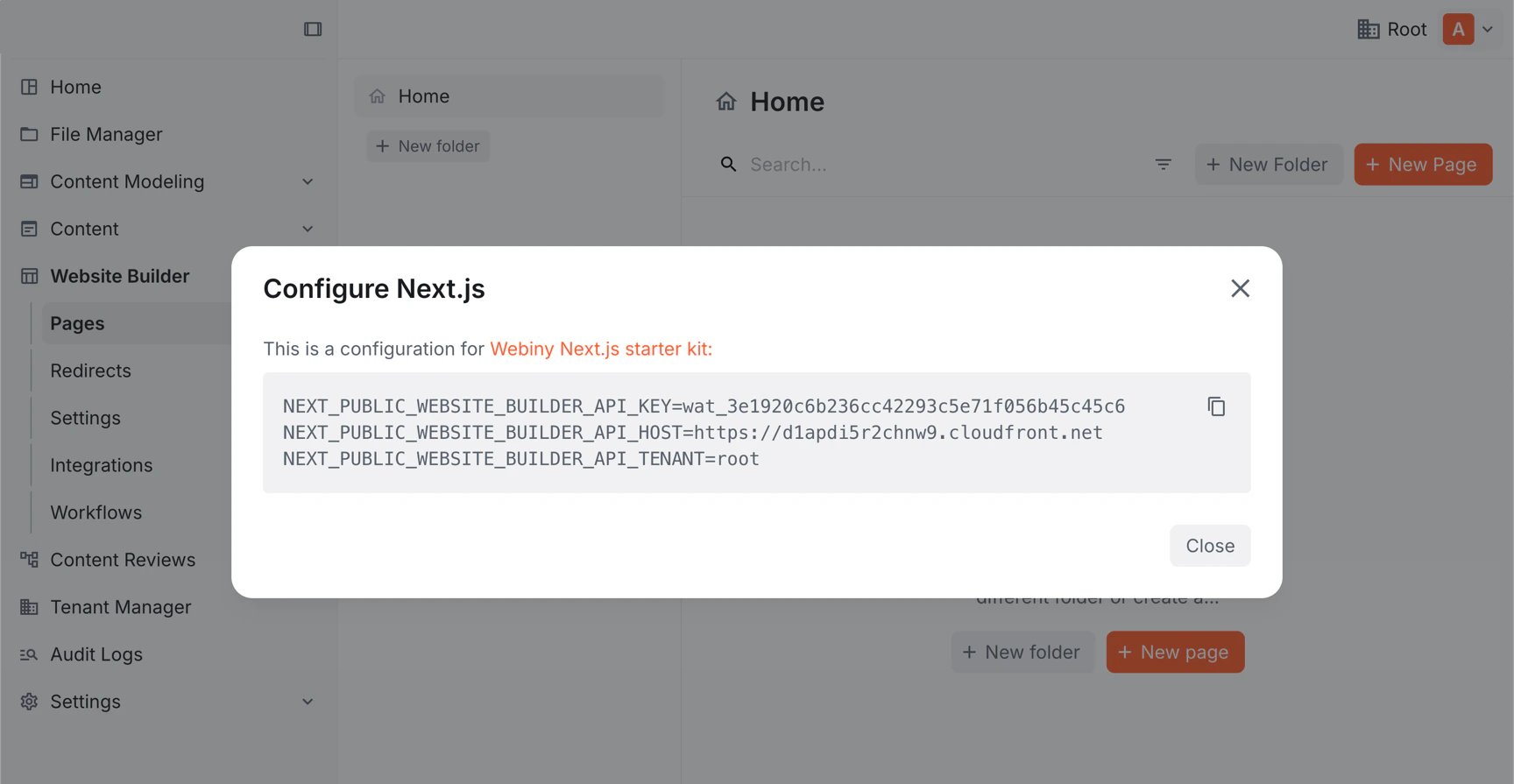
.env file in the next step.
If your Admin is running on a non-localhost domain, the dialog will also include a
NEXT_PUBLIC_WEBSITE_BUILDER_ADMIN_HOST variable — make sure to copy that too.API Key Is Auto-Created
Unlike the Headless CMS where you manually create an API key and configure its permissions, the Website Builder API key is created automatically for the current tenant — you’ll find it under Settings → Access Management → API Keys as “Website Builder”. It’s a read-only key, intentionally scoped that way since it’s meant to be used in external frontend apps like your Next.js project.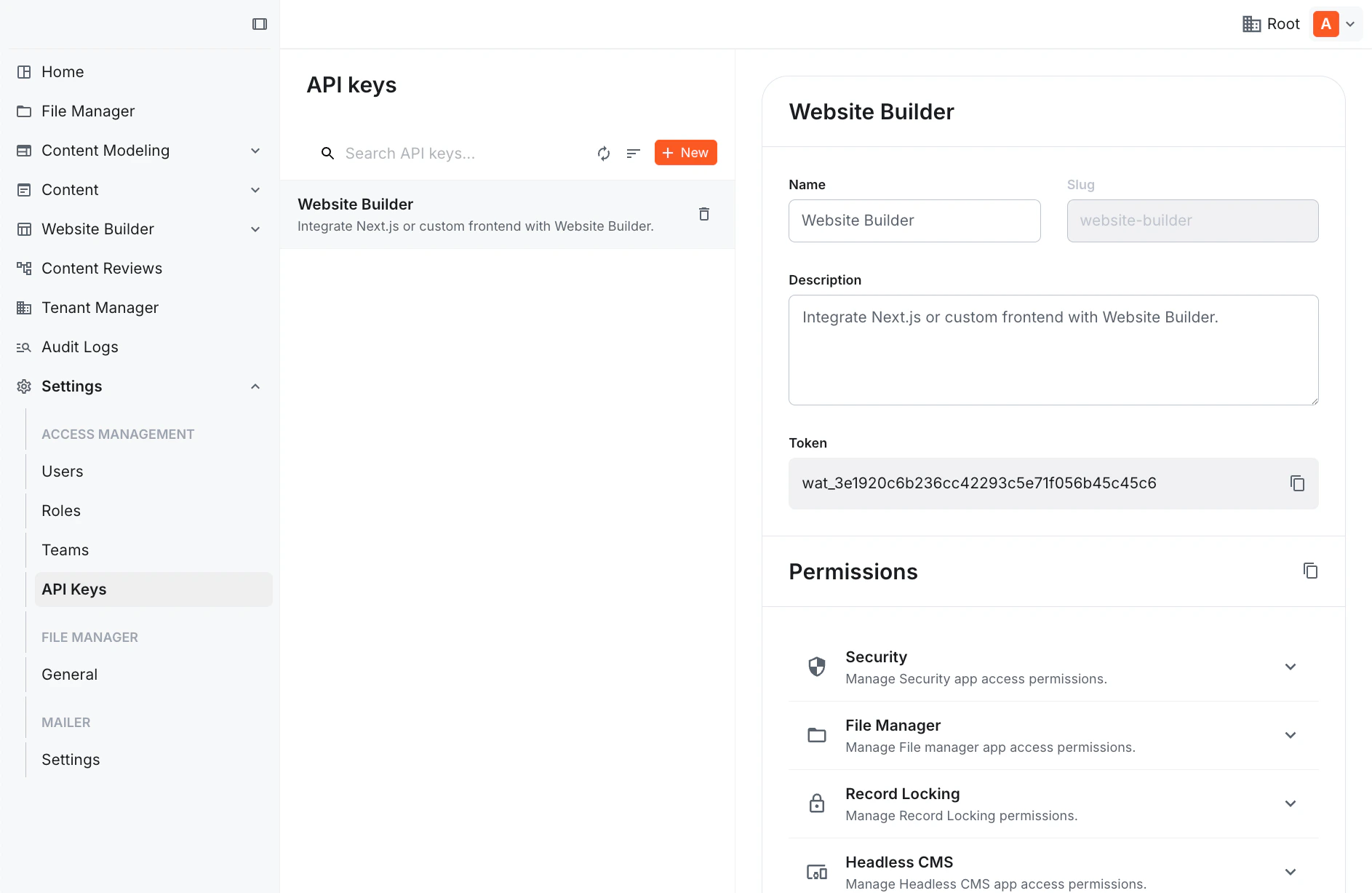
Step 4: Configure Environment Variables
Create a.env file in the root of your Next.js project:
.env
Step 5: Start the Dev Server
Terminal
Step 6: Create Your First Page
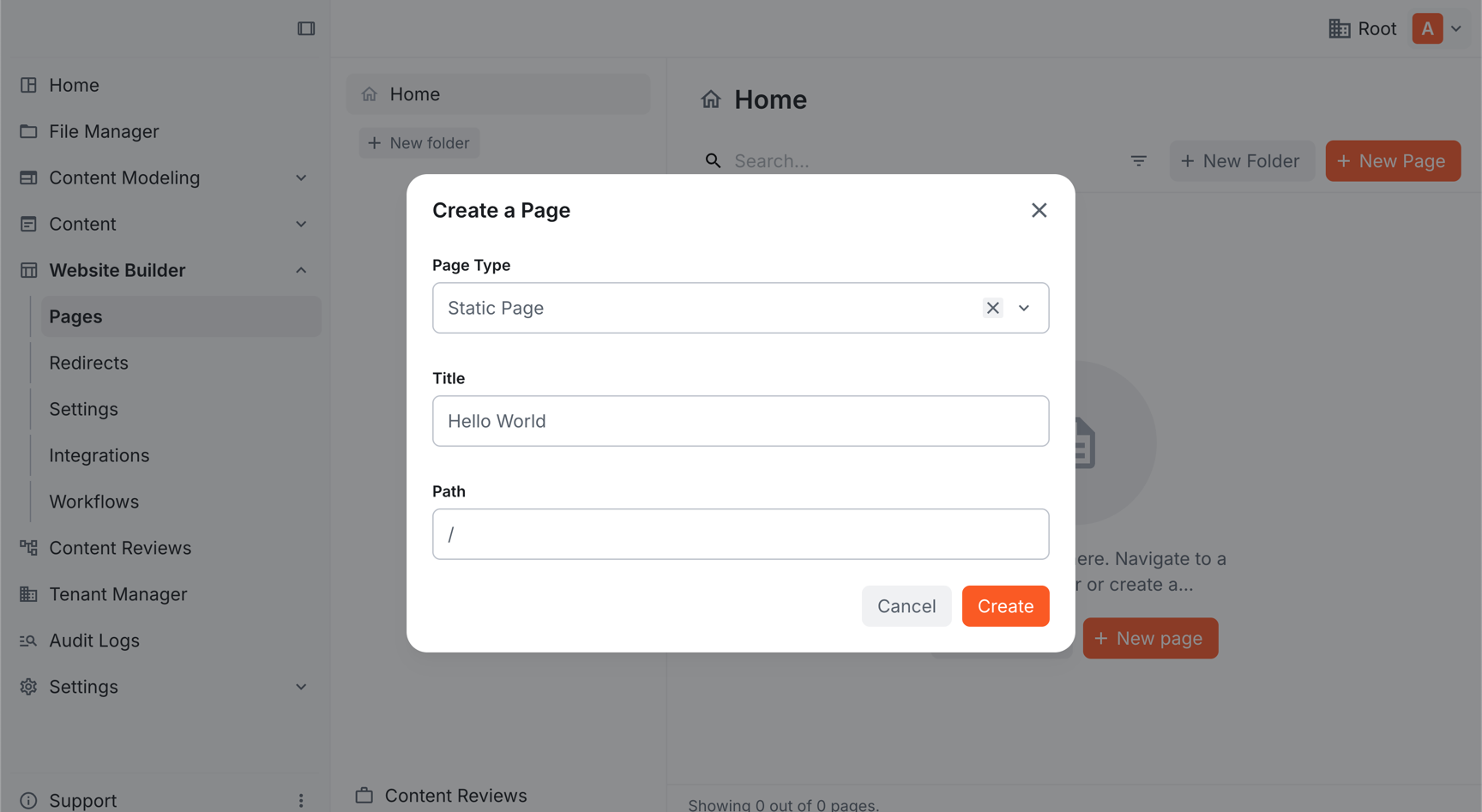
- Open your Kibo CMS Admin app.
- In the sidebar, go to Website Builder → Pages.
- Click New Page.
- Set the title to “Hello World” and the path to
/(the homepage), then click Create.
- You’ll land in the page editor. In the component palette on the left, find the Custom group and drag the Hero #1 component onto the canvas. It renders with placeholder content straight away — no configuration needed for now.
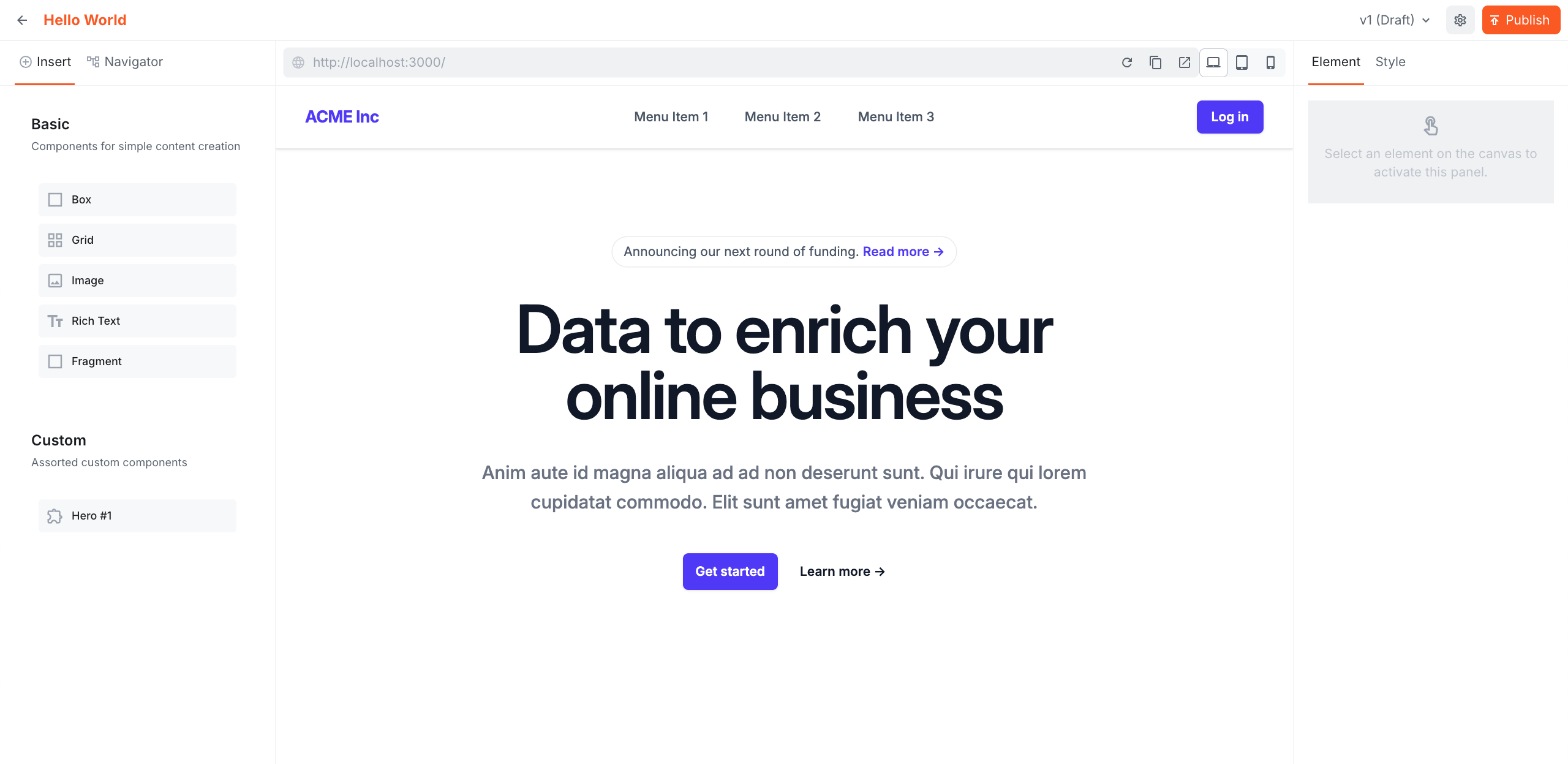
- Click Publish.
Step 7: See It Rendered
Go back to http://localhost:3000 and refresh. You should now see the hero section rendered by your Next.js app.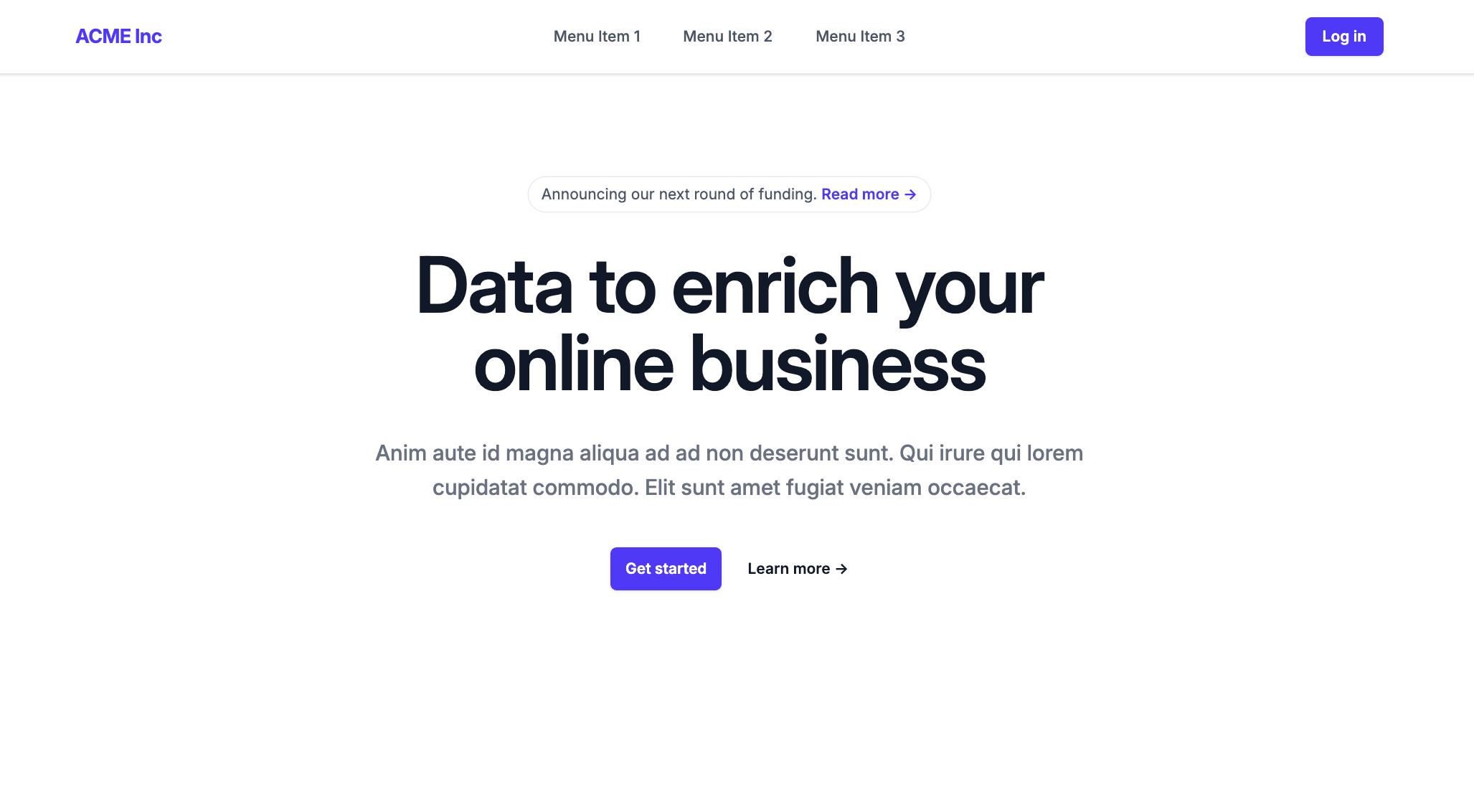
Project Structure
Here’s what’s in the starter kit and what each part does:Project structure
editorComponents/ (building and registering components) and theme/ (styling). Everything else is infrastructure the starter kit handles for you.
How the Rendering Works
The starter kit’s catch-all route (src/app/[[...slug]]/page.tsx) handles all page rendering:
src/app/[[...slug]]/page.tsx (simplified)
initializeContentSdk (in src/contentSdk/initializeContentSdk.ts) calls contentSdk.init() with your env var credentials and registers the component groups. DocumentRenderer takes the page document — a JSON tree of component names and their input values — and renders it by looking up each name in your registered editorComponents array.
Troubleshooting
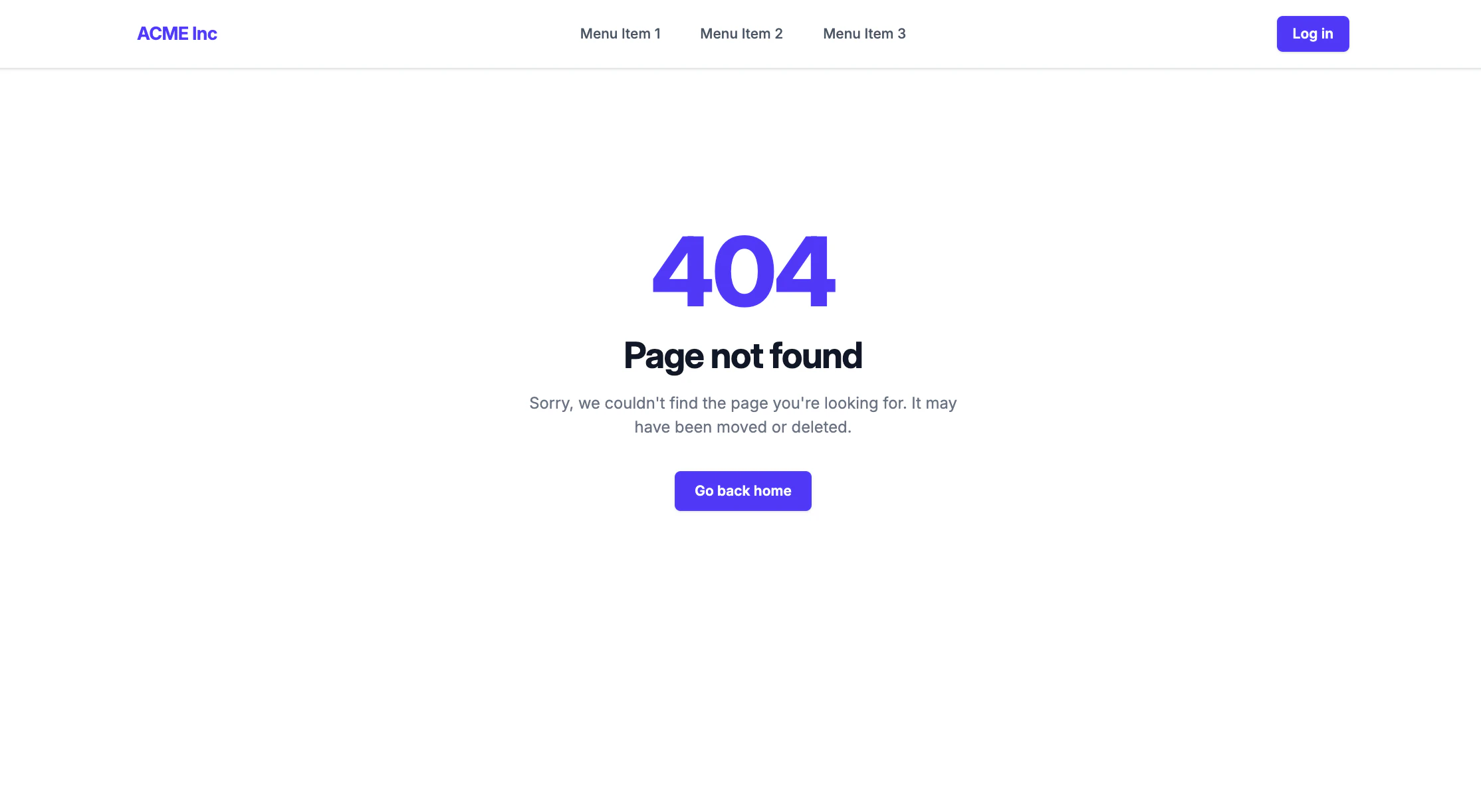
Still seeing “Not found!” after publishing
- Make sure you set the page path to
/exactly. - Check the browser console for API errors — a CORS or auth error means your env vars may be wrong.
- Restart the dev server after editing
.env.
Editor shows a blank canvas
- Make sure your Next.js dev server is running on
http://localhost:3000.
Summary
- The Website Builder editor loads your Next.js app in an iframe — components and styles live entirely in your project.
- Clone the starter kit and configure the three required env vars.
- Create a page in the Admin editor using the built-in Hero #1 component and see it rendered in the Next.js app.
- The catch-all route +
initializeContentSdk+DocumentRendereris how every page gets rendered.