

Watch: Product Substitutions in Fulfiller
See how to handle product substitutions during fulfillment
Watch: Product Substitutions in Fulfiller
See how to handle product substitutions during fulfillment
View Pre-Fulfillment Substitutions
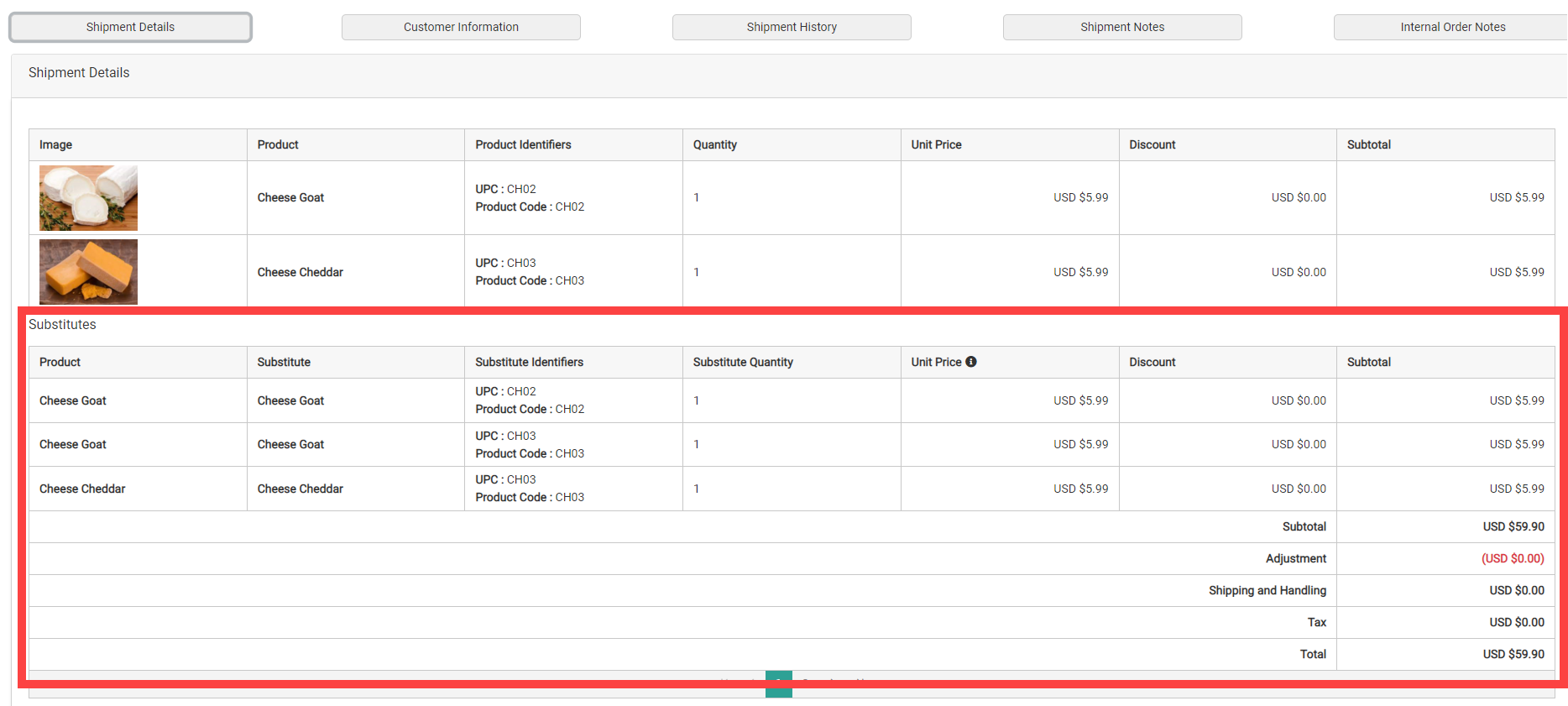
If a substitution was already performed on the shipment, (as either an automatic substitution or from the Admin UI), then the original line item and the substitute will be displayed in separate tables on the Fulfiller UI’s shipment details.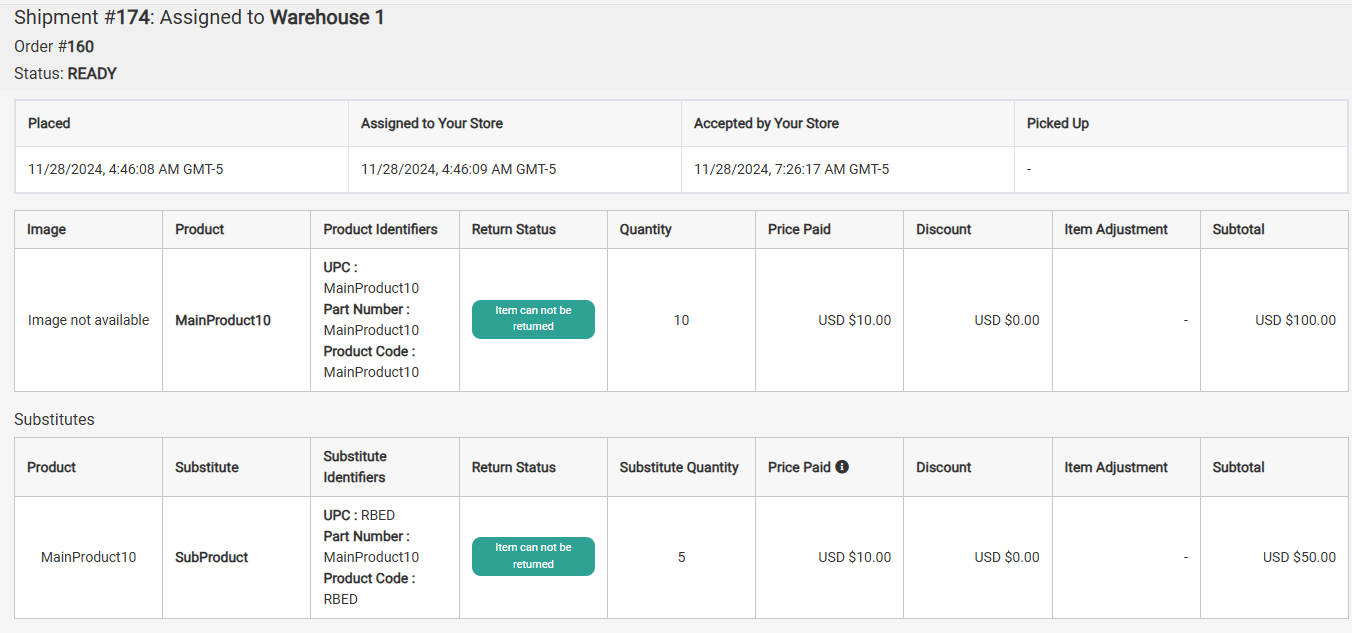
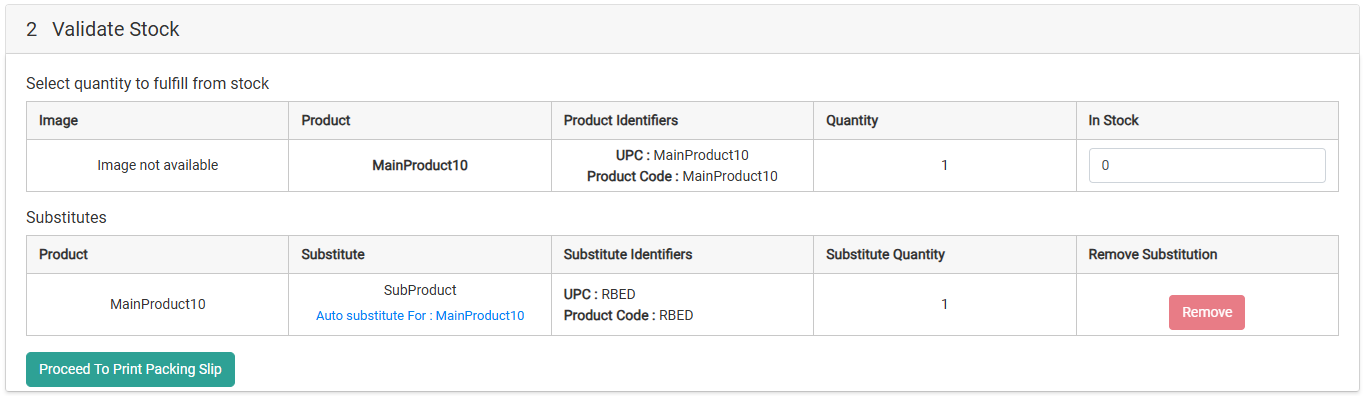

Perform a Manual Substitution
When an STH, BOPIS, or Delivery (not Assembly or Curbside) shipment item is eligible for substitution, the option to perform a manual substitution will be available during the Validate Stock step. To be eligible, substitutions must be configured for the product and the shopper must not have opted out of substitutions while placing their order. Manual substitutions will not be available if an automatic or Admin UI substitution has already occurred for that item. However, you can still validate stock, reject, or reassign it just like any other line item.- At the Validate Stock step, if the In Stock Quantity is less than the required Quantity then Substitute will appear next to that line item. Click this to begin the substitution process.
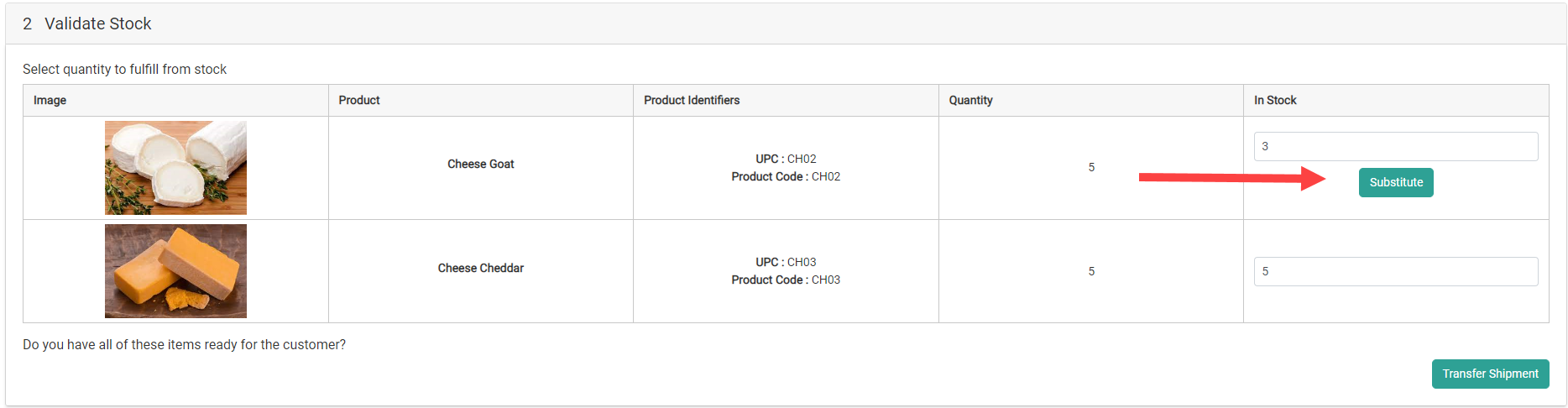
- Eligible substitutes and their available inventory at the fulfillment location will be displayed. If the shopper selected a preferred substitute product while placing the order, then their selection will be the only option displayed.
- Enter a Reason for the substitution and the Substitute Quantity of each product you want to substitute with. If the product is a bundle, it will appear as one line item containing all components (such as the example shown in the previous section).
- Click Confirm.
- The substitutes will be displayed in a new table underneath the original line items, where you can click Remove to remove them from the shipment if desired.
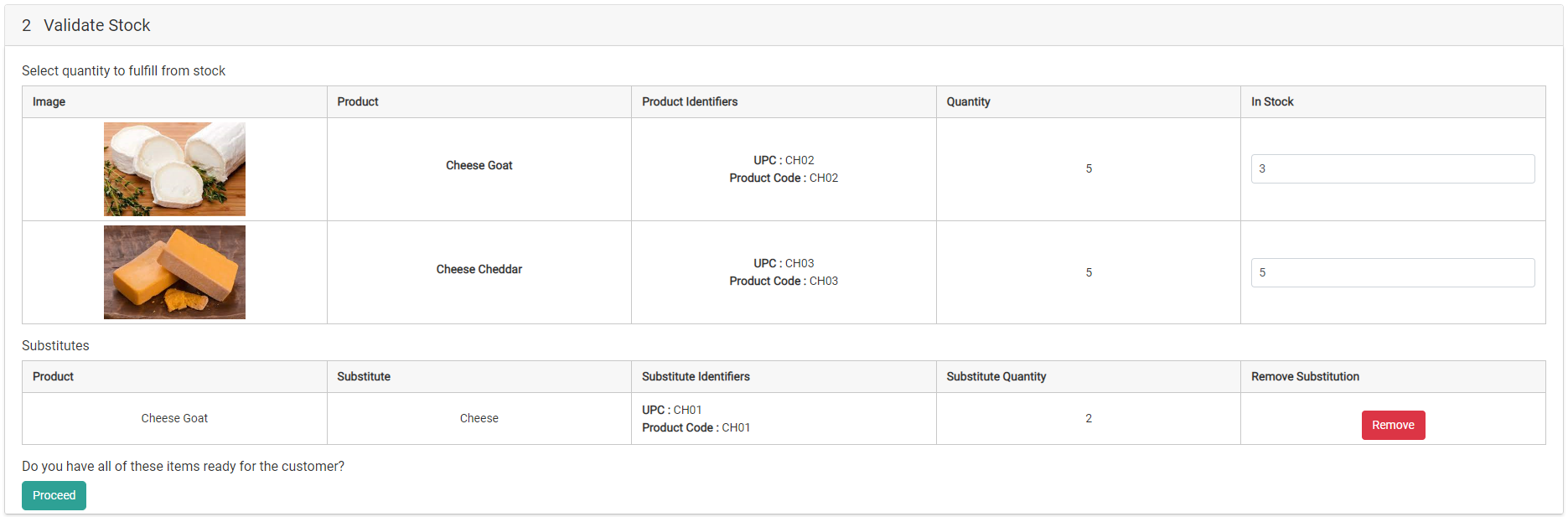
- You can now continue with the fulfillment process as usual. The substitute item’s inventory will be allocated while the original item’s quantity will be deallocated. The substitutions will also be included on any packing slips and pick sheets.
Cancel and Return Substitutions
If the original line item is cancelled from the shipment, any associated substitute item(s) will be removed from the shipment as well. If a substitute item is returnable, then it will be listed in the Create Return and Process Return modals. Substitutes will be labelled to help identify them and which shipment item they were originally substituted for.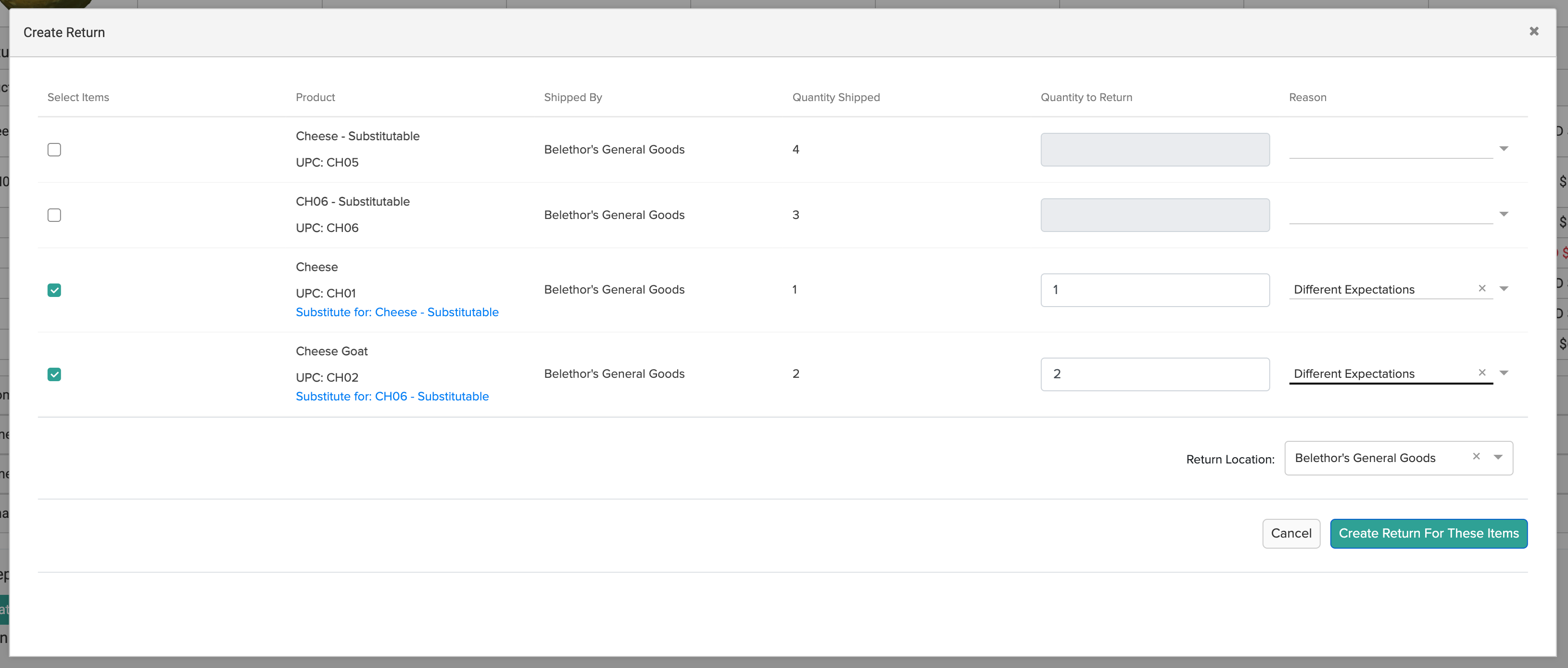
Dynamic One-to-Many Substitutions
If a product is unavailable after an order has been placed, you can substitute it with a similar product. By default, one unit of an ordered product can only be replaced by one unit of a single substitute product, and any substitution that applies more than one quantity of an item — or a combination of different items — requires a pre-configured Product Bundle added as the substitute. Dynamic one-to-many substitution removes that requirement. When enabled for your tenant, a fulfiller can substitute one unit of an ordered product with multiple units of one or more eligible substitute products in a single substitution action using the Fulfillment API. The fulfiller selects the specific products and quantities at the moment of substitution, based on what is actually in stock at the fulfillment location — no Product Bundle needs to exist in the catalog. For example, if a customer orders 1 quantity of 60oz Bleach and the store is out of stock, the fulfiller can substitute it with 2 quantities of 30oz Bleach. If a customer orders 1 quantity of 90oz Bleach, the fulfiller can substitute it with 1 quantity of 30oz Bleach plus 1 quantity of 60oz Bleach — all in a single substitution action.Dynamic one-to-many substitutions are performed through the Fulfillment API only.
Prerequisites
- The Substitutions feature must be enabled for your tenant. Contact Kibo Support to enable it.
- Dynamic one-to-many substitution must be enabled for your tenant. This capability is controlled by a tenant-level setting that is disabled by default. Contact Kibo Support to enable it.
- The Substitute Products attribute must be added to your product types, and eligible substitutes must be configured on the original product. See Configure Substitutions.
- You must be able to authenticate and call the Fulfillment API.
Supported Products and Shipments
- Dynamic one-to-many substitution supports the same product usages as native substitution — standard products, variant products, product extras, bundle components, and items in collections — for both the item being substituted and the substitute products. Service items are excluded.
- Substitutions are supported for STH, BOPIS, Delivery, and Transfer shipments. For Delivery shipments, the Delivery service item always remains on the shipment, and shipment items with an associated Assembly service item cannot be substituted.
- Automatic substitutions at shipment creation continue to operate one-to-one and are unchanged by this feature.