

Overview
When fulfilling a shipment, the Carrier and Shipping method are determined for each shipment along with a service expectation. Rate Shopping allows you to manually compare real-time shipping rates from supported carriers during the Prepare for Shipment step. The system evaluates available options and highlights the lowest-cost carrier and service that meets the shipment’s service-level requirements. Other eligible carrier and service options are also displayed even if they do not meet service level requirements so you can review costs and carrier’s estimated delivery dates before making a selection.What You Can Do with Rate Shopping
- View real-time shipping rates from carriers configured for your Location Group
- See carrier and service options that meet the required service level commitments (i.e. promise date commitments)
- Identify the system-recommended lowest-cost option that meets the service level commitment.
- Select an alternative carrier or service when needed, with full visibility into cost and carrier’s estimated delivery date.
- Use rate shopping for both single-package and multi-package shipments
- Apply rate shopping to all packages in a shipment or to individual packages
Prerequisites
Before using Rate Shopping, ensure the following requirements are met:Tenant Configuration:
Rate Shopping is an add-on that must be enabled by Kibo in your tenant settings. Submit a request to Kibo Support if you want to use this feature.Carrier Configuration:
- Carriers must be configured in Location Group Configuration (Main > Supply > Location Groups)
- Supported carriers include: Standard US carriers: FedEx, UPS, USPS.
Note: Non-US carriers and Extensible carriers configured via Shipping Extensibility are not supported yet.
Custom Rates/Custom Shipping Methods configured at the site level cannot be rate shopped.
Understanding Service Level Classification
Rate Shopping categorizes all returned carrier-methods into two groups based on whether they meet the shipment’s service level requirements: Service-Level-Eligible Carrier-Methods: These options meet or exceed the shipment’s service level commitment. For example, if the shipment has a 2-Day service level, eligible options include FedEx 2Day AM, UPS 2nd Day Air, USPS Priority 2-Day, and faster services like FedEx Overnight or UPS Next Day Air. Non-Service-Level-Eligible Carrier-Methods: These options do not meet the shipment’s service level. For the same 2-Day example, non-eligible options would include FedEx Ground, UPS Ground, and USPS Ground. These are still displayed for visibility but include warnings if selected. How Service Level is Determined:- If the shipment has an Estimated Delivery Date (EDD), the system uses this to classify carrier-methods
- If no EDD exists, the system calculates a Required Delivery Date based on the carrier-method’s service level mapping (e.g., UPS 2nd Day Air → 2-Day, FedEx Ground → 5-Day) and order placed date.
- Required Delivery Date =order placed date + carrier-method’s service level mapping
Rate Shopping Workflow
Invoking Rate Shopping
Rate Shopping is available during the “Prepare for Shipment” step in the STH and Transfers fulfillment workflows. To use Rate Shopping:- Go to Main > Fulfillment > Fulfiller.
- Locate and open the shipment you want to fulfill.
- Progress through the fulfillment workflow until you reach Prepare for Shipment.
- Enter package dimensions and weight for all packages in the shipment. If Cartonization is enabled, these dimensions may be pre-populated from the Print Packing Slip step.
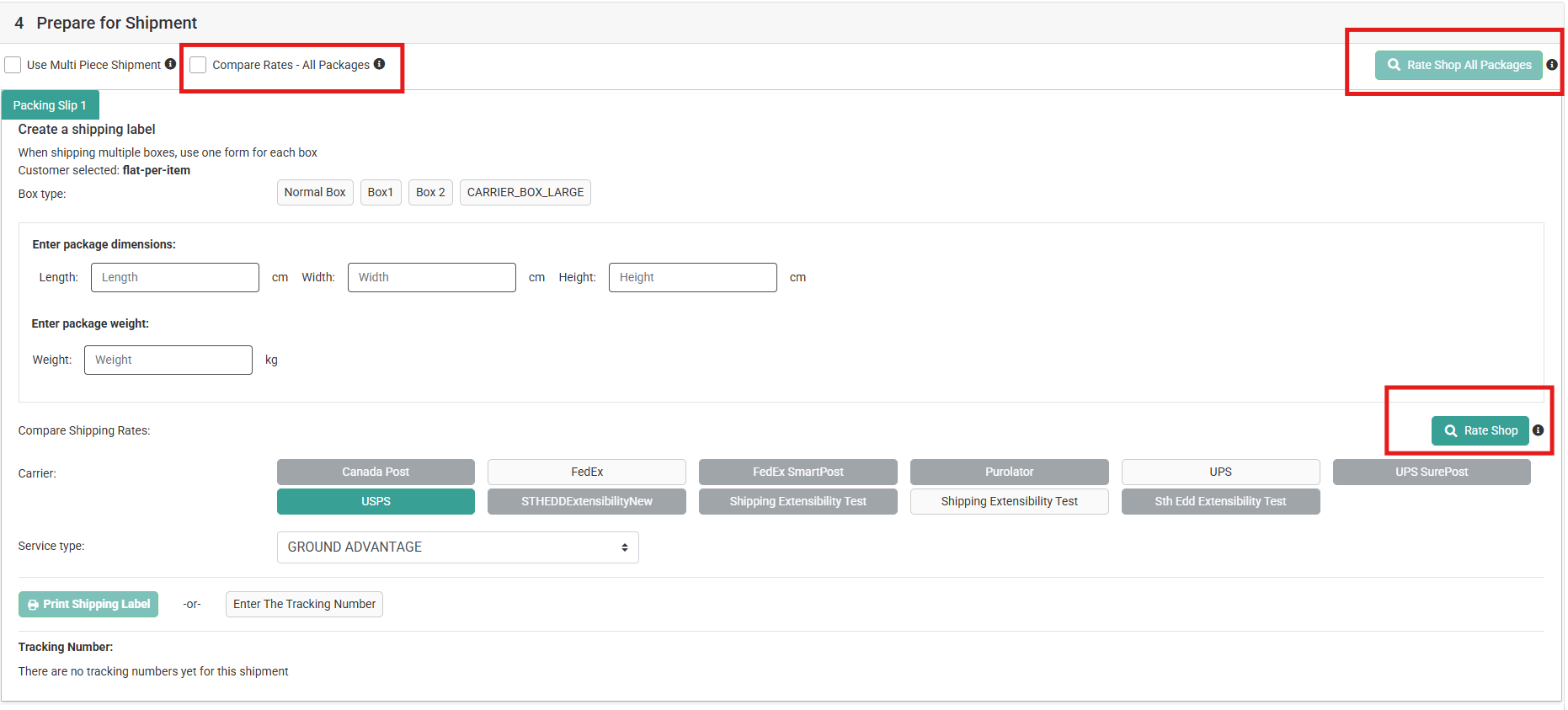
- Select your Rate Shopping mode
- Across All Packages (**CompareRates-All packages **checkbox: checked): Rate Shopping will query rates for all packages in the shipment at once, returning aggregated costs
- Per Package (CompareRates-All packages checkbox: unchecked): Rate Shopping will be available separately for each individual package.
- Rate Shop or Rate Shop All packages button gets enabled based on the mode you select.
Reviewing Rate Results
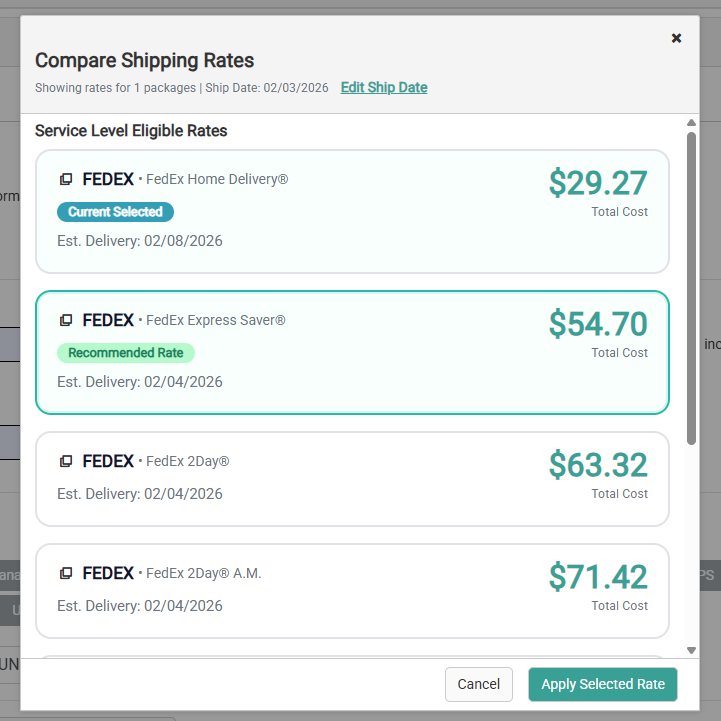
After clicking Rate Shop, the system displays all available carrier-methods organized into two sections: Service-Level-Eligible Rates (Primary Section):- Contains all carrier-methods that meet the shipment’s service level
- Sorted from lowest to highest cost
- The most cost-effective option is highlighted with “Recommended” indicator
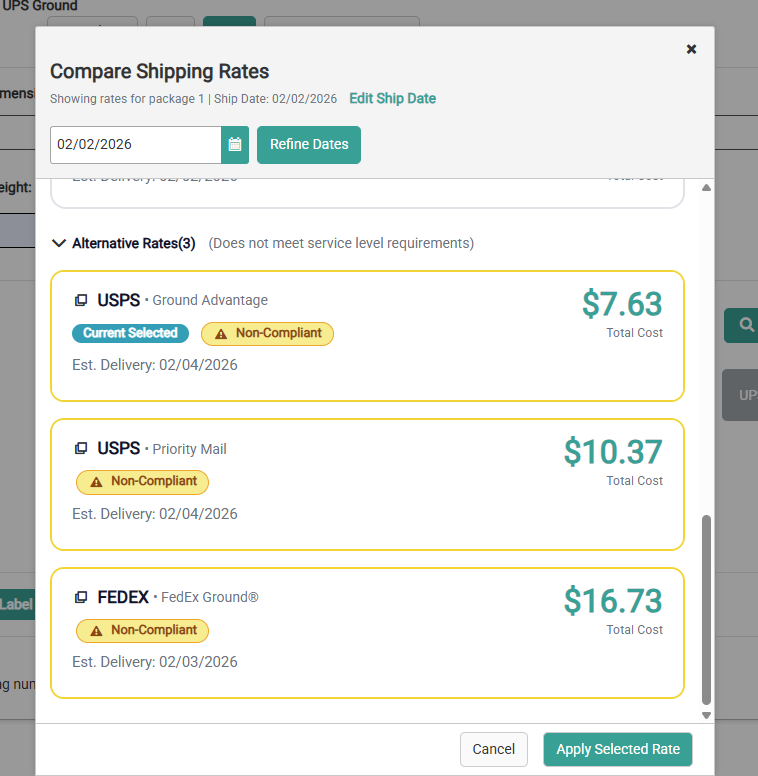
- Contains carrier-methods that do not meet the service level
- Labeled as “Alternative Options - Does Not Meet Service Level Requirments”
- Sorted from lowest to highest cost
- Displayed in a collapsible section below eligible rates
- Carrier Name: Full carrier name (e.g., FedEx, UPS, USPS)
- Service Method: Service level description (e.g., 2Day AM, Ground, Priority Overnight)
- Total Cost: Shipping cost displayed in dollar amounts (e.g., $12.45)
- Delivery Date: Estimated delivery date for the carrier to delivery to package to the shopper
- Currently Assigned Carrier: The carrier-method currently assigned to the shipment is marked with a “Current” or “Default” indicator.
- Select your preferred carrier-method by clicking on it. You can select any option from either the service-level-eligible or non-eligible sections.
- The selected carrier-method is now assigned to the shipment and will be used for label generation.
Note: You can change your selection at any time before generating the shipping label without re-invoking Rate Shopping. The rate results remain visible and interactive throughout the Prepare for Shipment step.
Generating the Shipping Label
After selecting your carrier-method:- Click Print Shipping Label.
- The system generates the label using the selected carrier-method.
- Print the label and proceed to complete the shipment as normal.
Rate Shopping Modes
Rate Shopping supports two operational modes to accommodate different fulfillment scenarios: Across All Packages Mode Use this mode when you want to evaluate shipping rates for the entire shipment at once. When to use:- You have multiple packages and want to see the total aggregated cost
- You want to ensure all packages use the same carrier
- You want to optimize for the overall shipment cost
- Enable the “Across All Packages” toggle/checkbox before invoking Rate Shopping.
- Enter dimensions and weight for all packages in the shipment.
- Click Rate Shop all Packages.
- Rate results show aggregated costs across all packages.
- Select a carrier-method that will apply to all packages.
- All packages will use the same carrier-method for label generation.
- You have multiple packages with different requirements
- You want flexibility to use different carriers for different packages
- You want to optimize cost on a per-package basis
- Leave the “Across All Packages” toggle/checkbox disabled.
- Enter dimensions and weight for a package.
- Click the Rate Shop button next to that specific package.
- Rate results show costs for that individual package only.
- Select a carrier-method for that package.
- Repeat for each package in the shipment as needed.
Overriding the Ship Date
Ship Date : The Ship Date is the date when the shipment or package is ready to be picked up by the carrier or delivery provider. This date is used by Rate Shopping to retrieve accurate shipping rates, as carriers may have different pricing for different ship dates (for example, weekday vs. weekend rates). By default, Rate Shopping uses a system-calculated Ship Date based on:- Current time
- Fulfillment location’s cutoff times
- Location’s open/closed schedule and calendar overrides
- Review the displayed Ship Date in the Rate Shopping interface.
- If you need to use a different Ship Date, enter your preferred date.
- Click Rate Shop again to retrieve rates based on your custom Ship Date.