Create a Shipping Zone
Kibo eCommerce recommends editing or duplicating existing zones as a starting place for creating your own custom zones, rather than making one from scratch. However, if you must create a new shipping zone:- Go to System > Settings > Shipping > Zones.
- Select the site you want to specify options for from the top bar.
- Expand the actions menu to edit or duplicate existing zones. If you do not want to edit or duplicate an existing zone, click Create New Zone.
- Enter a Name.
- Enter a Description.
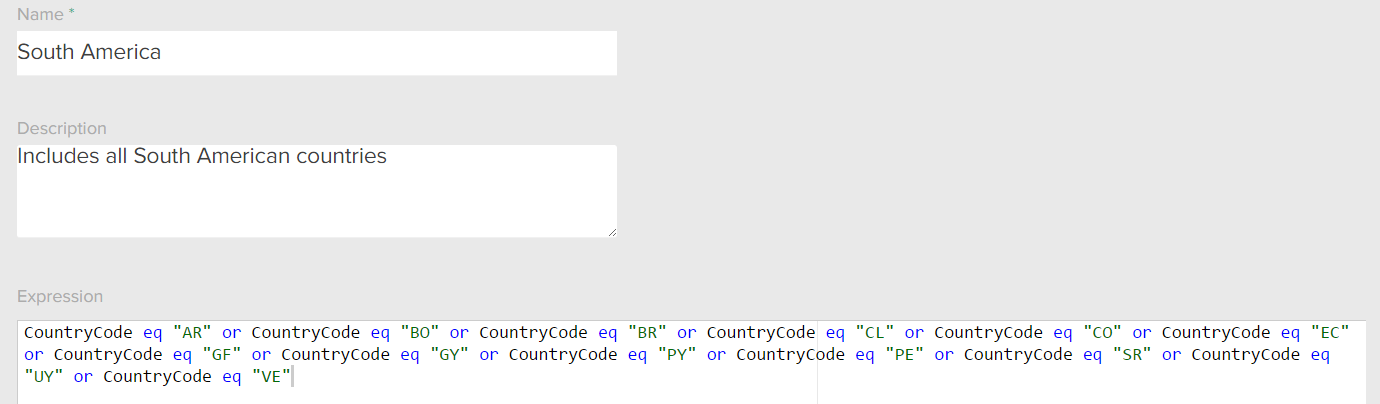
- Enter an Expression. The expression generally uses a format based on country codes, such as CountryCode eq “AR”.
- Click Save.
Shipping Zone Expressions
Expressions apply to a shipment’s destination address. You can use the following properties in custom expressions:- CountryCode
- CityOrTown
- StateOrProvince
- PostalOrZipCode
- AddressType
- Address1
- Address2
- Address3
- Address4
Zone Example
For example, you want to create shipping zones for your sporting goods stores: one for the lower 48 US states and one for all countries in South America. You enter the following expression for the lower 48 US states zone: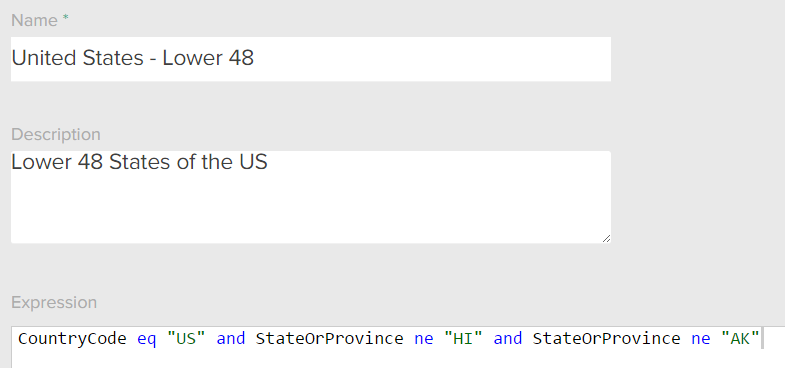
Expression: