Create Shipping Methods
- Go to System > Settings > Shipping > Methods.
- Select the site you want to specify options for from the top bar.
- Click Add New in each one of the corresponding sections.
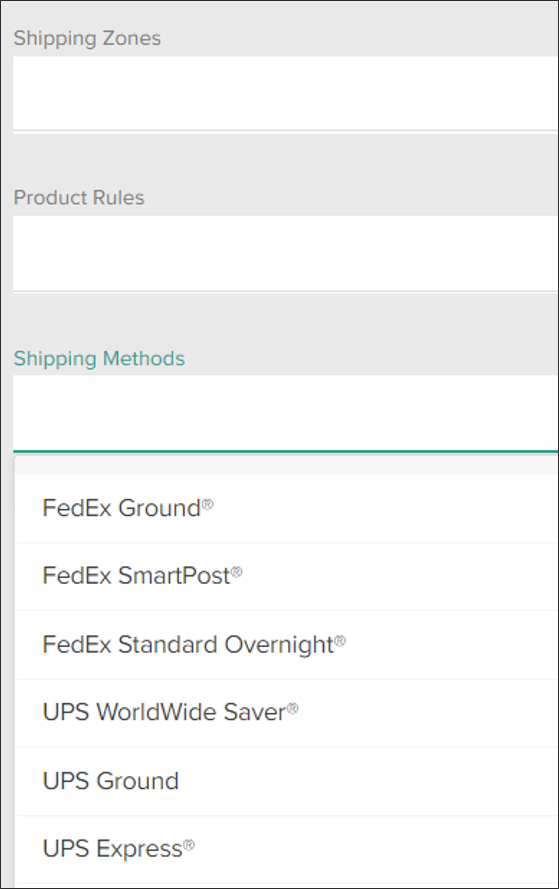
- Select all shipping zones that the configuration will be applied to from the first drop-down.
- Select any applicable product rules.
- Choose the shipping methods/service types to apply this configuration to. The drop-down menu will list all possible options that are offered by the carriers that accounts have been set up for.
- Click Save in the top right to finish creating the configuration and add it to the table.
- Drag and drop configurations in the table to reorder them and change their priority, or change priorities by clicking Edit from the drop-down menu on the far right of a configuration listing.
Handling Fee Configuration
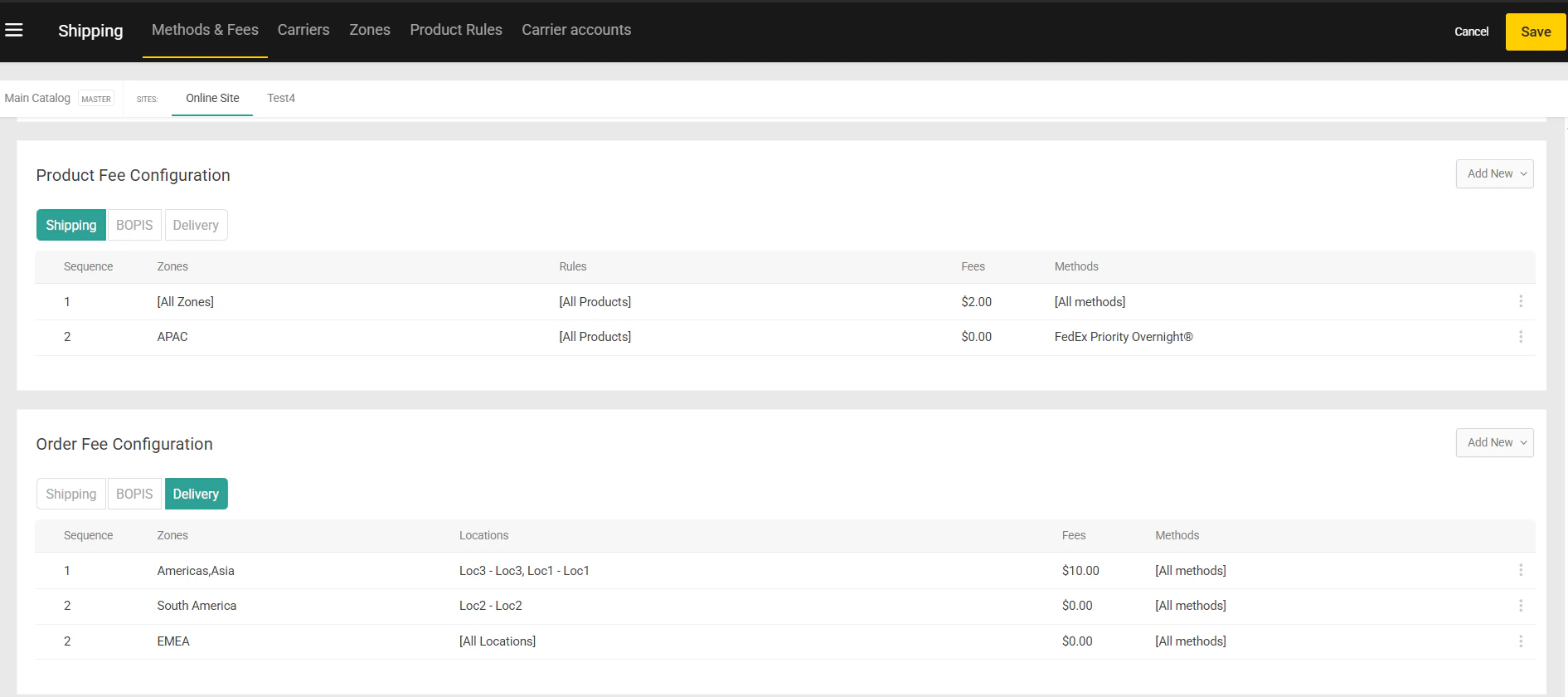
KIBO Commerce provides a flexible framework for managing product or order level handling by fulfillment type. Merchants have the flexibility to charge service/handling fees based on individual business needs. For example - Additional fees for handling perishable or fragile items.Handling Fees can be configured within Kibo Admin under the Methods & Fees tab in Shipping settings. Fees can be configured for three fulfillment types -
- Shipping (Ship-to-Home): Supports handling fees that are applied based on shipping methods.
- BOPIS: Supports pickup fees that are applied based on pickup locations.
- Delivery: Supports delivery fees that are applied based on delivery methods and locations.
Handling Fee Application and Evaluation
To accurately apply handling fees, charges are determined based on fulfillment details. KIBO identifies independent groups based on the fulfillment type and specific delivery or location details. Rules are evaluated independently for each group using a priority-based rules setup. Additionally, through ARC extensions, merchants can set handling fees at the individual group level to meet specific business requirements.Example Scenario: Location Based Pickup Fees
To see how fees are applied per group, consider a merchant with the following Order Fee handling setup for BOPIS:- Rule 1 (High Priority): A $50.00 handling fee for Store Austin.
- Rule 2 (Lower Priority): A standard $3.00 pickup handling fee for All Locations.
- Group 1 (Store Austin): Because the Toaster and Mixer are being picked up at the same location, they belong to the same group and are placed in the same shipment. This group matches Rule 1, so a $50.00 fee is applied to the shipment.
- Group 2 (Store Texas): This is a separate group and a separate shipment containing the Blender. It does not match Rule 1 but matches the standard Rule 2, so a $3.00 fee is applied to this shipment.
Order Admin UI
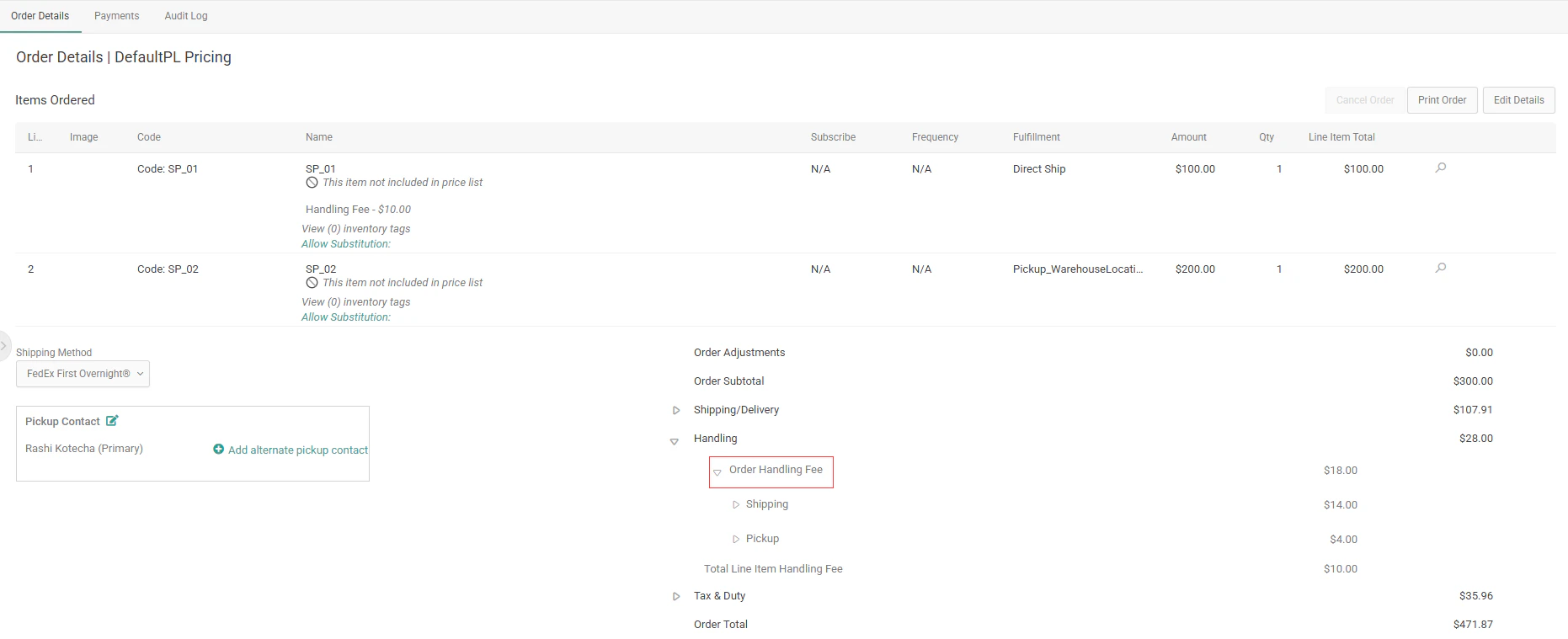
The Order Admin UI provides a consolidated view of all applied fees on the order:- Consolidated Line Item Handling Fees: All individual item-level fees on the order are aggregated into a single field labeled Total Line Item Handling Fee.
- Order Handling Fee Breakdown: The Order Handling Fee field can be expanded using a caret (▸) to show subtotals by fulfillment type: Shipping, Pickup, and Delivery. Further expansion reveals individual group names—such as a specific store or carrier method—and their contributing amounts.