

Overview
Watch: Search Term Redirects
Learn how to configure search term redirects
Navigation
To access from the home page, click MAIN in the left-hand navigation, click Sell and then Search, and then click Term Redirects.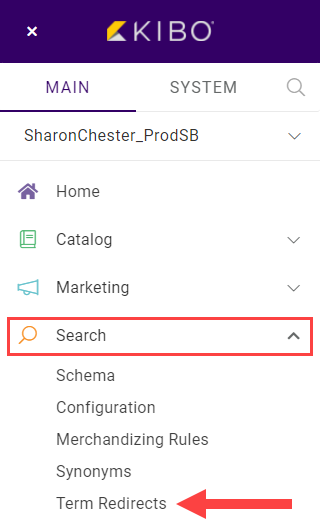
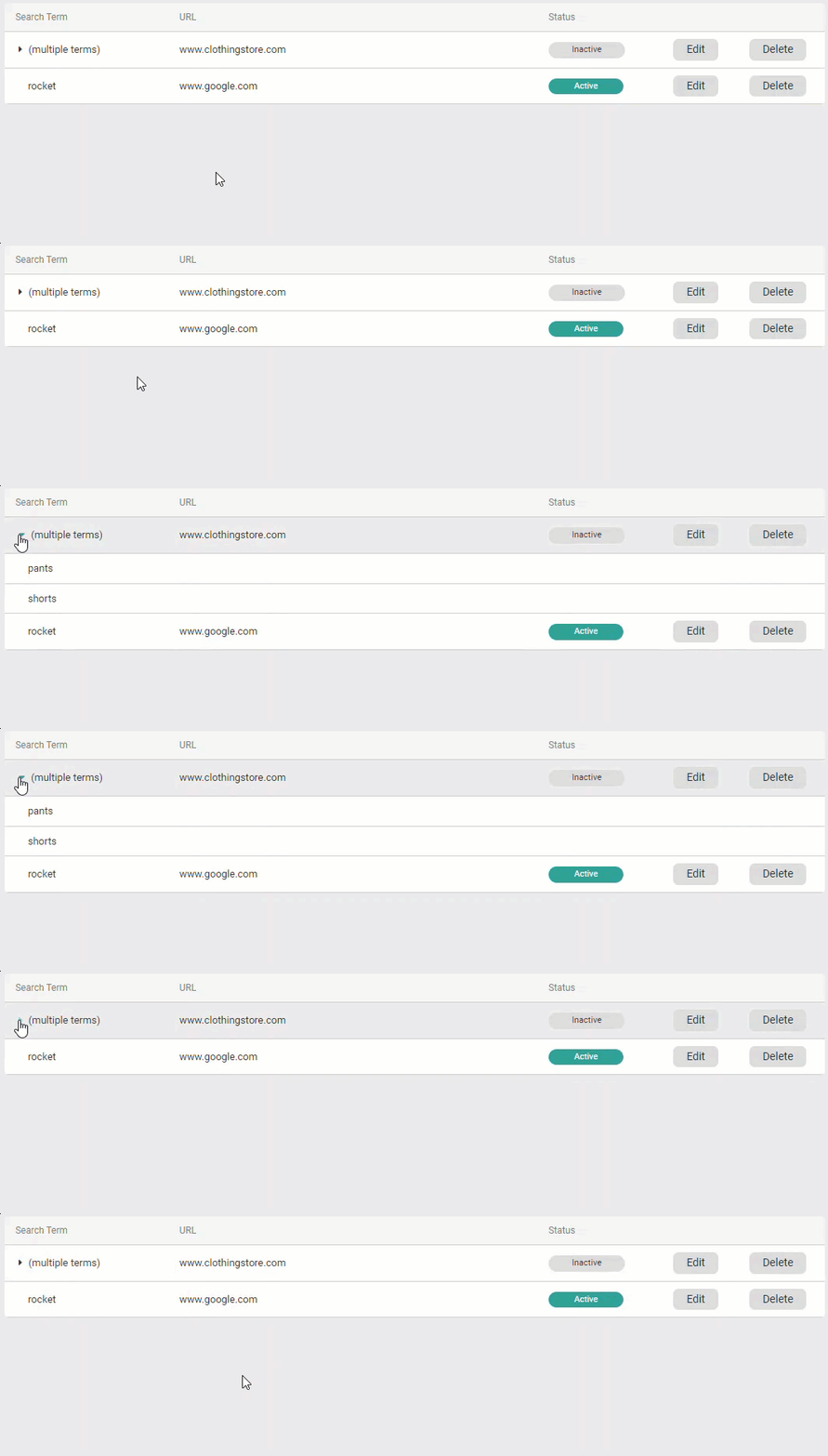
List Entries
Like other configurations, Search Redirects are controlled inside of a catalog/site combination.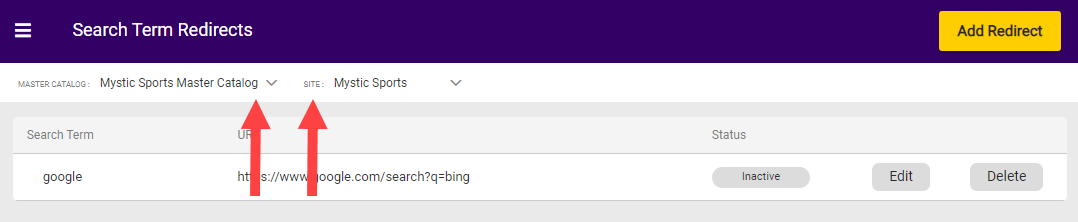


Creating Redirects
- Click Add Redirect.

- Enter one or more search terms or phrases. Press Enter after each one. Enter the URL to which those terms should redirect. Click Done.
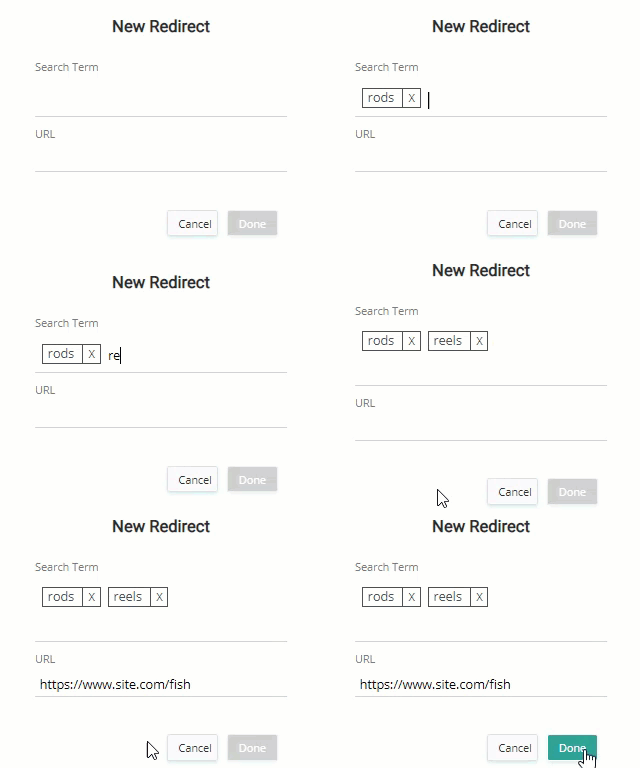 The redirect URL is exact match and case insensitive.
 - To delete a search term, click the X next to it.
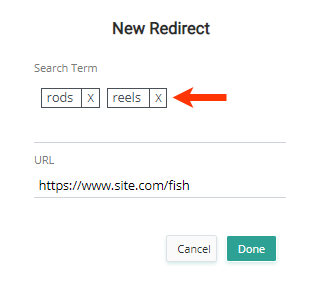
- The modal will close and the new redirect entry will appear in the list.
Unique Redirects
Within the catalog and site configuration, search redirects must be unique. Search terms may not be duplicated in the same redirect. URLs cannot be used in more than one redirect. The following errors will be displayed for each case. The duplicated term(s) or URL will be shown at the end of the error message. Repeating a search term:

Import/Export Redirects
You can use the Import/Export tool to update search term redirects by uploading a CSV file, or download a file with your current data. The CSV file should contain the following four columns:- Site Name
- Redirect ID
- Populate this value to update an existing redirect, or leave it blank to insert a new entry.
- Search Term
- A list of search terms, with each term in quotes and separated by a comma.
- URL
- Status
- Either “active” or “inactive” to indicate the status of the redirect.

Export Redirects
To perform an export:- Go to Main > Marketing > Import/Export if you have the application installed.
- Select the Export tab in the modal that appears.
- Select Search Term Direct from the Export type.
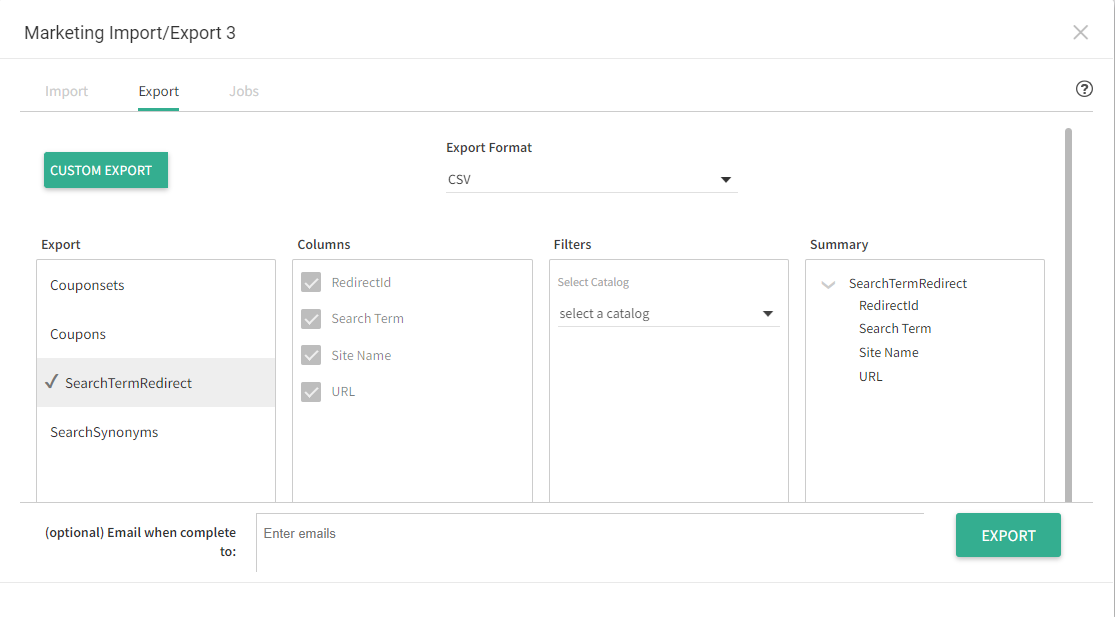
- Optional: Select a catalog to filter your data by.
- Optional: Enter one or more email addresses in the Email when complete to: section. If no email addresses are selected, then the file will be directly downloaded to your computer.
- Click Export in the bottom right.
Import Redirects
To perform an import:- Go to Main > Marketing > Import/Export if you have the application installed.
- Select the Import tab in the modal that appears.
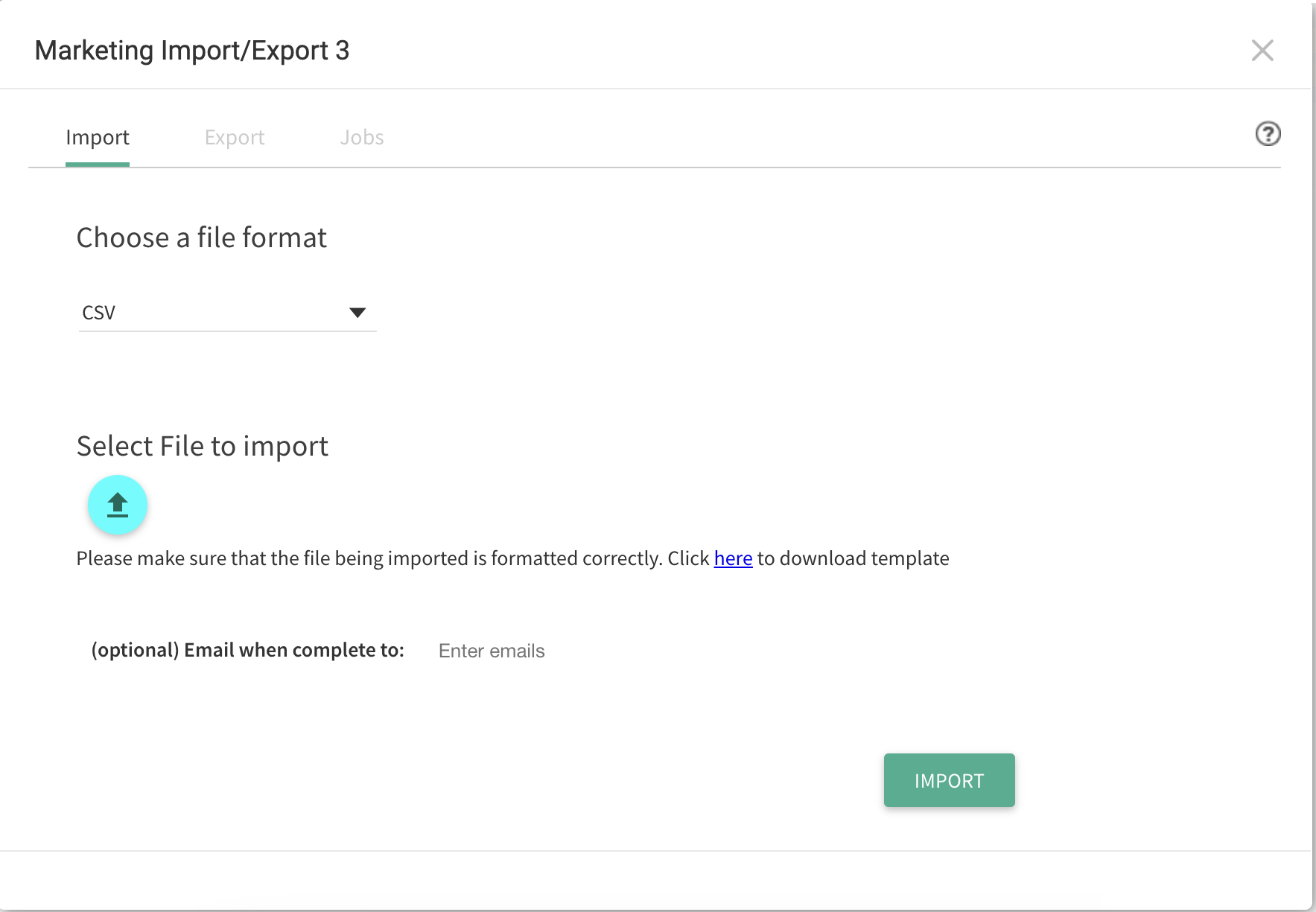
- Select CSV as the file format.
- Click the import icon to select a file from your file manager.
- Optional: Enter one or more email addresses in the Email when complete to: section.
- Click Import in the bottom right.