

Enable Multi-Locale Catalogs
As of May 2024, this feature is available out-of-the-box for all new implementations. If your implementation was built prior to May 2024, then you are using the previous version of the Product API without localized content and will need to contact Kibo Support to be upgraded if you want to use it. Once upgraded, calls to the Products, Attributes, Categories, and Discounts APIs will requirelocalizedContent by default. If you need to manage older product data that hasn’t been rewritten to the new model, include an x-api-version header set to “1” in your API request. This will call the original version of the API that supports your existing products without localization.
Locale-Specific Configurations
Setting up multi-locale catalogs is done as part of your standard catalog and site settings:- When creating a master catalog, select a default locale code and then indicate all other supported locales.
- Create a child catalog and select one of the supported locales from the master catalog.
- Create a site and select one of the supported locales from the master catalog.
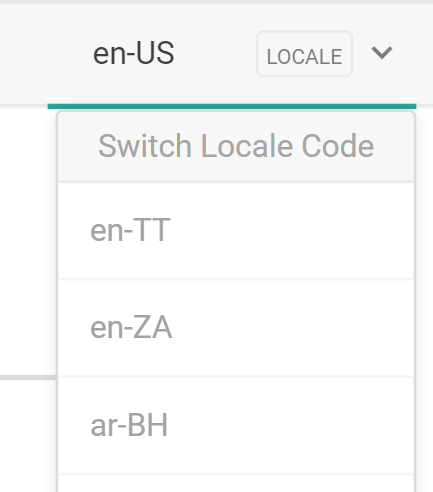
localizedContent object will contain these details for each locale. See the Catalog Admin API documentation for product, attribute, category, and discount request models with this object.
Locale Overrides
If you need two child catalogs within the same master catalog that are the same locale (such as en-US), you can use overrides to specify product and SEO content settings for each catalog.- Go to System > Structure > Catalogs.
- Expand the drop-down menu for a master catalog and click Edit.
- In Supported Catalog Override Locales, enter the locales you want to configure overrides for. This must be formatted as the language code followed by the child catalog ID, such as en-1 and en-12.
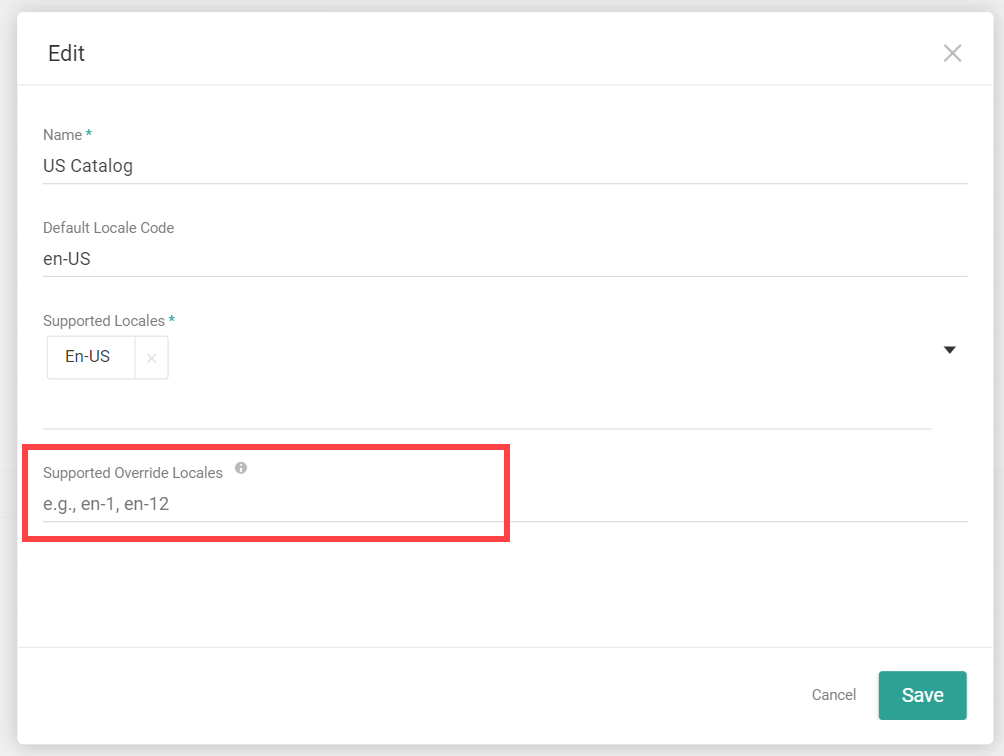
- Click Save.
- Go to Main > Sell > Products.
- Ensure you have the appropriate master catalog selected at the top.
- Click the product you want to edit.
- Switch to the specific locale and catalog you want to override using the drop-down selector.
- Toggle on Override global under the General and/or SEO settings header. You can toggle this off at any point to remove overrides.
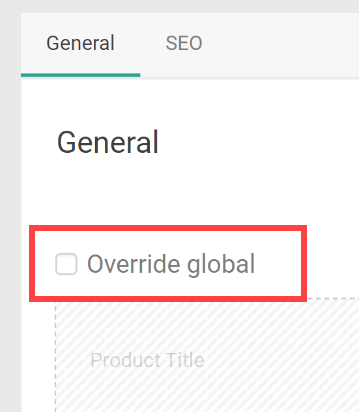
- Click Yes when prompted to confirm. This will make that section editable.
- Enter the product and/or SEO settings. Note that properties cannot be overridden, so they are hidden on the UI.
- Click Save.