Watch: Categories Overview
Get an introduction to categories in Kibo
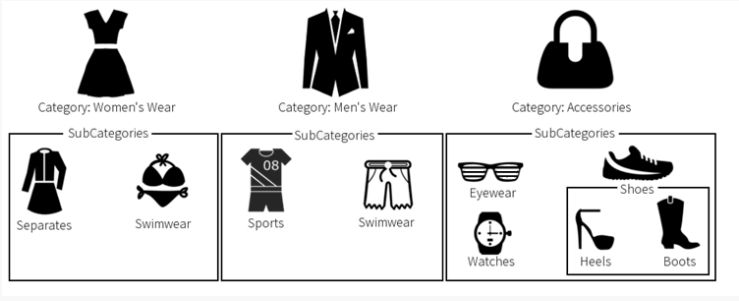
- Women’s
- Men’s
- Accessories
- Separates
- Swimwear
Category Types
Kibo eCommerce allows you to create three types of product categories:- Static: Allow you to manually specify the individual products that belong to them. To do this, assign the category for each individual product in its product settings.
- Dynamic precomputed: Allow you to specify dynamic expressions that control the products that belong to them. The product membership is calculated when products are indexed in the catalog.
- Dynamic realtime: Allow you to specify dynamic expressions that control the products that belong to them. The product membership is calculated in realtime and on demand when a shopper navigates to the realtime category page.
Refer to Dynamic Category Expressions for more information about the two types of dynamic categories and creating expressions for them.
View Types
Refer to Tree View for more information about this view. |
| Grid | The Grid view shows your categories in a flat list, regardless of hierarchy or relationship. This is useful to quickly view a total list of all your categories, and you can use this view to search, sort, and filter categories.
Refer to Grid View for more information about this view. |
Tree View
The Tree view shows your categories hierarchically organized, as well as loads categories incrementally as needed. This is useful to quickly view the relationships between categories, such as parent-child relationships:

View Sub-Categories
When a category has sub-categories (children), the parent category has a caret icon next to it. You can click the caret to expand the parent category and view its sub-categories: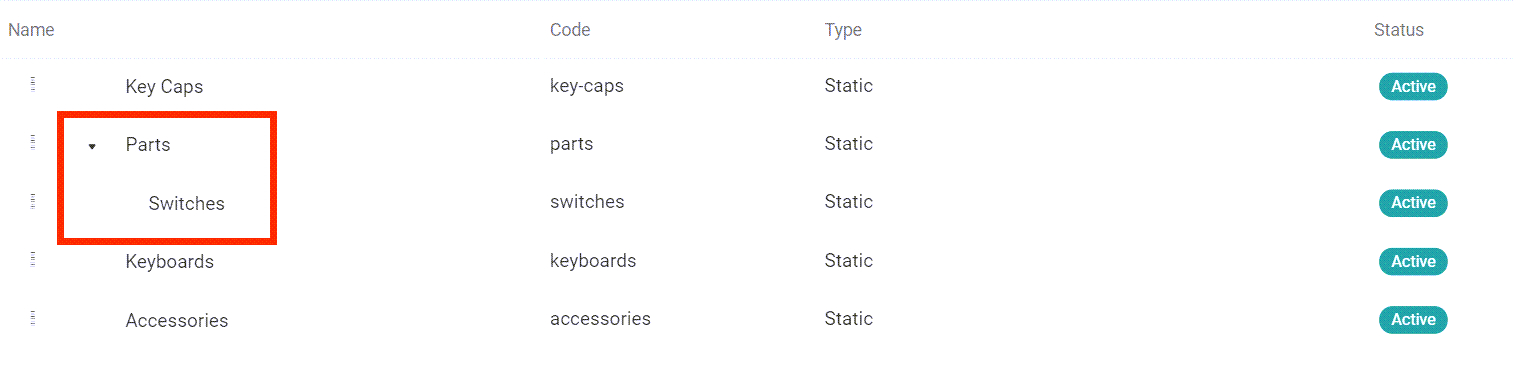
Show/Hide Disabled Categories
The Tree view automatically hides disabled categories; however, you can still show disabled categories in the Tree view by expanding the menu to the right of the tree icon and clicking Show Disabled:
Drag and Drop
This view supports drag and drop capabilities, so you can quickly change parent child relationships in the category tree.Grid View
The Grid view shows your categories in a flat list, regardless of hierarchy or relationship: