Watch: Dynamic Categories
Learn how to create and manage dynamic categories
Visual Expression Builder
The visual expression builder allows you to visually create groups and conditions that specify the details of your expression. A group specifies whether any or all of the conditions within it need to evaluate as True in order for products to be added to the dynamic category. A condition contains an expression field, an operator, and a value, for example Product code is equal to BLUE-SHIRT.Add a Group
To add a group:- Under the Expression section, expand the actions menu and select Add Group.
- Specify whether Any or All of the conditions in the container must be True by clicking Edit. Any acts like an or, and All acts like an and. For example, you have a condition that includes the categories Prada and Women’s. If you specify Any, any products that belong to the Prada or the Women’s category will be included in the dynamic category. However, if you specify All, only products that belong to both the Prada and Women’s categories will be included in the dynamic category.
Add a Condition
To add a condition:- Under the Expression section, expand the actions for the applicable group and select Add Condition.
- Select a condition Field.
- Select an Operator.
- Specify a Value.
Add an Existing Condition to a Group
To add an already existing condition to a group, click and drag the condition into the desired group.Advanced Expression Editor
The advanced expression editor allows you to manually write either JSON equivalent text or plain text to create the expression. To create or edit an expression manually:- In the Expression section, click Advanced.
- In the Advanced Edit Expression window, select either the JSON view or the Text view to write your expression.
Preview the Expression Results
Before saving the dynamic category, you can preview the results of the expression. This gives you the opportunity to view the products that will be included in the dynamic category before saving the category. When previewing the results of the expression, you can specify the site and either the Live or Staged version of the site. If your product publishing settings are set to Live for a catalog, you can only preview the live matching results. To view both the live and staged matching results, you need to set your product publishing settings to Staged. Refer to Publishing Settings for more information about setting your product publishing settings. Only products that appear on your storefront are returned in the preview expression results. If, for whatever reason, including out of stock, a product does not appear on your storefront either currently or on the staged preview date then it will not appear in either the live or staged preview expression results. To preview the results of an expression:- Under the Expression section, click Preview.
- In the Preview Expression modal, the results of the expression are shown in the Preview grid on the right.
- Select the Site you wish to preview products for as well as the site’s State. Tip: If you select Staged as the site’s state, you can specify the date you wish to preview. This allows you to preview the products that will be included in the dynamic category on the specified date.
- If the product results do not match your desired results, you can edit the expression using the Expression frame on the left.
- If you edit the expression in the Preview Expression modal and you wish to save your changes, click Done. Otherwise, click Cancel to disregard any changes and close the Preview Expression modal.
Expression Fields
When you write a dynamic category expression, you define values for the supported fields in order to build out the expression. Refer to the following table for the supported expression fields and their operators:Precomputed and Realtime Categories
Manual Editor
ProductCode | EQ (is equal to)
NE (does not equal)
IN (is one of the following) | String | No | | Visual Expression Editor
Product name Manual Editor
ProductName | EQ (is equal to)
CONT (contains)
NE (does not equal) | String | No | | Visual Expression Editor
Category code Manual Editor
Categories.CategoryCode (Precomputed categories can reference other precomputed categories; however, Kibo eCommerce recommends limiting the amount of precomputed categories the parent precomputed category references.) | EQ (is equal to)
REQ (is equal to and includes child categories)
NE (does not equal)
IN (is one of the following, does not recursively include selected child categories). | String | No | | Visual Expression Editor
Product Type Manual Editor
ProductTypeId | EQ (is equal to)
NE (does not equal)
IN (is one of the following) | Integer | No | | Visual Expression Editor
List price Manual Editor
Price.CatalogListPrice | EQ (is equal to)
NE (does not equal)
LT (is less than)
LE (is less than or
equal to)
GT (is greater than)
GE (is greater than or
equal to)
IN (is one of the following) | Decimal | No | | Visual Expression Editor
Sale price Manual Editor
Price.CatalogSalePrice (This field refers to the sale price of a product entered on the product page in Admin.) | EQ (is equal to)
NE (does not equal)
LT (is less than)
LE (is less than or
equal to)
GT (is greater than)
GE (is greater than or
equal to)
IN (is one of the following) | Decimal | Yes | | Visual Expression Editor
Days available in catalog Manual Editor
DaysAvailableInCatalog This field is calculated using the First Available Date field in the product properties. | EQ (is equal to)
NE (does not equal)
LT (is less than)
LE (is less than or
equal to)
GT (is greater than)
GE (is greater than or
equal to)
IN (is one of the following) | Integer | No | | Visual Expression Editor
Fulfillment types supported Manual Editor
FulfillmentTypes
Supported | EQ (is equal to)
NE (does not equal)
IN (is one of the following) | String
Valid values: “DirectShip”, “InStorePickup”, “Digital” | No | | Visual Expression Editor
Weight Manual Editor
Measurements.Package
Weight.Value | EQ (is equal to)
NE (does not equal)
LT (is less than)
LE (is less than or
equal to)
GT (is greater than)
GE (is greater than or
equal to)
IN (is one of the following) | Decimal | Yes | | Visual Expression Editor
Height Manual Editor
Measurements.Package
Height.Value | EQ (is equal to)
NE (does not equal)
LT (is less than)
LE (is less than or
equal to)
GT (is greater than)
GE (is greater than or
equal to)
IN (is one of the following) | Decimal | Yes | | Visual Expression Editor
Width Manual Editor
Measurements.Package
Width.Value | EQ (is equal to)
NE (does not equal)
LT (is less than)
LE (is less than or
equal to)
GT (is greater than)
GE (is greater than or
equal to)
IN (is one of the following) | Decimal | Yes | | Visual Expression Editor
Length Manual Editor
Measurements.Package
Length.Value | EQ (is equal to)
NE (does not equal)
LT (is less than)
LE (is less than or
equal to)
GT (is greater than)
GE (is greater than or
equal to)
IN (is one of the following) | Decimal | Yes | | Visual Expression Editor
Attribute Property Manual Editor
properties. This field is based on the available product properties and uses the fully-qualified name (FQN) of the property. | The supported operators of this field are dependent on the selected property. | The value of this field is dependent on the selected property’s value. | Yes |
Realtime Categories Only
Manual Editor
Price.SalePrice (this field refers to the post discount price of a product.) | EQ (is equal to)
NE (does not equal)
LT (is less than)
LE (is less than or
equal to)
GT (is greater than)
GE (is greater than or
equal to)
IN (is one of the following) | Decimal | Yes | | Visual Expression Editor
Sale Type Manual Editor
Price.SaleType | EQ (is equal to)
NE (does not equal)
IN (is one of the following) | String
Valid values:
Catalog Sale Price
Discounted List Price
Discounted Catalog Sale Price Refer to Sale Type Values for more information about these values. | Yes |
Sale Type Values
The realtime sale type field has three different values that each apply to a product’s various sale types: Catalog Sale Price, Discounted List Price, and Discounted Catalog Sale Price. Refer to the following table for more information about each of these values and their relationship to a product’s various sale prices.
Manual Editor
CatalogSalePrice | The price specified in a product’s Sale Price field. | | Visual Expression Editor
Discounted List Price Manual Editor
DiscountedList | The product’s list price after applicable discounts are applied. | | Visual Expression Editor
Discounted Catalog Sale Price Manual Editor
DiscountedCatalogSalePrice | The price specified in a product’s Sale Price field after applicable discounts are applied. |
Expression Examples
These four examples provide visual builder and advanced editor samples for different expressions.Example 1
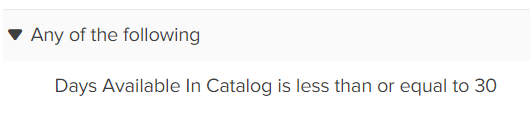
The following example shows a precomputed dynamic category expression that includes all products that have been in the catalog for 30 days or less:Visual Expression Builder
Advanced Editor: Tree View
Advanced Editor: Text View
Example 2
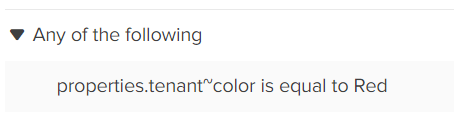
The following example shows a precomputed dynamic category expression that includes all products with the property color set to red:Visual Expression Builder
Advanced Editor: Tree View
Advanced Editor: Text View
Example 3
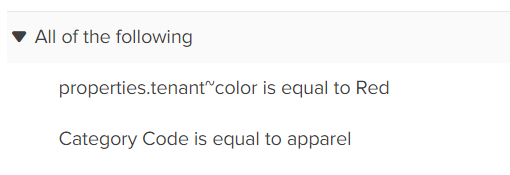
The following example shows a precomputed dynamic category expression that includes all products with the property color set to red and are in the apparel category.Visual Expression Builder
Advanced Editor: Tree View
Advanced Editor: Text View
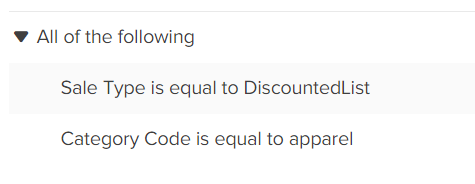
Example 4
The following example shows a realtime dynamic category expression that includes all products with a discounted sale price and are in the apparel category. You must set the Product Membership drop-down menu to Realtime in order to access the dynamic realtime fields.Visual Expression Builder