

Catalog Concepts
Learn about product catalog architecture and management
Developer Reference
See the Admin Catalog API documentation for programmatic access
Watch: Categories Overview
Get an introduction to categories in Kibo
Create a Category Attribute
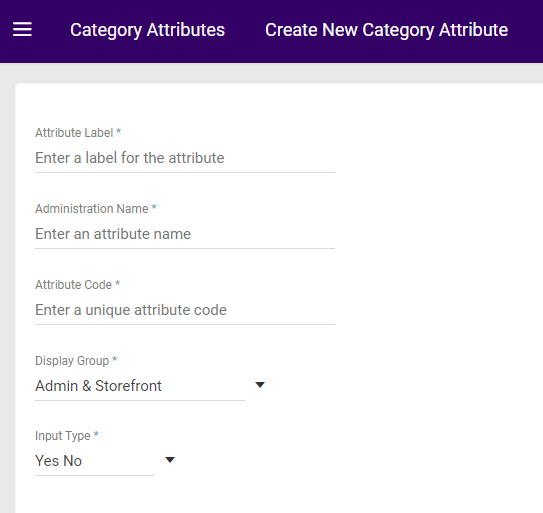
To create a category attribute:- Go to System > Schema > Category Attributes.
- Click Create New Category Attribute.
- Enter an Attribute Label that has meaning to you.
Keep in mind that it appears on the storefront if you later specify it to display there.- If you want to give it a different name for administration purposes, edit the Administration Name.
The default name is the Attribute Label. - If you want to customize the Attribute Code, edit the value accordingly.
This field automatically populates based on the Attribute Label.
- If you want to give it a different name for administration purposes, edit the Administration Name.
- Select a Display Group.
This field determines where the attribute displays: either in the Admin only, or in the Admin and on the storefront. - Select an Input Type. Depending on your selection, additional configurations may appear.
- If you choose List, select a Data Type and enter the selection options in the Values field.
- If you choose Text box, select a Data Type. Optionally, you can define input parameters in the Min char/val and Max char/val fields, or enter a regular expression in the Input validation field.
- If you choose Text area, you can optionally define a Max char value.
- If you choose Date, you can optionally define a start and/or end date for the selectable range.
- If you choose Yes/No, there are no additional configurations.
Apply a Category Attribute
To apply a category attribute:- Go to Main > Sell > Categories.
- Select the category to which you want to apply the attribute.
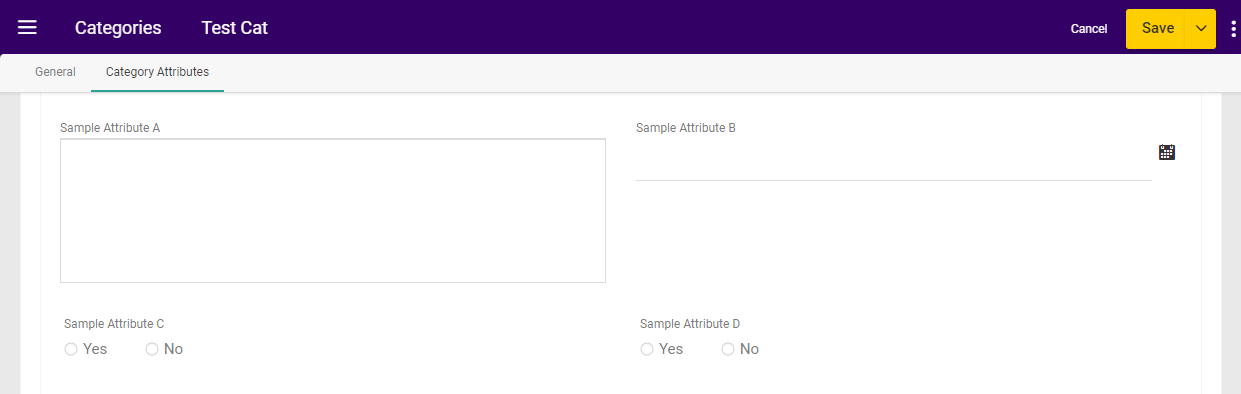
- In the Category Attributes section, all available attributes will be displayed. Select the value of your choice for any given attribute (or leave it blank if you don’t want to use it for this category). This example shows four different attributes available for a category.
Filter on Category Attributes
You can use these attributes as filters when searching categories in the Admin UI or Category APIs. At Main > Sell > Categories, use the search bar’s Advanced Filter dropdown to search for categories based on attributes. You should select both an Attribute Name and Attribute Value. The allowed input type (such as true/false or a string) will depend on the selected attribute and an error message will be displayed if you enter an invalid value.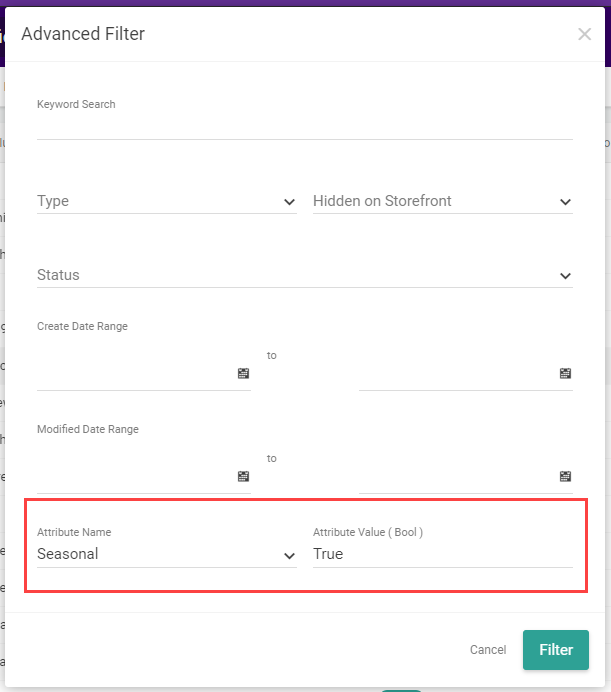
tenant~ to the attribute or leave it off and the system will automatically add it for you. This will return the same response as Get Categories, but only include categories with that attribute value.
Note that the syntax for this endpoint requires you to specify the attribute name and value at the same time. This means that your query will include three fields joined by equals (=) signs: the attribute’s fully qualified name (or attribute code), the value, and the attribute type (string, number, datetime, bool, or productCode). See the following example, querying for a “seasonal” attribute:
includeAttributes=true query parameter in order to see any attribute information in that response.