 |
| Platforms: KCCP eCommerce+OMS |
- The shipment is created and assigned to a location.
- Pick & Pack is complete, as that assures that the order is ready to be picked up by Delivery Solutions.
- Stock has been validated, or anywhere in the fulfillment flow that works best for your processes.
Delivery Fulfillment Process
After Kibo is integrated with Delivery Solutions and the storefront theme is updated, the usual order creation and fulfillment process is:- When a product is enabled for delivery fulfillment, the storefront displays the Delivery option on the product details page and the cart. To proceed with this option, at least one Kibo location must be able to fulfill the items and at least one location must be a Delivery Solutions provider.
- Available date and time windows at the Delivery Solutions location are displayed for the shopper to select their desired delivery window. If none is available, then they will not be able to continue with delivery and must choose a different fulfillment option.
- Upon checkout, a single delivery fee is charged (regardless of the amount of items in the delivery). A single Kibo order is created that contains all delivery items in one shipment, while non-delivery items are placed in their respective shipment types.
- Delivery Solutions fulfills the shipment and sends a confirmation notification to Kibo, who updates the shipment status to Delivered. If the delivery is unsuccessful, Kibo instead receives an Unable to Deliver notification and changes the shipment status to either Cancelled or Customer Care (depending on the BPM flow).
Configure Delivery Solutions
For Delivery Solutions to work seamlessly with Kibo, make sure that these are configured in your business account:- Smart Windows
- API keys for integration with Kibo
- At least one Kibo location
- Providers with rates, fees, and other options
Configure Kibo and Storefront
Ensure that the details of the Kibo fulfillment location(s) that you want to use match what you set up in Delivery Solutions. Then, configure the following:- Enable Locations for Delivery
- Enable Delivery on Existing Products
- Configure Routing Logic 5. Update Your Storefront 7. Display Custom Data in Fulfiller UI (Optional)
Enable Locations for Delivery
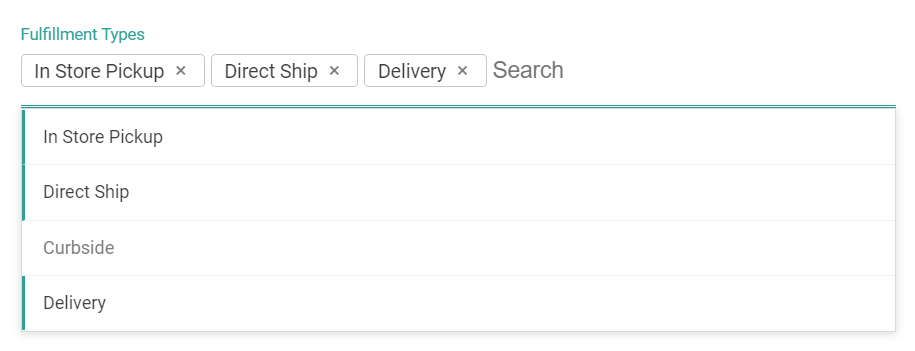
Delivery fulfillment must be configured at both the product and location level. Fulfillment locations that offer this service must have the Delivery fulfillment type enabled:- Go to Main > Supply > Locations.
- Click a location (or click Edit from the dropdown menu on that location in the table).
- From the Fulfillment Types drop-down menu, select Delivery.
- Click Save.
Enable Delivery on Existing Products
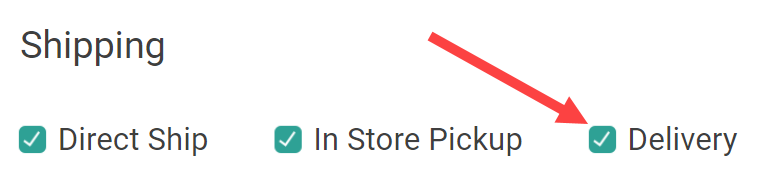
In order for a product to be purchased for delivery, that fulfillment option must also be available for the product in the catalog. To enable this option for a specific product:- Go to Main > Sell > Products.
- Click the product that will allow delivery (or click Edit from the dropdown menu on that product in the table).
- Under the Shipping section, check Delivery.
- Click Save.
Configure Routing Logic
In order to assign Delivery shipments to a fulfillment location, routing scenarios should be configured to handle shipment assignment cases in case the customer does not specify one. You can also use this to display the optimal delivery location on the storefront based on the shopper’s address. This logic will determine how a location is selected to assign Delivery shipments to, such as by prioritizing the closest distance from the shopper’s address.Update Your Storefront
This integration is available for Vercel and Next.js storefronts. You can customize this implementation by forking the Next.js and Vercel repositories as detailed in the headless implementation guides. Update your storefront’s environment variables with your new product type name and instant delivery product code, such as:Display Custom Data in Fulfiller UI (Optional)
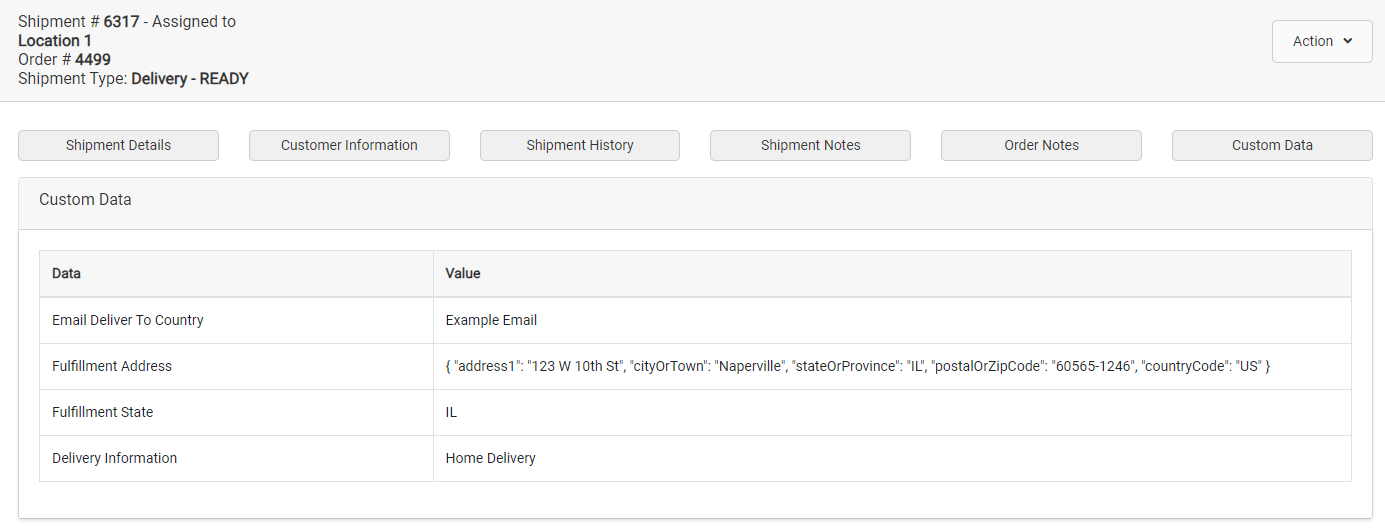
If desired, you can display shipment-level custom data fields in the Fulfiller UI by customizing the theme. For example, you could display the Dispatch Status that Kibo receives from Delivery Solutions to allow fulfiller users more visibility into the process. These will always be key:value pairs in theshipment.data object.
If custom data exists for the shipment and the theme has been customized to display it, then a Custom Data tab will be displayed when viewing the shipment fulfillment details. If no custom data values exist for that shipment, then the tab will not be displayed.