Content model creation is a two-step process: in step 1, we will create the model, and in step 2,
we will define model fields.
Step 1: Create Content Model
-
From the Side Menu, Click Content Modeling > Models.
The Content Models screen opens.
-
Click + New.
The New Content Model screen opens.
- In the Name textbox, type Product.
- In the Singular API Name textbox, type Product.
- In the Plural API Name textbox, type Products.
- In the Content model group drop-down, if you have already created a group, click that group, else click Ungrouped.
- In the Icon dropdown, click the box icon.
- In the Description textbox, type Demo Product Content Model.
- Unselect the Create model with default fields checkbox.
-
Click + Create Model.
Screen to configure the Product content model’s fields opens.
Step 2: Define fields
-
Drag and drop the Text field in the Edit tab.
Field Settings - Text screen opens.
- In the Label textbox, type Name and click Save Field.
-
Drag and drop the Long Text field in the Edit tab.
Field Settings - Long Text screen opens.
- In the Label textbox, type Description and click Save Field.
-
Drag and drop the Number field in the Edit tab.
Field Settings - Number screen opens.
- In the Label textbox, type Price and click Save Field.
-
Click Save.
The message “Your content model was saved successfully!” displays.
- Congratulations! You have created your first content model.
Additional Information
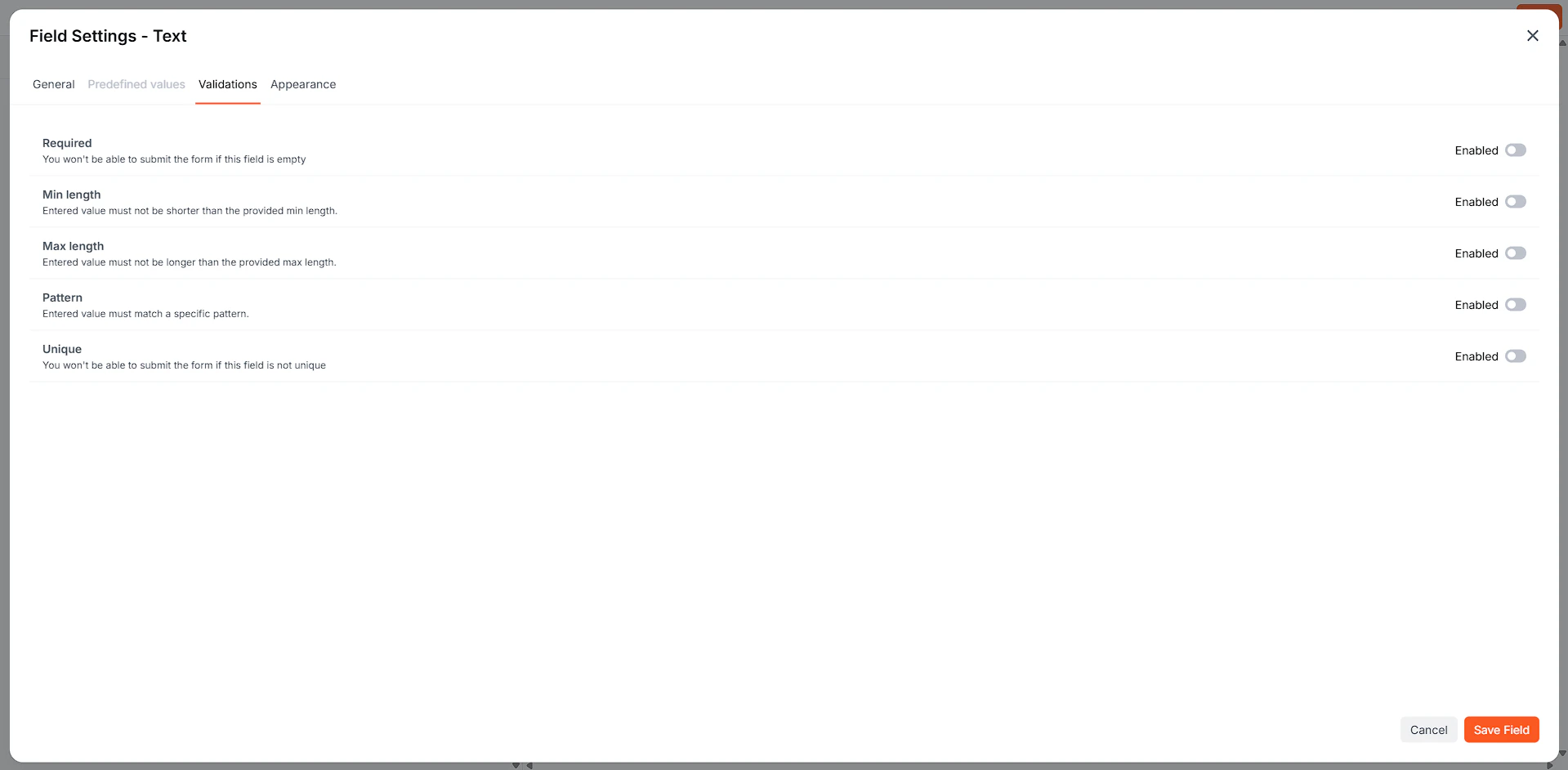
Field Validation
You can add various validations to a field from the VALIDATORS tab on the Field Settings screen. Depending on the field type, you can add different types of validations to your field.