Prerequisites
To create a content entry, the prerequisite is to have a content model. If you don’t have any content model yet, please follow this tutorial to create a content model.Create Content Entry
-
From the Side Menu, Click Content > Ungrouped > Product.
The Product content entry screen opens. OR From the Side Menu, Click Content Modeling > Models.
The Content Models screen opens.
- Hover over the Product content model.
- Click View entries.
-
Click + New Product.
The New Product entry screen opens.
- In the Name textbox, type Relaxed Sweatshirt.
- In the Description textbox, type Top sweatshirt fabric made from a cotton blend.
- In the Price textbox, type 10.
-
Click Save & Publish.
The Publish Product confirmation screen appears.
-
Click Yes, publish!
The message “Relaxed Sweatshirt was published successfully!” displays.
Field validation runs when you publish an entry, not when you save a draft. See Entry Validation below.
Additional Information
Entry Validation
Validation rules defined on a content model are enforced when an entry is published, not when a draft is saved. Clicking Save on a draft entry does not trigger validation, so a required field can be left empty and the draft will still save. This includes a Text field that has both pre-defined values and a required validator. The required-field check runs only on Save & Publish. A draft saved in an incomplete state still appears on the entries page, identified by itsobjectId#revision value rather than by the empty field.
To review or change the rules that are enforced at publish time, see Field Validation on the Create Content Model page.
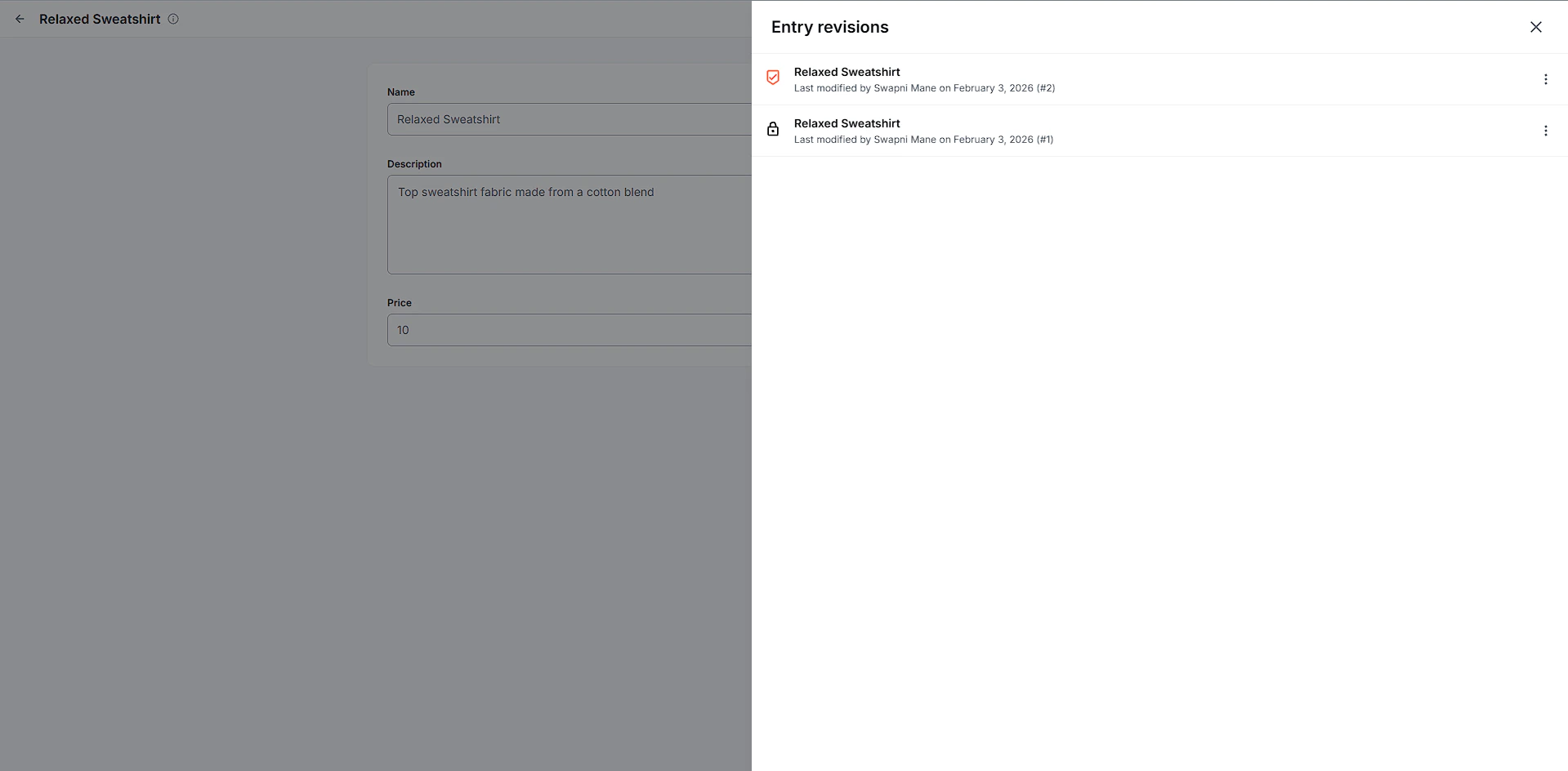
Content Revision
Every time you save any content entry, a new revision is created. You can see all the content revisions in the REVISONS tab.